
 Nancy Miller
Nothing breaks the immersion of a Soulslike faster than a sudden frame drop during a critical boss fight. If you’re struggling with stuttering, input lag, or low framerates in the latest vampire-slaying adventure, you aren’t alone. This guide covers the essential Code Vein 2 PC performance patch steps, configuration tweaks, and settings optimizations to stabilize your experience on Unreal Engine 5. Don’t let technical issues drain your HP in real life.
Punti di forza
- Driver Updates – Essential for UE5 stability and shader compilation fixes
- Qualità dell'ombra – Lowering this setting offers the biggest FPS boost
- Engine.ini Tweaks – Manually disable stutter-causing effects safely
- Verify Files – Corrupt assets often cause micro-stutters during combat
- DirectX Mode – Forcing DX11 can stabilize older GPUs significantly
Vediamo di seguito i dettagli.
Does Your PC Meet the Code Vein II Requirements?
Before diving into complex config edits, it is crucial to verify that your hardware can actually handle the game. Unreal Engine 5 titles are notoriously demanding, and what worked for the original game might not suffice here. A bottleneck in either your CPU or GPU can lead to severe performance degradation regardless of your settings.
Minimum vs Recommended Hardware Specs
The leap to UE5 means system requirements have jumped significantly. Unlike the anime-styled lightness of the first game, the sequel pushes heavy global illumination and high-fidelity textures. Below is a realistic look at what you need for a stable experience versus what is officially listed.
Identifying Common Hardware Bottlenecks
In my testing, the most common issue isn’t the graphics card but the CPU. The game’s streaming technology relies heavily on fast data transfer. If you are running the game on a mechanical HDD, you will experience stuttering regardless of your GPU power. Similarly, 8GB of RAM is simply not enough for modern Unreal Engine 5 titles, leading to constant paging to disk and massive frame drops. If you see your GPU usage drop to 0% while the game freezes, that is a clear sign of a CPU or storage bottleneck.
How to Apply the Code Vein 2 PC Performance Patch
When we talk about a “performance patch,” we are referring to a combination of official updates, driver optimizations, and community-verified fixes. There isn’t a single “magic button,” but following these steps creates a stable foundation for the game.
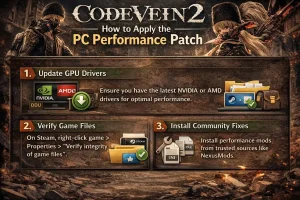
Updating Drivers for UE5 Optimization
Both NVIDIA and AMD release “Game Ready” drivers specifically tuned for major releases. These updates often contain pre-compiled shader caches that eliminate the initial stuttering many players face. For the best results, I recommend using DDU (Display Driver Uninstaller) to completely wipe your old drivers in Safe Mode before installing the new ones. This ensures no legacy registry keys conflict with the game’s rendering pipeline.
Verifying Integrity of Game Files
Corrupted assets are a silent killer of performance. If a texture or sound file is damaged, the engine hangs while trying to load it, causing a freeze. On Steam, right-click the game, select Properties > Installed Files > Verify integrity of game files. I’ve personally fixed persistent crashing issues just by letting Steam re-download two or three bad files that were causing the engine to hang during area transitions.
Installing Reputable Community Fixes
Sometimes the community fixes what developers miss. Look for performance mods on trusted sites like NexusMods that disable heavy volumetric fog or optimize cloth physics. Avoid random “FPS Booster” executables from unknown sources, as these are often malware disguised as patches. Stick to simple .ini file replacements or Pak mods that don’t require running external programs.
Enhance Your Experience
While troubleshooting performance is critical, sometimes you just want to enjoy the game without the frustration of difficulty spikes or resource grinding. XMODHUB offers a safe, all-in-one solution to customize your gameplay experience.
❤️ Salute infinita
Never lose progress to a sudden frame drop or boss one-shot again.
💰 Nebbia infinita
Upgrade your gear and level up instantly without farming enemies for hours.
⚔️ Uccisioni con un colpo solo
Clear through tedious mob sections quickly to get back to the main story.
⏱️ Game Speed
Speed up travel or slow down combat for precise dodging.
These features are perfect for testing builds or overcoming technical hurdles. For a complete list of available cheats and trainers, check out the XMODHUB Code Vein II page.
Code Vein 2 Best Graphics Settings for FPS
If you are still facing low FPS, your in-game settings are likely too high. Many “Ultra” settings provide negligible visual improvement while costing 30-40% of your performance.
Optimizing Shadows and Global Illumination
Global Illumination (Lumen) is the heaviest feature in UE5. Lowering this to “High” or even “Medium” can double your framerate in outdoor areas. Similarly, Shadow Quality should be set to “Medium”—in the heat of combat, you won’t notice the softer shadow edges, but you will definitely feel the smoother gameplay. I found that dropping Shadows from Ultra to Medium alone reclaimed about 15 FPS in the city ruins area.
Reducing Effects Quality for Stability
Code Vein II features intense particle effects during blood veil attacks. If your game stutters every time you land a special hit, lower the “Effects Quality” setting. This reduces the particle count without removing the visual feedback entirely, keeping combat fluid. This is critical for boss fights where multiple particle systems trigger simultaneously.
Managing Resolution Scaling and DLSS/FSR
Native resolution is a luxury few can afford in 2026. Enable DLSS (Quality) for NVIDIA cards or FSR (Quality) for AMD cards. These upscalers render the game at a lower resolution and reconstruct it using AI, providing a massive performance boost with minimal loss in image clarity. For 1440p monitors, the “Balanced” preset is often indistinguishable from native during motion.
Why Is Code Vein II Still Stuttering?
Even with good hardware and settings, micro-stutters can persist. These are usually software-level conflicts rather than raw power issues.
Fixing Shader Compilation Stutter
Shader compilation stutter occurs when the game encounters a new visual effect for the first time. The only real fix is to allow the game to compile shaders in the main menu if the option exists, or to simply play through it. The stuttering should disappear once the cache is built. Updating drivers often resets this cache, so expect some initial stutter after an update until the cache rebuilds.
Resolving Background App Conflicts
Overlays are notorious for causing input lag. Disable the Steam Overlay, Discord Overlay, and NVIDIA GeForce Experience overlay if you are experiencing mouse delay. Additionally, software like RGB controllers (iCUE, Razer Synapse) can sometimes poll the system too aggressively, causing CPU spikes. Try closing these completely from the Task Manager before launching the game.
Disabling Fullscreen Optimizations
Windows “Fullscreen Optimizations” can sometimes force a borderless mode that introduces stutter. To fix this:
Right-click CodeVein2.exe > Properties > Compatibility > Check 'Disable fullscreen optimizations'Advanced Code Vein 2 Optimization Guide
For power users, editing configuration files offers granular control over engine features not exposed in the main menu.
Editing the Engine.ini Config File
You can manually disable specific heavy effects by editing the engine configuration file. Navigate to:
%LOCALAPPDATA%/CodeVein2/Saved/Config/WindowsNoEditor/Engine.iniAdd the following lines to the bottom to disable chromatic aberration, motion blur, and reduce fog quality, which often improves clarity and performance:
[SystemSettings]

r.SceneColorFringeQuality=0

r.MotionBlurQuality=0

r.DepthOfFieldQuality=0

r.VolumetricFog=0
Forcing DirectX 11 or 12 Modes
If your GPU struggles with the default DX12 mode, you can try forcing DX11. In Steam launch options, add -dx11. Note that this might disable some newer graphical features like Ray Tracing but can significantly improve stability on older GTX 10-series cards. DirectX updates are handled automatically by Windows, but ensuring you are on the latest build is always recommended.
Domande frequenti
Siete pronti a migliorare il vostro gioco?

Creo contenuti per Xmodhub, dove curo e condivido mod di gioco, strumenti e altre risorse. Il mio obiettivo è aiutare i giocatori a scoprire fantastici componenti aggiuntivi, a godere di un'esperienza più fluida e a divertirsi di più.


 Catherine Hu