
 Catherine Hu
To fix AI LIMIT – Eirene’s Furnace of War stuttering when casting spells, you must force the Unreal Engine to pre-compile shaders by editing your configuration files, clear your Windows DirectX Shader Cache, or cap your maximum frame rate to free up GPU headroom.
Andare a %LOCALAPPDATA%\AILimit\Saved\Config\WindowsNoEditor, open Engine.ini, and append the asynchronous shader compilation commands. If your frame rate still drops to zero the exact moment you cast heavy visual spells like Abyssal Flame, use the XMODhub PC Client’s engine optimizer to force Windows to assign High CPU Priority to the game’s rendering thread.
Experiencing severe frame drops right as you use magic or Bladework skills is the most infuriating technical issue in action RPGs. This is a classic Unreal Engine pipeline state object (PSO) caching failure, meaning your PC is trying to build the visual effects for the spell in real-time instead of loading them from memory.
In this guide, we will show you exactly how to edit your engine files to fix this stutter, how to clean out corrupted caches, and how to use memory tools to stabilize your combat experience.
Ti potrebbe interessare anche: AI LIMIT – Eirene’s Furnace of War Cheat Engine Table vs. XMODhub: Best Free Trainer (2026)
Editor’s View: The “Shader Compilation” Death Sentence
“As players dive deeper into the late-game combat of AI LIMIT – Eirene’s Furnace of War, the community has widely reported severe frame time spikes specifically tied to heavy magic and particle effects.”
“The Unreal Engine 4 pipeline struggles to compile these visual assets on the fly. While we await an official optimization patch, the manual cache adjustments outlined below are the only proven ways to stabilize your frame rate during intense boss fights.”
Why Does Casting Spells Cause Massive Stuttering?
If your game runs perfectly at 60+ FPS while exploring, but suddenly freezes for a split second the moment you or an enemy casts a massive area-of-effect spell, you are experiencing “Shader Compilation Stutter.”
When you trigger a specific magical effect for the very first time in AI LIMIT – Eirene’s Furnace of War, the game’s engine (Unreal Engine 4) forces your CPU to instantly compile the complex math required to render those fire, lightning, or volumetric particle effects. Because the game did not pre-compile these shaders at the main menu, your CPU briefly bottlenecks, halting the entire game for half a second. In a fast-paced action game where dodging and parrying require millisecond precision, this micro-stutter is completely unacceptable and often leads to unfair deaths.
Method 1: The Engine.ini Asynchronous Shader Tweak
The most permanent way to fix the AI LIMIT – Eirene’s Furnace of War stuttering when casting spells is to tell the Unreal Engine to process these heavy visual effects in the background (asynchronously) rather than halting the game to load them.
How to edit your configuration file:
- Ensure the game is completely closed.
- Premere il tasto Windows Key + R, tipo
%LOCALAPPDATA%\AILimit\Saved\Config\WindowsNoEditor, e premere Invio. - Find the file named
Engine.ini, right-click it, and open it with Notepad. - Scroll to the very bottom of the text document and create a new line.
- Paste the following commands exactly as written:
[SystemSettings]
r.CreateShadersOnLoad=1
r.CompileShadersForDevelopment=0
niagara.CreateShadersOnLoad=1 - Save the file and close Notepad. Your initial game load time might be slightly longer, but your spell casting will be buttery smooth.
Method 2: Purge the DirectX and NVIDIA/AMD Cache
If the stuttering only happens with specific spells that used to work fine, your graphics driver might be trying to read a corrupted shader file stored on your hard drive. You need to force the driver to rebuild it.
How to clear your shader cache:
- Premere il tasto Windows Key, tipo Disk Cleanup, and run it as Administrator.
- Select your primary
C:drive. - Check the box for DirectX Shader Cache (uncheck everything else) and click OK to delete.
- For NVIDIA Users: Open the NVIDIA Control Panel, navigate to Manage 3D Settings, find Shader Cache Size, set it to Disabled, apply, then set it to 10 GB or Driver Default and apply again.
- Launch AI LIMIT – Eirene’s Furnace of War. Cast your spells a few times in a safe area to let the engine rebuild the clean cache before entering a boss arena.
Method 3: Cap Your FPS to Create GPU Headroom
If your GPU is running at 99% utilization just to render the basic environment of Eirene’s Furnace, it has zero processing power left over when you suddenly cast a massive particle effect like Crimson Surge. This instantly causes a severe stutter.
- Open your in-game Graphics Settings.
- Find the Max Frame Rate o FPS Limit option.
- If you normally average 80 FPS, cap your frame rate to 60 FPS.
- This artificially limits your GPU usage to around 70-80%, leaving a 20% “headroom” buffer. When you cast a heavy spell, the GPU can instantly tap into that reserved power to process the shader without dropping frames.
Method 4: The Developer Console Myth
When dying to a stutter for the tenth time, many PC players scour forums for a way to open the developer console, hoping to type an Unreal Engine command like r.ShaderTweaks to fix the lag instantly in-game.
Because AI LIMIT – Eirene’s Furnace of War is a packaged retail build, the developers have stripped out the native command console. Pressing the tilde key will do nothing. You cannot input text commands to dynamically alter how the game renders particles.
Furthermore, you cannot manually edit your save file to bypass rendering issues. Modifying your binary save data in the SaveGames folder will result in an immediate corruption error. To manipulate how the game utilizes your CPU and memory safely, you must rely on a verified external injector.
The Ultimate Solution: Optimize and Survive with XMODhub
If you have edited your .ini files and cleared your cache, but the unoptimized visual effects in the Eirene Region are still causing your PC to choke during critical combat moments, you are at a severe disadvantage.
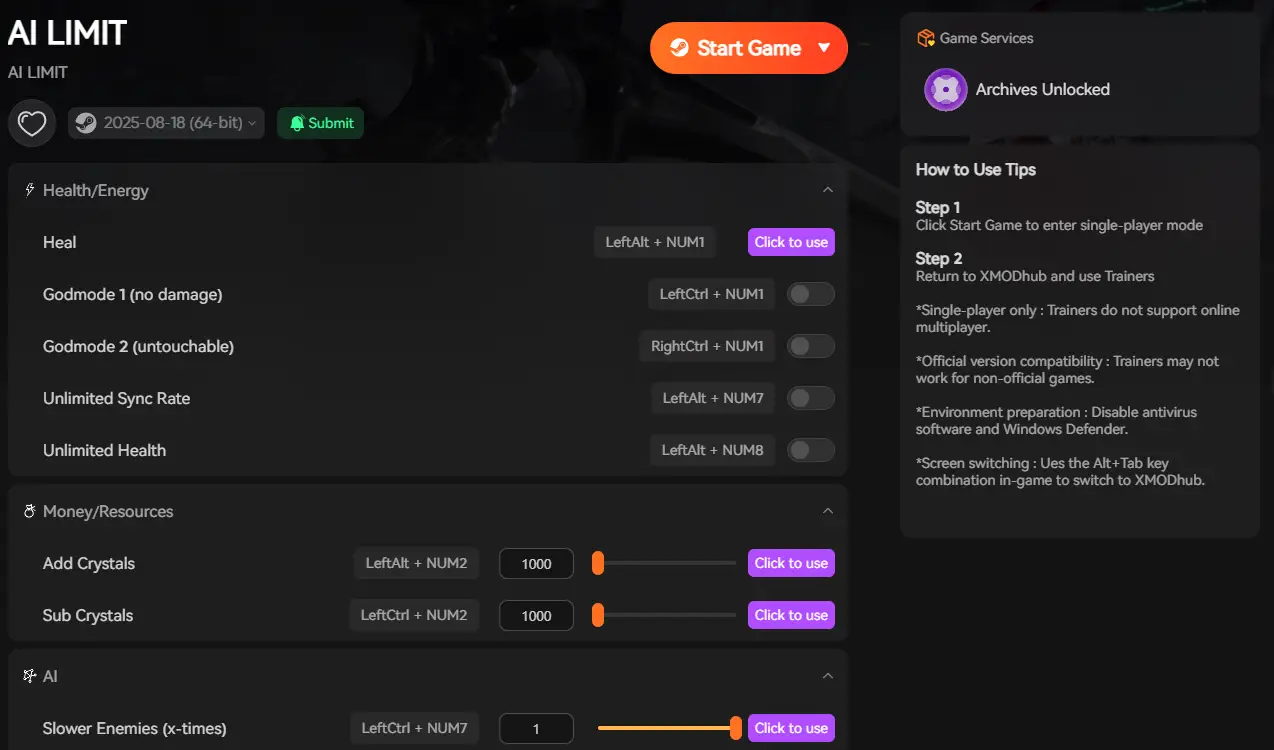
When the native game engine’s poor optimization gets you killed, the XMODhub PC Client gives you the tools to fight back and stabilize your gameplay.
How XMODhub Fixes Your Combat Experience:
- Engine Performance Optimizer: Launch AI LIMIT – Eirene’s Furnace of War directly through the XMODhub dashboard. Our client automatically forces Windows to assign absolute maximum High CPU/GPU Priority to the game’s rendering thread. This prevents Windows background tasks from stealing processing power the exact moment you cast a spell.
- God Mode (Stutter Survival): If a specific boss fight is a stuttering mess due to overlapping magic effects, toggle our “God Mode” or “Infinite Health” feature. Survive the unfair frame drops without taking damage, get past the unoptimized boss, and turn it back off when you reach a stable area.
- Game Speed Adjustment: Use the Speedhack tool to slightly slow down the overall game speed to 0.8x during heavy magic combat. This gives your CPU extra milliseconds to process the shader queues, effectively eliminating the stutter.
How to Get Started:
- Download XMODhub: Grab the secure, ad-free PC client directly from our official website.

- Auto-Detect Game Path: Launch the app to instantly map out your AI LIMIT – Eirene’s Furnace of War installation.
- Activate the Trainer: Launch the game via our dashboard. Press the hotkey to open the overlay, activate the performance optimizer, or toggle God Mode to survive the engine’s worst frame drops.
Frequently Asked Questions (FAQ)
Q: Why does the game only stutter the very first time I cast a new spell?
A: This is the definition of shader compilation stutter. The Unreal Engine is encountering the visual effect for the very first time and pausing the game to write the instructions to your hard drive. Once it is cached, subsequent casts of the same spell in that session should be smooth.
Q: Will installing AI LIMIT – Eirene’s Furnace of War on an SSD fix the casting stutter?
A: It drastically reduces the severity of the stutter, but it will not completely eliminate it. An NVMe SSD allows the engine to write and read the newly compiled shaders much faster than an HDD, shortening a 1-second freeze down to a barely noticeable micro-stutter.
Q: Can I turn down particle effects to stop the lag?
A: Yes. Lowering the “Effects Quality” or “Post-Processing” in the graphics menu reduces the complexity of the shaders the engine has to compile, which significantly lessens the CPU spike when casting magic.
Conclusione
Dying to a boss because of a hardware stutter rather than a lack of skill is a miserable experience. The Unreal Engine’s real-time shader compilation is a known flaw, especially when action RPGs like AI LIMIT – Eirene’s Furnace of War demand split-second reaction times. By editing your Engine.ini file, clearing corrupted caches, and capping your frame rate, you can force the engine to handle your spells smoothly.
However, if the developers’ lack of pre-compiled shaders is ruining your playthrough, you don’t have to suffer through the lag. The XMODhub PC Client provides a seamless bypass, letting you optimize your CPU threads for maximum stability or simply enable God Mode to survive the engine’s unfair hiccups. Master your magic and dominate the Furnace of War without limits.
Think Bigger: XMODhub is the ultimate gaming companion for hardcore PC players. With native support for over 5,000 titles, we provide performance optimizers, real-time Visual Spawners, and combat modifiers to ensure you conquer every game in your library.

Sono un giocatore appassionato e uno scrittore di XMODhub, che si dedica a fornire le ultime notizie, consigli e approfondimenti sui giochi.
Collegatevi con me:
Profilo LinkedIn
 Nancy Miller