
 Catherine Hu
To apply the AI Limit save data corrupted fix, navigate to %LOCALAPPDATA%\AILimit\Saved\SaveGames on your PC. Delete the corrupted SaveData.sav file, locate the most recent backup file ending in .bak, and simply rename it to SaveData.sav to restore your progress.
This corruption usually occurs when Steam Cloud sync interrupts the Unreal Engine 5 auto-save sequence during a crash. If your backup files are also corrupted and your 40-hour playthrough is permanently wiped, use the XMODhub PC Client Save Manager to instantly inject a community-verified save file matching your exact progression point.
Losing dozens of hours of perfectly timed parries, hard-earned Crimson Cores, and meticulously upgraded Bladeworks is enough to make anyone uninstall the game. Because AI Limit features a punishing difficulty curve, losing your progression feels like a fatal blow.
In this guide, we will show you exactly how to dive into your local Unreal Engine folders to rescue your lost data, how to pull emergency backups from the Steam Cloud, and how to use external save managers to rebuild your character if the native files are completely dead.
Ti potrebbe interessare anche: AI Limit Controller Not Working PC Fix (PS5/Xbox Guide)
Editor’s View: The Checkpoint Tragedy
“I was 45 hours into my first playthrough. I was standing right outside the final boss arena in Eirene’s Furnace, sorting my inventory. The game stuttered, crashed with a UE4 Fatal Error, and when I restarted, my save slot was entirely blank. I stared at the screen for ten minutes in pure disbelief.”
“Unreal Engine 5 compiles saves into a highly compressed binary format; if the game crashes during the exact millisecond it writes that file, the data is shredded. Thankfully, I found the .bak file hidden in the LocalAppData folder and only lost about 20 minutes of progress. But the fear of it happening again made me immediately switch to a dedicated save manager. Relying solely on Steam Cloud for a game this difficult is a massive gamble.”
Method 1: The Local .bak File Rename (Fastest Fix)
The Unreal Engine is actually somewhat forgiving. Every time it writes a new auto-save, it keeps the previous save state and renames it as a .bak (backup) file. If your primary save is corrupted, this hidden backup is your lifeline.
How to restore your backup save:
- Close the game and ensure Steam is not synchronizing.
- Premere il tasto Windows Key + R to open the Run dialog box.
- Type
%LOCALAPPDATA%\AILimit\Saved\SaveGamesand press Enter. - You will see your corrupted save, usually named
SaveData.savor a long string of numbers ending in.sav. Move this file to your Desktop (do not delete it yet, just in case). - Look for the file named
SaveData.bak(or the equivalent string ending in.bak). - Right-click the
.bakfile, select Rename, and change the.bakextension to.sav. - Launch AI Limit. The game will read the backup as your main file, dropping you at the previous checkpoint.
Method 2: Retrieve the Steam Cloud Backup
If your .bak file was overwritten during a crash loop, you might still be able to pull a clean save directly from Steam’s remote servers before the corrupted local save uploads and overwrites it.
How to pull from the cloud:
- Open your web browser and go to the official Steam Remote Storage page.
- Log in with your Steam account.
- Scroll down your list of games until you find AI Limit and click Show Files.
- You will see a list of every save file Steam currently holds for you. Look at the timestamps. Download the
SaveGamesfile that predates your crash. - Drop this downloaded file into your
%LOCALAPPDATA%\AILimit\Saved\SaveGamesfolder, replacing the corrupted one.
Method 3: Disable Steam Cloud Synchronization (Prevention)
The primary cause of the AI Limit save data corrupted error is a conflict between the Unreal Engine’s auto-save trigger and Steam’s cloud sync trying to upload the file at the exact same moment.
To prevent this from ever happening again:
- Open your Steam Library.
- Cliccare con il tasto destro del mouse AI Limit and select Proprietà.
- Nel Generale tab, find the Steam Cloud section.
- Toggle the switch to Spento.
- You will now rely entirely on local saves. We highly recommend manually backing up your
SaveGamesfolder to a separate drive after every major play session.
Method 4: The Hex Editor Myth (Unreal Engine Facts)
When a save file corrupts, many veteran PC gamers download tools like HxD (a hex editor) or Notepad++, hoping to open the .sav file, find the corrupted line of code, and manually stitch the file back together.
Do not waste your time trying this. Because AI Limit runs on Unreal Engine 5, the save files are serialized binary data, not plain text. If you open SaveData.sav in a text editor, it looks like absolute gibberish. Changing even a single character in a hex editor will completely destroy the file’s checksum, guaranteeing it will never load again.
Furthermore, there is no developer console in the release build of AI Limit. You cannot open a command prompt and type recover_save. If both your .sav and .bak files are destroyed, that specific progression is dead. To recover your lost time, you must use an external save injector.
The Ultimate Solution: Rebuild Your Progression with XMODhub
If your local backups are gone and Steam Cloud already synced the corrupted file, you are facing the prospect of replaying 30 hours of grueling combat just to get back to where you were. You don’t have to do that.
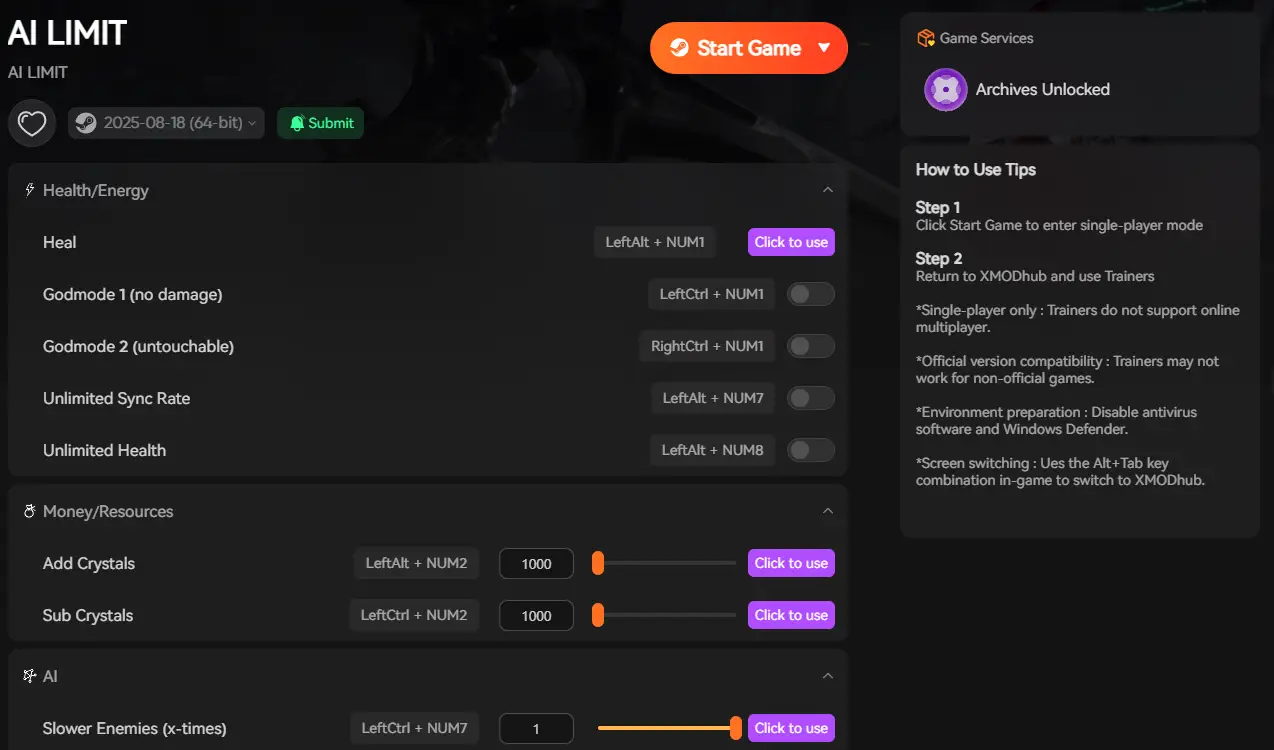
Il XMODhub PC Client provides the ultimate disaster recovery toolkit, allowing you to bypass the grind and instantly restore your hard-earned progress.
How XMODhub Saves Your Playthrough:
- Safe Save Manager (Community Saves): Open the XMODhub dashboard and browse our database of verified AI Limit save files. We categorize them by region and boss kills. Simply select “Eirene Region – Pre-Furnace Warden”, click Inject, and your game will instantly load at that exact progression point.
- Visual Spawner (Restore Lost Gear): If the community save doesn’t have your specific build, use our Visual Spawner. Open the in-game overlay and instantly grant yourself the exact Bladeworks, Crimson Cores, and armor sets you lost in the corruption.
- God Mode & Speedhack (Boss Rush): If you insist on playing from a brand new save, turn on God Mode, One-Hit Kill, and 2x Game Speed. You can sprint through the first half of the game, annihilating bosses in seconds, safely restoring your 30-hour progression in less than an hour.
How to Get Started:
- Download XMODhub: Grab the secure, ad-free PC client directly from our official website.

- Auto-Detect Game Path: Launch the app. It will instantly map out your AI Limit installation and local save pathways.
- Inject or Adjust: Navigate to the dashboard to inject a community save file, or launch the game with the Visual Spawner overlay to manually rebuild your lost inventory.
Frequently Asked Questions (FAQ)
Q: Can a blue screen of death (BSOD) cause AI Limit save corruption?
A: Yes. If your entire PC crashes due to a hardware fault or power outage exactly when the Unreal Engine is writing the auto-save to your SSD, the file will be incomplete and permanently corrupted.
Q: Why does the game say “Failed to Load Save Data” but my file is still there?
A: The file exists, but its internal binary structure is broken. The game engine reads the file header, realizes the data doesn’t match the expected checksum, and aborts the load to prevent the game from crashing.
Q: Does reinstalling the game fix corrupted saves?
A: No. Reinstalling the game only replaces the core installation files in your Steam folder. It does not touch your personal %LOCALAPPDATA% save directory. You must use the .bak rename method or download a cloud backup.
Conclusione
Staring at a corrupted save screen in a massive action RPG is a uniquely painful experience. The collision between Unreal Engine 5’s aggressive auto-save system and external cloud synchronization can be deadly to your progression. By locating your .bak files, utilizing the Steam Remote Storage web interface, and disabling automatic cloud sync, you can usually apply the AI Limit save data corrupted fix and rescue your hard work.
However, if your files are truly beyond saving, do not force yourself to grind through the early game again out of frustration. The XMODhub PC Client provides a seamless safety net. Inject a verified community save, use the Spawner to recreate your exact build, or activate combat modifiers to rush back to your rightful place in Eirene’s Furnace. Play on your own terms, and never let a technical glitch steal your time.
Think Bigger: XMODhub is the ultimate gaming companion for hardcore PC players. With native support for the most demanding Unreal Engine titles, we provide safe Save Managers, real-time Visual Spawners, and God Mode toggles to ensure you conquer every game in your library safely.

Sono un giocatore appassionato e uno scrittore di XMODhub, che si dedica a fornire le ultime notizie, consigli e approfondimenti sui giochi.
Collegatevi con me:
Profilo LinkedIn
 Nancy Miller