Catherine Hu
Let’s speak player to player. You build your ideal D&D 5e party and launch Solasta 2 ready for tactical combat—but the screen turns black and the game gets stuck in an infinite loading loop.
Even after fixing the crash, the strict 5e rules can be brutal: a Natural 1 ruins a perfect Sneak Attack, or your Wizard burns all Spell Slots in the first fight and is forced to spam cantrips while you repeatedly quick-save and reload.
This guide shows how to fix the Solasta 2 black screen and infinite loading bug, and then introduces XMODhub—a tool that lets you bypass punishing RNG, unlock infinite magic, and control your adventure on your own terms.
Solasta II: Cheat Engine Table vs. XMODhub Trainer (Best Free Alternative)
🛠️ TL;DR: How to Fix the Solasta 2 Black Screen
If you are stuck in an endless loading loop, try these direct fixes immediately:
➤
Use the Alt+Enter Shortcut: Unity Engine games often hang when transitioning between borderless windowed and fullscreen modes. Pressing Alt + Enter simultaneously forces the renderer to refresh and often instantly bypasses the black screen.
➤
Delete Corrupted Auto-Saves: An infinite loading screen is frequently caused by a corrupted auto-save file trying to load a broken grid state. Navigate to your local AppData folder and delete the most recent auto-save.
➤
Verify Integrity of Game Files: A missing environmental asset will cause the loading bar to freeze. Go to your game library, right-click Solasta 2, select Installed Files, and click Verify.
Where to Find the Solasta 2 Save File Location
When troubleshooting an infinite loading screen, your first step should always be to back up your manual saves. You need to delete any corrupted auto-saves that might be trapping your party in a broken instance.
C: driveUsers folderAppData folderLocaleBassoTactical AdventuresSolasta 2Inside this directory you will see the SaveFiles folder.
- ➤Copy the SaveFiles folder to your desktop as a backup.
- ➤Locate the most recent AutoSave.
- ➤Delete the corrupted auto-save file.
This prevents the game from repeatedly loading a broken save state.
How to Clear the Unity Engine Cache for Solasta 2
Sometimes the black screen is not caused by a bad save. Instead, it is caused by corrupted temporary shader files created during a previous crash.
Unity stores graphical data inside the DirectX shader cache. If these files break, the engine can fail to render scenes correctly, leaving players stuck on a black screen.
- ✦Press the Windows Key
- ✦Type Disk Cleanup
- ✦Select your primary drive
- ✦In the file list, check DirectX Shader Cache
- ✦Click OK to remove the files
- ✨Restart your PC
- ✨Launch the game again
This forces the Unity engine to rebuild all shader assets from scratch.
Bypass Solasta 2 Intro Videos to Prevent Startup Freezes
Many players report encountering a black screen immediately after launching the game, before the main menu appears. This problem usually occurs because the game fails to decode the developer intro videos.
You can bypass the issue by renaming the video files.
- ➤Open your Solasta 2 installation folder
- ➤Locate the
StreamingAssetsdirectory - ➤Aprire la sezione
Videosfolder - ➤Find the startup intro files
- ➤Rename them by adding a number to the end of the file name.
intro_logo.mp4
// Rename to:
intro_logo_1.mp4
Once renamed, the game will skip loading those videos and proceed directly to the main menu.
The Real Campaign Killer: D&D 5e RNG and Rules
Once you finally load past the black screen, the real battle against the ruleset begins.
Even with the perfect party composition, the D20 dice system has absolutely no mercy. Consider a typical situation. You enter a high-stakes dialogue sequence. If you pass an Intimidation check, you bypass a lethal boss fight that could drain your entire party’s resources. Your character has a massive charisma modifier. You confidently roll the dice. Natural 1. Automatic failure.
The encounter triggers. Your party wipes. You reload the last save. This artificial difficulty destroys the pacing of the campaign. Another example is the infamous “15-minute adventuring day.”
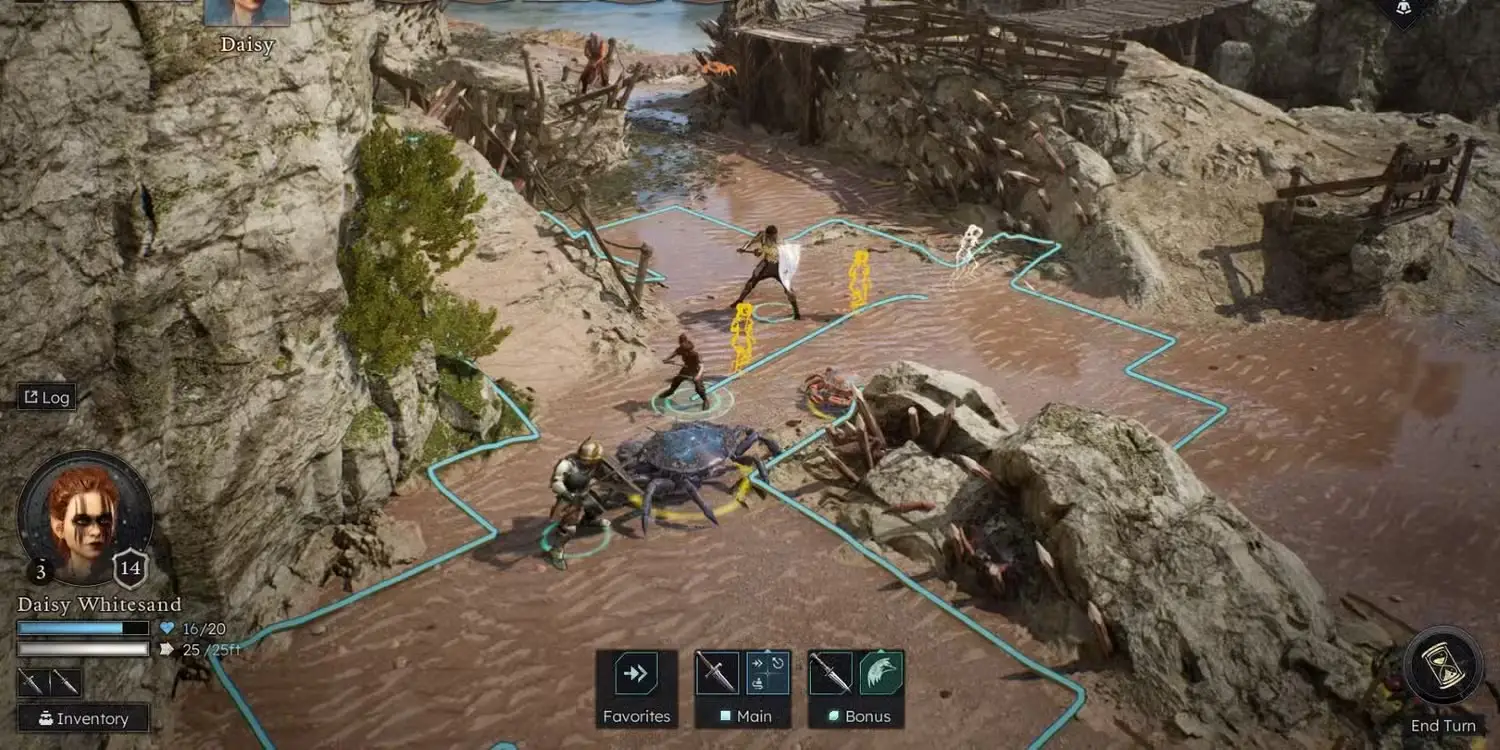
Your Wizard unleashes a powerful area-of-effect spell to survive a brutal encounter. It feels amazing. But the dungeon still contains four more battles.
Because your Wizard has no remaining Spell Slots, your legendary archmage becomes almost useless. Now they stand in the backline casting weak cantrips, dealing minimal damage while you desperately search for a place to Short Rest or Long Rest.
To recover your magic, you must consume food rations and interrupt the flow of the adventure.
Safe Modding: Why XMODhub Beats Traditional .pak Files
Many players attempt to solve the brutal RNG problem by downloading traditional .pak mods from forums. However, these mods directly overwrite files on your hard drive. This creates serious risks:
- ❌Game updates overwrite modified files
- ❌Custom maps conflict with altered assets
- ❌Hotfix patches break mod compatibility
The result is often hard crashes or permanently corrupted save files.
Instead of modifying your installation files, it uses a clean memory trainer that interacts with the game’s active RAM.
- ✦Your save data remains safe
- ✦Game updates do not break the tool
- ✦Crashes caused by file conflicts are avoided
- ✨Always Roll 20 — guarantee critical success on attack rolls and dialogue checks
- ✨Infinite Spell Slots — unleash powerful spells without resting
- ✨Max Attributes — bypass the painful 4d6 reroll process during character creation
Instead of suffering through endless RNG punishment, you become the true Dungeon Master of your campaign.
How to Use XMODhub for Solasta 2?
Getting started with XMODhub is simple and safe. Follow these steps:

Download the official XMODhub desktop application from the verified homepage and install it on your PC.
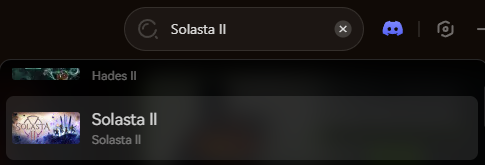
Launch the client and use the search bar to locate Solasta 2. The software automatically detects your game installation directory.
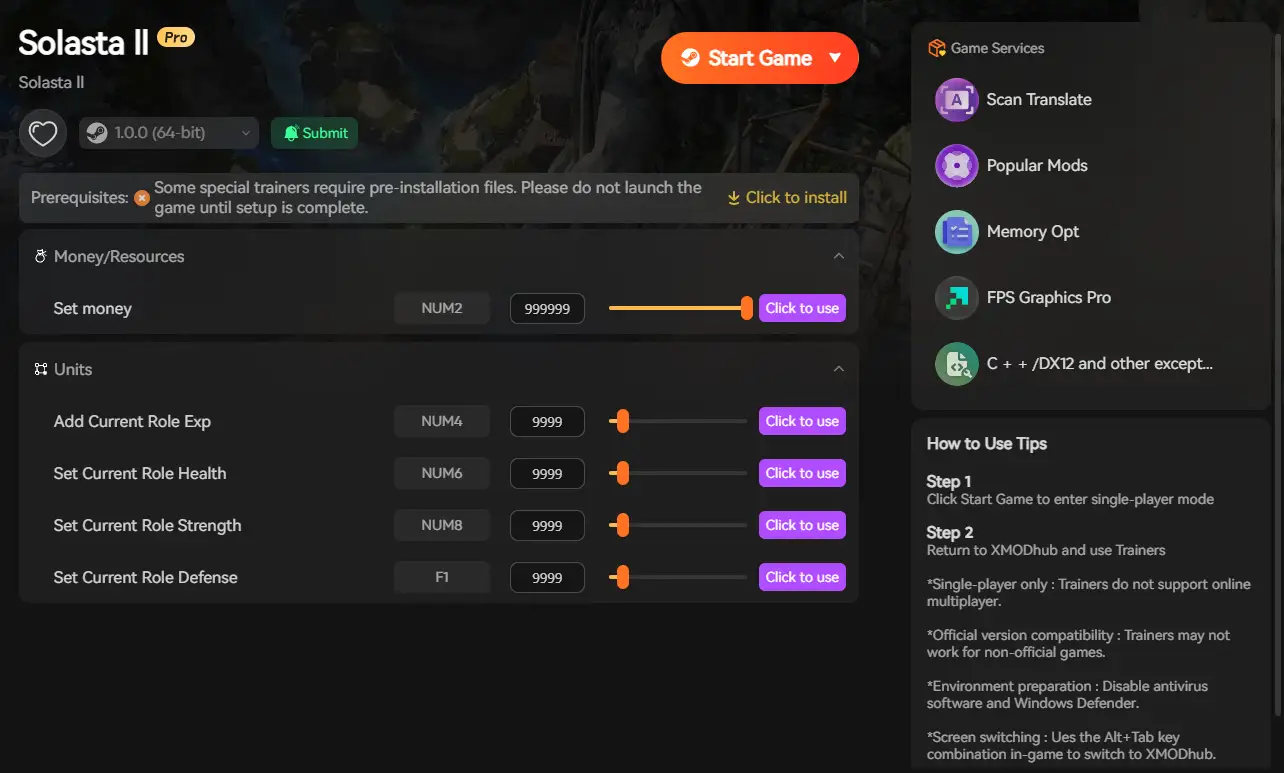
Click the Play button inside the XMODhub interface. This connects the trainer to the game’s memory in real time. Once you are in-game, simply toggle your desired features to activate them instantly.
Conclusion: Protect Your Campaign
Your Solasta 2 adventure should be about epic battles, clever tactics, and unforgettable stories—not endless loading screens or corrupted saves. Fixing the black screen bug is only the first step.
By using a clean memory injector like XMODhub, you protect your campaign while gaining the ability to bypass the most frustrating parts of the D&D ruleset.
Stop wasting time on save-scumming and broken loading screens.
Take full control of your campaign and become the ultimate Dungeon Master today.
Related Posts:
➤
Solasta 2 Cheats & Trainers: Always Roll 20 & Max Stats (2026) | XMODhub
➤
Solasta 2 Ultimate Beginner’s Guide: D&D 5e Rules Explained (2026) | XMODhub
➤
Top 20 Best Solasta 2 Mods (UI, Classes & Custom Maps) | XMODhub
➤
Solasta 2 Dungeon Maker Guide: Best Custom Campaigns (2026) | XMODhub

Sono un giocatore appassionato e uno scrittore di XMODhub, che si dedica a fornire le ultime notizie, consigli e approfondimenti sui giochi.
Collegatevi con me:
Profilo LinkedIn
 Nancy Miller