
 Catherine Hu
There is nothing worse than sinking 50 hours into building the perfect cult—decorating every corner and leveling up your followers—only to worry about a corrupted save file or a Steam Cloud sync error. In a roguelike base-builder like Cult of the Lamb, losing progress feels devastating.
Whether you want to manually backup your progress before a risky crusade, transfer your save to a Steam Deck, or try to decrypt the JSON config file to mod your followers, you first need to find where the data is hidden on your drive.
Below are the exact, verified file paths for Cult of the Lamb on Windows, Mac, and Steam Deck, along with a safer, automated method to manage your backups.
Ti potrebbe interessare anche:
Cult of the Lamb: Woolhaven Cheat Engine Table vs. XMODhub Trainer: Best Free Alternative (2026)
Editor’s View: Why This Matters (Updated for Unholy Alliance)
“I recently jumped back into the game for the Unholy Alliance co-op update, and disaster struck. I tried to move my save from my PC to my partner’s Steam Deck, but because I copied the wrong folder (I looked in Local instead of LocalLow), we lost our 300-day cult right before the final boss.
Cult of the Lamb is built on the Unity Engine, which means it hides saves deeper than most standard games. I wrote this guide to save you from that same panic. Whether you are playing the Sins of the Flesh content or the latest 2026 patch, these paths are verified working.”
— Catherine Hu, Senior Editor & Cult Leader at XMODhub
Windows PC Save File Location
Unlike many games that store data in Documents or Local, Cult of the Lamb stores its save files in the LocalLow AppData folder because it is built on Unity.
C:\Users\[YourUsername]\AppData\LocalLow\Massive Monster\Cult Of The Lamb\saves\How to navigate there quickly:
- Stampa Windows Key + R on your keyboard to open the Run dialog.
- Type
%userprofile%\AppData\LocalLowand press Enter. - Aprire la sezione Massive Monster folder.
- Andare a Cult Of The Lamb > saves.
What files are here? You will see files named slot_0.json (Slot 1), slot_1.json (Slot 2), etc. meta_0.json contains metadata for that slot.
Note: If you cannot see the “AppData” folder, you need to enable “Hidden Items” in the View tab of your File Explorer.
macOS Save File Location
Since Cult of the Lamb is natively supported on macOS, many players prefer tending to their flock on a MacBook. However, finding the hidden Library folder can be tricky on Apple Silicon (M1/M2/M3) or Intel Macs.
~/Library/Application Support/Massive Monster/Cult Of The Lamb/saves/How to find it:
- Aperto Finder.
- In the top menu bar, click Go and hold down the Option (Alt) key.
- The hidden Biblioteca folder will appear in the dropdown list. Click it.
- Andare a Application Support > Massive Monster > Cult Of The Lamb.
Steam Deck / Linux Save Location
If you are playing Cult of the Lamb on the Steam Deck, the Windows file structure is emulated within the Proton compatibility layer.
/home/deck/.local/share/Steam/steamapps/compatdata/1313140/pfx/Tip: The specific Steam App ID for Cult of the Lamb is 1313140. Once inside the pfx folder, you will need to navigate through drive_c > users > steamuser > AppData > LocalLow > Massive Monster.
How to Decrypt & Edit Save Files (JSON)
You might have noticed that opening slot_0.json in Notepad sometimes results in unreadable scrambled text. This is because the game often encrypts the JSON data to prevent corruption or tampering.
The Hard Way (Manual Decryption):
You would typically need to use a third-party Python script or a web-based “Cult of the Lamb Save Decryptor” to convert the file into readable plain text, edit your Gold/Followers, and then re-encrypt it back.
Attenzione: If you re-encrypt it incorrectly or miss a comma, the game will crash on load.
The Easy Way (XMODhub):
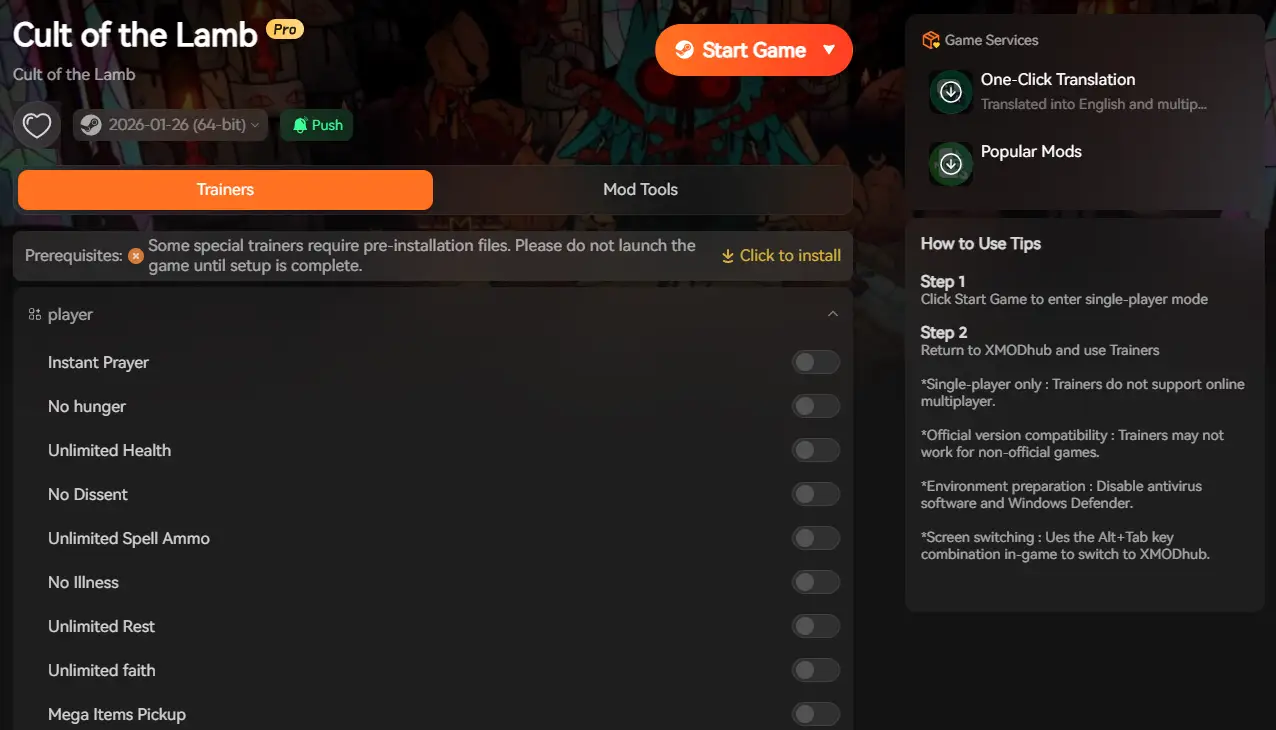
XMODhub’s Save Manager handles the decryption/encryption process automatically in the background. You don’t need to touch any code. Just use our visual editor to adjust values safely.
The Smarter Way: One-Click Backup with XMODhub
Navigating through hidden %AppData%\LocalLow folders every time you want to backup a save is tedious and prone to error. One accidental delete, and your cult is history. XMODhub offers a built-in Save Manager tool designed specifically for Unity games like Cult of the Lamb.
- Auto-Backup: XMODhub automatically backups your save file every time you exit the game.
- Version History: Made a bad choice on a crusade? Roll back to a previous version from yesterday instantly.
- Visual Management: Access and organize your save slots with a single click from the dashboard—no more digging through Windows folders.
How to Use XMODhub for Cult of the Lamb (Step-by-Step)
- Download & Install: Get the latest safe Client XMODhub.

- Scan: It will automatically detect Cult of the Lamb from your Steam/GOG/Epic library.

- Attivare: Select the Save Manager tab on the left dashboard.
- Gioco: Launch the game via XMODhub. Your saves are now being protected in real-time.
Troubleshooting: “Steam Cloud Conflict” Errors
A common issue in Cult of the Lamb occurs when playing on both PC and Steam Deck. You might see a “Steam Cloud Conflict” error popup.
How to fix it safely:
- Do NOT click “Upload to Steam Cloud” blindly. You might overwrite your 50-hour save with an older, empty file.
- Go to the local path mentioned above (
AppData\LocalLow\...). - Manually backup your
slot_0.jsonto your Desktop immediately. - Only then should you choose which file to sync. If Steam deletes your save, you can simply drag your backup file back into the folder.
FAQ
Q: Is the save location different for the GOG version?
The path remains the same (AppData\LocalLow\Massive Monster\Cult Of The Lamb\) regardless of whether you use Steam or GOG, as this is defined by the Unity engine.
Q: Can I transfer my save to another PC?
Yes. Simply copy the slot_0.json (and meta_0.json) files from the folder mentioned above to the exact same location on the new computer.
Q: Does modifying save files ban me?
In single-player mode, modifying your save file (e.g., giving yourself infinite gold) will not get you banned. Cult of the Lamb does not have VAC protection. However, always backup first to prevent game crashes.
Conclusione
Locating your Cult of the Lamb save file is a crucial skill, whether you are recovering from a glitch, migrating your progress to a Steam Deck, or manually tweaking config files.
However, digging through hidden system folders always carries a risk. One wrong deletion or a typo in a JSON file can wipe out hours of progress instantly. If you prefer a safer, “set it and forget it” solution, we highly recommend the XMODhub Save Manager. It automates your backups, keeping your hard-earned progress secure so you can focus on the game, not the file directory.
Think Bigger: XMODhub is far more than just a modding tool or a save manager—it is a comprehensive Gaming Platform.

With support for over 5,000+ titles, we provide an all-in-one ecosystem for PC gamers. Whether you are deep into Cult of the Lamb or exploring similar hits like Hades, XMODhub ensures you always have the ultimate toolkit ready at your fingertips.

Sono un giocatore appassionato e uno scrittore di XMODhub, che si dedica a fornire le ultime notizie, consigli e approfondimenti sui giochi.
Collegatevi con me:
Profilo LinkedIn