In a high-stakes extraction shooter like Zona di quarantena: l'ultimo controllo, your stash is your life. There is nothing worse than surviving a brutal 40-minute raid, securing high-tier loot, and then losing it all—not to an enemy, but to a corrupted save file or a game crash.
Whether you want to manually backup your profile to prevent permadeath loss, transfer your progress to a friend’s PC, or tweak the config files for better FPS, you first need to find where the data is hidden on your drive.
Below is the verified file path for Zona di quarantena on Windows and Steam Deck, along with a safer, automated method to manage your backups.
Ti potrebbe interessare anche:
Quarantine Zone: The Last Check Console Commands: Full List
Indice dei contenuti
- Editor’s View: The “Unreal Engine” Rule
- Windows PC Save File Location
- Quarantine Zone Config File Location
- Steam Deck / Linux Save Location
- The Smarter Way: One-Click Backup
- FAQ
- Conclusione
Editor’s View: The “Unreal Engine” Rule
“I’ve spent hours creeping through the dark corridors in Zona di quarantena, and I know the pain of Early Access bugs. One moment you are extracting, the next the game freezes, and your file is corrupted.
Perché Zona di quarantena: l'ultimo controllo is built on Motore irreale, the save files are hidden deep in the ‘Local’ AppData folder. Many generic guides will send you to ‘LocalLow’ or ‘Documents’—those are wrong. I wrote this guide so you can find the actual files immediately and secure your loot.”
— Catherine Hu, Senior Editor & Survival Game Enthusiast at XMODhub
Windows PC Save File Location
For the Steam version of Zona di quarantena: l'ultimo controllo, the save files are stored in the hidden Local AppData folder.
The direct path is:
C:\Users\[YourUsername]\AppData\Local\QuarantineZone\Saved\SaveGames\
Note: Depending on the specific build version, the folder might sometimes be named QZGame o TheLastCheck. Look for the most obvious match in the Local folder.
How to navigate there quickly:
- Stampa Windows Key + R on your keyboard to open the Run dialog.
- Type
%localappdata% and press Entrare. (Do not type just %appdata%, as that goes to Roaming).
- Scroll down and look for the QuarantineZone folder.
- Andare a Saved > SaveGames.
What to look for: Inside, you will typically see .sav files. The main progress file is often named SaveGame.sav o PlayerProfile.sav.
Quarantine Zone Config File Location
If the game is stuttering, too dark, or you need to disable Motion Blur manually, you will need to edit the .ini configuration files.
Percorso:
C:\Users\[YourUsername]\AppData\Local\QuarantineZone\Saved\Config\WindowsNoEditor\
Key Files:
- GameUserSettings.ini: Use this to force custom resolutions, adjust gamma, or disable V-Sync if the menu is buggy.
- Engine.ini: Advanced users can add commands here to improve FPS, but be careful as this can cause instability.
Steam Deck / Linux Save Location
Zona di quarantena runs on the Steam Deck via the Proton compatibility layer. The file structure mimics Windows inside a specific ID folder.
Percorso:
/home/deck/.local/share/Steam/steamapps/compatdata/[SteamAppID]/pfx/drive_c/users/steamuser/AppData/Local/QuarantineZone/Saved/SaveGames/
How to find the App ID: You will need the specific Steam App ID for Zona di quarantena. You can find this number in the URL of the game’s store page (e.g., store.steampowered.com/app/XXXXXX/).
The Smarter Way: One-Click Backup with c
Navigating to %localappdata% every time you extract is tedious. And let’s be honest—you’re going to forget to do it right before a game-breaking bug hits.
XMODhub will offer a built-in Save Manager tool, designed for unstable or high-stakes games, such as Zona di quarantena.
- Auto-Backup: XMODhub detects when you close the game and instantly zips your
Saved folder.
- Crash Recovery: Game crashed and corrupted your profile? Right-click in XMODhub and restore the version from 10 minutes ago.
- Visual Management: Keep different “Runs” or characters in separate slots without overwriting them.
Come si usa XMODhub for Quarantine Zone?
Secure your game progress from scratch in just a few clicks.
Step 1: Download & Install Download the PC client from the official XMODhub website and run the quick installer.
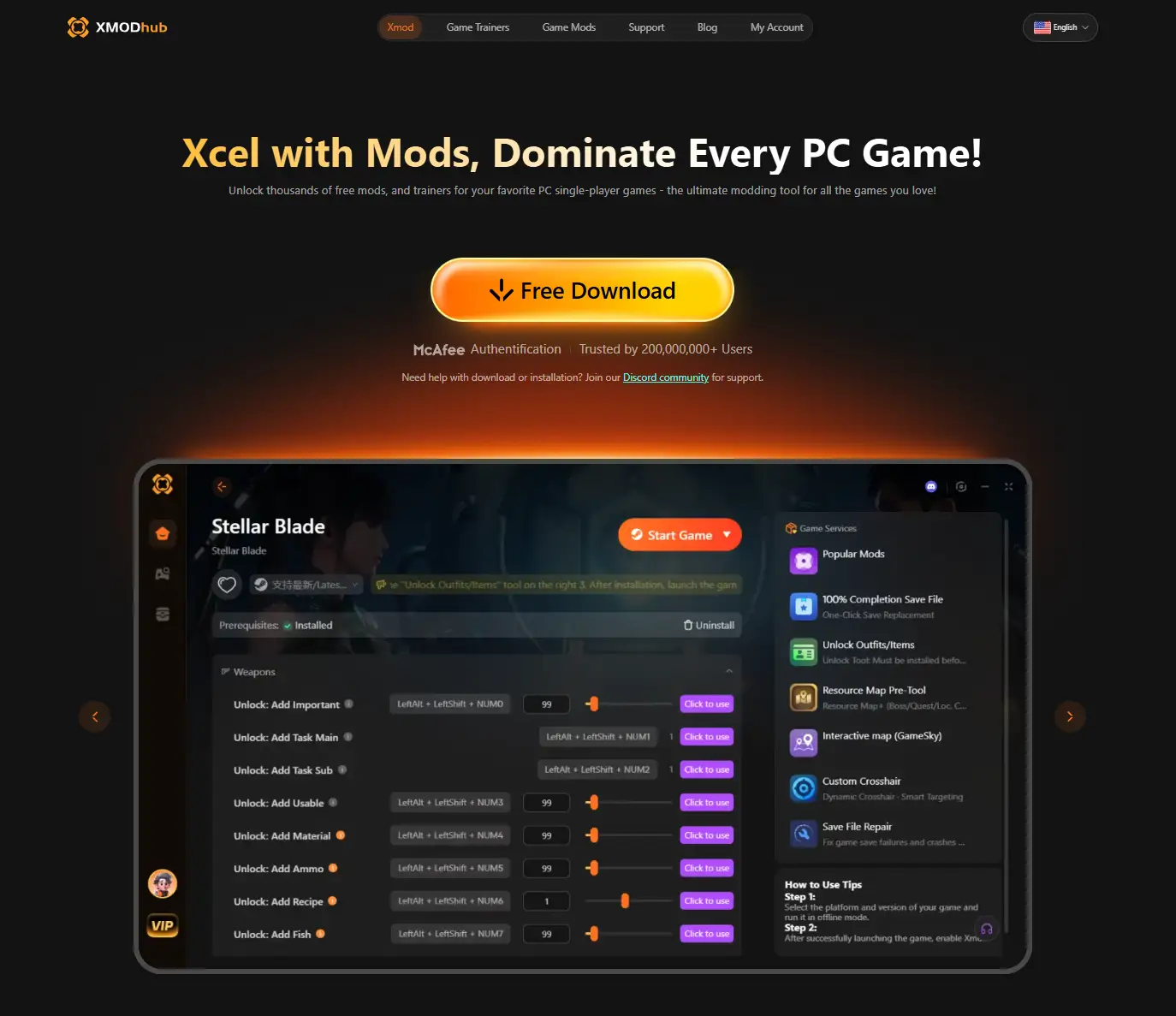
Step 2: Launch & Auto-Detect Open XMODhub. It automatically scans your system and populates your library with supported games—no manual pathfinding necessary.
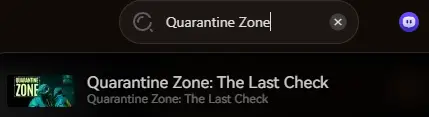
Step 3: Create Backup Select the game and click the “Create Backup” button. Your save data is instantly located, timestamped, and secured.
Step 4: Restore Anytime Need to roll back? Go to the game’s “Save History” tab, select a previous backup, and click “Restore”.
Smarter Tip: Want hands-free security? Enable “Smart Auto-Backup” in the settings to automatically create a restore point every time you close a game.
FAQ
Q: Can I transfer my Quarantine Zone save to another PC?
Yes. Copy the .sav files from the SaveGames folder mentioned above. Paste them into the exact same location on the new computer. Note: Ensure both PCs are running the same version of the game.
Q: What happens if I delete the Config folder?
If you mess up your settings and get a black screen, simply delete the Config folder. Zona di quarantena will regenerate a fresh folder with default settings the next time you launch the game.
Q: Does modifying save files ban me?
In single-player mode, modifying saves is generally safe. However, if Zona di quarantena uses Easy Anti-Cheat (EAC) for multiplayer, modifying files can trigger a ban. Always backup before testing.
Conclusione
Finding the Zona di quarantena: l'ultimo controllo save file location is just the first step in surviving the apocalypse. Whether you are fixing a graphical glitch in the config files or transferring your progress to a Steam Deck, knowing where your data lives gives you control.
However, messing with system folders always carries a small risk. If you prefer a “set it and While editing system folders is an option, it involves inherent risks.
For a safer, more automated approach, we strongly suggest using XMODhub. This tool goes beyond modding, providing a comprehensive Save Manager for effortless backup and recovery.
Sono un giocatore appassionato e uno scrittore di XMODhub, che si dedica a fornire le ultime notizie, consigli e approfondimenti sui giochi.
Collegatevi con me:
Profilo LinkedIn

 Catherine Hu