
 Catherine Hu
Summary: This guide covers everything you need to know about Commandes de la console de l'annexe 1 et tricheurs, including how to install and activate them, a complete list of available commands, and tips for using them effectively.
Join us as we explore Schedule 1 console commands and cheats.

Table des matières

Annexe 1
- Download MelonLoader:MelonLoader
- Install Mods:Mods Nexus
- Schedule1ConsoleUnlocker
- Console Mod
.dll filesmodsMod Manager
- Launch the Game and Use Console Commands:Annexe 1F8
- Alternative Cheats:Moteur de tricheCT files
Annexe 1
Now that you know how to set up and use console commands in Schedule I, let’s dive into the list of available commands to help you get the most out of your gameplay.

Annexe 1
| Commandement | Description |
|---|---|
ajouter un employé |
Adds an employee to help automate drug production. Example: ajouter un employé lieu. |
addxp |
Adds XP to level up. Example: addxp 5000. |
lier |
Binds a key to a command. Example: bind t 'settime 1230'. |
changementéquilibre |
Adds to your online balance. Example: changebalance 5000. |
changecash |
Adds cash to your character. Example: changecash 5000. |
effacer les liens |
Clears all key bindings. |
Effacer l'inventaire |
Empties your inventory. |
clairvoyant |
Removes your wanted level. |
permettre |
Enables a game object. Example: enable pp. |
désactiver |
Disables a game object. Example: disable pp. |
freecam |
Activates free camera mode. |
donner |
Gives you an item. Example: donner l'arrosoir. |
plantes cultivées |
Instantly grows all plants. |
hideui |
Hides all on-screen UI elements. |
raisewanted |
Raises your wanted level. |
moins désiré |
Lowers your wanted level. |
emballageproduit |
Packages product in your hand. Example: packageproduct jar. |
sauver |
Saves the game. |
setdiscovered |
Marks a product as discovered. Example: setdiscovered ogkush. |
émotion |
Sets your character’s facial expression. Example: setemotion cheery. |
setenergy |
Sets your energy level. Example: setenergy 100. |
sethealth |
Sets your health. Example: sethealth 100. |
setjumpforce |
Adjusts jump power. Example: setjumpforce 1. |
setlawintensity |
Changes police intensity. Example: setlawintensity 6. |
vitesse de déplacement |
Changes movement speed. Example: setmovespeed 1. |
détenu en copropriété |
Marks a property as yours. Example: setowned laundromat. |
setquality |
Changes item quality. Example: setquality heavenly. |
setquestentrystate |
Alters a quest state. Example: setquestentrystate <quest name>. |
setrelationship |
Sets NPC relationship level. Example: setrelationship <npc_id> 5. |
setstaminareserve |
Increases stamina reserve. Example: setstaminareserve 200. |
settime |
Changes in-game time. Example: settime 1530. |
échelle de temps |
Adjusts game time speed. Example: settimescale 1. |
setunlocked |
Unlocks an NPC. Example: setunlocked <npc_id>. |
setvar |
Sets a variable. Example: setvar <variable> <value>. |
véhicule d'origine |
Spawns a vehicle. Example: spawnvehicle shitbox. |
téléportation |
Teleports you. Example: mairie de téléportation. |
unhideui |
Restores hidden UI. |
Annexe 1
Now that you’re familiar with the full list of console commands, let’s go over how to use them effectively within the game to enhance your experience.
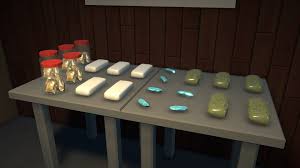
Console commands allow you to modify gameplay, unlock cheats, and streamline your experience. Here’s how to enable and use them in both the full version and demo version of Annexe 1.
Using Console Commands in the Full Version
-
Launch the Game
Start Annexe 1 as usual. -
Open the Settings Menu
PresseESC, then select Settings from the pause menu. -
Enable Console Commands
Under the Game tab, toggle Commandes de la console to ON. -
Open the Console Window
Press the tilde key (~) on your keyboard to bring up the command console. -
Enter and Run Commands
Type any console command (e.g.,addxp 5000) and press Entrer. The cheat will apply immediately.
Using Console Commands in the Demo Version
The demo version requires additional setup to enable cheats:
1: Install MelonLoader
-
Télécharger MelonLoader from its official site.
-
Install it into your Annexe 1 directory following the instructions provided.
2: Add Console Plugins
-
Visit Mods Nexus and download the required plugins for Annexe 1.
-
Extract the plugin files into the MelonLoader dossier.
3: Launch the Game and Open Console
-
Restart Annexe 1.
-
Presse
F8in-game to open the console interface. -
Enter your desired commands as in the full version.
Alternative: Use Cheat Engine for Simple Cheats
If you prefer a more straightforward option:
-
Télécharger Moteur de triche from cheatengine.org.
-
Download and open the matching CT files for Annexe 1.
-
Use the built-in cheats to modify XP, money, stats, and more.
Once you’ve set up the necessary mods and tools, here’s how to open and use the console in Schedule 1 to input your desired commands.
Annexe 1
1. Install MelonLoader
Download from the official site.
Install it to your Annexe 1 game folder.
2.Launch the Game Once
This creates the required Mods dossier.
3.Install Console Unlocker
Télécharger le Schedule One Console Unlocker mod from NexusMods.
Extract the .dll file and place it in the Mods dossier.
4.(Optional) Add Console Mod
For improved stability, install the Schedule One Console mod the same way.
Open the Console
Lancez le jeu et appuyez sur F8 to open the console.
After you’ve successfully set up and opened the console, you can further enhance your gameplay experience in Schedule 1 by using modding apps to unlock additional features and customization.
Annexe 1
- Download the Xmod App

- Search for Schedule IAnnexe I

- Launch the Game
- Activate Your Mods
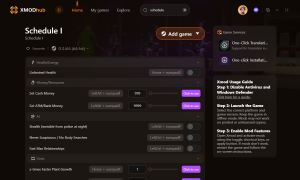
Annexe 1
Annexe 1

Je suis un joueur passionné et j'écris sur XMODhub, qui se consacre à vous apporter les dernières nouvelles, astuces et idées en matière de jeux.
Connectez-vous avec moi :
Profil LinkedIn
 Nancy Miller