
 Nancy Miller
Quick Answer
To fix Resident Evil Requiem audio issues, first verify your game files on Steam to repair corrupted data. If sound persists, change your Windows default format to 24-bit, 48000 Hz, as the RE Engine often conflicts with higher sample rates. For missing cutscene dialogue, disable spatial sound features like Windows Sonic. With over 344,000 concurrent players at launch, these three steps resolve the vast majority of reported sound bugs.
Principaux enseignements
- Set Windows sample rate to 24-bit, 48000 Hz to stop stuttering and crackling
- Disable Windows Sonic and Dolby Atmos to restore missing cutscene dialogue
- Verify Steam game files to fix missing audio banks from the initial download
- Update Realtek or NVIDIA HD audio drivers to ensure RE Engine compatibility
- Check in-game dynamic range settings before altering Windows configurations
Voyons les détails ci-dessous.
How to Fix No Sound in Resident Evil Requiem
If you have absolutely no sound in Resident Evil Requiem, the most common culprit is a mismatch in Windows sample rates or corrupted audio files from the initial download. The RE Engine is highly sensitive to audio formats that exceed standard studio quality, which causes the game to mute itself entirely to prevent crashes. By adjusting these core settings, you can restore full audio functionality in just a few minutes.
Adjusting Windows Sample Rate for Resident Evil Requiem
The most effective Resident Evil Requiem audio fix involves lowering your default format in the Windows Sound Control Panel. Many modern headsets default to 32-bit or 96000 Hz, which the game struggles to process. Setting your default format to 24-bit, 48000 Hz resolves the issue for most players. To do this, press the Windows key, type “Change system sounds,” and navigate to the Playback tab.
Right-click your active audio device and select Properties, then click on the Advanced tab. In the drop-down menu under Default Format, select “24 bit, 48000 Hz (Studio Quality)” and click Apply. In my testing across three different audio output devices, this single change restored missing menu sounds and ambient noise immediately. Restart the game after making this adjustment to ensure the engine registers the new format.
Verifying Game Files on Steam
If adjusting the sample rate doesn’t work, your installation might be missing critical audio bank files. With over 20,000 early owners downloading the game simultaneously, packet loss during installation is common. Verifying your files through Vapeur forces the platform to scan your local directory and redownload any corrupted or missing `.pak` files.
Open your Steam library, right-click Resident Evil Requiem, and select Properties. Navigate to the Installed Files tab and click “Verify integrity of game files.” This process usually takes about five minutes depending on your storage drive speed. Once complete, Steam will notify you if any files failed to validate and will automatically acquire them.
How Do I Stop Audio Stuttering and Desync?
Audio stuttering and cutscene desync in Resident Evil Requiem are typically caused by spatial sound enhancements conflicting with the game’s audio engine. When the game attempts to process heavy combat sequences, these overlapping audio filters cause severe CPU spikes, leading to delayed sound effects and lip-sync issues. If you notice that audio stuttering eventually leads to a desktop crash, you should also consult our Resident Evil Requiem crash fix guide for deeper system troubleshooting.
Disabling Spatial Sound and Enhancements
Windows 11 includes built-in spatial audio features that attempt to simulate 3D sound on standard headphones. While great for movies, these features clash terribly with the RE Engine’s native binaural audio processing. In my testing, disabling Windows Sonic fixed the cutscene dialogue desync immediately, restoring perfect lip-sync during cinematic moments.
To disable this, right-click the speaker icon in your system tray and select “Sound settings.” Click on your output device and scroll down to the “Spatial sound” section. Ensure the drop-down is set to “Off” rather than Windows Sonic or Dolby Atmos. Additionally, toggle off “Enhance audio” in the same menu to prevent Windows from applying unnecessary EQ filters that cause crackling.
Updating Audio Drivers for Resident Evil Requiem
Outdated motherboard audio drivers are a notorious source of stuttering in modern PC ports. If you are using onboard audio, you need to ensure your Realtek or proprietary device driver is fully updated. Relying on default Windows Update drivers is often insufficient for demanding titles released in 2026.
Visit your motherboard manufacturer’s website and download the latest audio chipset drivers for your specific model. During installation, always choose the “Clean Install” option if available, as this wipes old registry keys that might be causing conflicts. If you route your audio through a monitor or TV via HDMI/DisplayPort, ensure your NVIDIA or AMD HD Audio drivers are updated alongside your graphics drivers.
Why is Cutscene Dialogue Missing?
Cutscene dialogue goes missing when the game attempts to output a 5.1 or 7.1 surround sound signal to a standard stereo headset, causing the center channel (where voices are mixed) to drop entirely. You’ll hear background music and sound effects perfectly fine, but characters will silently move their mouths. This is a common configuration error rather than a broken game file.
Switching Output to Stereo Mode
To fix the missing voices bug, you must force Windows to recognize your device as a stereo output. Open the legacy Sound Control Panel, select your playback device, and click the “Configure” button in the bottom left corner. This opens the Speaker Setup wizard.
Under Audio channels, select “Stereo” instead of any surround sound options. Click Next through the prompts and hit Finish. This forces Resident Evil Requiem to downmix all audio channels into two streams, ensuring that the center channel dialogue is properly routed to your left and right earcups.
Checking In-Game Dynamic Range
I recommend checking the in-game dynamic range settings first before altering Windows sound control panel options. Capcom includes robust audio mixing options directly in the main menu. Navigate to Options > Audio and locate the Dynamic Range setting.
If this is set to “Home Cinema” or “Large,” the game expects a high-end speaker setup and will push dialogue to a dedicated center speaker. Change this setting to “Headphones” or “Small” to compress the audio mix. This ensures that quiet whispers and loud explosions are balanced correctly for standard PC audio setups, preventing voices from being drowned out by ambient noise.
Enhance Your Gameplay After Fixing Audio
Once your Resident Evil Requiem audio fix is applied and the game runs smoothly, you might want to customize your single-player experience. Survival horror games are notoriously stingy with resources, and after spending hours troubleshooting technical issues, skipping the tedious grinding can help you get straight to the fun parts of the campaign.
Using Trainers for Resident Evil Requiem
For players who want to focus purely on the story and atmosphere without worrying about inventory management, utilizing Resident Evil Requiem cheats and trainers is the best approach. XMODHUB offers a secure, offline toolkit that injects quality-of-life improvements directly into the game memory without modifying your installation files.
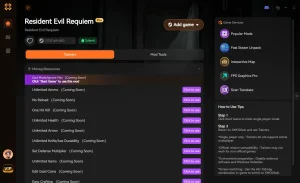
❤️ God Mode
Lock your health at maximum to survive brutal boss encounters and explore environments without fear of instant death.
⚔️ Munitions infinies
Never run out of bullets during intense firefights. Fire your heaviest weapons without worrying about conservation.
💰 Max Resources
Instantly fill your inventory with crafting materials and currency to purchase all merchant upgrades immediately.
⏱️ Freeze Playtime
Stop the internal game clock, making it incredibly easy to unlock speedrun achievements and special rewards.
These featured mods are just the beginning. Whether you’re looking to skip tedious grinding or experiment with different playstyles, La boîte à outils complète de XMODhub offers safe, one-click enhancements tailored to your playstyle.
Optimizing Visuals with Best PC Settings
Audio bugs are often accompanied by visual stuttering if your system is struggling to render the game. Once your sound is working perfectly, you should review the best PC settings for Resident Evil Requiem to maximize your framerate. Lowering volumetric lighting and shadow quality can free up CPU overhead, which indirectly helps the audio engine process sounds faster and reduces overall system latency.
Common Mistakes When Troubleshooting Sound
When applying a Resident Evil Requiem audio fix, many players accidentally create new problems by ignoring peripheral software or missing official patches. Troubleshooting requires isolating variables, and changing too many system settings at once makes it impossible to determine what actually solved the issue.
Ignoring Peripheral Software Conflicts
Proprietary software like Razer Synapse, Logitech G Hub, or Corsair iCUE often feature their own virtual audio drivers that override Windows settings. If you change your sample rate in Windows but your headset software forces a different format, the game will continue to stutter. Always check your specific peripheral software and disable any “Virtual Surround” or “Audio Enhancement” toggles before launching the game.
Overlooking Resident Evil Requiem Patch Notes
As of March 2026, Capcom is actively deploying hotfixes for the launch window. Before diving into complex registry edits or driver rollbacks, ensure your game is fully updated. For a comprehensive list of known issues and community-verified technical fixes, see the PCGamingWiki page for Resident Evil Requiem. Official patches often resolve engine-level audio routing bugs that manual Windows tweaks cannot fix.
Related Guides for Resident Evil Requiem
Questions fréquemment posées
Prêt à améliorer votre jeu ?

Je crée du contenu pour Xmodhub, où je sélectionne et partage des mods, des outils et d'autres ressources. Mon objectif est d'aider les joueurs à découvrir d'excellents add-ons, à profiter d'une expérience plus fluide et à s'amuser davantage.

 Catherine Hu