Summary: Learn how to efficiently organize and delegate tasks with the Management Clipboard in Schedule 1—boost productivity and streamline your in-game operations.
Le Management Clipboard en Annexe 1 is a powerful tool designed to help you oversee your operations with greater control and efficiency.
In this guide, we’ll walk you through exactly how to use the Management Clipboard in Schedule 1, so you can simplify micromanagement and focus on maximizing your growth success.
Let’s take a deep dive into it step by step and also learn how to ensure an enhanced gameplay experience with Xmod.
schedule 1 management clipboard
Table des matières
How to Use Management Clipboard in Schedule 1 Step-by-Step
How to Ensure Schedule 1 Gaming with Xmod?
Conclusion
How to Use Management Clipboard in Schedule 1: Step-by-Step
Use Management Clipboard in Schedule 1
To get started, follow these step-by-step instructions. By doing so, you’ll be able to use the clipboard effectively et, as a result, maximize overall efficiency.
Open the Management Clipboard
Press the hotkey assigned to the Management Clipboard (default: 9).
A clipboard icon with a pen will appear on your screen, indicating that the menu is open.
Select a Worker to Manage
Look at the worker whose management tab you want to access.
Presse “E” while looking at them.
Le management menu will open, displaying their current assignments and options.
Assign a Bed to a Worker
Open the Management Clipboard and select the worker.
Naviguez jusqu'à la page bed assignment option.
Click on the available bed to assign it to the selected worker.
The worker will now automatically return to this bed at the end of their shift.
Assign Tasks to Workers
Each worker must be assigned a role to contribute to the business. Follow these steps to allocate tasks:
Open the Management Clipboard.
Select the worker you want to assign a task to.
Choose one of the following job roles:
Cleaners – Keep the workspace clean and remove trash.
Handlers (Logistics Workers) – Transport materials and manage packaging.
Chemists – Operate chemistry stations to produce products.
Botanists – Grow and maintain plant-based resources.
Confirm the selection, and the worker will begin performing their assigned task.
Set Up Supply Routes
To ensure materials are properly transported, follow these steps:
Open the Management Clipboard.
Select the worker responsible for logistics.
Click the pencil icon next to their assignment.
Choose the storage rack or workstation from which they should collect materials.
Confirm the selection, and the worker will now follow the assigned supply route.
Manage Employee Payments
Open the Management Clipboard.
Naviguez jusqu'à la page payment section.
Ensure each worker is receiving their wages.
If workers are unpaid, adjust salaries to keep them working efficiently.
How to Ensure Schedule 1 Gaming with Xmod
If you want to optimize and customize your gameplay in Annexe 1, Xmod is the perfect tool. With Xmod, you can access various mods and enhancements to streamline your experience, automate tasks, and improve overall efficiency.
Steps to Use Xmod with Schedule 1:
Xmod lets you optimize Annexe 1 with automation, resource management, and gameplay enhancements. Follow these steps to customize your experience:
Download & Install Xmod – Get the latest version from a trusted source and complete the installation.
xmod download
Rechercher Annexe 1 – Open Xmod, use the search bar, and select the game.
Annexe 1
Launch Through Xmod – Click “Launch” to start Annexe 1 with Xmod running in the background.
Activate Mods – Open the Xmod overlay, choose enhancements like automation, resource optimization, or custom settings, and activate them.
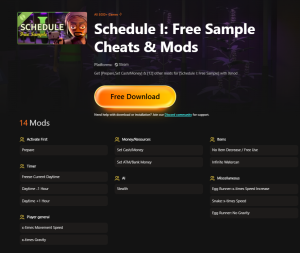
Schedule I: Free Sample Cheats & Mods
With the help of Xmod, you can streamline operations, automate tasks, and tailor Schedule 1 to your playstyle. As a result, you’ll enjoy a smoother, more efficient, and ultimately more satisfying gameplay experience.
Conclusion
Schedule 1 is a dynamic strategic planning game that challenges players to optimize schedules, resources, and decision-making. Moreover, with the integration of Xmod, players can elevate their gameplay through advanced automation, AI-driven optimizations, and customized strategies. In addition, by utilizing key tools like the Management Clipboard, players can efficiently manage their workforce, assign tasks, and streamline operations.
Consequently, with Xmod’s enhancements, Schedule 1 becomes an even more engaging and immersive experience, allowing players to fine-tune their strategies, automate tedious processes, and maximize efficiency. Whether competing against AI ou collaborating with others, Schedule 1—powered by Xmod—offers the ultimate strategic planning experience, ultimately ensuring that every decision counts toward building a thriving business.
Je suis un joueur passionné et j'écris sur XMODhub, qui se consacre à vous apporter les dernières nouvelles, astuces et idées en matière de jeux.
Connectez-vous avec moi :
Profil LinkedIn
Mastering Monster Hunter Stories 3: Twisted Reflection Reflection can be a brutal grind. Whether you are stuck on a difficult Twisted Elder Dragon, trying to farm the perfect Rainbow Egg for your gene…
Monster Hunter Stories 3: Twisted Reflection Cheat Engine Table vs. XMODhub Trainer: Best Free Alternative (2026)
You have spent the last 20 minutes scouring forums for a working Monster Hunter Stories 3: Twisted Reflection Cheat Engine table (.ct file). You finally found one, hoping to lock your Kinship Gauge or…

 Catherine Hu




 Nancy Miller