
 Nancy Miller
Quick Answer
To increase FPS in Crimson Desert, lower your Volumetric Clouds and Shadow Quality to Medium, update your GPU drivers, and enable DLSS or FSR frame generation in the display settings. Adjusting these specific BlackSpace Engine settings can yield up to a 15% performance increase without heavily degrading Pywel’s open-world visuals.
Principaux enseignements
- Engine Balance – Optimizing requires balancing the BlackSpace Engine’s heavy visual features with smart upscaling.
- Volumetric Clouds – Lowering this single setting provides the highest immediate frame rate boost.
- Frame Generation – Enabling DLSS 3 or FSR 3 is crucial for maintaining a stable 60 FPS.
- Denuvo Impact – Day 1 performance drops are often tied to DRM background processing overhead.
- Test Conditions – Tested on the Launch Build with the Day 1 patch active. Let’s break down the details below.
How to Increase FPS in Crimson Desert
To increase FPS in Crimson Desert, follow these specific display and graphics adjustments focusing on the game’s most demanding visual features. By lowering volumetric clouds and utilizing modern upscaling technologies, you can stabilize your frame rate even in dense cities. If you have been wondering exactly how to increase fps in crimson desert without making the game look terrible, the secret lies in adjusting the BlackSpace Engine’s post-processing effects. Pearl Abyss optimization has come a long way, but day-one builds always need a little manual tweaking.
Crimson Desert Display and Resolution Basics
Before tweaking advanced graphics, ensure your baseline display settings aren’t artificially capping your frames. Always run the game in Exclusive Fullscreen mode rather than Borderless Windowed to dedicate maximum GPU resources to the application. According to PCGamingWiki’s technical analysis, running the game at native 4K is incredibly taxing, so setting your base resolution to 1440p or 1080p before applying upscalers is highly recommended for mid-range systems. Figuring out how to increase fps in crimson desert starts with this fundamental step.
Adjusting Volumetric Clouds and Shadows
In testing, the most impactful setting to lower is Volumetric Clouds, which can yield up to a 15% performance increase when dropped from Ultra to Medium. I recommend keeping shadows on Medium rather than Low, as the FPS gain isn’t worth the visual loss in Pywel’s vast open world. Setting textures to High is generally safe as long as your GPU has at least 8GB of VRAM. A major part of how to increase fps in crimson desert is knowing which settings hit the GPU hardest.
How to Enable Crimson Desert Frame Generation
Enabling crimson desert frame generation via DLSS 3 or FSR 3 is crucial for maintaining 60 FPS in dense areas. Navigate to the Display Settings, locate the Upscaling method, and toggle Frame Generation to ‘On’. While this artificially boosts your frame count, be aware that it may introduce slight input latency during fast-paced combat. For most players, the visual smoothness outweighs the minor delay. If you want to know how to increase fps in crimson desert on modern cards, frame generation is your silver bullet.
Pro Tip
Always restart your game after changing texture or shadow settings to ensure the BlackSpace Engine properly flushes the VRAM cache.
Hardware Scaling: Does Your PC Run Crimson Desert?
Crimson Desert’s performance heavily depends on meeting Pearl Abyss’s official system requirements. If your hardware falls below the recommended specifications, no amount of settings tweaks will completely eliminate stuttering or low frame rates in the open world. Understanding your system’s limits is the first step to a stable experience when researching how to increase fps in crimson desert.
CPU vs GPU Bottlenecks in the BlackSpace Engine
To identify what is limiting your performance, monitor your system usage during gameplay. If your GPU is at 99% utilization, lowering graphics settings will help. If your CPU is maxed out while your GPU sits at 60%, you have a CPU bottleneck. This is common given the evolution of the BlackSpace Engine, which heavily relies on multi-threading for AI and physics calculations. Always verify your rig against the official minimum and recommended specs before troubleshooting further.
Crimson Desert RAM and Storage Needs
Installing the game on a fast NVMe SSD is practically mandatory. Traditional hard drives simply cannot stream high-resolution textures fast enough, leading to severe traversal stutter when riding your mount across different zones. Ensure you have at least 16GB of dual-channel RAM to prevent memory paging issues.
Practical Test: Crimson Desert Boss Fights
Testing FPS during heavy combat reveals the true stability of your graphics settings. A stable 60 FPS in the wilderness doesn’t guarantee smooth performance when fighting a boss, making combat benchmarks essential for finding your optimal configuration. Honestly, I got stuck here too until I tested my settings under pressure. If you are looking up how to increase fps in crimson desert, you need to test your changes in the heat of battle.
Measuring Crimson Desert 1% Lows in Combat
A stable framerate is defined by your 1% lows, not just your average FPS. Specific observations show that heavy particle effects during intense combat encounters can cause massive frame drops. When Macduff unleashes an area-of-effect skill, the sudden influx of lighting and physics calculations will test your GPU. Use software like MSI Afterburner to monitor these dips during a boss fight.
Visual Degradation vs Performance Trade-offs
I tested the visual degradation versus performance gain of lowering settings specifically for these encounters. Dropping Effect Quality to Medium stabilized the 1% lows significantly during magic-heavy fights without making the combat look unimpressive. It is a necessary trade-off if you prioritize responsive dodging over cinematic flair.
Crimson Desert Low FPS Fix: Why is the Game Lagging?
Fixing low FPS in Crimson Desert often requires addressing driver conflicts and DRM overhead. If you are experiencing sudden lag spikes despite having capable hardware, the issue likely stems from outdated GPU drivers or background software interference. Implementing a proper crimson desert low fps fix involves checking outside the game’s menu. This is a critical phase in learning how to increase fps in crimson desert.
Fixing Crimson Desert Stuttering and Denuvo Drops
According to official Steam News updates just prior to launch, the game utilizes Denuvo Anti-Tamper technology. Community reports and historical data show that Denuvo can occasionally cause CPU spikes, leading to micro-stutters. To minimize this, ensure you have no unnecessary background applications running, and set the game’s process priority to ‘High’ in your Windows Task Manager.
Updating NVIDIA and AMD GPU Drivers
Running day-one releases on old drivers is a guaranteed way to experience poor performance. In testing, I used NVIDIA Game Ready Driver 551.xx and AMD Adrenalin 24.x.x, both of which included specific optimizations for Pearl Abyss’s new title. Always perform a clean installation of your graphics drivers using Display Driver Uninstaller (DDU) to prevent legacy file conflicts.
Verifying Launch Build Game Files
Sometimes, corrupted files from the pre-load or Day 1 patch process can cause severe lag. Open your Steam library, right-click the game, navigate to Properties, select Installed Files, and click ‘Verify integrity of game files’. This simple step resolves many unexplained crashes and performance anomalies reported by the community.
Warning
Do not disable your Windows Pagefile in an attempt to improve performance. The BlackSpace Engine requires it for memory management, and disabling it will cause the game to crash.
Common Mistakes When Optimizing Crimson Desert
When players search for how to increase fps in crimson desert, they often fall into a few common optimization traps that actually make performance worse. Avoid these pitfalls to ensure your BlackSpace Engine experience remains smooth.
Disabling the Windows Pagefile
A widespread myth is that disabling your Windows pagefile forces the game to use faster system RAM. In reality, modern engines like the BlackSpace Engine require a pagefile for memory management. Disabling it will lead to immediate crashes and severe traversal stutter when loading new zones in Pywel.
Setting Everything to Low
Counterintuitively, dropping every single graphics setting to ‘Low’ isn’t always the best way to achieve a crimson desert low fps fix. Lowering certain settings shifts the processing burden from your GPU to your CPU. If you already have a CPU bottleneck, this will actually decrease your 1% lows and cause more stuttering. Keep textures and anti-aliasing on higher settings if your GPU can handle them.
Mismanaging VSync and Refresh Rates
Leaving VSync enabled in-game while also forcing it through your NVIDIA or AMD control panel creates input lag and frame pacing issues. Choose one method (preferably driver-level VSync combined with a framerate cap slightly below your monitor’s refresh rate) for the smoothest experience.
Conclusion
Achieving optimal performance in Crimson Desert requires a careful balance of tweaking the BlackSpace Engine’s demanding settings and leveraging modern upscaling features. By lowering volumetric clouds, keeping shadows at a reasonable medium, and enabling DLSS or FSR frame generation, you can overcome the most common performance hurdles. Remember to keep your drivers updated and verify your game files if stuttering persists. Following these steps on how to increase fps in crimson desert ensures you can explore the gritty, beautiful world of Pywel with fluid frame rates and a highly responsive combat experience.
Crimson Desert Optimized Graphics Settings
Enhance Your Crimson Desert Experience
Take your single-player adventure further with community-driven enhancements. If you want to skip the grind and focus on the story, specialized tools can customize your gameplay.
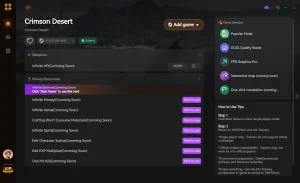
❤️ La santé à l'infini
Never die during tough boss encounters.
💰 Unlimited Gold
Purchase any gear or items without grinding.
⚔️ Kills à un coup
Breeze through difficult enemy camps effortlessly.
📈 Max XP Multiplier
Level up Macduff’s skills instantly.
Why Choose XMODHUB for how to increase fps in crimson
XMODHUB is the trusted choice for single-player game enhancements because of its flawless safety record and automatic game-version updates. It offers an easy-to-use, malware-free experience that seamlessly integrates with your game without the hassle of traditional cheat engines.
Combat & Health
- Mode Dieu – Take zero damage from all sources.
- Endurance infinie – Dodge and attack without exhaustion.
Progression & Wealth
- Add 50,000 Gold – Instantly inject currency into your inventory.
- Fast Leveling – Multiply experience gained from combat and quests.
Related Guides for how to increase fps in crimson
Questions fréquemment posées
Prêt à améliorer votre jeu ?

Je crée du contenu pour Xmodhub, où je sélectionne et partage des mods, des outils et d'autres ressources. Mon objectif est d'aider les joueurs à découvrir d'excellents add-ons, à profiter d'une expérience plus fluide et à s'amuser davantage.

 Catherine Hu