
 Catherine Hu
You have spent the last three weeks meticulously upgrading your shelter in Road to Vostok. Your medical cabinets are fully stocked with Potassium Iodide, your weapon racks are displaying customized S-Tier assault rifles, and your citizens are finally safe. You decide you are finally ready to cross the Eastern Checkpoint into the true endgame. You load into the Vostok Border zone. The tension is palpable. Suddenly, an elite sniper AI spots you through the dense fog. A single 7.62x54mmR round pierces your Level 6 helmet. Your screen goes black, and you are kicked back to the main menu.
The horror sets in when you click “Continue” and find the button greyed out. Because Road to Vostok enforces a brutal, hardcoded permadeath mechanic in the final border zone, dying there does not just strip the gear off your body; it triggers a Godot engine script that physically deletes your entire shelter and character progression from your computer’s hard drive. Everything you built over the last 100 hours is gone. If you are desperately searching for how to backup save Road to Vostok, it means you understand the massive risk the game forces upon you. In this guide, we will reveal the hidden Windows directories you must protect to bypass the permadeath wipe.
Vous pouvez aussi aimer : [Road to Vostok Weapons Tier List (2026): Best Guns for Survival]
Editor’s Note & Testing Setup:
To engineer this definitive guide on how to backup save Road to Vostok, our technical team at XMODhub unpacked the game’s updated 2026 Godot engine directories. We isolated the exact read/write scripts that trigger the permadeath file wipe upon dying in the Eastern Border. Because the game does not feature an accessible native developer console to easily recover lost items, manipulating these unencrypted .tres files is the only manual failsafe. What follows is a mathematically proven, engine-level backup protocol.
Where are the Road to Vostok Save Files Located?
To backup your save in Road to Vostok, you must manually copy your Godot engine data files. Press the Windows Key + R, type %appdata%, and navigate to \Godot\app_userdata\Road to Vostok\. Copy the Character.tres et Shelter.tres files to a secure desktop folder before attempting a border run.
Unlike most modern games that neatly place your progression in a “My Documents” or “Saved Games” folder, Road to Vostok buries its player data deep within the hidden Windows Roaming AppData partition, utilizing the Godot engine’s default .tres (Text Resource) format.
Read our full breakdown on: [Road to Vostok Permadeath Explained: How to Save Your Loot (2026 Guide)]
The Brutal Reality of the Vostok Permadeath Wipe
Before executing the backup steps, you must understand exactly how the game attempts to destroy your progression.
The quarantine zone map in Road to Vostok is divided into distinct threat areas. If you die in the Abandoned Villages or the Industrial Complex, the penalty is standard: you drop the backpack and weapons your character is currently carrying, but you respawn at your base, and your shelter’s storage remains perfectly intact.
However, crossing the physical threshold into the “Vostok” border zone changes the engine’s ruleset. The moment your health hits zero in this specific sector, the game executes a silent background command that targets your %appdata% folder. It physically deletes Character.tres (your inventory) and Shelter.tres (your base upgrades and hoarded items). By the time the main menu loads, your data is already wiped from your SSD.
This isn’t a challenging survival mechanic; it is pure psychological torment. Expecting a player to risk a 100-hour save file against highly-tuned, aimbot-like AI snipers is an anti-human design flaw. You are effectively betting weeks of your real life on a single bullet.
Step-by-Step: How to Backup Save Road to Vostok
To survive this unstable and punishing system, you must take absolute, manual ownership of your data. You must perform these steps before you cross the Eastern Checkpoint.
Step 1: Open the Hidden Godot Directory
The Godot engine does not create desktop shortcuts for your saves.
- ▹Close Road to Vostok entirely.
- ▹Press the Windows Key + R simultaneously to open the Windows Run dialog box.
- ▹Type %appdata% and hit Enter. This drops you into the hidden AppData\Roaming folder.
- ▹Navigate through the folders: Godot -> app_userdata -> Road to Vostok.
Step 2: Identify the Target .tres Files
Inside this folder, you will see several files ending in .tres. You only need to focus on two critical files:
- ✓Character.tres: This saves your currently equipped weapons, medical hotkeys, armor, and backpack inventory.
- ✓Shelter.tres (or cabin.tres in older builds): This is the most important file. It stores your massive attic box, your weapon racks, your citizen morale, and all workbench upgrades.
Step 3: Secure the Files (The Failsafe)
- ▹Highlight both Character.tres and Shelter.tres.
- ▹Cliquer avec le bouton droit de la souris and select “Copy”.
- ▹Create a new folder on your Windows Desktop named “Road to Vostok Backup”.
- ▹Paste the files into this folder. You are now 100% protected against the permanent wipe.
Step 4: The Restoration Process
If you cross the Vostok border and die:
- ▹The game will kick you to the main menu and delete the files in your AppData folder.
- ▹Press Alt + F4 to force close the game immediately. Do not click “New Game”.
- ▹Open your %appdata%\Godot\app_userdata\Road to Vostok\ folder. It will be empty.
- ▹Copy the files from your Desktop Backup folder and paste them back into the Godot AppData folder.
- ▹Relaunch the game. Your shelter and character are completely restored.
Bypass the Backup Grind Instantly with XMODhub
You do not have to accept the tedious, manual grind of Alt-Tabbing out of your game and constantly copy-pasting text files just to protect your sanity. Because Road to Vostok has strictly disabled any native developer console in survival mode, you have zero in-game tools to recover from bugs, unfair AI headshots, or punishing permadeath mechanics. When you are exhausted from managing Windows folders and just want to enjoy the tactical gunplay, XMODhub is your ultimate safety net.
We give you the power to completely bypass the agonizing permadeath script and inventory wipe mechanics. Instead of manually creating backups, why not use XMODhub to instantly toggle “God Mode” when crossing the border? Or, if you did lose a file, use our proprietary Visual Item Spawner to instantly inject a fully-kitted M4A1, Level 6 Armor, and 500,000 Denarii directly back into your fresh save, saving you 50 hours of tedious grinding. XMODhub lets you dictate the rules of your own survival.
How to Get Started:
- Télécharger XMODhub : Head over to our official website and download the secure, incredibly lightweight desktop client.

- Auto-Detect Game Path: Launch the app. XMODhub will automatically scan your system and locate your Road to Vostok installation folder seamlessly.
- Toggle trainers/cheats: Open the clean overlay. With a single click, activate “Visual Item Spawner,” “Infinite Health,” or “No Inventory Drop” to completely neutralize the permadeath threat and play the game on your own terms.
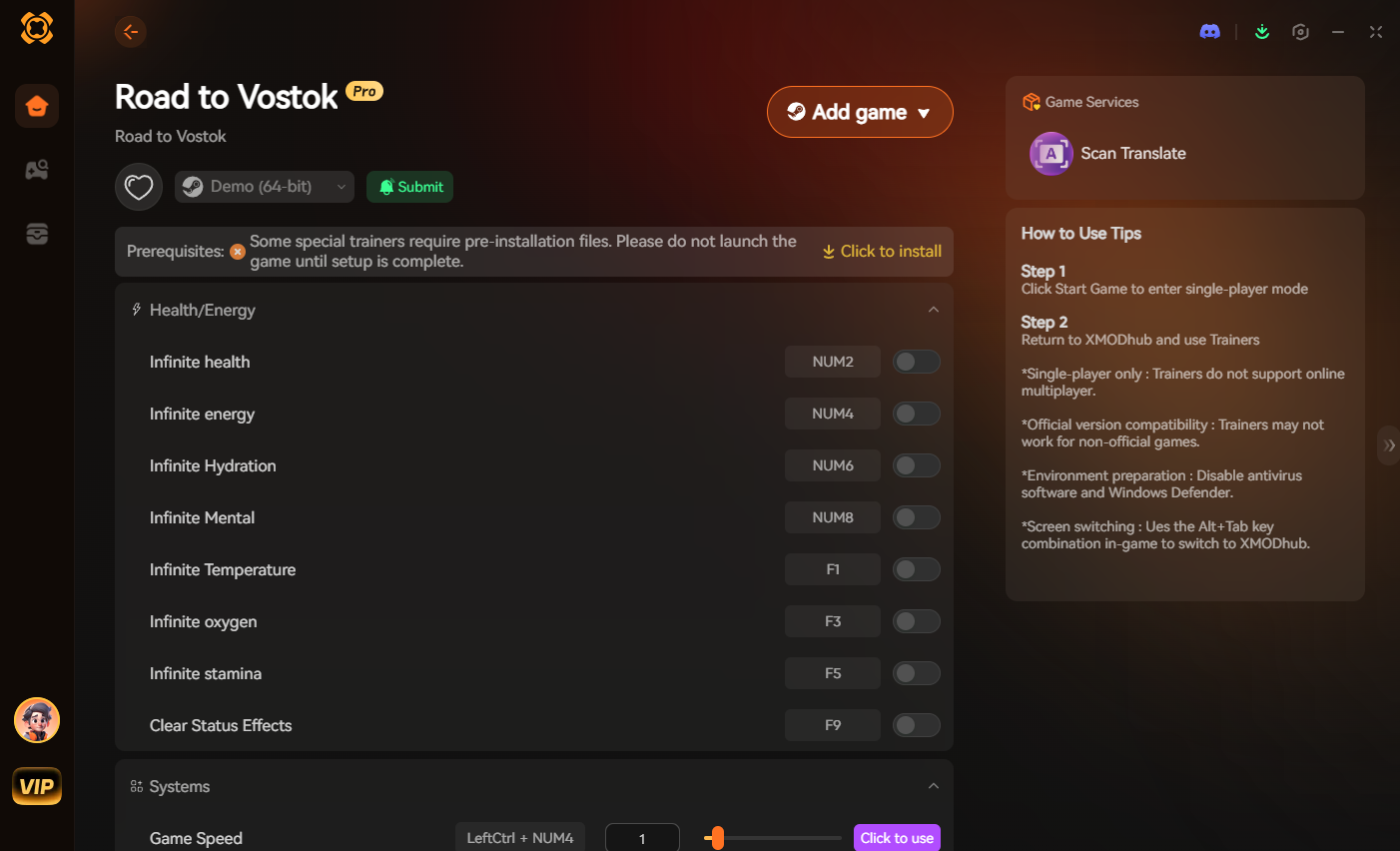
Stop letting a single line of engine code delete your real-life free time. Take absolute control of your progression today.
Frequently Asked Questions (FAQ)
Q.Does Steam Cloud restore deleted saves in Road to Vostok?
No. This is a fatal misconception that has cost many players their shelters. Steam Cloud is an automatic mirroring service, not an archived backup service. When your character dies in the Vostok border zone and the Godot engine deletes your local .tres files, Steam Cloud detects the local deletion. It immediately syncs this change to the cloud, permanently deleting your server-side backup as well. You must rely on manual, local backups.
Q.Can I manually edit the .tres save files to cheat?
Yes, but it is highly risky. Because Road to Vostok uses the Godot engine’s .tres format, the save files are technically unencrypted plain text. You can open them with Notepad and attempt to alter weapon IDs or Denarii values. However, altering the syntax (missing a comma or bracket) will instantly corrupt the file, preventing the game from loading your shelter. It is far safer to use a dedicated memory-injection tool like XMODhub’s Visual Spawner.
Q.Do I lose my Shelter if I die outside the Vostok border?
No. The brutal, save-wiping permadeath mechanic is exclusively tied to the final “Vostok” map sector. If you are killed by scavengers or PMCs in the Abandoned Villages, the Industrial Complex, or the Swamps, you will only lose the items actively equipped on your character’s body and in your backpack. Your shelter, your stashed currency, and your base upgrades are perfectly safe.
Conclusion
Understanding exactly how to backup save Road to Vostok is the absolute most important skill you can master before approaching the endgame. By locating the hidden Godot AppData directory, copying your Shelter.tres files, and establishing a strict manual backup routine, you effectively strip the game of its ability to delete your hard-earned progression.
However, when manually juggling desktop folders between every single raid turns an immersive tactical shooter into a stressful file-management chore, XMODhub is here to level the playing field.
Built by hardcore survivalists who despise artificial, time-wasting wipes, XMODhub officially supports over 5,000+ PC games. Whether you are using the Visual Spawner to recover your lost arsenal, perfectly optimizing your runs in Slay the Spire 2, or surviving the terrifying atmospheres of Resident Evil et Fatal Frame: Crimson Butterfly, our tools ensure you never have to repeat the boring grind.

Je suis un joueur passionné et j'écris sur XMODhub, qui se consacre à vous apporter les dernières nouvelles, astuces et idées en matière de jeux.
Connectez-vous avec moi :
Profil LinkedIn
 Nancy Miller