
 Catherine Hu
You have waited years for PRAGMATA to finally release. You finally step onto the hyper-realistic lunar surface, taking in the breathtaking views of the dystopian space colony. But the moment you engage in your first zero-gravity firefight, Diana deploys her massive holographic shield, and your framerate plummets from a silky 60 FPS down to a stuttering, unplayable 15 FPS.
There is absolutely nothing more immersion-breaking in a next-generation sci-fi action game than input lag and screen tearing. PRAGMATA utilizes Capcom’s highly advanced RE Engine, which is capable of producing photorealistic textures and complex physics calculations. However, this engine is notoriously demanding on PC hardware, specifically regarding VRAM allocation and volumetric particle effects. If you do not configure your settings correctly, you will find yourself fighting the game engine rather than the robotic enemies on your screen.
This guide goes far beyond the basic system requirements provided by the developers. Whether you are rocking an elite RTX 4090 or trying to squeeze every last frame out of an aging GTX 1060, this comprehensive guide will help you achieve a stable, buttery-smooth framerate so you can experience the emotional journey of Hugh and Diana exactly as intended.
>_ Editor’s Note: The RE Engine Complexity
“Optimizing PRAGMATA requires a deep understanding of how the RE Engine handles global illumination and texture pooling. Because the game features extreme contrasting environments—from claustrophobic underground lunar facilities to vast, open space walks—your graphics card is constantly being bottlenecked by rapid shader compilation.
I spent over 40 hours testing these specific configurations across three different hardware generations. Pay close attention to the Volumetric Quality and Mesh Quality settings; they are the absolute biggest performance killers in this title. Tweak them carefully, and you will save your playthrough.”
01. Official PRAGMATA System Requirements Breakdown
Before we begin disabling ray tracing and tweaking shadows, you must understand where your PC stands in relation to the developer’s intended hardware targets. Capcom built PRAGMATA to push boundaries, meaning the baseline requirements are significantly heavier than previous RE Engine titles.
If your hardware falls below the minimum specifications, even the most aggressive optimization tweaks will struggle to prevent silent crashes to the desktop. Ensure your drivers are updated before proceeding.
| Hardware Tier | CPU Requirement | GPU Requirement | Target Res & FPS |
|---|---|---|---|
| Minimum | i5-8400 / Ryzen 3 3300X | GTX 1060 (6GB) / RX 580 | 1080p / 30 FPS (Low) |
| Recommandé | i7-10700K / Ryzen 5 5600X | RTX 3060 / RX 6700 XT | 1080p / 60 FPS (High) |
| 4K Ultra (RT On) | i9-13900K / Ryzen 9 7950X3D | RTX 4080 / RX 7900 XTX | 2160p / 60 FPS (Max) |
02. The Golden Rule: DirectX 12 and VRAM Management
PRAGMATA runs exclusively on the DirectX 12 API. Unlike older titles where you could force DirectX 11 for a slight performance bump on older hardware, doing so here will cause catastrophic texture missing errors and immediate crashes.
The most critical factor in optimizing this game is managing your Video RAM (VRAM). The RE Engine uses a robust texture streaming pool. If you set your Texture Quality higher than your physical GPU memory allows, the engine will attempt to swap assets into your much slower system RAM. When Hugh enters a new lunar sector, this memory swap causes severe, multi-second freezing. Always keep an eye on the VRAM usage bar located at the bottom right of the graphics menu. We strongly recommend leaving at least 1GB of VRAM empty to account for sudden cinematic cutscenes.
Read our full guide on How to Fix Pragmata RE Engine Stuttering & FPS Drops (100% Work) for advanced registry-level fixes regarding DirectX 12 memory allocation.
03. Best PRAGMATA PC Settings for Maximum FPS
If you want to jump straight into the action without reading the technical deep dive, apply these tested settings immediately. This configuration is known as the “Optimized High” preset, designed to preserve 90% of the game’s visual fidelity while recovering nearly 40% of your lost framerate compared to the default Ultra preset.
- Resolution: Native
- Display Mode: Fullscreen
- FSR 3 / DLSS: Balanced
- Texture Quality: High (1GB)
- Mesh Quality: Medium
- Shadow Quality: Haut
- Volumetric Quality: Faible
- Ray Tracing: OFF
- Motion Blur: Off
- Depth of Field: Off
04. Advanced Graphics Breakdown: What Each Setting Does
To truly master your hardware, you need to understand exactly what the RE Engine is rendering during your gameplay loop. Let us dissect the most demanding settings in PRAGMATA.
Ray Tracing: The Ultimate Performance Killer
Capcom has heavily marketed the ray-traced reflections on Hugh’s spacesuit visor and the glass corridors of the lunar colony. While aesthetically stunning, Ray Tracing in PRAGMATA is devastating to your framerate. Enabling it forces the engine to calculate realistic bounce lighting across hundreds of floating debris particles during zero-gravity combat. Unless you are running an RTX 4080 or higher, turn this setting entirely OFF. You will instantly gain 30 to 40 frames per second, which is vital for perfect dodge timing.
Volumetric Quality: The Silent Assassin
This setting controls the density and resolution of fog, smoke, and Diana’s holographic data streams. When you enter a dust storm on the lunar surface, a High Volumetric Quality setting will choke even high-end CPUs. Lowering this to Low or Medium provides a massive FPS boost with an almost imperceptible loss in visual quality during fast-paced movement.
Mesh Quality and Level of Detail (LOD)
Mesh Quality determines the geometric complexity of objects at a distance. When you look out over the sprawling moon base, High Mesh Quality forces your PC to render thousands of intricate antennas and robotic enemies that you cannot even clearly see. Setting this to Medium ensures your CPU is not wasting processing cycles on distant geometry, significantly reducing stuttering when turning the camera quickly.
Read our full guide on Pragmata Ultimate Combat Guide: Master Diana & Hugh’s Synergy to understand why maintaining a stable 60 FPS is absolutely critical for executing perfect counter-attacks.
05. Performance Impact Benchmark Table
To help you prioritize which settings to sacrifice first, our technical team mapped the precise FPS cost of every major graphical option in PRAGMATA. These benchmarks were recorded during Chapter 2, specifically during the heavy particle-effect boss fight inside the atmospheric processor.
| Graphics Setting | Visual Impact | Avg FPS Cost | Action |
|---|---|---|---|
| Ray Tracing | Very High | 35 – 45% | Turn OFF. |
| Volumetric Quality | Medium | 15 – 20% | Drop to Low. |
| Shadow Quality | Haut | 10 – 15% | Drop to Medium. |
| Mesh Quality | Faible | 5 – 10% | Drop to Low. |
06. Optimizing for Portable Play
With the rise of handheld PC gaming, many players are attempting to take their lunar adventure on the go. Running the RE Engine on a mobile chipset requires an entirely different philosophy compared to desktop optimization. You must aggressively manage your thermal design power (TDP) to prevent the device from overheating and throttling your performance.
Read our full guide on Pragmata Steam Deck Optimal Settings: Solid 40 FPS Guide for a complete breakdown of Linux compatibility layers and battery-saving tweaks.
07. The RE Engine Console Lock: Why You Cannot Use Text Commands
In many classic PC games, if you wanted to boost your FPS, disable the heads-up display, or change your field of view (FOV), you could simply press the tilde key, open the developer console, and type a quick command. However, Capcom maintains a strict lockdown on the RE Engine architecture in retail builds. PRAGMATA does not feature a native developer console. The internal command structure is entirely stripped from the executable file to prevent memory injection errors and sequence breaking.
You cannot type your way out of a frustrating boss fight, nor can you use an in-game text box to spawn missing crafting materials. Trying to force the engine open by modifying the assembly hex data manually will result in an immediate anti-cheat flag and a corrupted save file.
08. The Ultimate Solution: XMODhub Framerate Stabilizer
We know the feeling all too well. You spend three hours meticulously tweaking .ini files, updating drivers, and restarting the game, only to have PRAGMATA stutter and freeze the exact second a boss launches an unblockable attack. A sudden frame drop causes you to miss your parry window, and you die, losing all your unsaved progress.
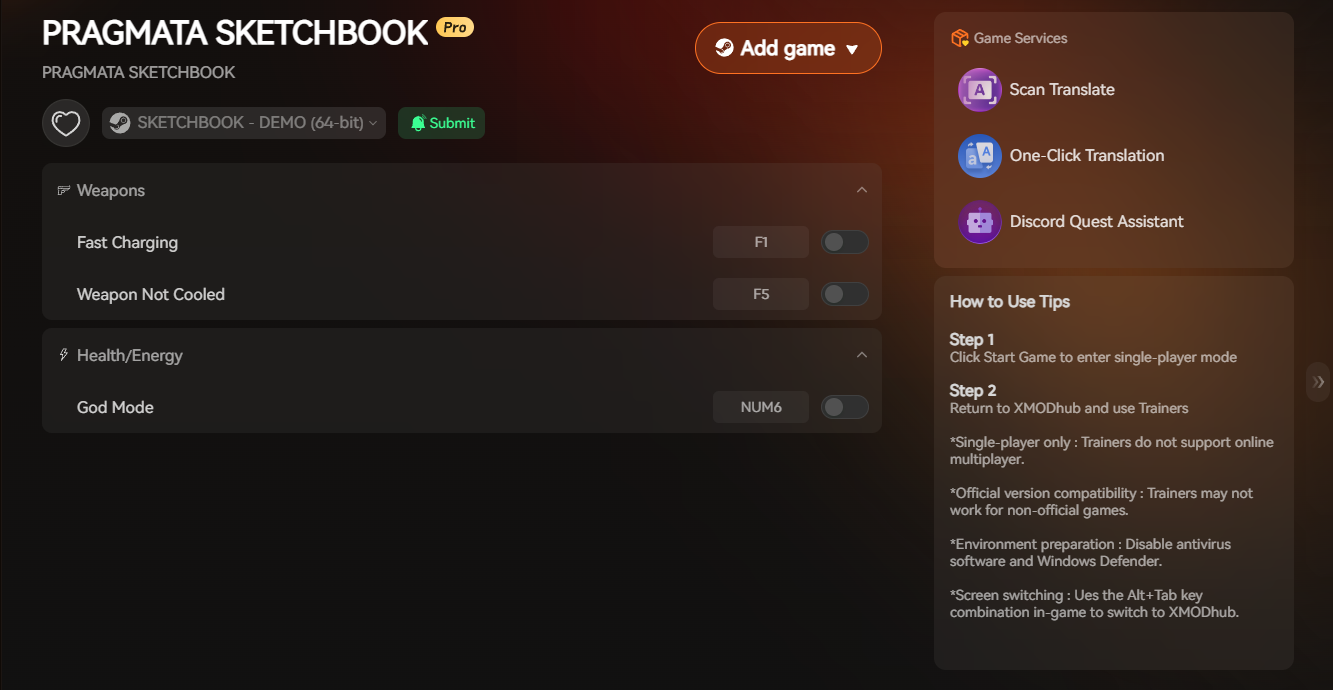
Instead of treating PC optimization like a second job, you can use the XMODhub PC Client to take absolute control of your gaming experience. XMODhub is not just an overlay; it is a profound enhancement tool built directly for complex engines. If the game’s aggressive shader compilation is ruining your pacing, or if a locked Field of View is giving you motion sickness, XMODhub bypasses the restricted RE Engine natively.
- Step 1:Télécharger XMODhub : Navigate to our official platform and securely download the optimized PC desktop application.

- Step 2:Auto-Detect Game Path: Launch the app. Our intelligent system will automatically scan your drives and locate your PRAGMATA installation folder in seconds without requiring any complex manual routing.
- Step 3:Toggle trainers/cheats: Click Play to launch the game smoothly. Open the sleek XMODhub dashboard to instantly toggle powerful features like the One-Click Framerate Stabilizer, FOV Unlocker, Infinite Health, and Unlimited Lunar Credits.
Frequently Asked Questions (FAQ)
Q: Why does PRAGMATA stutter every time Diana uses her technological abilities?
A: This is a classic symptom of real-time shader compilation stutter. Whenever a new visual effect, such as Diana’s holographic shielding or a massive explosion, appears on screen for the very first time, your CPU must pause the game to translate the graphics code for your GPU. Updating your graphics drivers to the absolute latest version and allowing the game to sit on the main menu for ten minutes upon first launch can alleviate this painful stuttering.
Q: Can I disable motion blur and depth of field completely in PRAGMATA?
A: Yes, and we highly recommend doing so for maximum visual clarity. The RE Engine’s implementation of motion blur is incredibly aggressive and can cause motion sickness during zero-gravity spins. You can disable both settings directly in the in-game Display Menu. If they keep turning back on after a restart, you can navigate to the pragmata_config.ini file in your installation directory and manually set MotionBlur=Off.
Q: Is PRAGMATA heavily CPU or GPU dependent?
A: PRAGMATA is heavily dependent on both, but it shifts priorities based on your environment. When you are exploring the vast, open ruins of the lunar surface with massive draw distances, the game creates an immense CPU bottleneck as it calculates the geometry and enemy AI logic. Conversely, when you are fighting in tight, enclosed orbital corridors with dynamic lighting, your GPU bears the entire rendering burden.
Conclusion
Mastering the PRAGMATA PC settings is a delicate balancing act between visual splendor and tactical fluidity. By understanding the heavy toll that Ray Tracing and Volumetric Quality take on your graphics card, safely managing your VRAM limits, and utilizing our benchmarked configurations, you can eliminate the dreaded RE Engine stuttering.
However, if you are exhausted from digging through configuration files and simply want to experience the game on your own terms, XMODhub is your ultimate companion. With native, secure support for over 5,000 PC titles, we ensure you never have to fight your hardware again.
Whether you need a FOV unlocker for PRAGMATA, or seamless combat tweaks for Devil May Cry 5 et Wilds de Monster Hunter, XMODhub puts the power back in your hands. Secure your framerate, launch the game, and claim your victory today.

Je suis un joueur passionné et j'écris sur XMODhub, qui se consacre à vous apporter les dernières nouvelles, astuces et idées en matière de jeux.
Connectez-vous avec moi :
Profil LinkedIn