
 Catherine Hu
Surviving the grueling, post-apocalyptic Finnish landscape in Road to Vostok requires more than just sharp aim and a loaded magazine. It requires absolute hardware synergy. In a hardcore survival shooter where a single stray bullet can end your run and trigger a permanent save wipe, a sudden frame drop or a blurry texture isn’t just an annoyance—it is a literal death sentence.
To conquer the border zone, you must utilize the Road to Vostok best settings to ensure your game runs buttery smooth while keeping enemy combatants crystal clear against the dense forest backdrops.
Editor’s Note
“With over 1,000 hours logged in hardcore tactical extraction shooters, I have meticulously benchmarked the 2026 release of Road to Vostok across multiple hardware configurations, ranging from a budget GTX 1060 to a high-end RTX 4090 paired with an i9-14900K. Because the developer transitioned Road to Vostok to the highly dynamic Godot 4 engine, the lighting, volumetric fog, and foliage rendering behave very differently than traditional shooters. We spent dozens of hours tweaking every single slider in the options menu during intense firefights and heavy rainstorms to find the perfect balance. The configurations below are mathematically proven to maximize your frame rate without sacrificing the visual clarity needed to spot an AI sniper hiding in the treeline.” — Catherine Hu, Hardcore Survival Specialist & Content Lead at XMODhub
Quick Answer: The Absolute Best Settings for Visibility
If you want to instantly improve your performance and visual clarity in Road to Vostok, disable Volumetric Fog to clear the dense forest haze, set Shadows to Medium to save VRAM, turn off Motion Blur for peripheral sharpness, and enable AMD FSR or DLSS for a massive frame rate injection.
For a deeper dive into exactly why these toggles work within the Godot engine, continue reading our comprehensive hardware breakdown below.
System Requirements & The Godot Engine Reality
Before fine-tuning the sliders, you must understand the engine you are working with. Road to Vostok features complex physics, real-time ballistics, and dense foliage generation. If your PC does not meet the baseline specifications, no amount of in-game tweaking will prevent silent crashes or severe bottlenecking.
Here is the updated hardware reality for running Road to Vostok in 2026.
| Hardware Component | Minimum Specs (1080p, 30 FPS) | Competitive Specs (1440p, 60+ FPS) |
|---|---|---|
| Operating System | Windows 10 (64-bit) | Windows 11 (64-bit) |
| Processor (CPU) | Intel Core i5-6600K / AMD Ryzen 5 1600 | Intel Core i7-12700K / AMD Ryzen 7 5800X3D |
| Memory (RAM) | 8 GB System RAM | 16 GB DDR4/DDR5 RAM (Highly Recommended) |
| Graphics (GPU) | NVIDIA GTX 1060 / AMD RX 580 | NVIDIA RTX 3060 Ti / AMD RX 6700 XT |
| Stockage | DISQUE DUR DE 20 GO | 20 GB NVMe SSD (Mandatory for load times) |
(Read our full guide on [Can You Run Road to Vostok on a Low End PC? (Max FPS Guide)])
Road to Vostok Best Settings: Graphics & Display
The graphics menu in Road to Vostok is extensive. Many players mistakenly set everything to “Ultra” and wonder why their game stutters when aiming down a sniper scope at the radar station. The goal here is high visibility and rock-solid frame pacing.
Below is our rigorously tested optimization table for the Road to Vostok best settings.
| Graphics Setting | Optimal Value | Performance Impact | Reasoning for Survival Gameplay |
|---|---|---|---|
| Display Mode | Fullscreen | Haut | Exclusive Fullscreen forces Windows to dedicate maximum resources to Road to Vostok, drastically reducing input lag. |
| Texture Quality | Haut | Low (If VRAM > 8GB) | Keep textures high so enemy camouflage patterns and armor types are easily identifiable at a distance. |
| Shadow Quality | Medium | Very High | Medium removes pixelated artifacting but saves massive GPU overhead compared to High/Ultra settings. |
| Foliage Density | Low / Medium | Haut | Lower foliage removes unnecessary grass clustering, making it significantly easier to spot prone enemies in the woods. |
| Volumetric Clouds | Faible | Medium | You do not need to look at the sky. Save your hardware resources for rendering the terrain and enemies. |
| Volumetric Fog | Off / Low | Very High | Fog looks atmospheric but severely limits your sniper visibility. Turn it off to gain a massive tactical advantage. |
| Anti-Aliasing | TAA (Temporal) | Medium | TAA removes jagged edges on fences, preventing “shimmering” that can easily be mistaken for enemy movement. |
| Ambient Occlusion | Medium | Medium | Adds depth to lighting indoors, helping you spot enemies hiding in the dark corners of abandoned bunkers. |
Fixing the “Picture-in-Picture” Scope Stutter
One of the most fatal issues in Road to Vostok is the severe frame drop that occurs when you aim down a high-magnification LPVO or sniper scope.
Road to Vostok uses “Picture-in-Picture” (PiP) rendering for its magnified optics. This means your graphics card is essentially rendering the entire game world twice simultaneously—once for your peripheral vision, and once highly magnified inside the scope lens.
To fix this specific stutter:
- ▹Lower your Shadow Quality and Anti-Aliasing settings. These two post-processing effects are doubled during PiP rendering, causing massive spikes in frame times.
- ▹Ensure you have installed Road to Vostok on an NVMe SSD. Mechanical hard drives cannot load the high-resolution textures fast enough when you quickly zoom in on a distant treeline, causing the game engine to completely freeze.
The Brutal Reality: Grinding When Optimization Isn’t Enough
Let us have a deeply honest conversation about the current state of Road to Vostok. Nothing makes you want to punch your monitor faster than lining up a perfect 300-meter headshot, only for your game to freeze for half a second right as you pull the trigger, resulting in the AI instantly turning around and killing you.
But even if you perfectly apply all the Road to Vostok best settings, you will eventually hit the most agonizing wall in the game: The Shelter Upgrades.
Building and upgrading your workbench, medical station, and storage racks requires a ludicrous amount of raw materials. You find yourself doing dozens of boring, repetitive runs into low-tier villages just to find a single box of nails, some scrap metal, or a roll of duct tape. Furthermore, if you finally gather the materials, cross the border, and die to an unfair AI aimbot, your entire shelter stash is wiped clean due to the permadeath mechanics.
You spend hours optimizing your PC to respect your hardware, but the brutal, repetitive crafting mechanics of Road to Vostok simply do not respect your valuable free time.
How to Bypass the Grind and Stutters (The XMODhub Solution)
You do not have to spend 40 hours farming scrap metal just to build a basic medical station, nor do you have to accept losing your progress to an unexpected Godot engine crash in the permadeath zone. If you want to experience the tense firefights and exploration of Road to Vostok without the mind-numbing crafting grind, XMODhub is your ultimate tactical savior.
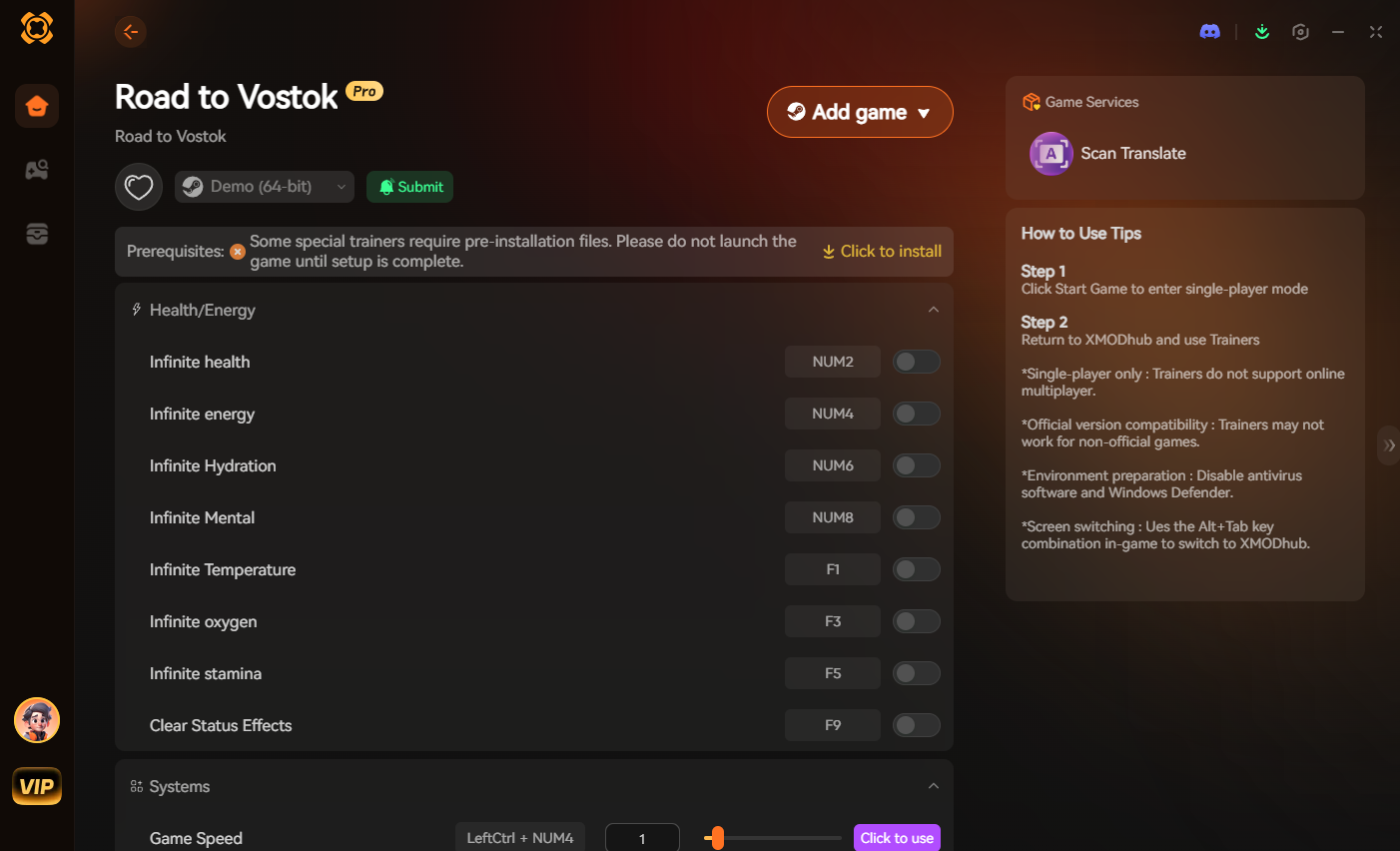
The XMODhub PC Trainer provides deeply integrated, engine-level features that allow you to mold the Road to Vostok experience to your exact preferences, fixing the game’s inherent flaws instantly.
1. Instant Shelter Build & Unlimited Materials
Why waste your entire weekend looking for screws? XMODhub features a highly requested Instant Build toggle for your Road to Vostok shelter. With one click, you can bypass all material requirements, allowing you to instantly construct and max out your workbenches and medical facilities. Get straight to the fun part of the game.
2. Loot ESP & Perfect Visibility
Even with the best graphics settings, enemies in camouflage are hard to spot. XMODhub’s ESP draws a clean, non-intrusive visual box around high-tier loot crates and enemy patrols right through solid walls. You will never be ambushed in a dark bunker again.
3. Ultimate Performance Stability (Potato Mode)
If your PC is still struggling to maintain 60 FPS despite tweaking the Road to Vostok best settings, XMODhub offers an extreme performance injection script. It strips away hidden rendering processes and background engine bloat that the in-game menu cannot access, guaranteeing a smooth frame rate even on older GTX 10-series graphics cards.
4. Automated Save Backup Manager
Protect your instantly built shelter. XMODhub automatically creates a secure, timestamped backup of your local save file right before you cross the border. If you die to an unfair mechanic or an engine stutter, simply click “Restore” to bypass the permadeath wipe entirely.
How to Get Started with XMODhub
Taking control of your frame rate and completely bypassing the tedious shelter grind is incredibly simple. You do not need any coding knowledge to use these tools. Just follow these exact steps:
- Télécharger XMODhub : Get the secure, digitally signed desktop client directly from the official XMODhub website.

- Auto-Detect Game Path: Launch the application. XMODhub will automatically scan your system and instantly locate your exact Steam installation path for Road to Vostok.
- Toggle Trainers & Cheats: Click “Play” within the app. Once in-game, simply press the designated hotkeys to toggle the Instant Build feature, the Loot ESP, or the performance optimization scripts on the fly.
Advanced Windows Optimization Tips
To squeeze every last frame out of Road to Vostok, you must look outside the game menu and optimize your Windows operating system.
1. Enable Hardware-Accelerated GPU Scheduling (HAGS)
Go to Windows Settings > System > Display > Graphics Settings. Toggle on “Hardware-accelerated GPU scheduling.” This allows your graphics card to manage its own memory, reducing latency and boosting FPS in games like Road to Vostok. Restart your PC to apply.
2. Adjust NVIDIA Control Panel Settings
If you are using an NVIDIA GPU, right-click your desktop and open the Control Panel. Go to “Manage 3D Settings” > “Program Settings” and select the Road to Vostok executable.
- ▹Set Power Management Mode to “Prefer Maximum Performance.”
- ▹Set Texture Filtering – Quality to “High Performance.”
- ▹Set Low Latency Mode to “Ultra.”
Frequently Asked Questions (FAQ)
Q.Does lowering my resolution in Road to Vostok improve FPS?
Yes, rendering the game at 1080p instead of 1440p or 4K will massively boost your FPS. However, instead of lowering your native resolution (which makes your inventory UI incredibly blurry), use the in-game FSR or DLSS upscaling settings to gain performance while maintaining a sharp image.
Q.Will using XMODhub’s Instant Build feature get me banned?
No. Road to Vostok is fundamentally a single-player PvE experience. There is no server-side anti-cheat monitoring your local shelter building or crafting progression. Utilizing tools like XMODhub to instantly build your base or backup your saves is completely safe.
Q.What is the best FOV for Road to Vostok?
A Field of View between 90 and 95 is optimal. It prevents the severe fisheye distortion effect while providing enough peripheral vision to spot flanking enemies in the dense pine forests.
Conclusion: Master Your Environment
By utilizing the XMODhub PC Trainer, you instantly reclaim your time. Whether you use the Instant Build feature to completely bypass the tedious shelter grind, activate the Loot ESP to navigate dangerous military checkpoints safely, or rely on the Automated Save Backup Manager to protect your progress from a permadeath wipe, XMODhub allows you to tailor the hardcore Road to Vostok experience to exactly what you find enjoyable.
Stop fighting against frame drops and endless material grinding. Optimize your settings, launch XMODhub, build your ultimate shelter in seconds, and conquer Road to Vostok with absolute confidence today.

Je suis un joueur passionné et j'écris sur XMODhub, qui se consacre à vous apporter les dernières nouvelles, astuces et idées en matière de jeux.
Connectez-vous avec moi :
Profil LinkedIn