
 Catherine Hu
There is nothing worse than sinking 50 hours into Goblin Nest, carefully breeding the ultimate goblin army, upgrading your dungeon defenses, and breaking the will of a high-tier Elven Mage, only to lose your progress to a corrupted SaveData.json file, a bad mod, or a Steam Cloud sync error.
Whether you want to manually back up your tribe’s playthrough, use a save editor to tweak your resources, transfer your uncensored DLSite save to the Steam version, or modify the configuration files to adjust the internal resolution, you first need to know exactly where the Unity engine stores its data on your hard drive.
Below are the exact, verified file paths for Goblin Nest across Steam, DLSite, Itch.io, and Steam Deck, along with the safest way to automate your save backups so your underground empire is never lost.
Vous pouvez aussi aimer : Goblin Nest Cheat Engine Table vs. XMODhub Trainer: The Best Free Alternative (2026)
Quick Answer: Exact File Paths (TL;DR)
If you just need the directory locations immediately to recover your tribe, copy and paste these into your Windows File Explorer:
- Steam / DLSite / Itch.io PC Path:
%USERPROFILE%\AppData\LocalLow\BadColor\GoblinNest\ - Steam Deck Path:
/home/deck/.local/share/Steam/steamapps/compatdata/1477700/pfx/drive_c/users/steamuser/AppData/LocalLow/BadColor/GoblinNest/ - Target File:
SaveData.json
Expert Note: The Cloud Sync Danger
“We have all been there. You are deep into Goblin Nest, just about to successfully integrate a powerful Knight into your tribe, and your PC crashes or the Unity engine freezes. When you relaunch, Steam Cloud accidentally overwrites your local JSON save with an older version from three days ago. It is a management gamer’s worst nightmare. I specifically wrote this guide because Unity engine save management can be tricky, and JSON files are highly prone to corruption. Even if you don’t plan on using trainers or save editors, please back up your LocalLow folder manually right now. Don’t learn this lesson the hard way.”
Windows PC Save File Location (Steam & Alternative Launchers)
Because Goblin Nest is built on the Unity engine, it does not use the standard “Documents” folder or the Unreal Engine “AppData\Local” path. Whether you purchased the game on Steam or opted for the DRM-free, uncensored versions on DLSite and Itch.io, the save files are securely tucked away in the hidden Windows AppData directory under LocalLow.
How to navigate there manually:
- Press the Touche Windows + R to open the Run dialog box.
- Type
%appdata%and press Enter. (This opens the Roaming folder). - Click “AppData” in your folder address bar to go up one level.
- Open the LocalLow dossier.
- Scroll down and open the folder named BadColor, then open GoblinNest. Your
SaveData.jsonfile is located here. - Remarque : If you cannot see the AppData folder, open File Explorer, click the View tab at the top, and check the box for “Hidden items”.
How to Transfer Goblin Nest Saves (DLSite to Steam)
Many players start their journey on DLSite or Itch.io for the uncensored 18+ content and later purchase the Steam version for convenience and achievements.
Because both versions of the game run on the exact same Unity framework, your save files are 100% cross-compatible.
- Install the Steam version of Goblin Nest and launch it once to generate the folder structure.
- Naviguez jusqu'à
%USERPROFILE%\AppData\LocalLow\BadColor\GoblinNest\. - You will notice that both the Steam and DLSite versions actually read from this exact same folder.
- If you have a backup
SaveData.jsonfrom your old PC or a different hard drive, simply paste it into this folder, overwrite the existing file, and launch the game. Your tribe will be right where you left it.
How to Edit Goblin Nest Save Files (SaveData.json)
If the developer console is locked, many players turn to modifying the SaveData.json file to give themselves infinite Meat, Wood, or Gold.
To edit your save:
- Navigate to the LocalLow folder mentioned above.
- CRITICAL: Cliquer avec le bouton droit de la souris
SaveData.jsonand make a copy of it on your desktop. - Open the original file using a text editor like Notepad++.
- Use CTRL+F to search for variables like
"gold":ou"meat":and change the numerical values next to them. - Save the file and launch the game.
Avertissement : JSON formatting is incredibly strict. If you accidentally delete a comma , or a quotation mark ", the game will fail to parse the file, resulting in a black screen or a missing save file error upon launch.
Where to Find the Goblin Nest Config File (Unity Registry)
If you are trying to manually tweak graphics, audio, or display settings that might be bugged in the in-game menu (such as forcing windowed mode or fixing a resolution scaling issue), you need to know how the engine handles configurations.
Unlike traditional PC games, Unity does not generate a standard .ini config file. Instead, your graphics and core settings are saved directly in the Windows Registry.
How to Edit the Config:
- Press the Windows Key + R, type
regedit, and press Enter. - Naviguer vers :
HKEY_CURRENT_USER\SOFTWARE\BadColor\GoblinNest\ - Here you will find the hex values for your Screen Resolution and Master Volume.
Avertissement : Always be extremely careful when editing the registry. Changing the wrong hex value can break the game’s startup sequence entirely.
Steam Deck / Linux Save Location
Playing Goblin Nest on the go? The Steam Deck uses Proton to emulate the Windows file structure. Your save files are buried inside the compatdata folder, routing specifically to the emulated LocalLow directory.
The Steam Deck file path is:
/home/deck/.local/share/Steam/steamapps/compatdata/1477700/pfx/drive_c/users/steamuser/AppData/LocalLow/BadColor/GoblinNest/
Conseil : The folder “1477700” is the specific Steam App ID assigned to Goblin Nest. If you added a non-Steam version (like the DLSite release) to your Steam Deck as a non-Steam game, it will be located in a randomly generated 10-digit folder inside compatdata instead.
Troubleshooting: Steam Cloud Sync Errors & Missing Saves
If you launch the game and your “Load Game” button is greyed out, or your captive roster has reverted to an older version, Steam Cloud might be overwriting your local Unity save files.
How to fix missing saves and sync issues:
- Right-click Goblin Nest in your Steam Library and select Propriétés.
- Under the General tab, toggle Steam Cloud to OFF.
- Open your LocalLow folder. If you see a file named
SaveData.json.bak, delete your currentSaveData.jsonand rename the.bakfile toSaveData.jsonto restore your most recent local backup. - Play the game, advance one day to force a new manual save, and then exit.
- Turn Steam Cloud back on. Steam will ask which file to keep; choose to Upload to Cloud to overwrite the servers with your fixed local save.
The Smarter Way: 1-Click Auto-Backups with XMODhub
Navigating through hidden %AppData% folders every time you want to secure your progress is tedious and risky. One accidental click or a botched JSON save edit, and your entire tribe is deleted forever.
The XMODhub PC Client features a built-in Save Manager designed specifically for management games like Goblin Nest.
- Automated Backups: XMODhub automatically creates a secure, timestamped backup of your JSON save file every time you exit the game.
- Version History Rollback: Did a raid go horribly wrong and wipe out your best fighters? Instantly roll back to yesterday’s perfect save state with one click.
- Multi-Version Native Support: XMODhub automatically detects and manages saves across Steam, DLSite, and Itch.io installations without you needing to dig through system folders.
🚀 Download XMODhub to Secure Your Saves Now
- Download and Launch the free XMODhub desktop app.

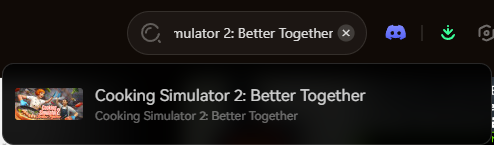
- Search for Cooking Simulator 2: Better Together.
- Click “Play”.
- Toggle your desired cheats (Infinite Money, Freeze Customer Patience, Unbreakable Plates) directly from the clean UI or via hotkeys while you are busy chopping vegetables.
- Done.
Frequently Asked Questions (FAQ)
Q: Can I get banned for modifying my Goblin Nest save file?
A: No. Modifying your local JSON save file (e.g., giving yourself more gold or meat via a hex editor) in a purely single-player environment will not result in a ban. Just be aware that manual editing often leads to file corruption if the syntax is broken.
Q: What happens if I accidentally delete the config data in the registry?
A: Don’t panic. If you delete the BadColor registry key, the Unity engine will automatically generate a brand new, default configuration the next time you launch Goblin Nest. All your graphics and volume settings will just revert to their defaults.
Conclusion: Protect Your Progress
Locating your Goblin Nest save file is a vital skill for recovering from game-breaking JSON corruptions, migrating your dungeon to a Steam Deck, or recovering a missing tribe after a Steam Cloud error.
However, digging through hidden system directories and editing JSON text is a chore. If you prefer a highly secure, “set it and forget it” solution, the XMODhub Save Manager automates your backups and eliminates the risk of human error.
XMODhub is far more than just a save manager—it is the ultimate all-in-one Gaming Platform. With native support for over 5,000+ titles, we provide a unified ecosystem for PC gamers. Whether you need an auto-updating Trainer for Goblin Nest, real-time translation tools, or Save Managers for similar hits like Cult of the Lamb et KeeperRL, XMODhub ensures you always have the best tools at your fingertips.

Je suis un joueur passionné et j'écris sur XMODhub, qui se consacre à vous apporter les dernières nouvelles, astuces et idées en matière de jeux.
Connectez-vous avec moi :
Profil LinkedIn
 Nancy Miller
This is a really helpful breakdown for anyone who’s lost progress in Goblin Nest—especially the Steam Deck paths, which aren’t always easy to find. I’ve run into save corruption issues before, so having the exact file locations at hand makes backup strategies much more reliable. Thanks for the clear, verified info!