Catherine Hu
You have waited months for Hozy, pre-loaded the files, and cleared your schedule to enjoy a relaxing afternoon renovating abandoned homes. You click Play, and… nothing. Or worse, a cryptic Unreal Engine Fatal Error pops up before you even reach the main menu. Launch day issues are frustrating, especially when you just want a cozy, stress-free experience, but they are rarely unfixable.
Whether you are facing a black screen, random crashes to desktop (CTD) while picking up trash, missing DLL files, or unplayable frame rates during physics-heavy cleaning sessions, this guide covers the most effective solutions to get you into the game.
 You may also like:
Hozy Cheat Engine Table vs. XMODhub: Best Free Trainer (2026
🎙️ Editor’s View: The “Day One” Curse
“I remember trying to launch similar physics-based simulation games like House Flipper 2 on release day. It crashed every time the studio logo appeared. I almost refunded it.
Before you give up on Hozy, realize that 90% of these crashes are caused by three simple things: corrupted asset downloads, missing C++ libraries, or overlay conflicts messing with the Unreal Engine. I have tested the methods below on my own rig (RTX 4070 / Win 11), and Method 4 was the one that finally solved the rendering crash for me.”
— Catherine Hu, Tech Support Lead & Cozy Gamer at XMODhub
Check First: Hozy System Requirements
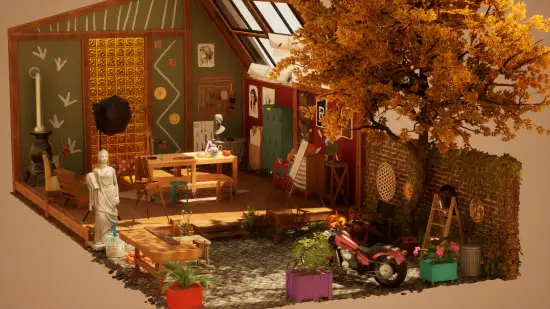
Before debugging, ensure your PC can actually run the game. Hozy features highly detailed, physics-based debris and dynamic lighting. Trying to run the game on below-minimum specs is the most common cause of silent crashes, where the game closes without throwing an error code.
| Composant | Exigences minimales | Recommended Specifications |
|---|---|---|
| OS | Windows 10 (64-bit) | Windows 11 (64-bit) |
| UNITÉ CENTRALE | Intel Core i3-2100T / AMD FX 6100 | Intel Core i5 3570K / AMD Ryzen 3 |
| RAM | 8 GB RAM | 16 GO DE RAM |
| GPU | NVIDIA GeForce GTX 660 / AMD R7 260x | NVIDIA GeForce GTX 980 / AMD R9 290X |
| Stockage | 5 GB SSD | 5 GB NVMe SSD |
Method 1: Verify Game Files (Steam)
Corrupted installation files are the number one cause of Hozy crashing on startup. If a single texture for the living room wallpaper is missing, the engine will panic and close.
🎮 For Steam Users:
- 1
Right-click Hozy in your Steam Library. - 2
Sélectionner Propriétés > Fichiers installés. - 3
Click Vérifier l'intégrité des fichiers de jeu. - 4
Wait for the process to finish (it may re-download some missing environment files).
Method 2: Update Drivers & Visual C++ Redistributables
Hozy runs on Unreal Engine, which strictly requires updated software environments to execute its physics simulation logic smoothly.
🖥️ GPU Drivers:
Update your NVIDIA (Game Ready Driver) or AMD (Adrenalin) drivers to the latest version. Outdated drivers will crash when rendering complex dust particles and sunlight streaming through the windows.
⚙️ Visual C++ All-in-One:
If you get errors like MSVCP140.dll missing ou VCRUNTIME140.dll not found, you need to reinstall the Microsoft Visual C++ Redistributables. Ensure you install both the x86 and x64 versions.
🚀 DirectX :
Ensure DirectX is fully updated via Windows Update.
Method 3: Fix Black Screen & Overlay Issues
If you hear the calming background music but see a black screen, or the game closes instantly after the Come On Studio logo, it is likely a conflict with background apps trying to inject an overlay into the game window.
✦ Disable Overlays:
Turn off the Steam Overlay, Discord Overlay, and NVIDIA ShadowPlay completely.
✦ Fullscreen Optimization:
Method 4: Common Error Codes & Fixes (Unreal Engine / DLL)
Here are specific solutions for the most common error messages renovators are reporting:
Access Violation (0xc0000005):
This is a notorious memory crash, usually caused by strict antivirus software blocking the game from accessing your RAM. Whitelist the Hozy installation folder in Windows Defender.
Out of Video Memory Error:
Your GPU VRAM is full. This happens when rendering too many dynamic physics objects (like trash or furniture) at once. Try lowering Texture Quality and Shadows to Medium before launching, or close VRAM-heavy background apps like Google Chrome.
Force DirectX 11 Mode:
If the game crashes randomly on newer DirectX 12 versions, right-click Hozy in Steam > Properties > Launch Options. Type -d3d11 to force the highly stable DX11 mode.
Unhandled Exception: EXCEPTION_ACCESS_VIOLATION:
This is often a RAM instability issue. Disable XMP profiles in your motherboard BIOS temporarily to ensure system stability.
Method 5: Fix Low FPS & Stuttering
Is your renovation project running like a slideshow when you place multiple pieces of furniture?
- ✨
Lower Shadows and Physics Debris: Dynamic shadows and tumbling trash consume massive amounts of CPU power. Lower these settings first. - ✨
Cap the Frame Rate: Open the in-game settings and cap your FPS to 60. Letting the game run at uncapped frame rates overworks your GPU for a slow-paced simulation game. - ✨
Set High Priority: Open Task Manager > Details > Right-click the Hozy executable > Set Priority > High.
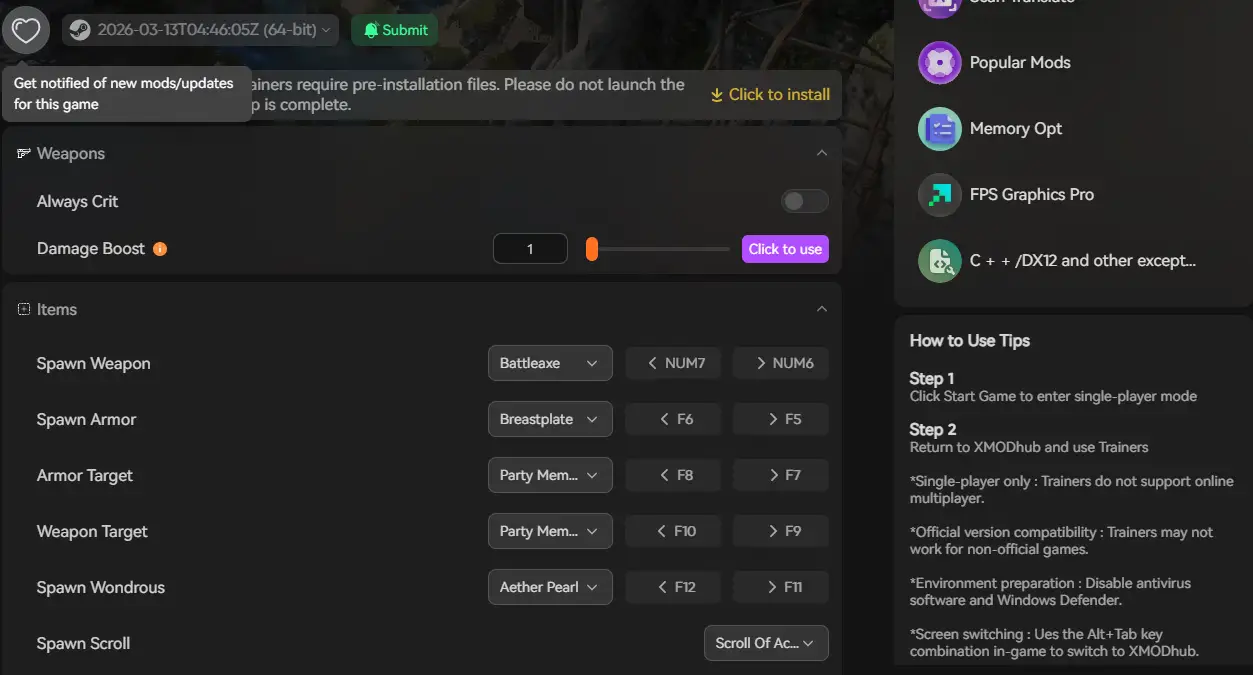
The Workaround: Skip Laggy Areas with XMODhub
Sometimes, Hozy crashes not because of your PC hardware, but because of unoptimized code when too many physics-based trash bags or dust particles spawn in a single room.
XMODhub offers unique tools to help bypass these technical hurdles without ruining your relaxing vibe:
How to Get Started with XMODhub


FAQ
Q Does Hozy support Windows 10?
A : Yes, but ensure you are on version 22H2 or newer. Older Windows 10 builds may cause compatibility errors with modern Unreal Engine features.
Q Will reinstalling fix the crash?
A : Reinstalling should be your last resort. Try Verifying Integrity (Method 1) first, as it repairs broken files much faster than downloading the entire game again.
Q Is there an optimization patch coming?
A : The developers at Come On Studio frequently monitor crash reports. Check the XMODhub news section for updates on upcoming performance patches that address physics-related memory leaks.
Conclusion
Launch issues are painful, but they are temporary. By verifying your files, updating your C++ libraries, forcing DX11 mode, and optimizing your Windows settings, you should be able to fix the Hozy crash on startup error and return to building your dream home.
If the game is still suffering from poor optimization during heavy cleaning phases, XMODhub can help bridge the gap. Use Game Speed adjustments to bypass sluggish simulation sections and Auto-Backups to secure your neighborhood’s progress until the official developer patch arrives.
Think Bigger: XMODhub is more than just a tool for one game—it is a comprehensive gaming platform supporting over 5,000+ titles. Whether you are mastering Hozy or exploring similar cozy simulation hits like House Flipper 2 and Unpacking, XMODhub ensures you always have the ultimate toolkit ready at your fingertips.
Don’t let bugs ruin your relaxing weekend. Play smarter.

Je suis un joueur passionné et j'écris sur XMODhub, qui se consacre à vous apporter les dernières nouvelles, astuces et idées en matière de jeux.
Connectez-vous avec moi :
Profil LinkedIn

 Nancy Miller