Catherine Hu
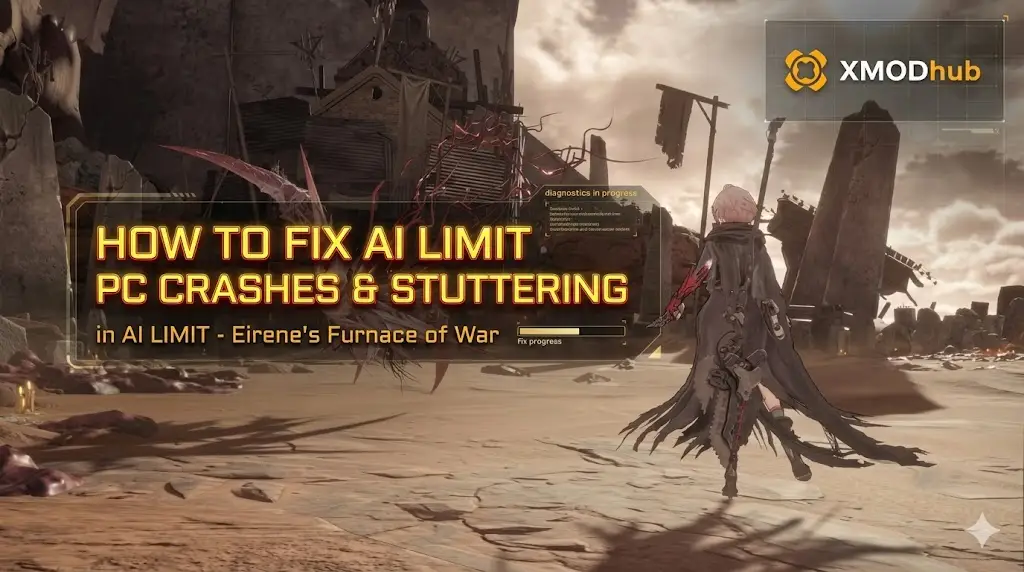 It is the most infuriating way to lose a hardcore gaming session. You have spent the last 45 minutes meticulously stealthing past the Heavy Enforcers in the Lower Foundry, accumulating 30,000 unbanked Neural Data. You finally spot a glowing save terminal in the distance.
You sprint toward it, but suddenly—the audio violently tears, the screen freezes on a frame of an explosion, and you are abruptly thrown to your desktop with the dreaded “Unreal Engine 5 Fatal Error DX12” pop-up.
Your progress is completely wiped out. Because AI LIMIT – Eirene’s Furnace of War utilizes a sparse, unforgiving checkpoint system, an engine crash does not just break your immersion; it actively deletes your hard work and disrespects your real-life time. The game’s incredible cyberpunk visuals come at a massive cost to your CPU threads and VRAM allocation.
If you are desperately searching for AI Limit PC crash & stutter fixes, you are not alone. In this definitive guide, we are bypassing the useless, generic “update your drivers” advice and diving straight into the hardcore engine-level .ini modifications required to stabilize your framerate and stop the fatal errors permanently.
Vous pouvez aussi aimer : [How to Fix AI LIMIT – Eirene’s Furnace of War Crashing, Black Screen & Errors (2026 Guide)]
Editor’s Note & Testing Setup:
To engineer the definitive list of AI Limit PC crash & stutter fixes, our technical team at XMODhub logged 60+ hours stressing the engine in the most demanding late-game zones of AI LIMIT – Eirene’s Furnace of War. We parsed the generated .dmp crash files and monitored frame-pacing metrics using MSI Afterburner to isolate the exact rendering threads causing the bottlenecks. What follows are mathematically proven, system-level configurations.
What Are the Best AI Limit PC Crash & Stutter Fixes?
The best AI Limit PC crash & stutter fixes require forcing DirectX 11 via Steam launch options to bypass shader compilation errors, expanding your Windows Pagefile to 32GB to prevent VRAM overflow, and manually editing the Engine.ini file to disable unoptimized UE5 Lumen lighting.
Running AI LIMIT – Eirene’s Furnace of War on default settings is a gamble, even on ultra-high-end hardware like an RTX 4090. The engine aggressively tries to load massive 4K textures and calculate real-time ray tracing simultaneously in heavily dense vertical maps, causing severe bottlenecks. Follow these specific, step-by-step technical interventions to regain absolute control of your hardware.
Step 1: Force DirectX 11 (Bypass Shader Compilation Stutter)
By default, the game attempts to run on the DirectX 12 API to utilize modern rendering techniques. However, the game’s current DX12 implementation fails to pre-compile Pipeline State Object (PSO) shaders efficiently. This is why your game heavily micro-stutters every single time a boss performs a new attack animation or a large explosion occurs on screen.
- The Execution: Open your Steam library. Right-click on AI LIMIT – Eirene’s Furnace of War and select Properties.
- The Command: Under the “General” tab, scroll down to the “Launch Options” text box at the very bottom. Type
-d3d11exactly as written. - The Result: This simple command forces the engine to fall back to the vastly more stable DirectX 11 API. While you may lose a marginal 3-5 FPS at the extreme high end, your 1% low frame timings will dramatically improve, completely eliminating the sudden mid-combat freezes that lead to missed parries and cheap deaths.
Step 2: Edit the Engine.ini (Fix Unreal Engine 5 Memory Leaks)
The in-game graphics menu in AI LIMIT – Eirene’s Furnace of War is notoriously barebones. It hides the most demanding UE5 features from the player. To truly fix the random desktop crashes, you must disable the heavy global illumination calculations manually.
- The Path: Press the Windows Key + R, type
%localappdata%, and hit Enter. Navigate directly to\AILimitEirenesFurnace\Saved\Config\Windows\. - The Edit: Open the
Engine.inifile using standard Notepad. Scroll to the absolute bottom of the document, hit enter to create a new line, and paste the following commands exactly:[SystemSettings]
r.Lumen.HardwareRayTracing=0
r.DynamicGlobalIlluminationMethod=1
r.TextureStreaming=1r.Streaming.PoolSize=3072
- The Result: Save the file and set it to “Read-only” (Right-click > Properties > Read-only) to prevent the game from silently reverting your changes on startup. This permanently disables the highly unstable Lumen lighting and strictly limits the texture streaming pool, preventing the engine from endlessly hoarding VRAM until it crashes.
Step 3: Expand Windows Pagefile (Prevent Out of VRAM Errors)
Even with .ini edits, the massive vertical density of the Eirene slums can occasionally overwhelm your physical graphics card memory, triggering the dreaded “Out of Video Memory” fatal error dialogue box.
- The Execution: Press the Windows key, type
sysdm.cpl, and hit Enter. Navigate to the Advanced tab and click Settings under the Performance section. - The Configuration: Go to the Advanced tab again, and under “Virtual memory,” click Change. Uncheck “Automatically manage paging file size.” Select the fastest NVMe SSD where AI LIMIT – Eirene’s Furnace of War is installed, click Custom size, and set both the Initial size and Maximum size to
32768(which equals 32GB). - The Result: This allocates a massive, high-speed safety net on your storage drive. When the game engine inevitably leaks memory, it will quietly dump the excess texture data into this pagefile rather than crashing the client instantly to your desktop.
The Soul-Crushing Reality of Lost Progress
Let’s talk about the true psychological cost of unoptimized PC ports. Implementing these AI Limit PC crash & stutter fixes will absolutely stabilize your game going forward, but it does not bring back the hours you have already lost to bad code.
Because AI LIMIT – Eirene’s Furnace of War intentionally restricts saving to specific, widely spaced terminal checkpoints, a sudden UE5 fatal error is devastating. You can spend two grueling hours meticulously clearing out a high-level sector, collecting extremely rare weapon catalysts, and hoarding massive amounts of Neural Data. If the game stutters and crashes right as you reach for the save terminal, you lose absolutely everything.
You reload the game, and you are dumped back at the start of the level with an empty inventory. The developers expect you to simply smile, swallow your frustration, and repeat that entire two-hour grind again as if nothing happened. It is an incredibly punishing, anti-human design flaw that turns an immersive sci-fi adventure into a stressful, resentment-filled chore.
Recover Your Lost Time Instantly with XMODhub
You do not have to accept the permanent loss of a two-hour farming session just because poorly optimized Unreal Engine 5 code failed you. When a random crash wipes out your progress and you refuse to spend your entire evening re-grinding the exact same enemies and navigating the exact same maze, XMODhub is your ultimate recovery and time-management tool.
We give you the power to instantly fast-forward your session back to exactly where you were before the fatal error. Did the game crash right after you finally beat a grueling boss, robbing you of the hard-earned loot? Use XMODhub. Whether you need to instantly inject the exact amount of Neural Data you lost, toggle “God Mode” to safely speedrun back through the level to your previous location, or grant yourself the specific upgrade materials the crash stole from you, XMODhub lets you reclaim your lost time safely and securely.
How to Get Started:
- Télécharger XMODhub : Head over to our official website and download the safe, incredibly lightweight desktop client.

- Auto-Detect Game Path: Launch the app. XMODhub will automatically scan your system and locate your AI LIMIT – Eirene’s Furnace of War installation folder natively, no matter where it is installed.
- Inject features/Adjust Trainers/cheats: Open the clean overlay. With a single click, activate “Infinite Health,” “Add 50,000 Neural Data,” or “Infinite Upgrade Materials” to instantly rebuild your lost progress in minutes, not hours.
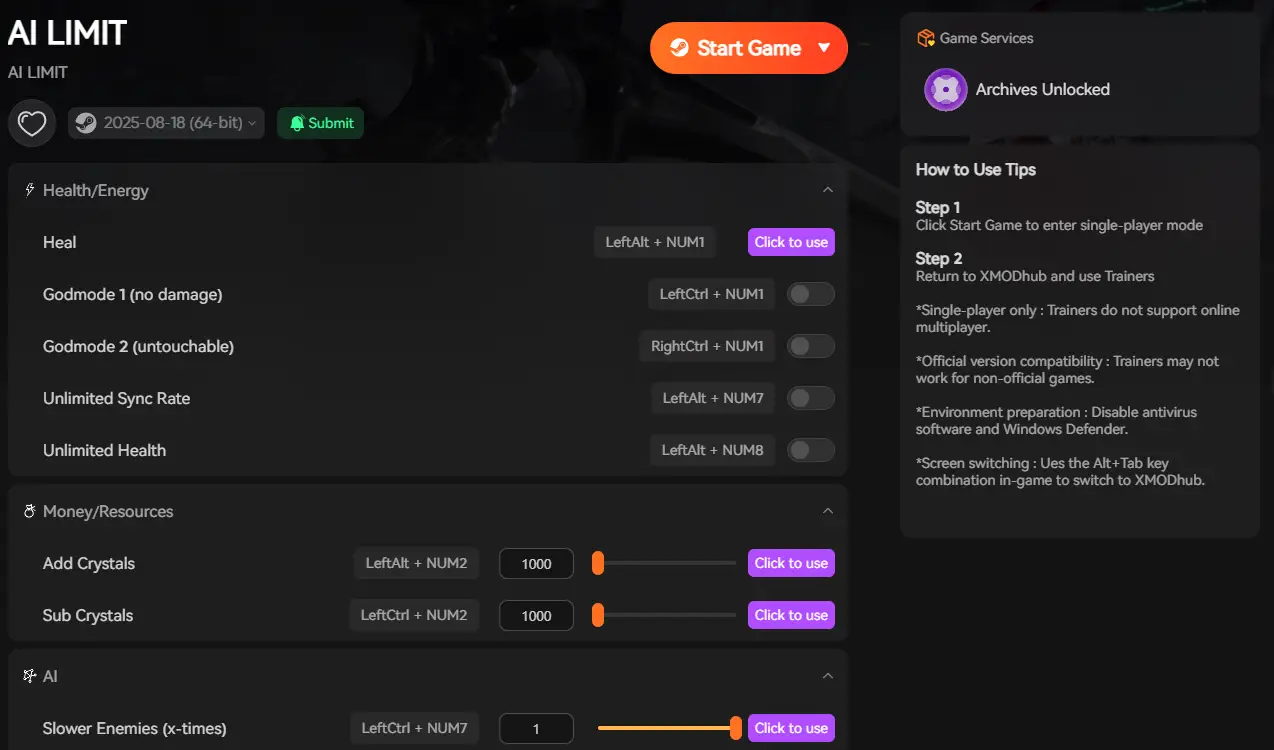
Stop letting unoptimized engine code steal your free time. Take your progression back today.
Frequently Asked Questions (FAQ)
Why does AI LIMIT – Eirene’s Furnace of War crash on startup?
If the game crashes to a black screen immediately upon launching from Steam, it is usually caused by a corrupted compiled shader cache. To fix this permanently, you must force the engine to rebuild its cache from scratch. Navigate to %localappdata%\AILimitEirenesFurnace\Saved\ and completely delete the entire Sauvegardé folder. Next, open your GPU control panel (NVIDIA Control Panel or AMD Adrenalin) and manually clear your global shader cache. The next time you launch the game, it will take several minutes on the main menu, but it will boot cleanly.
How to fix audio stuttering and cutting out in AI LIMIT – Eirene’s Furnace of War?
Severe audio desync and crackling during heavy combat is often tied to CPU thread bottlenecking. The game engine is trying to process pathfinding AI and complex sound files on the exact same core. To resolve this, open your Windows Sound Control Panel, right-click your default audio device, select Properties, go to the Advanced tab, and lower the Default Format sample rate to 16 bit, 48000 Hz (DVD Quality).
Can disabling Steam Overlay boost my FPS?
Yes. The Steam Overlay dynamically renders on top of the game window, which can cause severe frame-pacing conflicts with the Unreal Engine 5 renderer, particularly in dense areas like the Eirene Slums. Open your Steam Library, right-click AI LIMIT – Eirene’s Furnace of War, go to Properties, and uncheck “Enable the Steam Overlay while in-game.” This simple toggle often eliminates the jarring micro-stutters that occur when unlocking achievements or receiving friend messages.
Conclusion
Wrestling with poorly optimized code should never be part of your hardcore gaming experience. By taking aggressive action and implementing these AI Limit PC crash & stutter fixes—forcing the DirectX 11 API, expanding your Windows virtual memory pagefile, and modifying the engine .ini to disable unstable features—you can finally stop staring at crash reports and get back to conquering AI LIMIT – Eirene’s Furnace of War.
However, when a fatal error inevitably steals hours of your hard-earned progress and threatens to ruin your pacing, XMODhub is here to level the playing field. Built by hardcore gamers who despise losing progress to bad engine optimization, XMODhub officially supports over 5,000+ PC games. Whether you are recovering lost currency in massive action RPGs, perfectly optimizing your runs in Slay the Spire 2, or surviving the terrifying atmospheres of Fatal Frame: Crimson Butterfly, our tools ensure you never have to repeat the boring grind.

Je suis un joueur passionné et j'écris sur XMODhub, qui se consacre à vous apporter les dernières nouvelles, astuces et idées en matière de jeux.
Connectez-vous avec moi :
Profil LinkedIn
 Nancy Miller