
 Catherine Hu
You have spent thirty hours building the ultimate dynasty. You finally march your golden army of heavy cavalry and trebuchets to the gates of the enemy capital. You press the button to initiate the siege, the camera zooms into the battlefield, and your framerate violently plummets to 12 FPS. The audio cracks, the screen freezes, and you are booted to your desktop with a fatal crash report.
Grand strategy games are notoriously demanding on PC hardware, and Eastern Era pushes the boundaries by attempting to render tens of thousands of individual soldiers using Unreal Engine 5’s advanced lighting and physics systems. Without manual tweaking, even top-tier graphics cards will choke under the CPU bottleneck.
In this comprehensive Eastern Era PC optimization guide, we will provide the exact settings needed to double your framerate, break down the root causes of the game’s most notorious crashes, locate your hidden save files, and show you how to use external performance tools to stabilize your empire.
Vous pouvez aussi aimer : Eastern Era Ultimate Guide 2026: Dynasty, Economy & Secrets
Editor’s View: The Siege Battle Slideshow
“The campaign map ran beautifully, but the moment two full-stack armies collided in a rainstorm, my PC turned into a space heater. I was getting the dreaded ‘Fatal Error Line 256’ every time a trebuchet hit a stone wall. The engine was trying to dynamically calculate the physics of crumbling stone while simultaneously rendering individual reflections on 5,000 different halberds using Lumen.”
“It is incredibly ambitious, but poorly optimized for standard gaming PCs. After spending hours editing the UE5 configuration files, I finally got it stable. However, for the truly massive endgame Mongol invasions, I still rely on a background performance optimizer to force Windows to prioritize the game’s draw calls over everything else.”
“You shouldn’t have to fight your operating system to play a strategy game.”
Part 1: The Best In-Game Graphics Settings for Max FPS
Eastern Era offers a robust graphics menu, but several settings provide almost no visual benefit while heavily taxing your hardware. To establish a baseline for Eastern Era PC optimization, adjust your settings to match this exact configuration:
| Graphics Setting | Recommended Value | Performance Impact & Explanation |
|---|---|---|
| Global Illumination (Lumen) | Medium / Low | High. UE5’s Lumen calculates light bouncing in real-time. Turning this to Epic during a 10k-unit battle will instantly bottleneck your CPU. |
| Shadow Quality | Medium | High. Shadows are calculated per-unit. 10,000 soldiers mean 10,000 dynamic shadows. Medium provides a great balance. |
| Anti-Aliasing | TAA / DLSS / FSR | Medium. Use DLSS (Nvidia) or FSR (AMD) set to “Quality” or “Balanced” to instantly gain 20-30 FPS with minimal visual loss. |
| Foliage Quality | Faible | High. The campaign map features dense forests. Lowering foliage density stops the map from dropping frames when panning the camera. |
| Unit Detail / Corpse Count | Medium | Extreme. This dictates how many unique armor variants render and how long dead bodies stay on the field. Keep this at Medium to prevent late-battle RAM memory leaks. |
| Volumetric Clouds/Fog | Faible | High. Fog calculations in UE5 are notoriously unoptimized. Turn this down to fix the stuttering that occurs during rainy or snowy battles. |
Part 2: Eastern Era Fatal Error Line 256 Fix (Engine.ini Tweaks)
The most infamous crash in the game is the Eastern Era fatal error line 256 bug. This occurs primarily during massive siege battles or when quickly zooming in and out of the tactical map.
This error is a DirectX 12 VRAM pipeline failure. The engine tries to stream in high-resolution textures faster than your graphics card can flush the old ones out, causing a memory overflow and a hard desktop crash.
How to fix the Line 256 Crash permanently:
- Close the game and open your Windows file explorer.
- Presse Touche Windows + R, type
%LOCALAPPDATA%\EasternEra\Saved\Config\WindowsNoEditor, and press Enter. - Locate the file named
Engine.ini, right-click it, and open it with Notepad. - Scroll to the very bottom of the document and create a new line.
- Paste the following configuration exactly as written:
[SystemSettings]
r.TextureStreaming=0
r.Streaming.PoolSize=0
r.Shadow.DistanceScale=0.5
r.Lumen.Reflections.Allow=0 - Save the file and close Notepad. This commands the Unreal Engine to load all necessary textures into your system RAM during the loading screen, rather than attempting to stream them dynamically mid-battle, completely eliminating the crash.
Part 3: Eastern Era Black Screen on Startup 2026 (Media Player Fix)
Many players boot up the game for the very first time, see the developer logos, and then the screen goes completely black. The background music might play, but the game refuses to load the main menu.
The Eastern Era black screen on startup 2026 bug is caused by a failure in the Unreal Engine media player handing off control from a pre-rendered .mp4 video (the intro cinematic) back to the real-time 3D engine.
The Instant Bypass Fix:
- Ouvrez votre Bibliothèque de vapeur, right-click Eastern Era, select Manage, et cliquez sur Browse local files.
- Naviguez jusqu'à
EasternEra\Content\Movies. - You will see several video files (e.g.,
Intro_Cinematic.mp4ouOpening.bk2). - Do not delete them. Instead, right-click the intro files, select Rename, and append
.bakto the end of the file name (e.g.,Intro_Cinematic.mp4.bak). - Launch the game. Because the engine cannot find the movie file, it will instantly skip the broken media player sequence and drop you cleanly into the main menu.
Part 4: Eastern Era Mouse Cursor Disappeared Fix
Navigating a complex dynasty management screen is impossible if you cannot see what you are clicking on. The Eastern Era mouse cursor disappeared fix is incredibly simple but highly frustrating if you do not know the root cause.
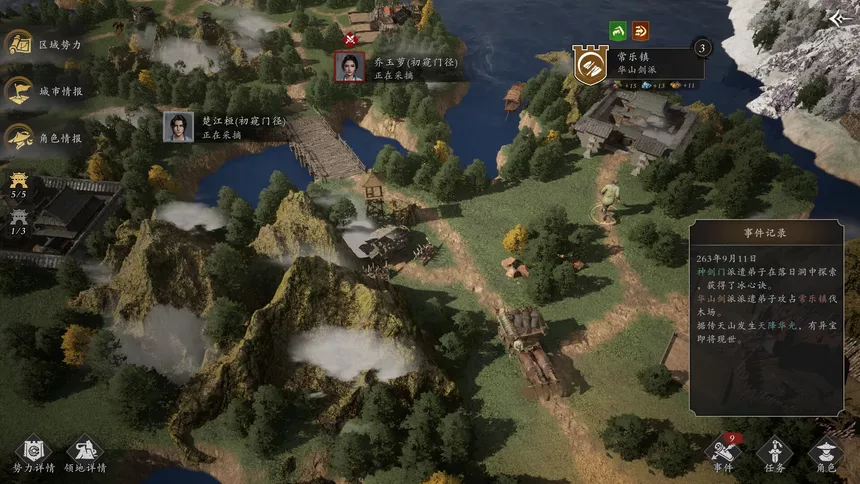
This invisible cursor bug triggers when the game detects conflicting inputs. Unreal Engine 5 natively supports Xbox and PS5 controllers. If you have a controller plugged in, or if Steam Input creates a “Virtual Gamepad,” the engine constantly switches between Keyboard/Mouse UI and Gamepad UI, turning your mouse cursor invisible.
How to restore your cursor:
- Physically unplug any controllers, steering wheels, or HOTAS flight sticks from your PC USB ports.
- Open Steam, right-click Eastern Era, and select Propriétés.
- Naviguez jusqu'à la page Contrôleur tab on the left.
- Click the drop-down menu and select Disable Steam Input.
- Restart the game. With the virtual gamepad disabled, the engine will lock onto your mouse, and your cursor will remain permanently visible.
Part 5: Eastern Era Save File Location PC & Backup Strategy
If your game crashes during an “End Turn” calculation, there is a high probability that your auto-save will become corrupted. Relying entirely on Steam Cloud to save your 100-hour grand campaign is a massive risk.
You need to know the exact Eastern Era save file location PC pathway so you can manually back up your empire.
Where to find your saves:
- Presse Touche Windows + R.
- Type
%LOCALAPPDATA%\EasternEra\Saved\SaveGamesand press Enter. - You will see files ending in
.sav. These are your local campaign files.
The Golden Backup Rule:
After every major gaming session—especially before launching a massive war against a rival faction—copy the entire SaveGames folder and paste it onto your Desktop or an external drive. If the Steam Cloud sync glitches and downloads a corrupted 0-byte file over your local save, simply drag and drop your manual backup back into the folder to restore your dynasty.
Part 6: The Developer Console Myth (Unreal Engine Facts)
When a massive 50-turn war culminates in a siege battle that drops to 5 FPS, many PC players immediately press the tilde key (~) hoping to open the developer console. They want to type commands like stat fps, sg.ShadowQuality 0, ou kill_all_enemies to alleviate the hardware stress.
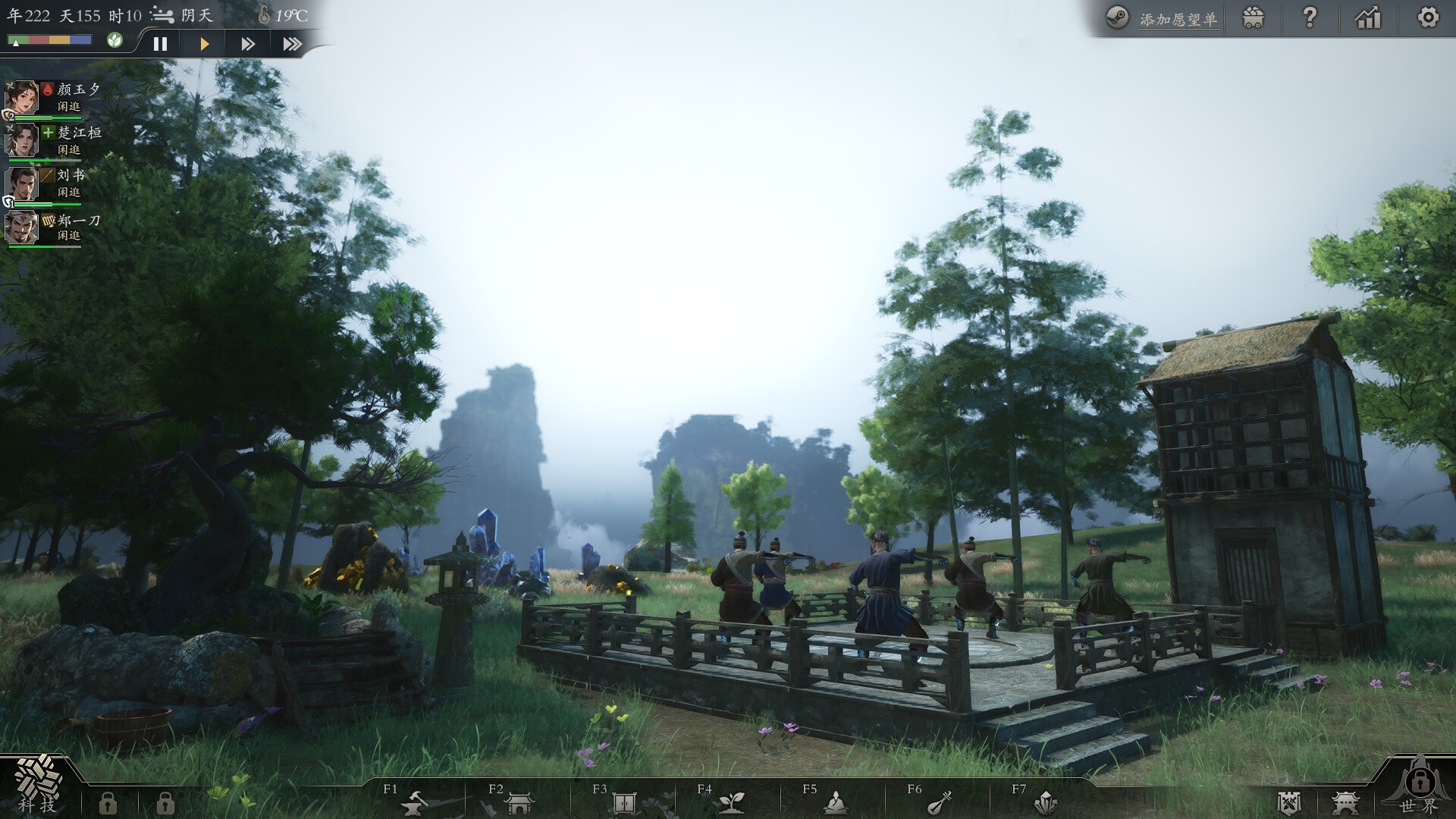
Because Eastern Era is packaged as a highly secure, retail Unreal Engine 5 build, the developers have stripped out the native command console entirely. You cannot press a hotkey to force the game to lower its rendering load mid-battle, nor can you spawn gold to compensate for a crash that ruined your economy.
Furthermore, you cannot manually optimize your save files. The grand campaign data is written into heavily encrypted binary arrays. Opening your .sav file with a hex editor to manually delete units causing lag will instantly corrupt the binary checksum, triggering a fatal error and destroying your campaign. To safely alter the game’s performance logic and bypass bugs, you must use a verified external application.
The Ultimate Solution: Force Performance with XMODhub
Let’s be brutally honest: you bought a high-end PC to enjoy the spectacular, cinematic clashes of thousands of soldiers, not to spend your weekend editing .ini files, renaming video formats, and manually dragging save files around your hard drive just to keep the game from crashing.
If the Unreal Engine 5 optimization issues are ruining your grand strategy experience, the XMODhub PC Client is your ultimate technical support tool.
How XMODhub Supercharges Your PC Performance:
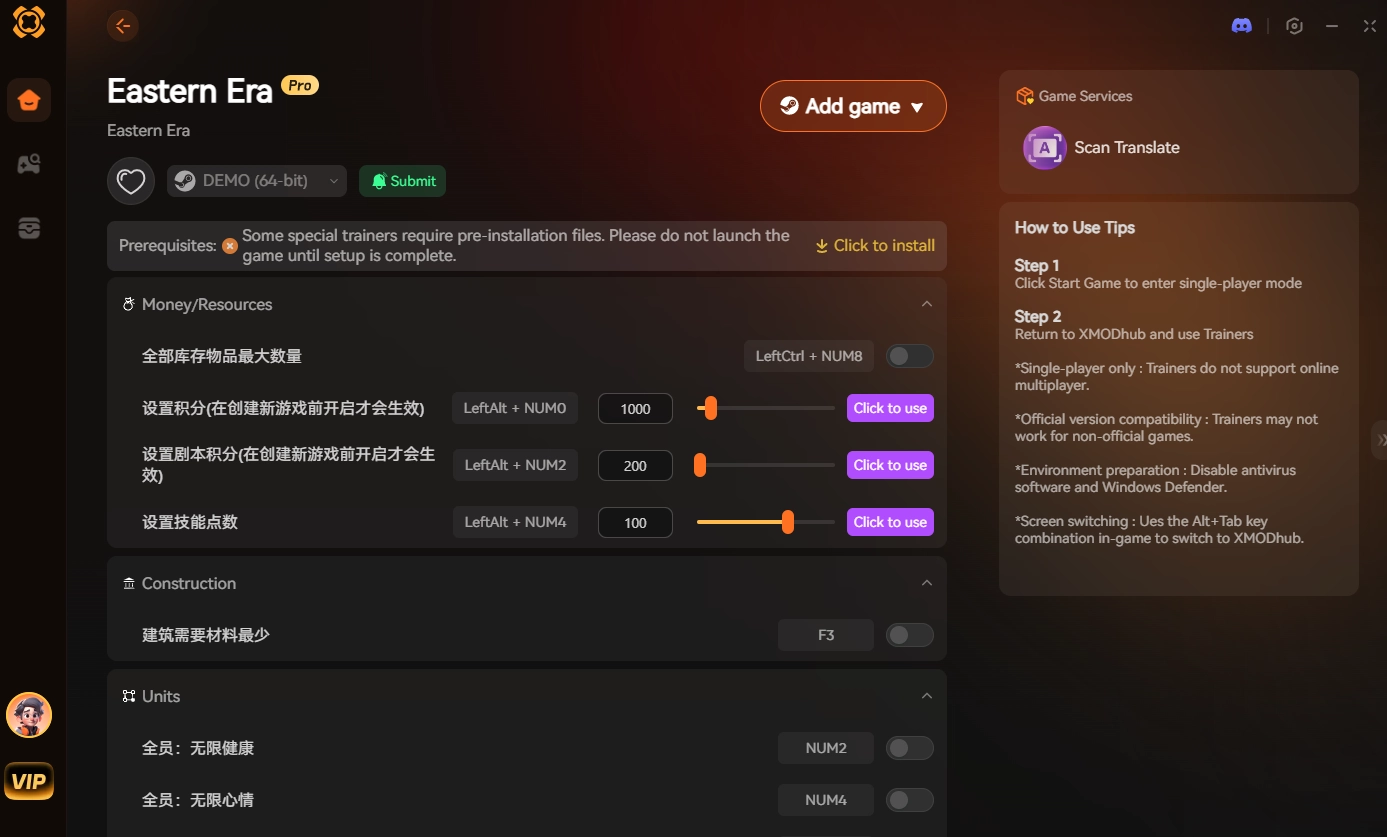
- Engine Performance Optimizer: Launch Eastern Era directly through the XMODhub dashboard. Our client automatically forces your Windows operating system to assign absolute maximum High CPU Priority to the game’s rendering thread. This prevents background tasks from stealing processing power during critical 10,000-unit siege battles, effectively eliminating micro-stutters and smoothing out your frametime pacing.
- Game Speed Adjustment (The Bottleneck Bypass): If your CPU simply cannot handle the physics calculations of a massive cavalry charge, use the XMODhub Speedhack tool. Slow the overall game speed down to 0.5x during the heaviest combat phases. This gives your processor double the time to calculate the collision physics, completely preventing the Line 256 crash, while letting you execute flawless tactical micro-management.
- Safe Save Manager: Never lose a 100-hour campaign to a corrupted cloud sync again. Use our built-in Save Manager to create secure, local, timestamped backups of your .sav files with a single click. If the game crashes and burns your file, instantly inject your backup and pick up right where you left off.
- Bypass Broken Scenarios: If a specific late-game battle consistently crashes your PC no matter what settings you change, don’t abandon the campaign. Toggle “God Mode” and “One-Hit Kill,” auto-resolve the battle manually in five seconds, and move past the broken code so you can continue your conquest.
How to Get Started:
- Télécharger XMODhub : Grab the secure, ad-free PC client directly from our official website.

- Auto-Detect Game Path: Launch the app. It will automatically detect your Eastern Era installation and map out the UE5 memory addresses.
- Activate the Optimizer: Launch the game through the XMODhub dashboard. Press our designated hotkey to open the overlay, activate your performance tweaks, and watch your empire run flawlessly.
Frequently Asked Questions (FAQ)
Q: Does upgrading my RAM fix the stuttering on the Eastern Era campaign map?
A: It helps, but VRAM (Video RAM) is the true bottleneck in Unreal Engine 5. If your graphics card has less than 8GB of VRAM, you must use DLSS/FSR and keep Texture Streaming disabled via the Engine.ini tweaks to prevent stuttering when panning the camera.
Q: Why does the game lag more during snowy or rainy battles?
A: Weather effects in UE5 utilize dynamic particle systems and volumetric fog, which are heavily tied to your GPU’s compute shaders. Lower the “Volumetric Clouds/Fog” setting to Low to instantly regain your lost frames during bad weather.
Q: Will verifying my game files on Steam fix the Line 256 crash?
A: Verifying files ensures you do not have corrupted textures, but it will not fix the fundamental DX12 memory overflow issue. You must edit the Engine.ini file to change how the game handles texture streaming to stop the crash permanently.
Conclusion
Achieving flawless Eastern Era PC optimization requires going beyond the basic in-game menus. By utilizing the Engine.ini tweaks to fix the fatal error line 256 crashes, removing conflicting inputs to restore your missing mouse cursor, and bypassing the broken media player to cure the black screen on startup, you can finally enjoy the game’s breathtaking scale. Backing up your local save files ensures that even if the engine fails, your dynasty will endure.
However, if you are tired of playing IT technician just to get a stable framerate during massive siege battles, you do not have to fight the engine alone. The XMODhub PC Client provides a seamless bypass, letting you force high CPU priority, slow down combat to prevent physics bottlenecks, and instantly secure your save files. Stop tweaking settings, optimize your hardware, and conquer the Eastern Era on your own terms.

Je suis un joueur passionné et j'écris sur XMODhub, qui se consacre à vous apporter les dernières nouvelles, astuces et idées en matière de jeux.
Connectez-vous avec moi :
Profil LinkedIn
 Nancy Miller
This deep dive into Eastern Era’s performance issues really hit home—especially the CPU bottleneck during large siege battles. I’ve been struggling with those 12 FPS crashes for hours, and the Engine.ini tweaks mentioned in Part 2 are exactly what I needed to try next. Thanks for breaking down the root causes so clearly; it’s rare to find such a detailed optimization guide for grand strategy games.