
 Catherine Hu
Let’s be honest: The tactical combat and deep D&D 5e mechanics in Solasta 2 are absolutely brilliant, but they are entirely useless if you cannot read your spell descriptions. Booting up a massive, text-heavy CRPG only to find the menus stuck in the wrong language is incredibly frustrating. If you misinterpret a complex spell mechanic because of a language barrier, your party will wipe on Cataclysm difficulty.
In this troubleshooting guide, we will explain exactly how to change your text and audio settings natively, how to force a language change through Steam if the main menu is locked, and—if your native language is not officially supported by the developers—how to use the XMODhub Real-Time AI Translation tool to bridge the gap effortlessly.
Editor’s Note
By Catherine Hu, Senior Editor at XMODhub.
Our tech team has rigorously tested the localization settings on the latest Steam build. Because Solasta 2 operates natively on the Unity Engine, language preferences are tied to a configuration file that loads before the main menu. There is no native developer console to force a language swap mid-game. If you are waiting for a fan-translation for an unsupported language, please remember our golden rule: Do not install unverified localization files, as they frequently break game scripts. Read our XMODhub AI Translation section below for a safer alternative.
Vous pouvez aussi aimer : Solasta II Cheat Engine Alternative Guide
Quick Answer: How to Change Language In-Game
(If your game booted up properly and you just need to tweak your subtitle or audio preferences, follow these exact steps to ensure the Unity engine registers the change.)
- ✦ Lancer le jeu : Open Solasta 2 and stay on the Main Menu. Do not load your save file yet.
- ✦ Open Settings: Click the Settings button (usually represented by a gear icon).
- ✦ Change Text Language: Navigate to the Interface tab. Look for the “Language” drop-down to change your UI, subtitles, and spell descriptions.
- ✦ Change Voice Language: Navigate to the Audio tab. Look for “Voice Over Language” to change the spoken character dialogue.
- ✦ Restart the Game: Click “Apply.” The Unity engine requires a full application reboot to swap out the massive text databases without crashing. Close the game completely and relaunch it.
Normal Methods: Forcing Language via Steam
Sometimes, a bug occurs during installation where the game defaults to your operating system’s regional format, and the in-game menu glitches out, preventing you from navigating to the settings. You can bypass the in-game UI completely using Steam.
- Close Solasta 2 completely.
- Open your Steam Library, right-click on Solasta 2, and select Propriétés.
- Naviguez jusqu'à la page General tab, and look for the Language drop-down menu.
- Select your preferred language from this list. Steam will automatically download the correct localization package (which may be a few hundred megabytes) and force the engine to boot with those specific files next time you press Play.
The Core Localization Lock: Why is Audio Greyed Out?
CRPGs are notorious for having millions of words of dialogue, lore books, and item descriptions. Professional localization takes years and costs a fortune.
Often, developers can only afford to provide audio voice-overs for English and French, while offering text translations for a wider variety of regions (like Spanish, German, or Simplified Chinese). If you try to change the “Audio Language” and the option is greyed out or missing, it is not a bug. It simply means the developers did not record voice lines for that specific language. You will have to settle for English audio with your native language in the subtitles.
The Ultimate Solution: XMODhub AI Translation Hacks
You should not have to sacrifice your gaming experience, miss out on rich lore, or sit with a dictionary on your lap just because a studio lacked the budget for global localization. The XMODhub PC Trainer application bypasses these language barriers by managing the translation for you dynamically:
- Real-Time Screen Translation
Overrides the language lock by visually translating the text on your screen in real-time, overlaying your native language seamlessly over the original UI. - 100+ Supported Languages
Expands the game’s accessibility to virtually any language, including those completely ignored by the vanilla game (such as Japanese, Korean, or Arabic). - No File Corruption
Specifically targets the visual output layer rather than injecting broken text into the Unity engine’s core code, keeping your save files 100% safe.
Activating the Real-Time Translation
Gaining control of your localization requires no complex file editing or waiting months for a community patch. The process is completely streamlined through our desktop application:
- Download the XMODhub application from our official homepage.

- Search for Solasta 2 within your library dashboard.
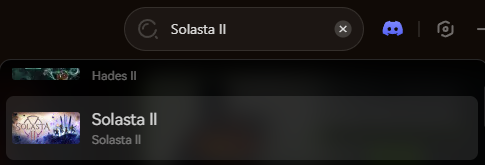
- Boot up your game via Steam and load your save file.
- Link the software directly to the game by hitting the “Play” module.
- Activate the Real-Time AI Translation via the clean overlay and select your target language.
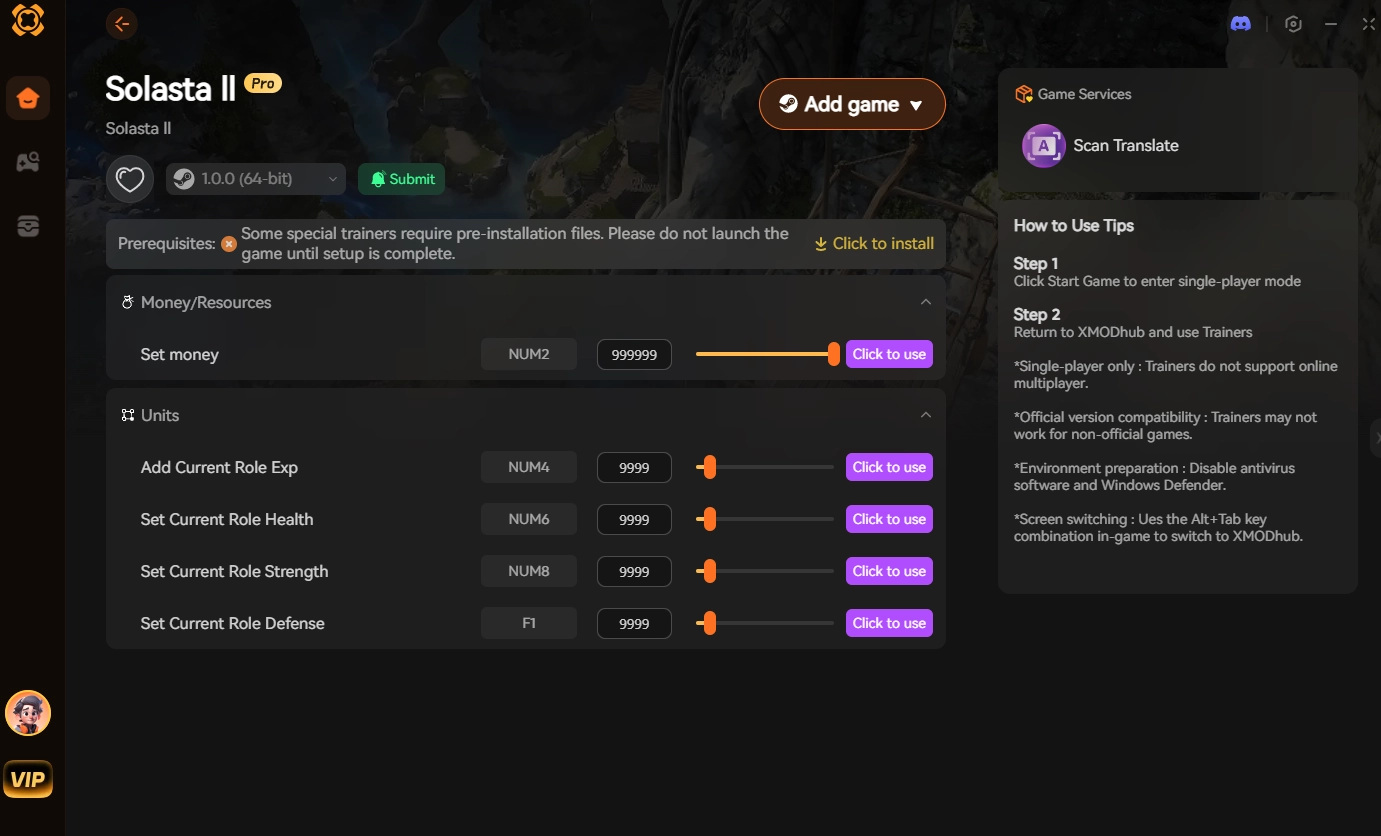
The software will automatically read the text boxes, dialogue wheels, and spell descriptions, translating them instantly without causing the game to stutter or crash.
XMODhub Translator vs. Traditional Modding
Many PC gamers attempt to download sketchy, fan-made .loc localization patches from random forums. For massive, branching games running on the Unity Engine, this is an incredibly unstable approach.
Overwriting core dialogue files often results in fatal missing string errors. If a fan translator missed a single line of code for a quest objective, your game will freeze permanently when you speak to that NPC. Furthermore, traditional localization mods usually break permanently the moment the developers release a minor hotfix.
In contrast, the XMODhub dedicated AI translator is custom-built to safely read the screen visually. It requires no file deletion or replacement, works flawlessly even after developer patches, and ensures that your progression transitions safely into gameplay without corrupting your campaign data.
Anti-Cheat Evasion: Will I Get Banned?
The short answer is absolutely not.
Solasta 2 operates on a peer-to-peer networking system. While the game features cooperative dungeons, your UI language and visual overlays are handled entirely locally on your own monitor. There is no central server dictating what language you read your spellbooks in.
Our tool strictly processes the visual output on your local hardware and does not alter your encrypted core files or send false data to your co-op partners. You can safely play with friends around the world while using the AI translator.
Frequently Asked Questions (FAQ)
Q: Can I have English audio but Spanish subtitles?
A: Yes. Solasta 2 separates text and audio tracks natively. You can set the Interface language to Spanish and the Audio language to English within the main settings menu.
Q: I changed the language, but some items are still showing up in English?
A: This is a common bug with Day 1 releases where developers miss a few text strings in the localization files. A quick game restart usually fixes temporary UI caching issues. If it persists, it is a hard-coded missing translation that requires an official developer patch to fix.
Q: Does the XMODhub AI Translation work on cutscenes?
A: Yes. The tool reads the subtitles rendered on the screen during cinematic cutscenes and translates them instantly, allowing you to follow the story perfectly.
Conclusion: Master the Campaign
Solasta 2 is an incredible tactical RPG, but your time is too valuable to spend deciphering a language you do not fully understand. Stop enduring the frustration of misinterpreting crucial spell mechanics or missing out on deep character lore.
With the XMODhub PC Trainer and AI Translation tool, you control your experience. Translate the game into your native tongue instantly, and focus on optimizing your party for the Cataclysm.

Je suis un joueur passionné et j'écris sur XMODhub, qui se consacre à vous apporter les dernières nouvelles, astuces et idées en matière de jeux.
Connectez-vous avec moi :
Profil LinkedIn