
 Catherine Hu
Editor’s View: The “Dragon Engine” Curse
“If you played Yakuza Kiwami 2 on PC at launch, you know the drill. The Dragon Engine is heavy, physics-dependent, and extremely picky about overlays.
In my testing with Kiwami 3, 90% of ‘Crash on Startup’ reports are caused by two things: Overlay Conflicts or SSAO settings overloading the GPU VRAM. Before you refund, try disabling your overlays in Method 3. It fixed the instant crash for me immediately.”
You have waited years to see Okinawa rendered in the beautiful Dragon Engine. You pre-loaded Yakuza Kiwami 3 & Dark Ties, clicked “Play,” and… saw the Sega logo freeze, followed by a crash to desktop.
Launch day issues are frustrating, and RGG Studio’s PC ports—while improving—often struggle with specific hardware configurations. Whether you are facing a black screen, random Fatal Errors during Heat Actions, or the game is running like a slideshow in Kamurocho, this guide covers the most effective solutions to get you back into the Tojo Clan drama.
Vous pouvez aussi aimer :
Yakuza Kiwami 3 & Dark Ties: Cheat Engine Table vs. XMODhub Trainer (Best Free Alternative)
Check First: System Requirements (AVX Support)
Before debugging, ensure your PC meets the demands of the Dragon Engine. Critical Note: Your CPU must support AVX instruction sets. If you are using a very old CPU (e.g., 1st Gen i7), the game will not launch.
| Composant | Exigences minimales | Recommended Specifications |
|---|---|---|
| OS | Windows 10 (22H2) | Windows 11 (64-bit) |
| UNITÉ CENTRALE | Intel Core i5-3470 (AVX Required) | Intel Core i7-8700 |
| RAM | 8 GB RAM | 16 GO DE RAM |
| GPU | GTX 960 (4GB) | RTX 3070 / RX 6700 XT |
| DirectX | Version 12 | Version 12 |
| Stockage | 60 GB SSD (Required) | NVMe M.2 SSD |
Method 1: Verify Game Files (Steam & Game Pass)
Corrupted audio files or cutscene videos are the #1 cause of crashes during the intro sequence.
For Steam Users:
- Cliquer avec le bouton droit de la souris Yakuza Kiwami 3 & Dark Ties in your Library.
- Sélectionner Propriétés > Fichiers installés.
- Click “Verify integrity of game files”.
For Xbox Game Pass (PC) Users:
- Open the Xbox App.
- Right-click the game icon > Manage.
- Go to Files > Verify and Repair.
Note: Game Pass encryption often breaks during updates. This step is mandatory after every patch.
Method 2: Update Drivers & Visual C++ Redistributables
The Dragon Engine requires a specific C++ environment to handle its physics calculations.
- Visual C++ All-in-One: If you get errors like
MSVCP140.dll missingouVCRUNTIME140.dll not found, download and reinstall the Microsoft Visual C++ Redistributable 2015-2022. Install both x86 and x64 versions. - GPU Drivers: Update to the latest NVIDIA Game Ready Driver or AMD Adrenalin. RGG Studio often releases optimizations for Dragon Engine titles in driver updates.
Method 3: Fix Black Screen & Controller Crashes
The Controller Crash
A known bug in RGG games causes a crash if a controller disconnects or if the game detects a specific HID device.
Fix: Unplug all unnecessary USB devices (Flight Sticks, Racing Wheels) before launching. Only keep your Mouse, Keyboard, and primary Controller connected.
The Black Screen (Overlay Conflict)
Dragon Engine hates overlays.
- Steam: Settings > In-Game > Uncheck “Enable the Steam Overlay”.
- Discord: User Settings > Game Overlay > Toggle “Enable in-game overlay” to OFF.
- RivaTuner Afterburner: Close these completely. They often hook into the renderer and cause immediate crashes.
Method 4: Common Error Codes & Fixes
Error 0xc0000005 (Access Violation)
Usually caused by antivirus blocking the YakuzaKiwami3.exe. Whitelist the game folder in Windows Defender.
“Infinite Loading” (Spinning Kanji)
This happens if the game cannot stream textures fast enough. Move the game from an HDD to an SSD. The Dragon Engine struggles severely on mechanical hard drives.
“Fatal Error” during Heat Actions
This is often a frame-rate physics bug. Cap your FPS to 60 in the graphics settings. Running uncapped above 144 FPS can break the physics engine.
Method 5: Fix Low FPS & Stuttering
Is Kamurocho running like a slideshow?
- Lower Render Scale: By default, RGG games sometimes set this to 100% or even higher. Ensure it is set to 100% (Native) or 75% if you are struggling.
- Turn Off SSAO: Screen Space Ambient Occlusion is the biggest resource hog in this engine. Turning it off can grant +20 FPS.
- Real-time Reflections: Set this to “Medium” or “Low”. High reflections calculate puddles and glass in real-time, which kills GPU performance.
- Set High Priority: Open Task Manager > Details > Right-click
YakuzaKiwami3.exe> Set Priority > High.
The Workaround: Skip Laggy Areas with XMODhub
Sometimes, the crash isn’t your PC—it’s a buggy cutscene or a specific area in the “Dark Ties” DLC that causes a memory leak.
XMODhub offers tools to bypass these hurdles:
- Speedhack: Use the trainer to slow down the game (0.5x speed) during high-load cutscenes to prevent GPU spikes and crashes.
- Save Manager: Automatically backup your save before entering a “danger zone” (like the Millenium Tower raid), so you never lose progress due to a random crash.
How to Get Started with XMODhub
- Download & Install: Get the latest Client XMODhub (Official Site).

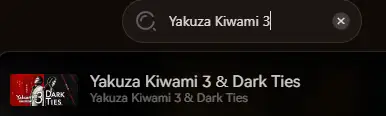
- Détection automatique : Launch the app to scan for Yakuza Kiwami 3 & Dark Ties.
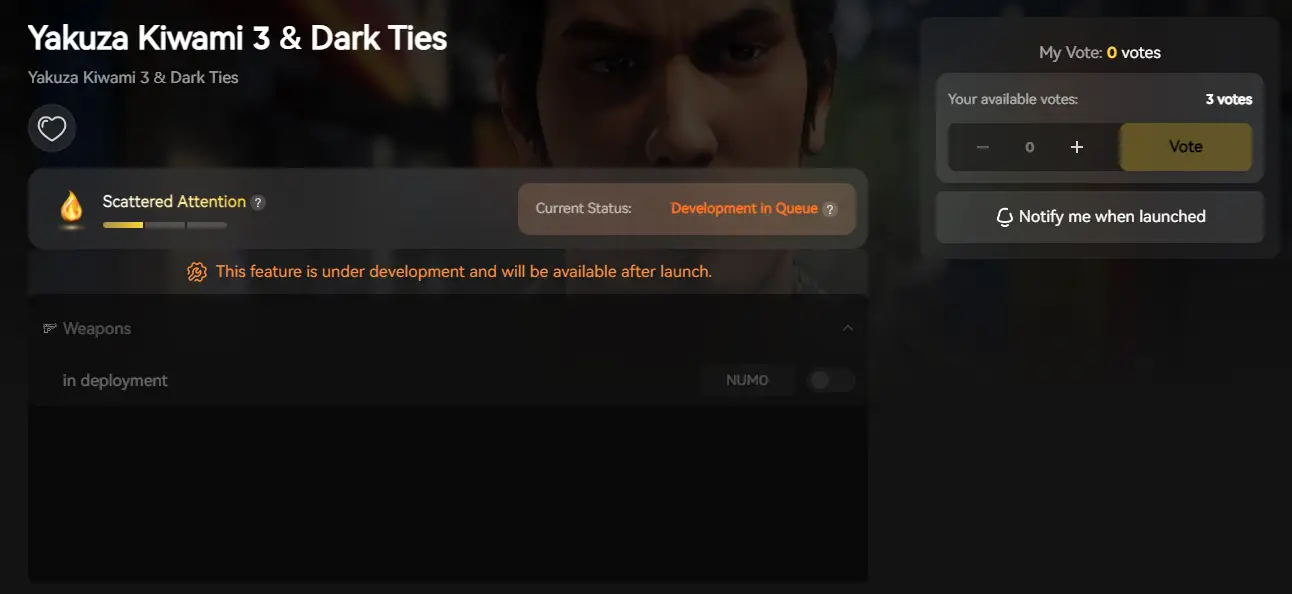
- Secure: Enable “Auto-Backup” in the Save Manager tab.
FAQ
Q: Does Yakuza Kiwami 3 & Dark Ties support Ultrawide (21:9)?
A: Yes, gameplay is supported, but cutscenes may have black bars (pillarboxing). You may need a community hex fix to remove the bars during cinematics.
Q: Will reinstalling fix the crash?
A: Rarely. Verifying files (Method 1) is faster and does the same thing. Reinstalling usually only helps if you have moved the game to a different drive (e.g., HDD to SSD).
Q: My controller isn’t working via Bluetooth?
A: RGG games have issues with Bluetooth latency. Connect your Xbox controller via USB Cable for the most stable experience.
Conclusion
Launch issues are painful, but they are temporary. By disabling overlays, verifying your AVX support, and tweaking the heavy Dragon Engine settings, you should be able to fix the Yakuza Kiwami 3 & Dark Ties crash on startup.
If the game is still unstable due to Early Access bugs, XMODhub can help bridge the gap. Use Auto-Backups to secure your progress until the official Patch 1.01 arrives. Don’t let a crash stop the Dragon. Play smarter.

Je suis un joueur passionné et j'écris sur XMODhub, qui se consacre à vous apporter les dernières nouvelles, astuces et idées en matière de jeux.
Connectez-vous avec moi :
Profil LinkedIn