
 Catherine Hu
You have pre-loaded John Carpenter’s Toxic Commando, assembled your co-op squad, and hit the “Play” button on Steam or Epic Games. But instead of jumping into a neon-soaked 80s apocalypse, you are staring at a completely black screen. Sometimes the game freezes entirely on startup; other times, you can hear the heavy synthwave menu music playing in the background (audio but no video), yet your display remains completely dark.
This “Black Screen on Launch” error is one of the most common and frustrating issues PC gamers face during launch week. Because Saber Interactive’s Swarm Engine heavily relies on intense initial shader compilation (often struggling with DirectX 12 compatibility), minor file conflicts or outdated drivers will instantly halt the boot sequence.
In this guide, we will walk you through the exact technical steps to bypass the black screen, fix resolution conflicts, and get your Commando back into the fight.
✨También te puede gustar:
John Carpenter’s Toxic Commando Cheat Engine Table vs. XMODhub Trainer: Best Free Alternative (2026)
Editor’s Note
Our technical team has monitored the launch-day build of the Swarm Engine and isolated the primary causes of startup freezes. If you recently attempted to manually delete your intro video files to achieve a fast boot, that is likely causing your black screen! Please read “Fix 4” carefully. Always verify your game files before diving into the AppData folders or changing your DirectX versions.
Quick Answer: 5 Steps to Fix the Black Screen Error
(Need to get past the startup screen immediately? Run through this verified troubleshooting checklist to force the game to boot.)
Why Does Toxic Commando Freeze on Startup?
Saber Interactive’s Swarm Engine is a powerhouse designed to render thousands of the Sludge God’s mutants simultaneously. However, during the initial launch sequence, the engine performs heavy Shader Compilation.
If your graphics card drivers are outdated or your GPU struggles with the modern DirectX 12 API, the engine cannot compile these shaders, resulting in an infinite black screen loop. Additionally, the engine is highly sensitive to monitor refresh rates. If the game attempts to boot in 4K at 144Hz but your Windows display settings are mismatched, the handshake fails, leaving you with audio but no video output.
Fix 1: The “Alt + Enter” Resolution Bug (Audio, No Video)
If you can hear the menu music and the sound effects of your mouse hovering over invisible buttons, your game hasn’t crashed—your monitor simply rejected the default rendering resolution.
The Solution: While the black screen is active, press the Alt y Entre en keys simultaneously. This Windows shortcut forces the Swarm Engine to instantly drop out of Exclusive Fullscreen and into a Windowed state. Once the visuals appear, navigate to the in-game Display Options, set the mode to Borderless Windowed, and ensure your native resolution is correctly selected.
Fix 2: Force DirectX 11 via Steam Launch Options
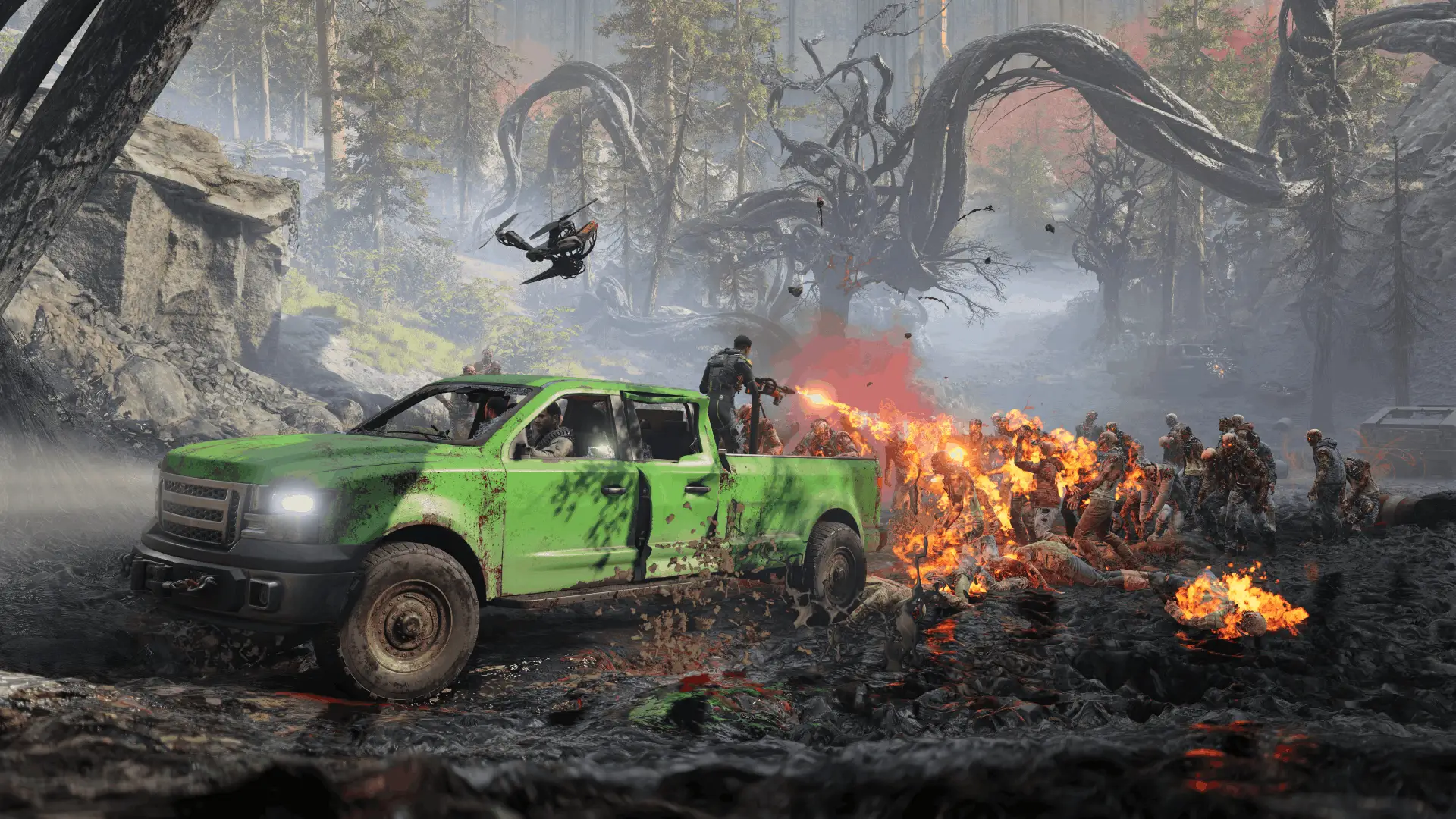
Toxic Commando defaults to DirectX 12 for maximum graphical fidelity. However, older graphics cards (like the GTX 10-series or RX 500-series) often crash during DX12 shader loading, resulting in a permanent black screen immediately after pressing play.
Open your Steam Library.2
Haga clic con el botón derecho del ratón en John Carpenter’s Toxic Commando and select Propiedades.3
In the General tab, scroll down to the Opciones de lanzamiento text box.
4
Type exactly: -dx11 o -d3d11.
5
Close the window and launch the game. This forces the Swarm Engine to use the highly stable DirectX 11 API, which bypasses 90% of launch day freezes.
Fix 3: Clearing the Swarm Engine Shader Cache
If the game completely freezes (no audio, “Not Responding” in Task Manager), your local configuration or shader cache has likely become corrupted during the installation or a recent patch.
Close the game and exit Steam/Epic Games completely.2
Press the Windows Key + R to open the Run dialog.3
Tipo
%LOCALAPPDATA% and press Enter.
4
Navegue hasta el \ToxicCommando\Saved\ directory.
5
Locate the folder named Configurar o Shaders and delete it. (Note: This will not delete your save game files, only your display settings).
6
Relaunch the game. The initial boot will take slightly longer as it recompiles fresh shaders.
Fix 4: Resolving Corrupted Intro Videos (.bk2 Files)
Did you try to achieve a “Fast Boot” by deleting the loud developer startup logos? That is the most common cause of the launch day black screen.
The Swarm Engine expects to play the Saber Interactive .bk2 (Bink Video) files before loading the 3D menu. If you completely deleted those files, the engine waits indefinitely for a video that doesn’t exist.
- ✦
La solución: Right-click the game in Steam and verify your files to redownload the missing videos. - ✦
The Better Solution: Do not delete the files. Read our dedicated [How to Skip Intro Videos Fast Boot Guide] to learn how to properly rename them, or download the XMODhub Fast Boot.pakreplacement mod.
Hardware Focus: Fixing Black Screens on Steam Deck
If you are playing on a Steam Deck and getting a black screen with the Steam loading logo spinning infinitely, it is a Linux compatibility layer issue.
Highlight the game in your Steam Deck library, press the Options button (Gear icon), and go to Properties.➤
Navigate to the Compatibility tab.➤
Check the box that says “Force the use of a specific Steam Play compatibility tool”.
➤
Seleccione Proton Experimental or the latest version of Proton GE from the dropdown menu.
➤
Relaunch the game to bypass the video decoding error.
Skip the Grind: Focus on Fun with the XMODhub Trainer
Once you have cleared your shader cache, forced DX11, and finally loaded into the apocalyptic wasteland, you might realize that surviving the “Nightmare” difficulty requires an immense amount of Scrap farming.

If you want to skip the tedious resource grind and focus purely on the cinematic 80s carnage with your squad, you need our standalone desktop app.
How to Dominate in 5 Seconds:

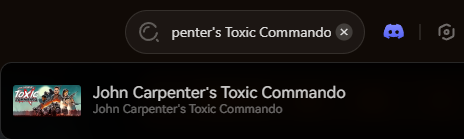
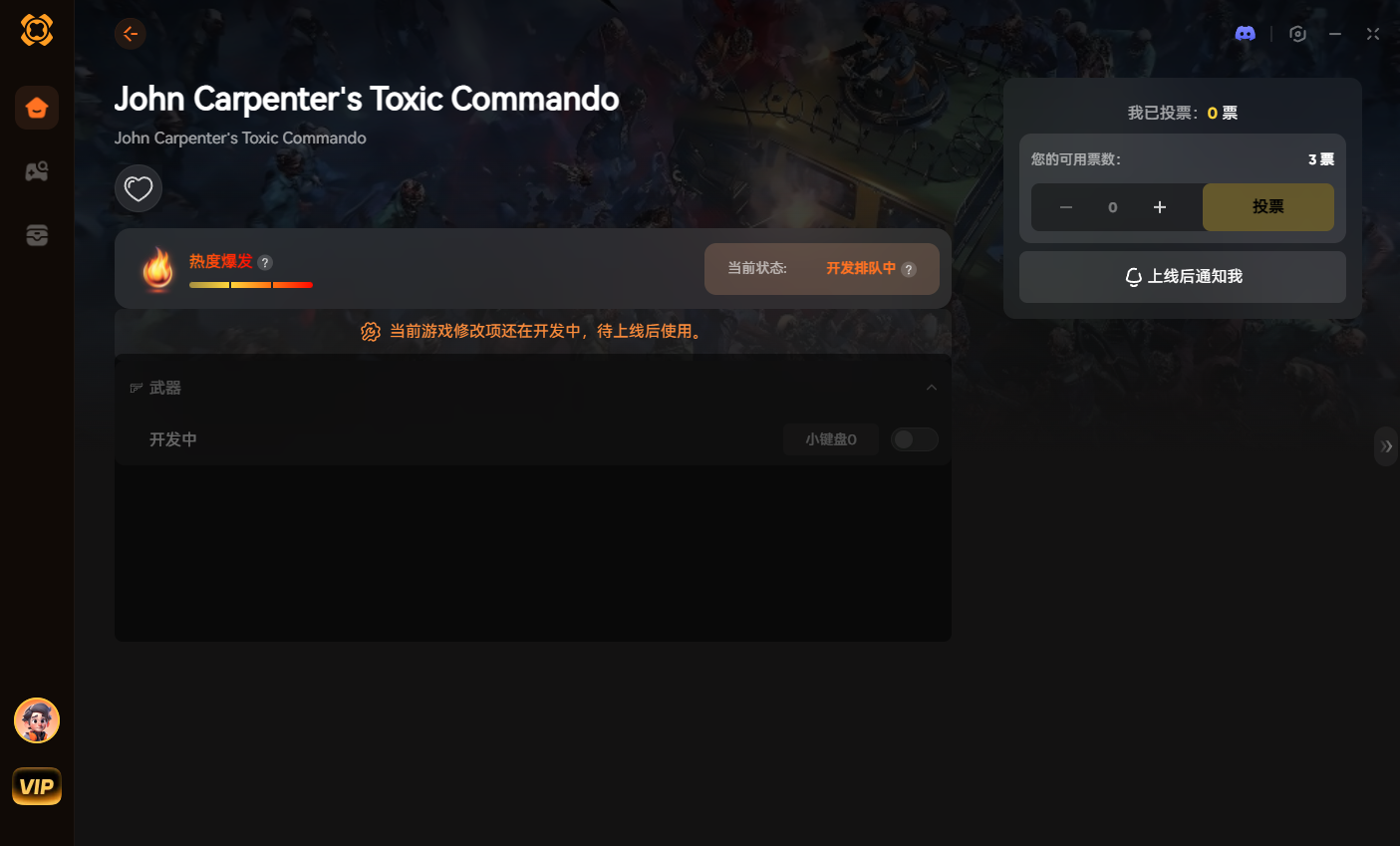
Our standalone app uses safe memory injection, meaning it operates completely independently of your graphics API (DX11 or DX12). It will never cause a black screen or corrupt your game files, ensuring maximum performance while you conquer the apocalypse in private co-op lobbies.
Secure your ultimate loadout:
Conclusion: Back to the Carnage
Staring at a black screen while your friends are already mowing down mutants is incredibly frustrating. But by forcing Windowed Mode, switching to DirectX 11, clearing your Swarm Engine AppData cache, and ensuring your intro files aren’t corrupted, you can permanently fix the Toxic Commando launch freeze.
Keep your GPU drivers updated, and join the XMODhub Discord if you encounter any new error codes during the launch week. Now get out there, Commando—the Sludge God isn’t going to defeat itself!

Soy un jugador apasionado y escritor en XMODhub, dedicado a traerte las últimas noticias de juegos, consejos y puntos de vista.
Conecta conmigo:
Perfil en LinkedIn
 Nancy Miller