
 Catherine Hu
Editor’s Note
Based on the engine’s known architecture and pre-release benchmarking, our technical team at XMODhub has compiled the ultimate day-one performance guide.
Bookmark this page, as we will update these specific .ini tweaks the moment the servers go live!
Quick Answer: Best Toxic Commando Settings for Max FPS
In a rush? To instantly stop stuttering and gain a massive 20-30 FPS boost without ruining the 80s horror aesthetic, change these settings immediately:
- Volumetric Fog: Low (Massive performance saver during night drives).
- Shadow Quality: Medium (Ultra settings will severely bottleneck your CPU during horde waves).
- Global Illumination: Medium.
- Upscaling (DLSS/FSR): Set to “Balanced” for 1440p/4K, or “Quality” for 1080p.
- Motion Blur & Depth of Field: OFF (Improves visual clarity during chaotic combat).
(Still experiencing micro-stutters? Scroll down to learn how to fix 100% CPU usage and install the XMODhub FPS Booster Mod).
También te puede gustar:
John Carpenter’s Toxic Commando Cheat Engine Table vs. XMODhub Trainer: Best Free Alternative (2026)
Why is Toxic Commando Stuttering? The Swarm Engine Explained
To fix performance issues, you need to understand the technology. The Swarm Engine is famous for its “horde” tech, throwing massive numbers of enemies on screen.
Because of this, Toxic Commando is incredibly CPU-bound. When 500 mutants spawn and the physics engine calculates your APC driving through dynamic mud, your CPU struggles to send rendering instructions to your GPU fast enough. Lowering your texture quality won’t fix this; you must adjust settings related to lighting, shadows, and physics logic.
Official System Requirements vs. Realistic Specs
Saber Interactive provides minimum specs, but targeting a smooth 60 FPS during a “Nightmare” difficulty horde wave requires a balanced rig.
- Realistic 1080p 60FPS (Medium Settings): Ryzen 5 5600X / Core i5-12400F | RTX 3060 / RX 6600 XT | 16GB RAM.
- Realistic 1440p 60FPS+ (High Settings): Ryzen 7 5800X3D / Core i5-13600K | RTX 4070 / RX 7800 XT | 32GB RAM.
The Golden Rule: The game MUST be installed on an NVMe SSD. Playing on an older HDD will cause severe texture pop-in, audio desync, and massive load-screen stuttering.
Detailed Graphics Settings Breakdown (The Heavy Hitters)
Let’s go through the in-game display menu and optimize the settings that drain your framerate.
1. Volumetric Fog & Lighting (Performance Impact: Extreme)
The game’s 80s aesthetic relies on neon lights cutting through toxic smog. However, calculating light scattering through thick fog kills GPUs.
Recommendation: Low or Medium. You will barely notice the visual difference during high-speed driving, but your GPU will thank you.
2. Shadow Quality & Cascade Shadows (Performance Impact: High)
Calculating real-time shadows for 500 individual zombies will bring any CPU to its knees.
Recommendation: Medium. Do not use High/Ultra unless you have an elite CPU (like a Ryzen 7800X3D).
3. Texture Detail (Performance Impact: VRAM Dependent)
Recommendation: High/Ultra if your GPU has 8GB+ of VRAM. Drop to Medium if you have 6GB or less to avoid texture swapping micro-stutters.
4. Gore & Physics Detail (Performance Impact: High)
Determines how many dismembered limbs remain on the ground.
Recommendation: Medium. High physics will cause massive FPS drops during explosive chain reactions from your Heavy class.
Display & Upscaling: DLSS 4.5, FSR 3.0, and HDR
- NVIDIA RTX Users: Turn on DLSS Frame Generation. If you notice UI ghosting while driving, disable Frame Gen and stick to standard DLSS Upscaling set to “Quality”.
- AMD / Older GPU Users: Use FSR 3.0. Set sharpness to around 70% to counteract the slight blurriness.
- HDR Settings: The game features deep blacks and bright neon colors. If your monitor supports true HDR400 or higher, enable it. Set the Peak Brightness to match your monitor’s nits (usually between 400 and 800) for the best visual experience without a performance hit.
How to Fix 100% CPU Usage & Micro-Stuttering
If your game freezes for half a second when opening a door or aiming down sights, you have a CPU bottleneck.
- Open Windows Task Manager (Ctrl + Shift + Esc).
- Go to the “Details” tab, right-click the
ToxicCommando.exeprocess. - Select “Set Priority” and change it to Alta.
- Disable background apps like hardware monitors (iCUE, Armoury Crate) or animated wallpapers, as they fight for CPU cycles.
Hardware Focus: Steam Deck 40FPS Optimization
To lock a stable 40 FPS on the Steam Deck or ROG Ally without draining the battery in an hour:
- Resolution: 1280×800 (Native).
- FSR: Set to “Balanced” or “Performance”.
- Refresh Rate: Lock the Steam Deck display to 40Hz.
- All Graphics Settings: Low (Textures on Medium).
Advanced INI Tweaks: XMODhub Performance Mods
If you have lowered all settings and are still getting low FPS on older hardware like a GTX 1060, you need to alter the game’s engine configuration files directly.
The XMODhub Potato PC Performance Mod (.pak file):
- What it does: Disables hidden graphics settings that you cannot turn off in the standard menu (like micro-shadows, distant LOD rendering, and forced post-processing).
- Resultado: Often yields a massive 30-40% FPS increase on minimum-spec PCs.
Skip the Grind: Focus on Fun with the XMODhub Trainer
Once you have your framerate locked in, you might realize that grinding for Scrap to upgrade your weapons is taking up all your time.
If you just want to experience the 80s cinematic carnage at max performance without the tedious resource farming, you need our standalone desktop app.
How to Dominate in 5 Seconds:
Download and Launch XMODhub.

Buscar en John Carpenter’s Toxic Commando.
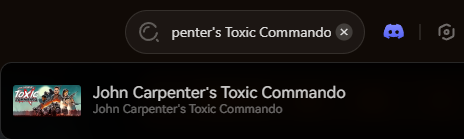
Click “Play”.
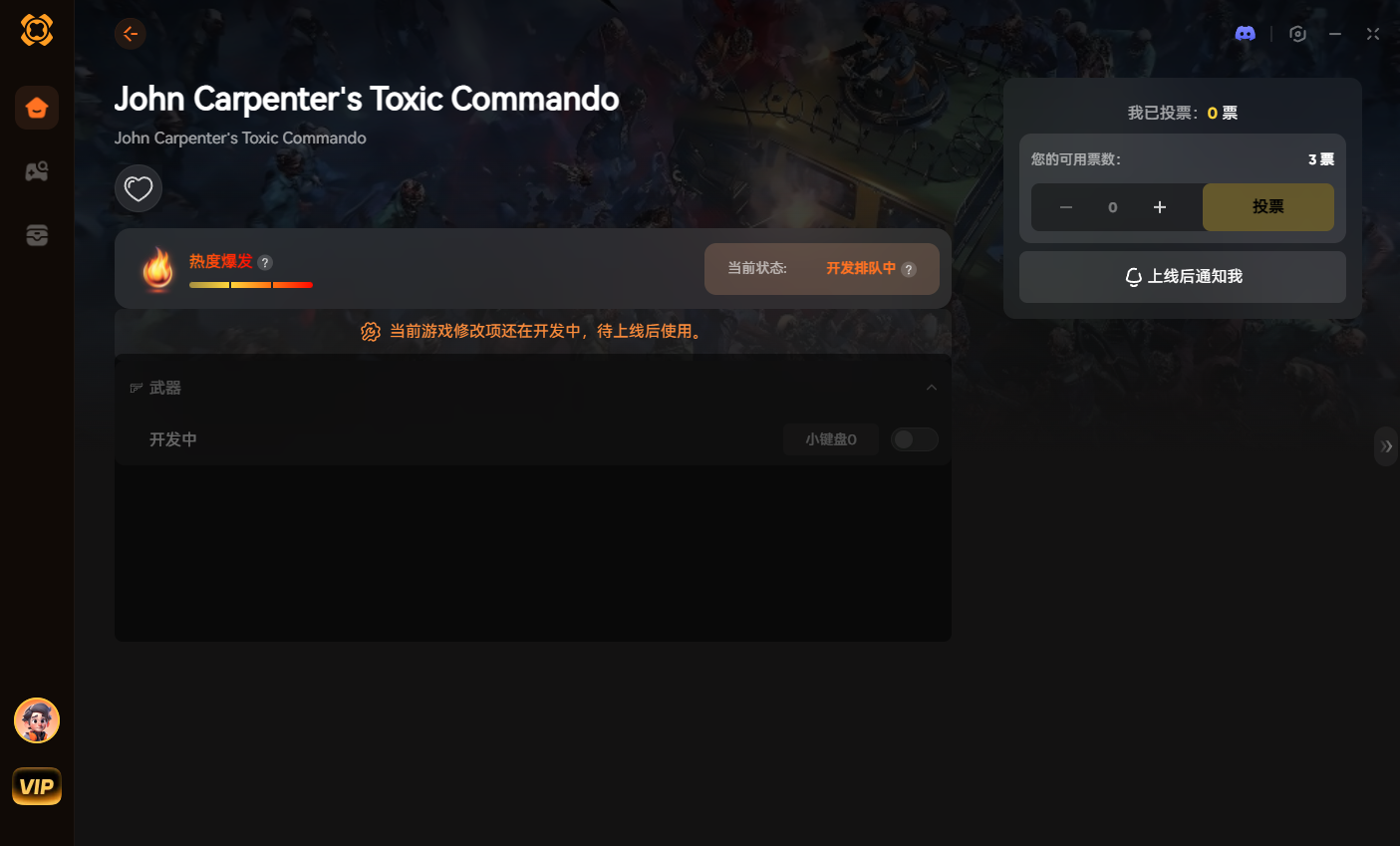
Use intuitive toggles to set Infinite Ammo, No Weapon Overheat, or Vehicle God Mode.
Hecho. No attaching processes, no version matching, no crashing.
Our standalone app uses safe memory injection, operating flawlessly alongside our FPS booster mods to ensure maximum performance while you conquer the apocalypse in private co-op lobbies.
[Download the Official XMODhub PC Trainer]
How to Show Your In-Game FPS Counter
Wondering if these tweaks actually worked? Here is how to track your frames:
- Steam Users: Go to Steam > Settings > In-Game > In-Game FPS Counter (Select Top-Left or Top-Right).
- Epic Games Users: Use the NVIDIA GeForce Experience overlay (Alt + R) or download a lightweight tool like MSI Afterburner / RivaTuner.
Conclusion: A Smoother Apocalypse
A stable framerate is the difference between surviving a mutant ambush and wiping your entire squad. By adjusting your volumetric fog, utilizing DLSS/FSR, fixing your CPU priority, and applying the XMODhub Performance Mod, you can conquer John Carpenter’s Toxic Commando on almost any rig.
Keep this page bookmarked! As Saber Interactive releases official optimization patches after the March 12 launch, we will update this guide with the latest .ini file tweaks. Join the XMODhub Discord to share your PC specs and performance solutions!

Soy un jugador apasionado y escritor en XMODhub, dedicado a traerte las últimas noticias de juegos, consejos y puntos de vista.
Conecta conmigo:
Perfil en LinkedIn

 Nancy Miller