Catherine Hu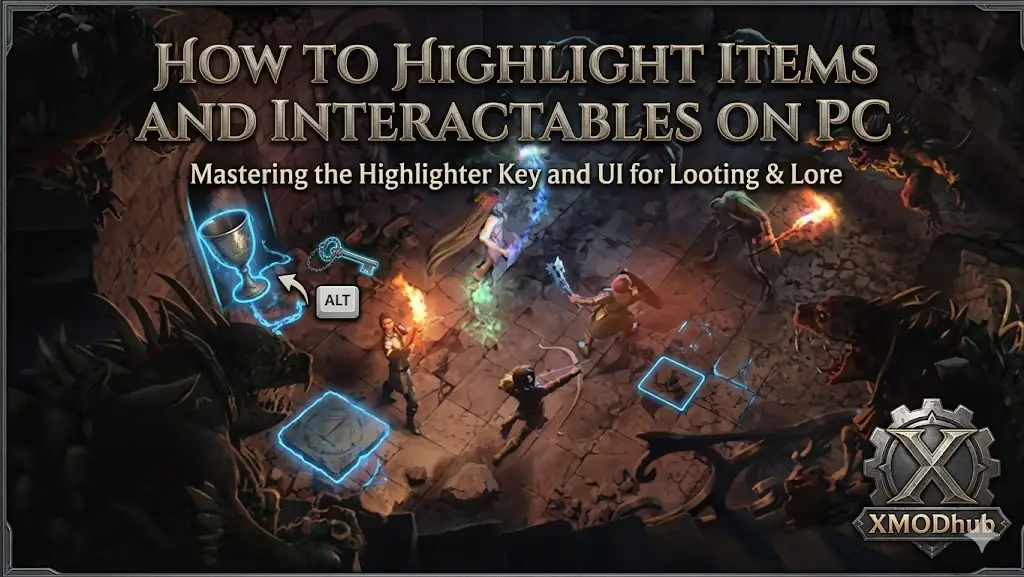
Let’s be honest: The most agonizing feeling in Solasta 2 isn’t rolling a critical miss—it’s clearing a grueling dungeon only to realize you walked right past a legendary chest because it blended perfectly into the dark stone wall. In isometric CRPGs, visual clutter is your worst enemy, and missing out on crucial loot due to dynamic lighting or awkward camera angles can severely cripple your party’s economy.
In this quick troubleshooting guide, we’ll demystify the environmental UI in Solasta 2. We will show you the exact PC keybinds to highlight items, explain why lighting mechanics might be hiding your loot, and—if you are tired of holding down buttons and relying on hidden Perception checks—how to use the XMODhub PC Trainer to permanently reveal every secret on the map instantly.
Editor’s Note:
By Catherine Hu, Senior Editor at XMODhub.
Our tactical RPG team has mapped every inch of the early-game dungeons in the Day 1 Steam build of Solasta 2. A quick warning for new adventurers: The default highlight key does not reveal traps or hidden doors! Those are strictly tied to your lead character’s passive Perception score. If you want to bypass the game’s vision mechanics entirely and see everything instantly, carefully read our XMODhub bypass section below.
También te puede gustar: Solasta II Cheat Engine Alternative Guide
Quick Answer: How to Highlight Items on PC
If you are standing in a messy room wondering where the interactables are, follow these exact steps to reveal all nearby loot:
- • Press and Hold Left ALT: By default, pressing and holding the Left ALT key on your keyboard will instantly project floating text nametags over all interactable objects in your camera’s field of view.
- • Scan the Area: Move your mouse around the screen. You will now clearly see labels for lootable corpses, unlocked chests, harvestable crafting herbs, and readable lore books.
- • Change to a Toggle (Optional): If you dislike holding the key down, press ESC, open your Settings, navigate to the Gameplay tab, and switch the “Object Highlight” setting from Hold to Toggle.
-
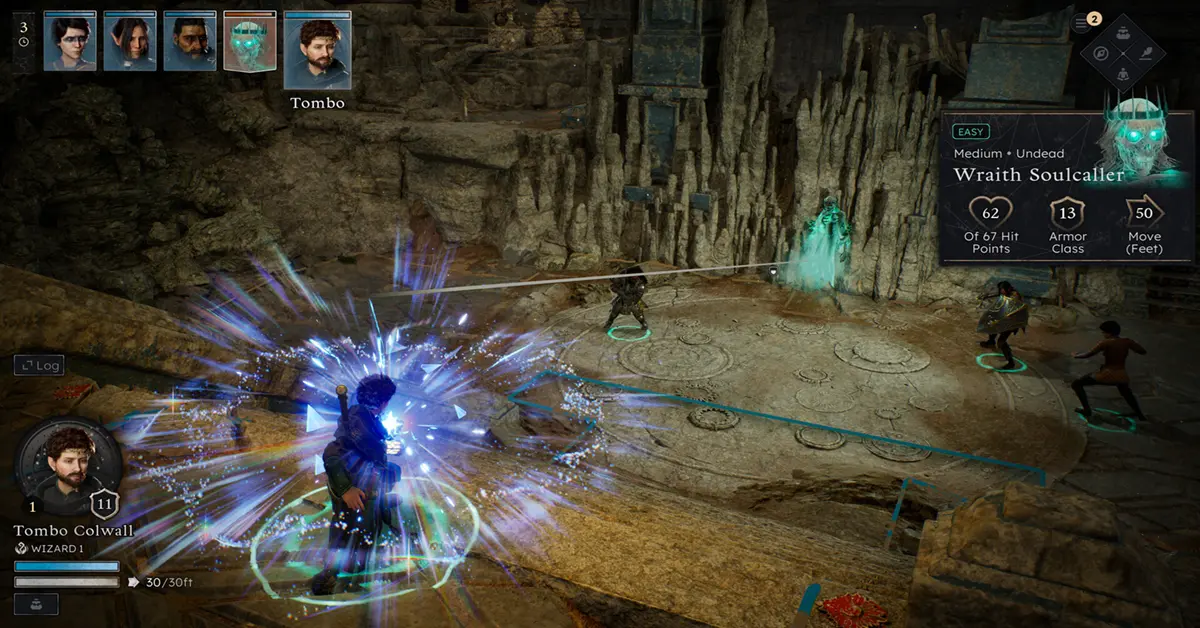
Controller Mapping: Highlighting on Gamepads
En Solasta 2 plays beautifully on a mouse and keyboard, many PC players prefer using an Xbox or DualSense controller.
The Controller Ping: Click down on the Right Thumbstick (R3). Instead of a persistent text overlay, this sends out a localized “ping” that highlights nearby items for a few seconds.
Customizing Keybinds: If you find the default keys awkward, you can rebind the highlight function. Navigating to Settings > Controls > Keybindings > UI allows you to map this to your Mouse Button 4 (side thumb button), which is incredibly comfortable for exploration.
Darkvision vs. Unlit Areas: Why Loot Remains Hidden
Solasta 2 enforces strict tabletop lighting rules. If a chest is sitting in pure darkness, the Left ALT key might not highlight it if your currently selected character is blind in the dark.
- Characters without Darkvision (like Humans or Halflings) cannot spot interactables in “Unlit” tiles unless they are holding a torch or have the Light cantrip cast on their armor.
- Always keep a character with natural Darkvision (like an Elf or Dwarf) selected as your party leader when exploring caves to ensure the highlight tool works at maximum range.
Why is Highlight Not Working? (Troubleshooting)
Because Solasta 2 is built on the Unity engine, occasional UI layers can glitch out, especially when transitioning between the overland map and tight underground caves. If pressing Left ALT does nothing, try these fixes:
The Alt-Tab Bug: The Windows operating system sometimes “swallows” the ALT key input when you Alt-Tab out of the game to check Discord or a wiki. Rapidly tap the Left ALT and Right ALT keys a few times to unstick the input within the game engine.
Line of Sight Rules: The game uses a strict “Line of Sight” mechanic. If a chest is behind a solid brick wall, holding ALT will not reveal it until your characters walk around the corner and establish direct visual contact.
Save and Reload: If the UI has completely crashed, quicksave your game (F5) and immediately quickload (F8). This forces the engine to redraw all UI elements.
The Perception Limit: What Highlighting Won’t Show
It is vital to understand that the highlight key is not a magical radar. It only shows items your party is already aware of.
It will absolutely never highlight hidden floor traps, concealed wall switches, or buried treasure. Discovering those requires a character to pass a passive Wisdom (Perception) or Intelligence (Investigation) check as they walk nearby. If your party rolls poorly behind the scenes, you will walk right over a trap, and no amount of button mashing will save you.
Skip the Eye Strain: XMODhub Auto-Loot & Vision Hacks
Scrubbing every inch of a dark dungeon wall with your mouse cursor while holding ALT can quickly cause eye fatigue. Furthermore, missing a hidden door just because your Rogue rolled a 2 on their invisible Perception check feels incredibly punishing.
If you want to strip away the fog of war and guarantee you collect every ounce of loot, the XMODhub PC Trainer offers an essential quality-of-life overlay.
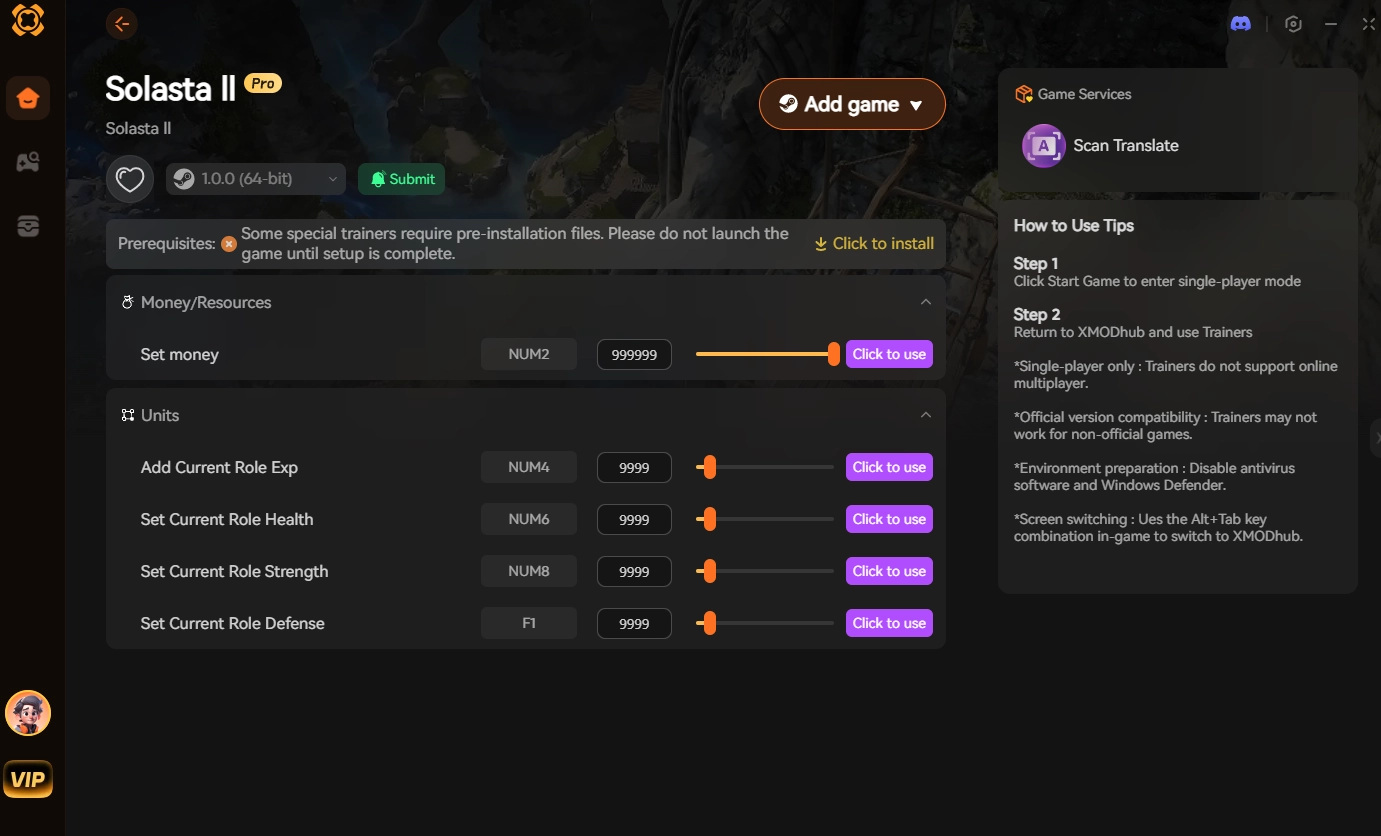
By launching our lightweight app alongside your Steam game, you can activate the “Loot ESP / Permanent Highlight” feature. This safely injects into the game’s rendering engine, placing a permanent, high-visibility aura around all interactables on the map, completely ignoring walls and Line of Sight restrictions. Additionally, you can toggle “Always Pass Perception Checks,” forcing the game to instantly reveal every hidden trap and secret door the moment you load into a zone.
Frequently Asked Questions (FAQ)
Q: Can I change the color of the highlight text?
A: Yes. In the Accessibility settings menu, you can alter the color of interactable text to accommodate colorblindness or simply to make it pop more against dark backgrounds. High-contrast yellow or bright pink are popular choices.
Q: Does highlighting items reveal Mimics?
A: No. A Mimic disguised as a chest will show up exactly as a normal “Wooden Chest” when you hold the highlight key. You will still need to be cautious (or attack the chest from a distance) to avoid a nasty surprise.
Q: Is the XMODhub Loot ESP safe to use?
A: Absolutely. Our vision tools do not alter the core game files; they simply read the local memory to display information that is already loaded on your PC. It will not corrupt your save files or flag your Steam account during single-player or host-led Co-op.
Conclusion: Leave No Stone Unturned
A successful campaign in Solasta 2 requires thorough exploration. By mastering the Left ALT keybind, managing your party’s light sources, and understanding the limitations of your passive Perception, you will drastically reduce the amount of loot you leave behind.
But if you are tired of squinting at the screen and missing out on legendary secrets due to bad dice rolls, remember you have better tools at your disposal. Download the XMODhub Solasta 2 PC Trainer today, activate the Loot ESP, and see the dungeon like never before!

Soy un jugador apasionado y escritor en XMODhub, dedicado a traerte las últimas noticias de juegos, consejos y puntos de vista.
Conecta conmigo:
Perfil en LinkedIn
 Nancy Miller