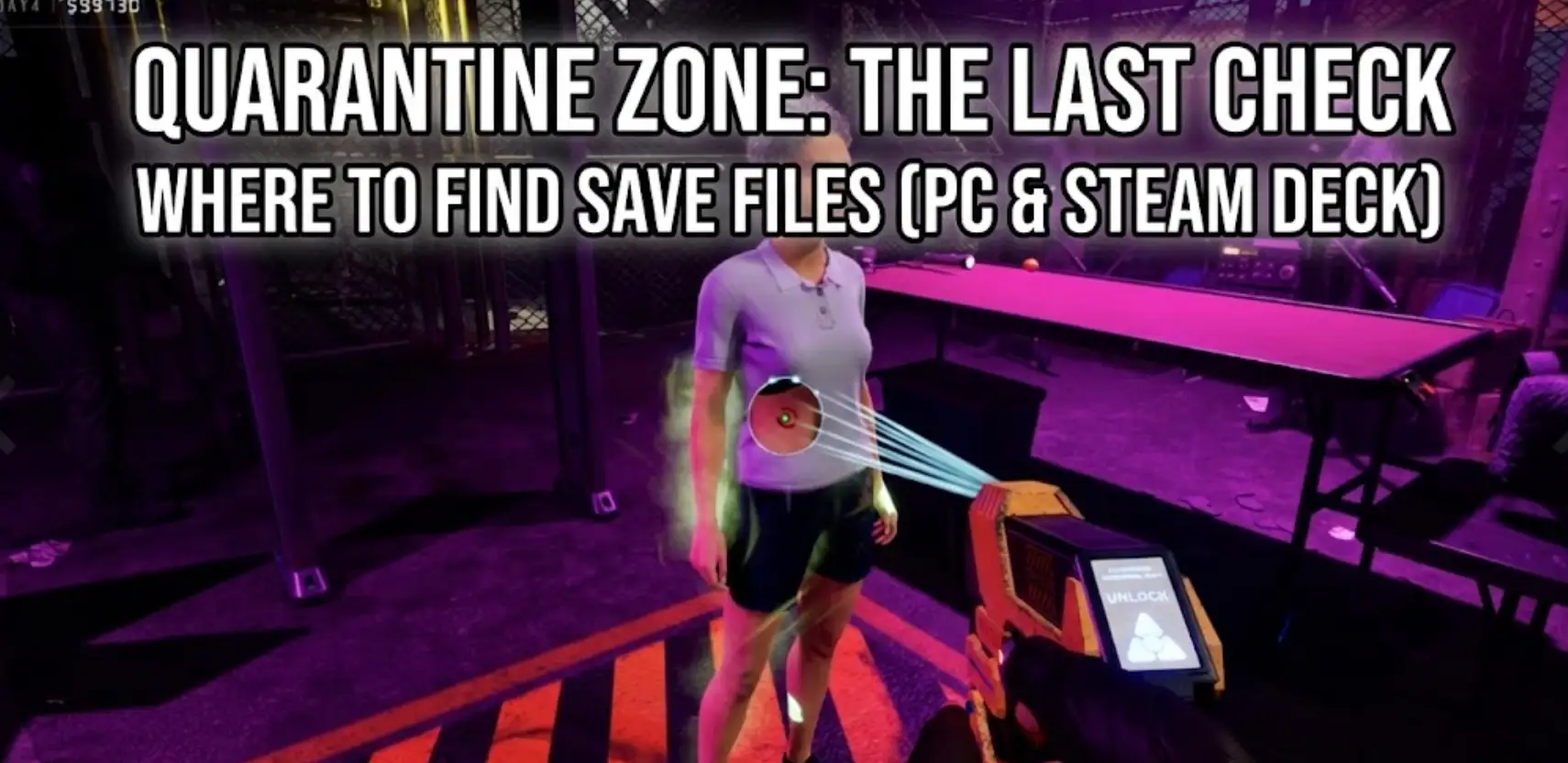
En un shooter de extracción de alto riesgo como Zona de cuarentena: el último control, tu alijo es tu vida. No hay nada peor que sobrevivir a una brutal incursión de 40 minutos, conseguir un botín de alto nivel y perderlo todo, no por culpa de un enemigo, sino por un archivo de guardado dañado o un fallo del juego.
Tanto si quieres hacer una copia de seguridad manual de tu perfil para evitar la pérdida permanente, como si quieres transferir tu progreso al PC de un amigo o modificar los archivos de configuración para mejorar los FPS, primero tienes que encontrar dónde están escondidos los datos en tu disco duro.
A continuación se muestra la ruta de archivo verificada para Zona de cuarentena en Windows y Steam Deck, junto con un método más seguro y automatizado para gestionar tus copias de seguridad.
También le puede interesar:
Zona de Cuarentena: Los Comandos de la Consola de Última Comprobación: Lista completa
Índice
- Opinión del editor: La regla del “motor irreal
- Windows PC Guardar ubicación del archivo
- Ubicación del archivo de configuración de la zona de cuarentena
- Steam Deck / Linux Save Location
- La forma más inteligente: Copia de seguridad con un solo clic
- PREGUNTAS FRECUENTES
- Conclusión
Opinión del editor: La regla del “motor irreal
“He pasado horas arrastrándome por los oscuros pasillos en Zona de cuarentena, y conozco el dolor de los bugs de Early Access. En un momento estás extrayendo, al siguiente el juego se congela y el archivo se corrompe.
Porque Zona de cuarentena: el último control se basa en Motor Unreal, Los archivos guardados están ocultos en la carpeta ‘Local’ AppData. Muchas guías genéricas te enviarán a ‘LocalLow’ o ‘Documents’-esas son incorrectas. Escribí esta guía para que pueda encontrar el actual archivos inmediatamente y aseguren su botín”.”
— Catherine Hu, redactora jefe y aficionada a los juegos de supervivencia en XMODhub
Windows PC Guardar ubicación del archivo
Para la versión Steam de Zona de cuarentena: el último control, los archivos guardados se almacenan en la carpeta oculta AppData local carpeta.
El camino directo es:
C:Usuarios[SuNombreDeUsuario]AplicacionesDatosLocalZonaDeCuarentenaGuardadoGuardarJuegos
Nota: Dependiendo de la versión de compilación específica, la carpeta a veces puede llamarse QZGame o TheLastCheck. Busque la coincidencia más obvia en la carpeta Local.
Cómo llegar rápidamente:
- Pulse Tecla Windows + R en el teclado para abrir el cuadro de diálogo Ejecutar.
- Tipo
%localappdata% y pulse Entre en. (No escriba sólo %appdata%, ya que eso va a Roaming).
- Desplácese hacia abajo y busque Zona de cuarentena carpeta.
- Vaya a Guardado > GuardarJuegos.
En qué fijarse: En el interior, normalmente verá .sav archivos. El archivo de progreso principal suele llamarse GuardarJuego.sav o PlayerProfile.sav.
Ubicación del archivo de configuración de la zona de cuarentena
Si el juego va entrecortado, es demasiado oscuro o necesitas desactivar el desenfoque de movimiento manualmente, tendrás que editar la opción .ini archivos de configuración.
Senda:
C:Usuarios[SuNombreDeUsuario]AplicacionesDatosLocalZonaDeCuarentenaGuardadoConfiguraciónWindowsNoEditor
Archivos clave:
- GameUserSettings.ini: Utilízalo para forzar resoluciones personalizadas, ajustar la gamma o desactivar V-Sync si el menú tiene errores.
- Engine.ini: Los usuarios avanzados pueden añadir comandos aquí para mejorar los FPS, pero ten cuidado ya que esto puede causar inestabilidad.
Steam Deck / Linux Save Location
Zona de cuarentena se ejecuta en el Steam Deck a través de la capa de compatibilidad Proton. La estructura de archivos imita a Windows dentro de una carpeta ID específica.
Senda:
/home/deck/.local/share/Steam/steamapps/compatdata/[SteamAppID]/pfx/drive_c/users/steamuser/AppData/Local/QuarantineZone/Saved/SaveGames/
Cómo encontrar el App ID: Necesitarás el ID específico de Steam App para Zona de cuarentena. Puedes encontrar este número en la URL de la página de la tienda del juego (por ejemplo, store.steampowered.com/app/XXXXXX/).
La forma más inteligente: Copia de seguridad con un solo clic c
Navegar hasta %localappdata% cada vez que se extrae es tedioso. Y seamos sinceros: te olvidarás de hacerlo justo antes de que aparezca un error que rompa el juego.
XMODhub ofrecerá una herramienta integrada de Save Manager, diseñado para juegos inestables o de apuestas altas, como Zona de cuarentena.
- Copia de seguridad automática: XMODhub detecta cuando cierras el juego e instantáneamente guarda tu
Guardado carpeta.
- Recuperación de accidentes: ¿El juego se ha bloqueado y ha corrompido tu perfil? Haz clic con el botón derecho en XMODhub y restaura la versión de hace 10 minutos.
- Gestión visual: Mantenga diferentes “Runs” o caracteres en ranuras separadas sin sobrescribirlos.
Cómo utilizarlo XMODhub para ¿Zona de cuarentena?
Asegura tu progreso en el juego desde cero en unos pocos clics.
Paso 1: Descargar e instalar Descargue el cliente para PC desde la página oficial Página web de XMODhub y ejecuta el instalador rápido.
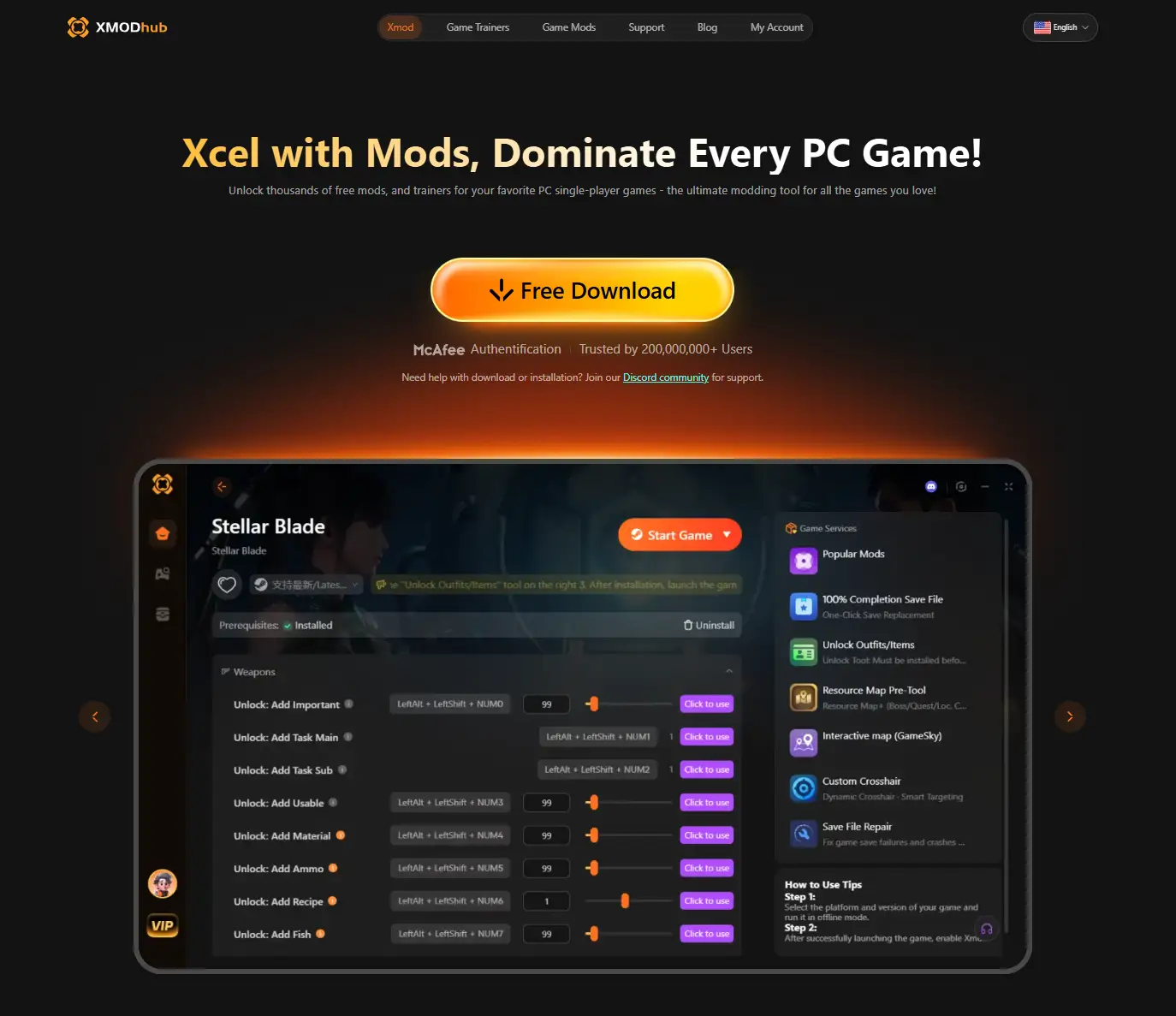
Paso 2: Iniciar y detectar automáticamente Abre XMODhub. Escanea automáticamente su sistema y rellena su biblioteca con los juegos compatibles, sin necesidad de búsqueda manual.
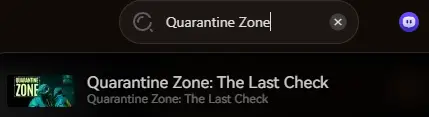
Paso 3: Crear copia de seguridad Seleccione el juego y haga clic en el botón “Crear copia de seguridad” botón. Tus datos guardados se localizan al instante, con fecha y hora, y están protegidos.
Paso 4: Restaurar en cualquier momento ¿Quieres volver atrás? Vaya a la página del juego “Guardar Historia” seleccione una copia de seguridad anterior y haga clic en “Restaurar”.
Consejo más inteligente: ¿Quiere seguridad manos libres? Active “Copia de seguridad automática inteligente” en los ajustes para crear automáticamente un punto de restauración cada vez que cierres un juego.
PREGUNTAS FRECUENTES
P: ¿Puedo transferir mis archivos guardados de la Zona de cuarentena a otro PC?
Sí. Copia el .sav archivos del GuardarJuegos mencionada anteriormente. Pégalos exactamente en la misma ubicación en el nuevo ordenador. Nota: Asegúrate de que ambos PCs ejecutan la misma versión del juego.
P: ¿Qué ocurre si borro la carpeta Config?
Si te equivocas en la configuración y aparece una pantalla en negro, simplemente borra el archivo Configurar carpeta. Zona de cuarentena regenerará una carpeta nueva con la configuración predeterminada la próxima vez que inicies el juego.
P: ¿Se me prohíbe modificar los archivos guardados?
En el modo para un jugador, modificar los guardados suele ser seguro. Sin embargo, si Zona de cuarentena utiliza Easy Anti-Cheat (EAC) para multijugador, la modificación de archivos puede desencadenar un baneo. Haz siempre una copia de seguridad antes de probar.
Conclusión
Encontrar el Zona de cuarentena: el último control La ubicación del archivo de guardado es sólo el primer paso para sobrevivir al apocalipsis. Tanto si estás arreglando un fallo gráfico en los archivos de configuración como transfiriendo tu progreso a un Steam Deck, saber dónde viven tus datos te da el control.
Sin embargo, trastear con las carpetas del sistema siempre conlleva un pequeño riesgo. Si prefieres un “configúralo y Aunque editar las carpetas del sistema es una opción, conlleva riesgos inherentes.
Para un enfoque más seguro y automatizado, sugerimos encarecidamente utilizar XMODhub. Esta herramienta va más allá del modding, ya que ofrece un completo gestor de archivos guardados para realizar copias de seguridad y recuperaciones sin esfuerzo.
Soy un jugador apasionado y escritor en XMODhub, dedicado a traerte las últimas noticias de juegos, consejos y puntos de vista.
Conecta conmigo:
Perfil en LinkedIn

 Catherine Hu
 Nancy Miller