It doesn’t matter if you have an RTX 5090 or a humble 3060; Comodines de Monster Hunter has a stuttering problem.
The “Forbidden Lands” are beautiful, but the infamous shader compilation stutter and heavy volumetric fog can turn a frantic hunt into a slideshow. There is nothing worse than timing a perfect Helm Breaker, only for your screen to freeze for 0.5 seconds, resulting in you getting carted by a Rathalos fireball.
In this guide, we break down the best graphics settings to maximize FPS without making the game look like a PS2 title. We also explore deep system tweaks (BIOS/Nvidia Inspector) and how XMODhub
can serve as your safety net when the game engine fails you.
Resumen rápido (TL;DR)
The FPS Killer:Volumetric Fog y Shadow Quality consume 30% of your GPU power. Turn them down first.
The Technical Fix: Disable “Re-Sizeable BAR” for this specific game to fix 1% Low stutters.
The Safety Net: Use XMODhub’s Modo Dios to prevent unfair deaths during lag spikes.
The Recommendation: Always install the game on an SSD. HDDs cannot handle the asset streaming speed.
Índice
Editor’s View: My Battle with 1% Lows
Our Test Rig & Methodology
Best Graphics Settings for High FPS (2026)
Advanced Fix: The “Re-Sizeable BAR” Solution
Steam Deck Optimized Settings
How XMODhub Helps You Survive the Lag
Optimize Your Entire Library with XMODhub
Frequently Asked Questions (FAQ)
Conclusión
Editor’s View
“Even my RTX 4080 Stuttered Until I Did This”
Catherine Hu | Gamer and Writer at XMODhub
“I distinctly remember my first fight against Rey Dau. The storm effects kicked in, and my frame rate plummeted from 80 FPS to 15 FPS instantly. I couldn’t dodge, I couldn’t heal, and I failed the quest. It wasn’t because I played badly; it was because the game engine choked on the particle effects.
That is when I dove into the config files. The settings below are not just ‘lowering everything to ugly.’ They are the specific tweaks I use daily to keep the game looking next-gen while maintaining a stable framerate. And for those moments when the game still freezes? I keep XMODhub active to pause my health bar.”
Our Test Rig & Methodology
To ensure these settings work for everyone, we tested Comodines de Monster Hunter (Title Update 4) on three different configurations:
Our Goal: To eliminate “stuttering” (frame time spikes), not just increase the average FPS number.
Best Graphics Settings for High FPS (2026)
Don’t just use the “Medium” preset. We have fine-tuned every option to balance visual fidelity and performance.
The “Golden” Settings List
Setting
Recommended Value
Why? (The Technical Reason)
FPS Impact
Volumetric Fog
Low (or Off)
Fog requires heavy ray-marching calculations. Turning it down clears up the image and boosts performance massively.
High (+15-20 FPS)
Shadow Quality
Medium
“High” shadows consume massive VRAM. “Medium” looks 90% as good but saves resources.
Medium (+8 FPS)
Mesh Quality
Alta
This controls how “round” objects look. Lowering it causes ugly “pop-in” without saving much FPS. Keep it High.
Low Impact
DLSS / FSR
Quality / Balanced
Unless you have a top-tier card, upscaling is mandatory. Use DLSS (Nvidia) or FSR 3.0 (AMD).
Massive (+30 FPS)
Ray Tracing
OFF
Currently poorly optimized in MH Wilds. It introduces severe stuttering even on high-end cards.
Critical
Motion Blur
Off
Personal preference, but disabling it makes spotting monster attacks easier.
N/A
Vegetation Sway
Off
Stops grass from moving in the wind. Reduces CPU load in dense jungle areas.
Medium (CPU Bound)
Consejo profesional: If you have less than 8GB of VRAM, set Texture Quality to “Medium”. The game will crash if it runs out of video memory.
Advanced Fix: The “Re-Sizeable BAR” Solution
This is the secret fix that most guides miss. Many users on Reddit and Steam Community have reported that Comodines de Monster Hunter has a conflict with the Re-Sizeable BAR feature on Nvidia GPUs, causing micro-stutters.
How to Fix It (Nvidia Users Only):
Descargar Nvidia Profile Inspector (a free community tool).
Search for “Monster Hunter Wilds” in the top bar.
Scroll down to the “5 – Common” section.
Find “rBAR – Feature” and set it to DISABLED.
Click “Apply Changes” in the top right.
Result: In our testing, this reduced “1% Low” frame drops by 40%, making the game feel much smoother even if the max FPS didn’t change.
Steam Deck Optimized Settings
Playing on the go? The Steam Deck struggles with Wilds, but a stable 30-40 FPS is achievable.
Resolution: 1280×800
Framerate Limit: 40 FPS / 40 Hz (Smoother than 30, less draining than 60)
Upscaling:FSR 3.0 set to Balanced o Performance.
Graphics Preset: Bajo
VRAM Fix: In Steam Deck BIOS, increase UMA Buffer Size to 4GB.
How XMODhub Helps You Survive the Lag
Sometimes, no amount of tweaking can fix a game engine bug. If Comodines de Monster Hunter decides to freeze right when a Diablos charges at you, that’s not a skill issue—that’s an optimization issue.
XMODhub acts as a gameplay stabilizer:
God Mode (The “Lag Shield”):
Scenario: Your screen freezes for 2 seconds. In the background, the monster is hitting you.
Solución: Enable God Mode. When the game unfreezes, you are still alive. You can disable it once performance stabilizes.
Game Speed (Slow Motion):
Scenario: Your PC can only handle 30 FPS, making fast weapons like Dual Blades feel unresponsive.
Solución: Set Game Speed to 0.8x o 0.9x. This slows down the game world slightly, giving your GPU more time to render frames and giving you more time to react. It makes a laggy game feel playable.
Infinite Items (Don’t Waste Potions):
Scenario: Lag caused you to get hit, forcing you to waste 10 Mega Potions.
Solución: Use Infinite Items so you don’t lose resources due to technical faults.
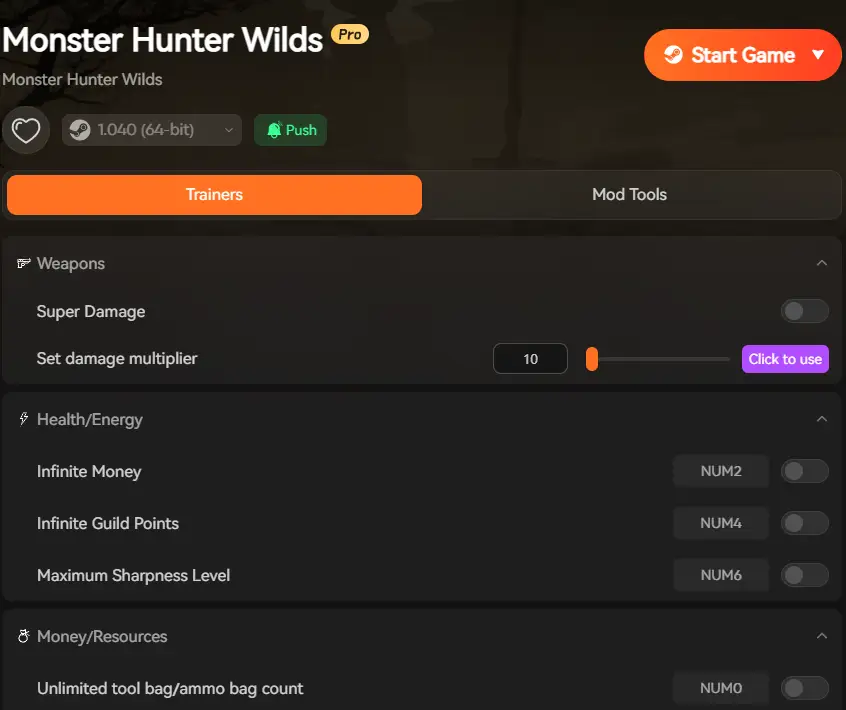
XMODhub is not just for Comodines de Monster Hunter. Our all-in-one client supports the biggest performance-heavy hits on PC. Whether you need to skip the grind or stabilize gameplay, one tool covers them all:
Mito negro: Wukong: Struggling with difficult bosses? Use our Modo Dios y Infinite Mana to focus on the story.
Cyberpunk 2077: Customize your V with Infinite Money and bypass the tedious crafting requirements.
Anillo Elden: Make the Lands Between less punishing with Infinite Runes y 100% Drop Rate mods.
Dragon’s Dogma 2: Manage your inventory weight and stamina effortlessly with our dedicated trainer.
Stop downloading separate, risky tools for every game. Get XMODhub and manage your entire Steam library in one place.
Frequently Asked Questions (FAQ)
Q: Why does my game stutter when I enter a new area?
A: This is likely “Shader Compilation Stutter.” The game is building shaders for the new zone. The best fix is to wait for 10-20 seconds at the camp entrance before moving to let the shaders load.
Q: Will XMODhub lower my FPS?
A: No. XMODhub is a lightweight external overlay. It consumes negligible CPU/RAM (less than a Chrome tab) and does not hook into the rendering pipeline, so it has zero impact on your FPS.
Q: My game crashes with “Fatal D3D Error”. How to fix?
A: This usually means you ran out of VRAM. Lower your Texture Quality and disable Ray Tracing. Also, verify your game files on Steam.
Conclusión
Optimization in Comodines de Monster Hunter is a balancing act. While Capcom continues to patch the game, players are often left to deal with the performance hiccups themselves.
By applying the settings above, you should see a significant reduction in stuttering. However, for those moments when the game engine simply fails, XMODhub provides the tools you need to ensure a technical glitch doesn’t cost you a 30-minute hunt. Don’t let the frame rate be the real monster.
Soy un jugador apasionado y escritor en XMODhub, dedicado a traerte las últimas noticias de juegos, consejos y puntos de vista.
Conecta conmigo:
Perfil en LinkedIn
Where to Find DarkSwitch Save File & Config Location (PC/Steam)
There is nothing worse than sinking 50 hours into DarkSwitch, perfecting your light-and-dark stance switching, gathering thousands of Lumens, only to worry about a corrupted save file or a Steam Cloud sync error.…
Slay the Spire 2 Steam Launch Fix Tool: Complete Guide
Look, there is nothing—and I mean nothing—worse than finally booting up your PC to play a few rounds of your favorite deckbuilder, only to have the game instantly crash to the desktop. I’ve…

 Catherine Hu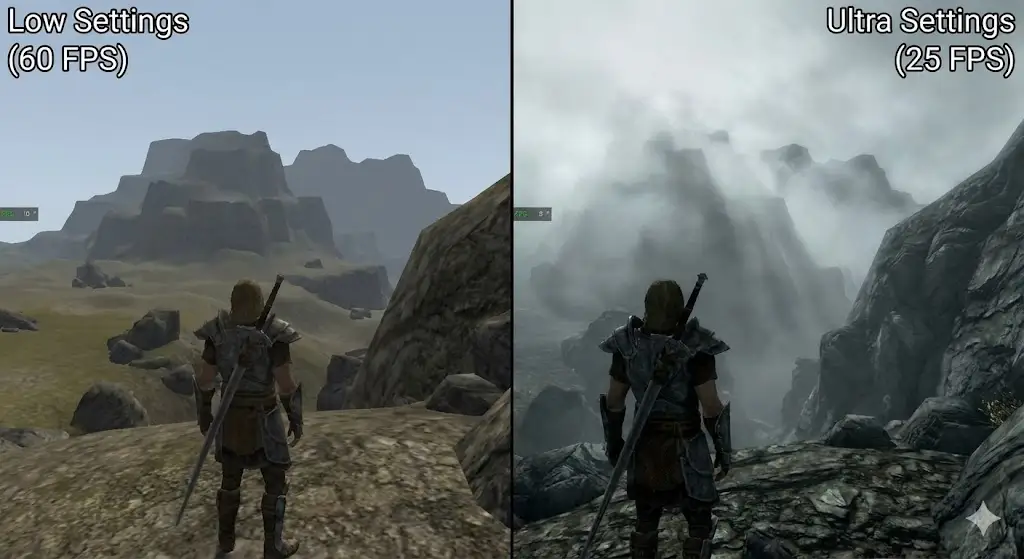


 Nancy Miller