Catherine Hu
Cairn has finally arrived, bringing its brutal, realistic climbing simulation to PC. Taking this vertical journey on the go feels incredible—there is nothing quite like scaling Mount Kami while lying in bed. However, the game’s heavy reliance on physics calculations means the default “Medium” preset can drain your Steam Deck battery in under 90 minutes or cause input lag that sends you plummeting to your death.
In a game where grip endurance and precise timing are everything, you cannot afford a frame stutter. Whether you are rocking a Steam Deck OLED or an ROG Ally X, you need to tune the engine to find that sweet spot between visual clarity and responsive controls. Below are our tested “Golden 40” settings, a battery life guide, and a tutorial on how to use cheats without a physical keyboard.
También te puede gustar:
Cairn: Cheat Engine Table vs. XMODhub Trainer (Best Free Alternative)
Editor’s View: The “Tiny Text” Struggle
“I tried playing Cairn on a long flight. The performance was decent, but the frustration set in when I wanted to practice a specific ‘dyno’ move. I kept falling, restarting, and falling again. I wanted to toggle infinite stamina just to practice the move, but bringing up the virtual keyboard to type console commands while holding the triggers (to grip the wall) was impossible.
That’s why this guide isn’t just about FPS—it’s about usability. I’ll show you how to set up XMODhub so you can toggle ‘Infinite Grip’ with just a back button press, no typing required.”
— Catherine Hu, Handheld Gaming Specialist
Quick Look: The “Golden” Settings (Summary)
Don’t have time to read? Apply these settings for the best balance of visuals and physics stability.
Is Cairn Playable? Proton & Compatibility
- Valve Verification: [Playable] (Likely due to small text or launcher)
- Recommended Proton: Proton Experimental or GE-Proton 9.x.
- Arréglalo: If you experience stuttering during the “panoramic” camera sweeps, try forcing Proton Experimental in the game’s properties menu on Steam.
Steam Deck Deep Dive: Graphics & TDP Settings
To lock a solid 40FPS on the Steam Deck, we need to sacrifice specific settings that cost too much GPU power without affecting the climbing mechanics.
- Volumetric Fog: Ajustar a Bajo. Cairn uses a lot of fog to hide distant peaks, but on High, it kills performance. Low still looks atmospheric on the small screen.
- Texture Quality: Alta. The Deck has enough VRAM (especially if you set UMA Buffer to 4GB in BIOS) to handle high textures. Sharp rock textures are vital for seeing handholds.
- Physics Quality: Keep this at Alta. Lowering physics can sometimes mess with the rope dynamics or how your character swings, which makes the game feel “floaty.”
- Motion Blur: Off. When you are scanning a wall for a hold, blur just adds visual noise.
Battery Life Guide: How to Get 3+ Hours
Running Cairn at full unlocked TDP will kill your Deck in about 1 hour and 40 minutes. Here is how to extend it for long trips:
- TDP Limit: Open the Quick Access Menu (…) > Battery > enable TDP Limit and set it to 11W.
- GPU Clock: Pin GPU Clock to 1200 MHz. The game is CPU-heavy due to physics; locking the GPU prevents it from stealing power unnecessarily.
- Resultado: You will stabilize the frame pacing and gain roughly 45-60 minutes of extra climbing time.
How to Run XMODhub on Steam Deck (Linux)
XMODhub is a Windows app (.exe), but you can run it easily on SteamOS to cheat in Cairn without needing a PC.

- Desktop Mode: Switch to Desktop Mode via the Power menu.
- Descargar: Get the portable version of XMODhub.
- Add to Steam: Open Steam > Games > “Add a Non-Steam Game” > Select XMODhub.exe.
- Compatibility: Right-click XMODhub in your library > Properties > Compatibility > Check “Force the use of a specific Steam Play compatibility tool” (Select Proton Experimental).
- Lanzamiento: Run XMODhub first, then launch Cairn. They will talk to each other automatically via the Proton prefix.
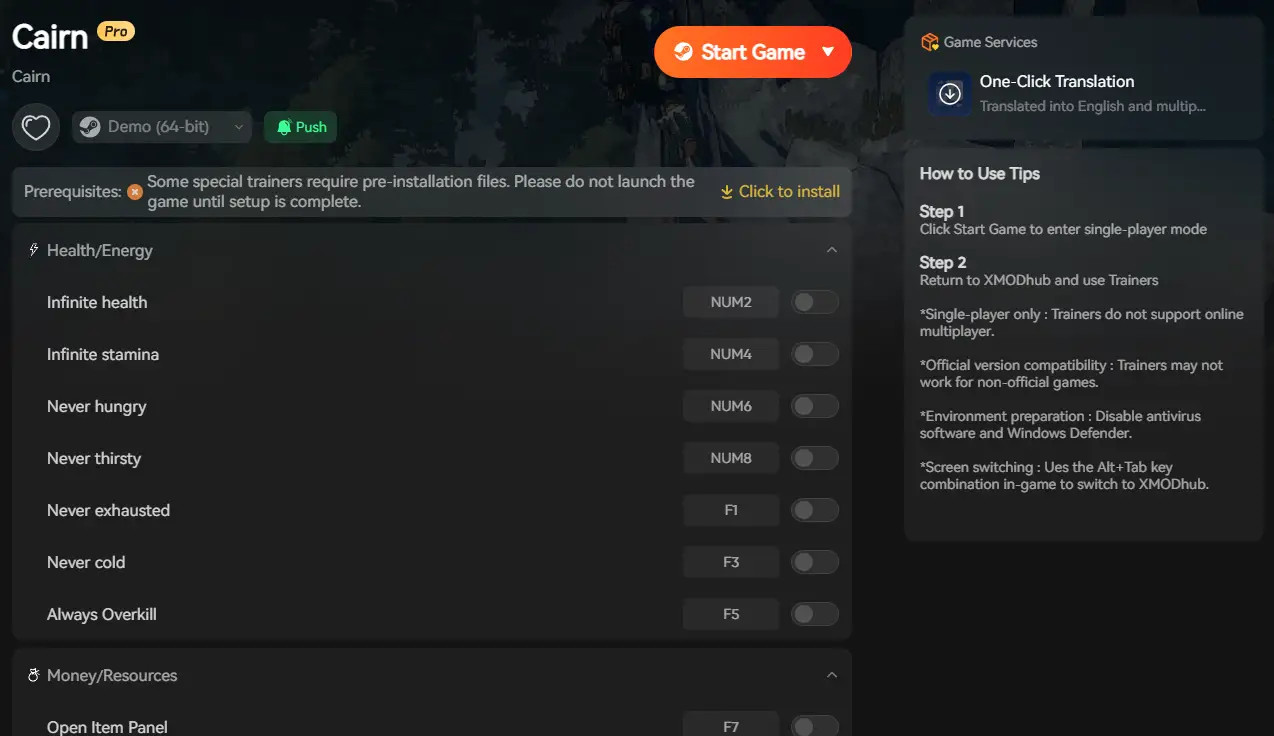
The “No-Keyboard” Cheat Experience
Once installed, forget about the clunky virtual keyboard. XMODhub’s Handheld Mode overlays large, touch-friendly buttons on your screen.
- Toggle Cheats: Map the L4 or R4 back buttons to activate “Infinite Stamina”. This lets you hang on the wall forever while planning your next move.
- Speedhack: Hold R5 to slow down time (0.5x speed) during difficult jumps, giving you better reaction time for the grab mechanics.
- Save Manager: Instantly backup your save before a dangerous pitch using the touchscreen overlay.
PREGUNTAS FRECUENTES
Q: Where is the Cairn save file location on Steam Deck?
It is hidden deep in the generic compatdata folder structure:
/home/deck/.local/share/Steam/steamapps/compatdata/[AppID]/pfx/drive_c/users/steamuser/AppData/Local/Cairn/Saved/
Q: Why does the game stutter when I open the map?
This is a known issue with shader caching on Linux. It usually resolves itself after you have opened the map a few times.
Q: Does using XMODhub disable achievements on Steam Deck?
Generally, yes. However, XMODhub includes a “Safe Mode” that can often bypass this check, allowing you to earn achievements even while using Infinite Chalk.
Conclusión
With the “Golden 40” settings and a tuned TDP limit, Cairn transforms from a battery-hogging frustration into a perfect travel companion. And by setting up XMODhub via Proton, you remove the permadeath anxiety, letting you practice the hardest routes at your own pace—keyboard free.
Climb Higher. Play Smarter.

Soy un jugador apasionado y escritor en XMODhub, dedicado a traerte las últimas noticias de juegos, consejos y puntos de vista.
Conecta conmigo:
Perfil en LinkedIn

 Nancy Miller