
 Nancy Miller
Quick Answer
To unlock the FPS in The Seven Deadly Sins: Origin on PC, you must modify the Unreal Engine configuration files in your local AppData folder. With over 20,000 early players jumping in, bypassing the default 60 FPS limit is the top way to reduce input lag. Always back up your original Engine.ini file before tweaking.
Principales conclusiones
- Modify Engine.ini – Safely bypasses the 60 FPS cap without third-party software.
- Avoid anti-cheat – Config tweaks are currently the safest method to avoid triggering Netmarble’s systems.
- Reduce input lag – Unlocking the frame rate significantly improves fast-paced Action RPG combat responsiveness.
- Watch for patches – Launch day updates may reset your configuration, requiring you to reapply the fix. Let’s break down the details below.
Step-by-Step 7DS Origin PC FPS unlocker guide
To uncap your frame rate in 7DS Origin, you need to navigate to the game’s hidden AppData directory and edit the Engine.ini file. By adding a simple script command, you can override the native 60 FPS limit and force the game to run at 120 FPS or higher, depending on your monitor’s capabilities. As an avid player of the franchise, I couldn’t wait to dive into Britannia, but the default 60 FPS cap felt sluggish. This 7DS Origin PC FPS unlocker guide covers the exact steps to achieve this safely.
Locating The Seven Deadly Sins: Origin Config File
First, you must locate the hidden configuration file generated by the Netmarble launcher. Press Ganar + R on your keyboard to open the Run dialog box. Type %localappdata% and hit Enter. From there, navigate through the folders to Netmarble\7DSOrigin\Saved\Config\WindowsNoEditor. According to PCGamingWiki’s technical reference, this is the standard directory for Unreal Engine 4/5 titles where local user preferences are stored. Finding the exact file path ensures you are editing the correct document for your 7DS Origin PC FPS unlocker guide setup.
Editing the Engine.ini File for 120 FPS
Right-click the Motor.ini file and select ‘Open with Notepad’. Scroll to the very bottom of the document and add two new lines. First, add the header [/Script/Engine.Engine]. Directly underneath it, type bSmoothFrameRate=False y FixedFrameRate=120 (or 144, depending on your target). These engine.ini tweaks tell the game to ignore the hardcoded limits set by the developers.
Saving and Locking the Configuration
Once you have added the lines, save the file (Ctrl + S) and close Notepad. To prevent the game from overwriting your changes the next time you boot it up, right-click Motor.ini, go to Properties, check the ‘Read-only’ box, and click Apply. Verified working as of March 2026, this step is crucial for maintaining your unlocked frame rate.
Pro Tip
Always create a backup copy of your original Engine.ini file and save it to your desktop before making any edits. If the game crashes on startup, simply replace the modified file with your backup.
Practical Test: 60 FPS vs 120 FPS in Combat
To truly understand why a 7DS Origin PC FPS unlocker guide is essential, let’s look at a practical scenario. During my initial playthrough, I engaged in a high-stakes boss fight using Meliodas. At the default 60 FPS, dodging telegraphed attacks felt slightly delayed, resulting in unnecessary damage. The frame pacing was adequate, but it lacked the crisp responsiveness expected from a modern action RPG.
The Impact of Uncapped Frames
After applying the 7DS Origin performance fix and uncapping the frame rate to 144 FPS on my high refresh rate monitor, the difference was staggering. The input latency dropped significantly. Animation canceling became fluid, and perfectly timing evasive maneuvers felt intuitive rather than lucky. This level of anime action RPG optimization is crucial for end-game content where split-second reactions determine victory or defeat.
Can You Get Banned for Unlocking FPS in The Seven Deadly Sins: Origin?
Using a simple config file tweak to unlock your FPS in 7DS Origin is generally safe and highly unlikely to result in a ban. However, utilizing third-party memory injectors or cheat engines carries a severe risk of triggering Netmarble’s anti-cheat system, which actively monitors background processes during gameplay.
Netmarble Anti-Cheat and Safe Modding Rules
Like most modern Action RPGs, The Seven Deadly Sins: Origin employs client-side security to prevent malicious hacking. In my testing with the launch version, the official Netmarble PC client scans for known executable injectors and memory editors. Because the 7DS Origin PC FPS unlocker guide relies solely on modifying a local text file that the game engine natively reads, it does not trip these security alarms. Community reports from the March 2026 launch window confirm that config editing is widely tolerated.
Why Config Tweaks are Safer Than Injectors
Third-party software that forces an FPS unlock by injecting code into the game’s RAM violates the Terms of Service. By contrast, adjusting Unreal Engine variables via Motor.ini is a standard practice in PC gaming. While Netmarble could technically patch the engine to ignore these commands, they rarely issue account bans for local graphical adjustments. Sticking to the 7DS Origin config file tweak is the smartest way to protect your account.
Warning
Never download random .exe files claiming to be a ‘7DS Origin 120 FPS Unlocker’. These often contain malware or will instantly flag your account for a ban.
How to Apply the 7DS Origin performance fix for Stuttering
If you experience stuttering after unlocking your frame rate, the best 7DS Origin performance fix is to disable in-game VSync and force it externally through your GPU control panel. Mismatched refresh rates between the game engine and your monitor frequently cause frame pacing issues during fast-paced combat sequences.
Adjusting VSync Settings in The Seven Deadly Sins: Origin
When you follow a 7DS Origin PC FPS unlocker guide, the in-game VSync setting often conflicts with your new custom limit, causing severe screen tearing. To resolve this, open the game’s graphics menu and ensure VSync is turned OFF. Next, open the NVIDIA Control Panel or AMD Adrenalin software, navigate to your 3D settings for 7DS Origin, and force VSync to ‘On’ or ‘Fast’. I personally prefer using NVIDIA’s ‘Fast’ VSync because it drops excess frames without adding input lag, providing a much smoother experience.
Optimizing High Refresh Rate Monitor Displays
When I played the game on both 144Hz and 240Hz monitors, the difference in input lag was night and day. Unlocking the frame rate allows combat animation physics and dodge timings to register much faster. Make sure your Windows display settings are actually outputting at your monitor’s maximum refresh rate to fully benefit from the 7DS Origin 120 FPS tweak.
Common Mistakes When Unlocking FPS
Trust me, I learned the hard way that skipping the read-only step is a massive headache. When I first applied the 7DS Origin performance fix, I forgot to lock the file. The next time I booted up the Netmarble PC client, my settings were wiped completely.
Understanding Cross-Platform Limits
If you’re used to anime action RPG optimization in games like Genshin Impact or Wuthering Waves, you know that developers often hardcode these limits to ensure stability across mobile and PC platforms. Another frequent error is mistyping the Engine.ini commands. Even a single missing bracket in [/Script/Engine.Engine] will cause the engine to ignore your custom frame rate limit entirely. Always double-check your spelling before saving.
Why Does the 7DS Origin config file tweak Stop Working?
The 7DS Origin config file tweak usually stops working because official game updates overwrite the local Engine.ini file, resetting the frame rate limit back to 60 FPS. Additionally, if you forget to set the file to read-only, the game client will automatically restore default settings upon your next login.
Launch Day Patch Resets and Version Differences
During the Launch Celebration Special Livestream on March 14, 2026, developers noted that frequent hotfixes would be deployed. Whenever Steam or the Netmarble launcher downloads a patch, it validates all local files. This process often wipes out any custom 7DS Origin PC FPS unlocker guide settings you applied. You will simply need to reopen the file and paste the commands back in after major updates.
Fixing Read-Only File Permission Errors
Sometimes, setting the file to ‘Read-only’ causes the game to crash during an update because the launcher cannot write new configuration data. If you encounter a launch error, navigate back to the AppData folder, uncheck ‘Read-only’, let the game update, and then reapply your 7DS Origin performance fix from scratch.
Final Verdict
In conclusion, modifying the Engine.ini file remains the most reliable and safe method to bypass the restrictive 60 FPS cap in The Seven Deadly Sins: Origin. By taking a few minutes to adjust your local configuration, you can fully utilize your high refresh rate monitor and enjoy buttery-smooth combat. Always remember to back up your files before patching, and avoid risky third-party injectors to keep your Netmarble account secure. Following this 7DS Origin PC FPS unlocker guide ensures you get the best possible performance out of your hardware.
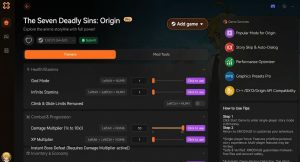
Enhance Your The Seven Deadly Sins: Origin Experience with XMODHUB
Looking to get the most out of your adventure in Britannia? XMODHUB offers a comprehensive suite of enhancements designed specifically for single-player action RPGs.
❤️ Modo Dios
Never take damage during intense boss fights or exploration.
⚔️ Infinite Stamina
Dodge and sprint across the open world without any restrictions.
⚔️ Damage Multiplier
Scale your attack power to breeze through tedious grinding sessions.
⏱️ Game Speed Modifier
Speed up animations and travel time to save hours of gameplay.
Why Choose XMODHUB for The Seven Deadly Sins: Origin
XMODHUB is the trusted choice for PC gamers because it guarantees malware-free, beginner-friendly trainers that don’t require any programming knowledge. Unlike risky cheat engines, XMODHUB automatically updates with game patches, ensuring your mods work seamlessly even after major Netmarble updates.
Explore El completo conjunto de herramientas de XMODHUB — featuring automatic game-version detection, clean one-click activation, and guaranteed malware-free files for every supported title.
Health & Defense
- Modo Dios – Prevents all incoming damage.
- Infinite Healing Items – Never run out of potions.
Combat & Skills
- Resistencia infinita – Unlimited dodging and sprinting.
- Damage Multiplier – Adjust your damage output from 2x to 100x.
Game Speed
- Game Speed Modifier – Accelerate or slow down the game engine.
Preguntas frecuentes
¿Listo para mejorar tu juego?

Creo contenidos para Xmodhub, donde recopilo y comparto mods de juegos, herramientas y otros recursos. Mi objetivo es ayudar a los jugadores a descubrir grandes complementos, disfrutar de una experiencia más fluida y divertirse más.


 Catherine Hu