Resumen: This guide covers everything you need to know about Ghost of Tsushima Steam Deck performance, including compatibility, optimal settings, gameplay experience, and tips to enhance your adventure on the handheld device.
Wondering if Ghost of Tsushima runs smoothly on the Steam Deck?
This guide covers everything you need to know—from compatibility and the best Steam Deck settings to optimize your gameplay, to detailed insights on the game’s performance so far.
Plus, we’ll share tips on how to enhance your Ghost of Tsushima experience on the Steam Deck for seamless, immersive gaming on the go.
Whether you’re a longtime fan or a new player, this comprehensive overview will help you get the most out of your adventure on Tsushima Island using Valve’s portable powerhouse.

Índice
- Does Ghost of Tsushima Work on Steam Deck?
- Best Ghost of Tsushima Steam Deck Settings
- Ghost of Tsushima’s Performance on the Steam Deck So Far
- How Can You Enhance Ghost of Tsushima Gaming on Steam Deck?
- Conclusión
Does Ghost of Tsushima Work on Steam Deck?
Ghost of Tsushima is currently rated as Unsupported on the Steam Deck because its Legends Co-Op online mode requires a PlayStation online connection, which only works on Windows. According to a post by Sucker Punch on the Steam community page, the game cannot receive a Playable or Verified rating until all features are fully supported natively on the Linux-based Cubierta de vapor. Despite this limitation, Ghost of Tsushima runs very well on the device, needing only minor settings adjustments to deliver an almost flawless gaming experience.
Now that we know how compatible the game is, let’s explore the best settings to optimize your Steam Deck experience.
Best Ghost of Tsushima Steam Deck Settings
Best Ghost of Tsushima Steam Deck Settings
- Motion Blur Strength: 50
- Field of View: 0
- Texture Quality: Low
- Texture Filtering: Trilinear
- Shadow Quality: Low
- Level of Detail: Low
- Terrain Detail: Low
- Volumetric Fog: Low
- Depth of Field: Low
- Screen Space Reflections: Off
- Screen Space Shadows: Low
- Ambient Occlusion: SSAO Quality
- Bloom: On
- Vignette: On
- Water Caustics: On
- VSync: On
- Upscale Method: AMD FSR 3.0
- Dynamic Resolution Scaling: 60
Using these settings, I was able to achieve a steady 50fps, with minimal drops even during intense combat. It’s impressive how well Ghost of Tsushima scales down on the Steam Deck.
The game consumes about 22W of battery power, giving roughly 2 hours and 15 minutes of playtime on a full charge of the Steam Deck OLED. GPU usage maxes out near 70°C, while the CPU runs at 45-55% utilization and about 65°C temperature.
Overall, Ghost of Tsushima performs remarkably well on Steam Deck. Valve’s “Unsupported” rating, due to the Legends online mode issue, seems a bit harsh given the smooth offline gameplay.
With the right settings in place, it’s important to understand how the game actually performs on the Steam Deck over time.
Ghost of Tsushima’s Performance on the Steam Deck So Far
The game’s Cut is currently marked as Unsupported on Steam Deck mainly because its online co-op mode requires a PlayStation Network login, which isn’t fully supported on the device. However, the single-player campaign works well without needing to log in.
The game runs smoothly on Medium settings, averaging 30 to 40 FPS with stable performance even during combat. HDR now works by default, improving visuals significantly. While some graphical features like FSR can cause issues, overall, the game plays surprisingly well on the Steam Deck, offering an impressive open-world experience on a handheld device.
If you want to take your gameplay even further, here’s how you can enhance your Ghost of Tsushima experience on Steam Deck using helpful tools.
How Can You Enhance Ghost of Tsushima Gaming on Steam Deck?
To boost your single-player experience in this game on Steam Deck, consider using Xmod. This app lets you access cheats and trainers that can help customize and improve your gameplay. Here’s how to get started:
- Download the Xmod app.
- Buscar Ghost of Tsushima dentro de la aplicación.

- Launch the game directly from Xmod.
- Activate your preferred mods or cheats to tailor your experience and enjoy enhanced gameplay.
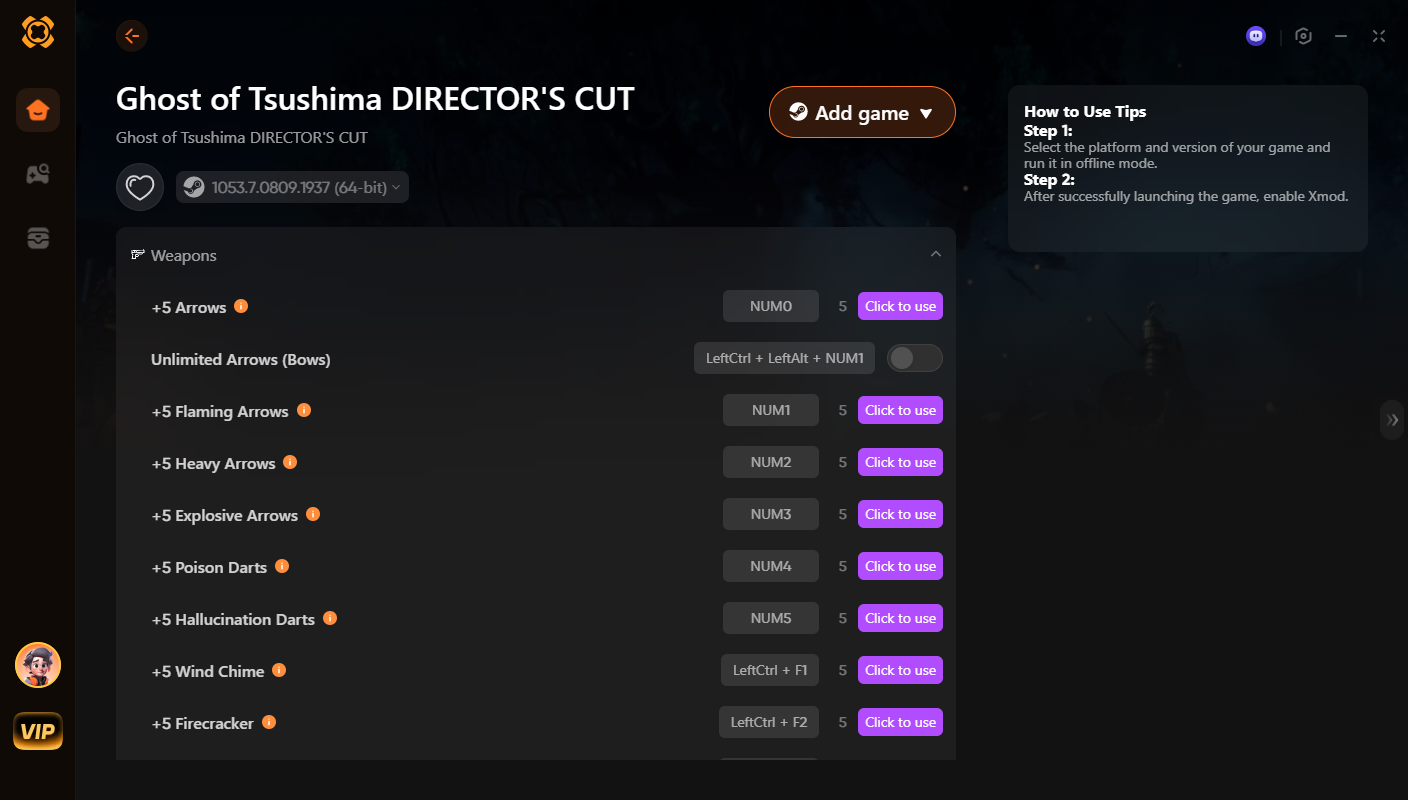
Using Xmod can make your journey as the samurai even more exciting and personalized.
Here you can learn how to use Xmod on Steam Deck: https://www.youtube.com/watch?v=2VoLw9nTxwQ
Conclusión
In conclusion, Ghost of Tsushima runs impressively well on the Steam Deck, offering a smooth and immersive experience with the right settings. By adjusting performance options and applying recommended tweaks, players can enjoy this epic adventure on the go without sacrificing quality. Whether you’re a fan of the game or new to the series, the Steam Deck provides a fantastic way to explore Tsushima Island anytime, anywhere.
Soy un jugador apasionado y escritor en XMODhub, dedicado a traerte las últimas noticias de juegos, consejos y puntos de vista.
Conecta conmigo:
Perfil en LinkedIn

 Catherine Hu

 Nancy Miller