Catherine Hu
Opinión del Editor: Por qué es importante
I specifically wrote this guide because Unreal Engine games like Styx can be tricky. Losing a standard save is annoying, but losing a ‘Goblin Master’ difficulty save is heartbreaking. Even if you don’t use cheats, please backup your SaveGames folder manually right now.”
There is nothing worse than sinking 20 hours into a “Ghost” run (No Kills, No Alerts) in Styx: Blades of Greed, only to have your save file corrupted by a crash or a bad cloud sync. Whether you want to manually backup your progress before a difficult heist, transfer your save to a Steam Deck, or tweak the config file to finally turn off that aggressive Motion Blur, you first need to find where the data is hidden on your drive.
Below is the exact file path for Styx: Blades of Greed on Windows and Steam Deck, along with a safer, automated method to protect your goblin’s progress.
También te puede gustar:
Styx: Blades of Greed Cheat Engine Table vs. XMODhub Trainer: Best Free Alternative (2026)
Windows PC Save File Location (Steam/Epic)
For the Steam and Epic Games versions of Styx: Blades of Greed, the save files are located in the standard Unreal Engine Local AppData folder.
C:\Users\%USERNAME%\AppData\Local\StyxBoG\Saved\SaveGames\(Note: The folder might be named Styx3 o StyxBladesOfGreed depending on your specific launch version.)
Cómo llegar rápidamente:
- Pulse Tecla Windows + R en el teclado para abrir el cuadro de diálogo Ejecutar.
- Tipo
%localappdata%and press Enter. - Desplácese hacia abajo y abra StyxBoG (o Styx3) folder.
- Vaya a Guardado > GuardarJuegos.
Nota: You will see files like Profile_0.sav o Checkpoint.sav. If you cannot see the “AppData” folder, you need to enable “Hidden Items” in the View tab of your File Explorer.
Styx: Blades of Greed Config File Location
If you need to manually tweak graphics settings that aren’t in the menu (like disabling Chromatic Aberration or Motion Blur to spot guards easier), you need to edit the .ini file.
C:\Users\%USERNAME%\AppData\Local\StyxBoG\Saved\Config\WindowsNoEditor\How to Edit:
- 1. Haga clic con el botón derecho del ratón en
GameUserSettings.inioMotor.ini. - 2. Seleccione Open with Notepad.
- 3. Look for
[ScalabilityGroups]or addr.MotionBlurQuality=0to the bottom of the file to disable blur.
Warning: Always backup the file before saving changes.
Steam Deck / Linux Save Location
If you are playing Styx: Blades of Greed on the Steam Deck, the Windows file structure is emulated within the Proton layer.
/home/deck/.local/share/Steam/steamapps/compatdata/[SteamAppID]/pfx/drive_c/users/steamuser/AppData/Local/StyxBoG/Saved/SaveGames/Tip: You will need the specific App ID for Styx. Check SteamDB or the URL of the game’s store page to find this number.
Game Pass Save Location (The Tricky Part)
If you are playing on Xbox Game Pass (PC), your saves are NOT in the folder mentioned above. They are encrypted in a protected system container.
C:\Users\%USERNAME%\AppData\Local\Packages\[PublisherName].StyxBoG_xxxxx\SystemAppData\wgs\Note: These files are long hexadecimal strings (e.g., 000000145A…). You cannot simply rename them to work on the Steam version without a specialized converter tool.
La forma más inteligente: Copia de seguridad en un clic con XMODhub
Navigating through hidden AppData folders every time you want to secure a “No Kills” checkpoint is tedious. One accidental delete, and your run is over. XMODhub offers a built-in Save Manager designed specifically for games like Styx.
01Auto-Backup
XMODhub automatically creates a restore point every time you exit the game.
02Checkpoint Management
Create named backups like “Before Boss” or “Perfect Stealth Run” and switch between them instantly.
03Visual Interface
No digging through folders. See your saves with timestamps and screenshots.
XMODhub: More Than Just a Save Manager
XMODhub is your ultimate all-in-one toolkit for PC gaming. Whether you need powerful Trainers for Infinite Amber, real-time Interactive Maps of the levels, or tools to unlock FPS, XMODhub has you covered.
How to Use XMODhub for Styx:
1. Download and Install the XMODhub client safely.

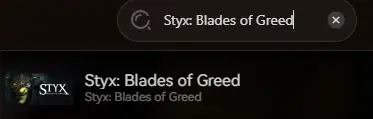
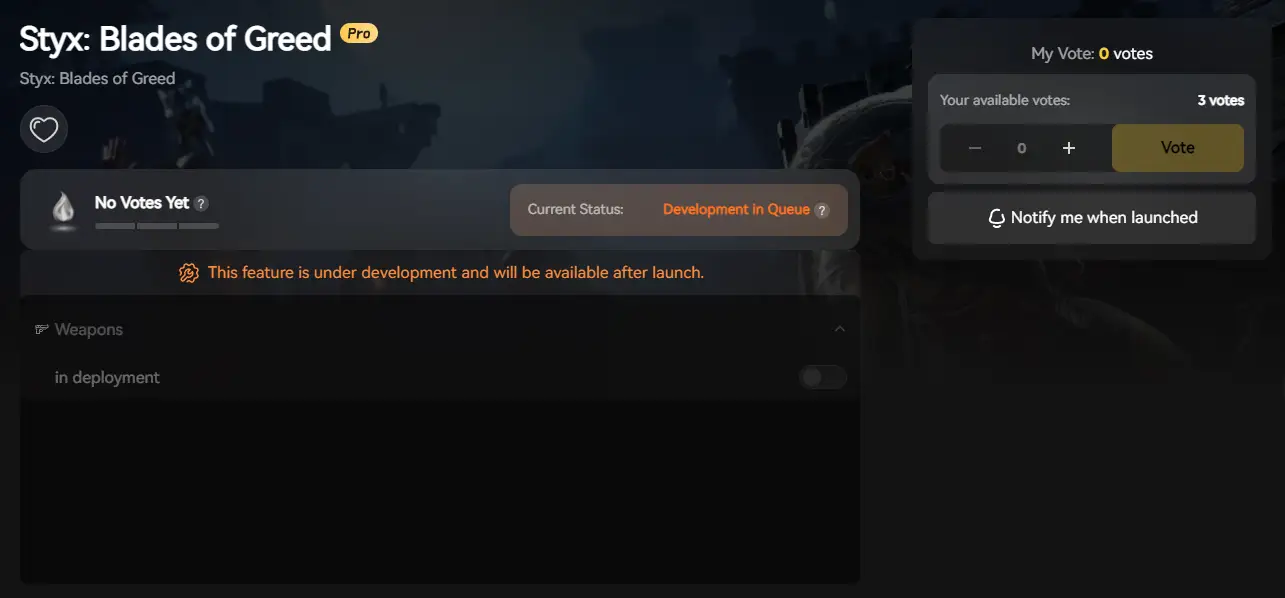
2. Search for “Styx: Blades of Greed”.
3. Launch and play with peace of mind!
PREGUNTAS FRECUENTES
Q: Can I transfer my Styx save from Game Pass to Steam?
A: Generally, no. Game Pass saves are encrypted. However, XMODhub’s Save Manager attempts to read and decrypt these files for local backups, which gives you a better chance of migration than manual copying.
Q: What happens if I delete the GameUserSettings.ini file?
A: The game will regenerate a default config file upon the next launch, resetting your graphics settings to High/Medium. This is a good way to fix a black screen glitch.
P: ¿Se me prohíbe modificar los archivos guardados?
A: In single-player/co-op mode, absolutely not. Modifying your save (e.g., to add Skill Points) is safe. However, verify you are offline if the game introduces any ranked leaderboards.
Conclusión
Locating your Styx: Blades of Greed save file is a crucial skill, whether you are recovering from a crash, migrating to a Steam Deck, or editing config files to remove annoying visual effects.
However, digging through hidden system folders carries a risk. If you prefer a safer, “set it and forget it” solution that protects your hard-earned stealth progress, we highly recommend the XMODhub Save Manager. Keep your “Ghost” rating safe.

Soy un jugador apasionado y escritor en XMODhub, dedicado a traerte las últimas noticias de juegos, consejos y puntos de vista.
Conecta conmigo:
Perfil en LinkedIn

 Nancy Miller