
 Catherine Hu
There is nothing worse than sinking 50 hours into CODE VEIN II, perfectly optimizing your Blood Code and high-tier gifts, only to have a corrupted save file wipe your progress after a boss fight. Whether you want to manually backup your data before a crucial story choice, transfer your Revenant to a new PC, or tweak the config file to fix UE5-related stuttering, you need to know exactly where the game hides your data.
Below is the exact file path for CODE VEIN II on Windows and Steam Deck, along with a safer, automated way to ensure your progress is never lost.
También te puede gustar:
CODE VEIN II Cheat Engine Table vs. XMODhub Trainer: Best Free Alternative (2026)
Editor’s View: The Nightmare of Lost Ichor
“I remember facing the final boss in the first Code Vein. My power flickered, the PC rebooted, and my ‘Continue’ button was greyed out. I lost everything.
In CODE VEIN II, the stakes are even higher with the new Assimilation system and branched endings. I wrote this guide because the UE5 save structure can sometimes desync from the Steam Cloud, especially during the new ‘Jail’ transitions. Don’t let your hard-earned progress turn into ash—backup your SaveGames folder today.”
— Catherine Hu, Lead Editor at XMODhub
Windows PC Guardar ubicación del archivo
For both the Steam and Game Pass versions of CODE VEIN II, the save data is stored within your local user profile’s hidden AppData folder.
[cite_start]
C:\Users\[YourUsername]\AppData\Local\CodeVein2\Saved\SaveGames\Cómo llegar rápidamente:
-
- Pulse Tecla Windows + R to open the Run dialog.
- Tipo
%localappdata%\CodeVein2\Saved\SaveGamesand press Enter. [cite: 1] - Inside, you’ll find folders named with a string of numbers (your unique Steam ID)—your .sav files are located there.
CODE VEIN II Config File Location (Graphics & Performance)
If the in-game menu doesn’t offer enough customization to fix FPS drops or you need to manually disable Virtual Shadow Maps to improve performance on older GPUs:
C:\Users\[YourUsername]\AppData\Local\CodeVein2\Saved\Config\WindowsNoEditor\How to Edit: Abrir GameUserSettings.ini with Notepad.
Pro Tip: If you experience a black screen on launch, renaming this folder to Config_Old will force the game to generate a fresh, working config file.
Steam Deck / Linux Save Location
On the Steam Deck, CODE VEIN II stores its data within a specific Proton prefix folder.
/home/deck/.local/share/Steam/steamapps/compatdata/2141530/pfx/drive_c/users/steamuser/AppData/Local/CodeVein2/Saved/SaveGames/Nota: 2141530 is the Steam App ID for CODE VEIN II.
How to Transfer CODE VEIN II Saves Between PCs
To move your Revenant to a new machine:
- Copy the entire [SteamID] folder from the path mentioned above.
- Install the game on the new PC and launch it once to create the directory structure.
- Paste your folder into the new
GuardarJuegosdirectory. [cite_start]
Advertencia: Ensure the Steam accounts are identical, as saves are often encrypted to specific Steam IDs.
Essential Backup Points for All Endings (Save-Scumming Guide)
To unlock all endings in a single playthrough, we recommend manually backing up your save at these points:
- Before the “Final Mistle”: Locate the save before entering the final boss arena in the Capital of Thorns.
- After “Assimilation” choices: Backup before interacting with any major NPC statues to explore different narrative outcomes.
Pro Tip: How to Manually Force Download a Previous Cloud Save
Sometimes, your local save is corrupted, but Steam has already synced the “broken” file to the cloud. Before you lose your Revenant forever, try this official but hidden Steam method to see if a clean version exists in the cloud:
- Access the Hidden Cloud Portal: Go to the official Steam Cloud Remote Storage page in your web browser and log in.
- Locate the Game: Find CODE VEIN II in the list (you can use Ctrl+F to search).
- Show Files: Click “Show Files” on the right side.
- Download Clean Data: You will see a list of every .sav file Steam has stored. Check the “Date Modified” column. Download the version from before your game started crashing.
- Manual Replace: Place these downloaded files into the SaveGames path we mentioned in Method 1.
Editor’s Note: This is your “last resort” manual fix. If this sounds too complicated, remember that XMODhub’s Save Manager automates this entire process, giving you a visual timeline of your saves so you never have to browse hidden Steam web pages again.
La forma más inteligente: Copia de seguridad en un clic con XMODhub
Digging through hidden folders is tedious. XMODhub offers a dedicated Save Manager for high-stakes Soulslike games.
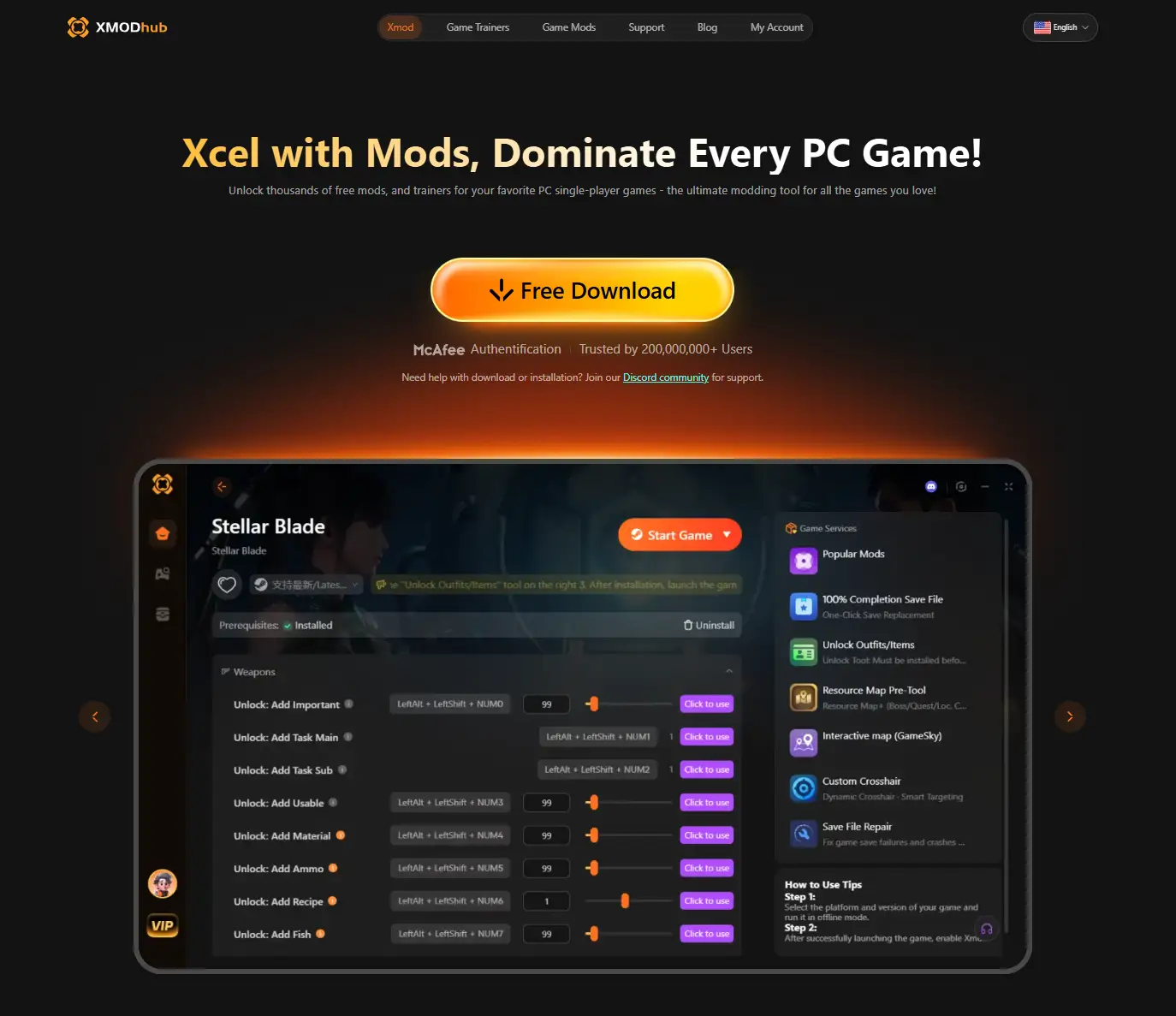
- Copia de seguridad automática: XMODhub creates a snapshot of your save every time you reach a Mistle or exit the game.
- Point-in-Time Restore: Corrupted your save? Just pick a backup from 30 minutes ago and jump back in.
- Save Slotted View: See your character’s level and playtime directly in the XMODhub dashboard before restoring.
PREGUNTAS FRECUENTES
Q: Is CODE VEIN II save data cross-platform?
Between Steam and Steam Deck, yes (via Cloud Sync). [cite_start]Between Steam and PlayStation/Xbox, no. [cite: 1]
Q: What happens if I delete my ‘Saved’ folder?
You will lose your character progress and all custom graphics settings. [cite_start]Always backup the SaveGames sub-folder before making changes. [cite: 1]
Q: Why can’t I find the AppData folder?
It’s hidden by default. [cite_start]In File Explorer, go to View > Show > check Hidden Items. [cite: 1]
Conclusión
Finding your CODE VEIN II save file is essential for anyone serious about completing the game and protecting their progress. Whether you’re moving to a Steam Deck or trying to unlock every ending, knowing your way around the %AppData% folder is a must for a true Revenant.
If you’d rather focus on the hunt than on file directories, let XMODhub handle the technical side. Our Save Manager is the ultimate safety net for your journey.

Soy un jugador apasionado y escritor en XMODhub, dedicado a traerte las últimas noticias de juegos, consejos y puntos de vista.
Conecta conmigo:
Perfil en LinkedIn

 Nancy Miller




Love the part about transferring saves between PCs! I was about to start a fresh game on my laptop but now I can move my progress over. Could’ve saved me hours of grinding!