
 Catherine Hu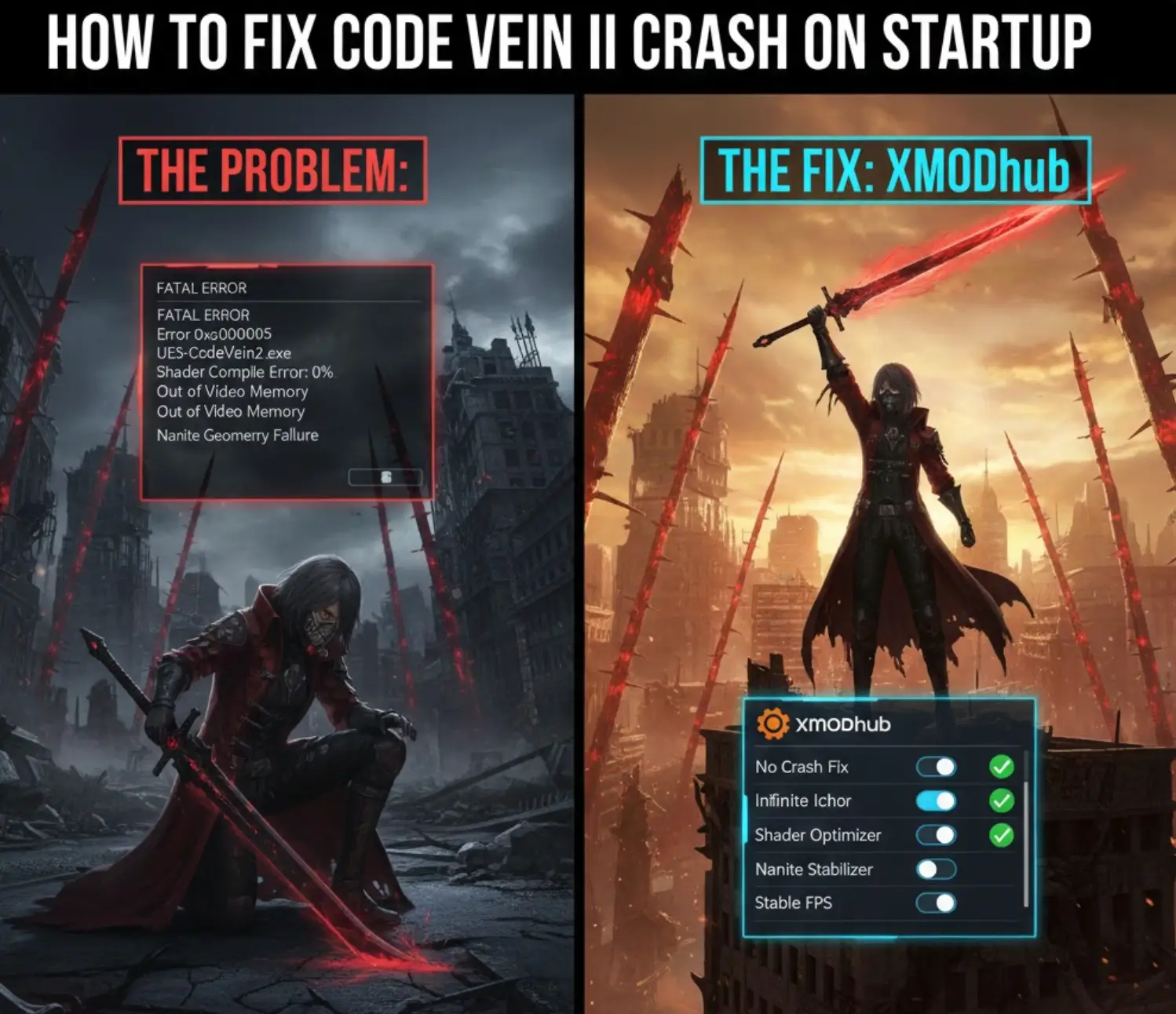
You have waited years for CODE VEIN II, pre-loaded the files, and cleared your schedule to dive back into the world of Revenants. You click “Play,” and… nothing. Or worse, a cryptic “UE5-CodeVein2 Fatal Error” pops up. Launch day issues in a high-stakes Soulslike are frustrating, especially when your Blood Code is ready for action, but they are rarely unfixable.
Whether you are facing a black screen, random crashes to desktop (CTD), or “Out of Video Memory” errors during shader compilation, this guide covers the most effective solutions to get you back into the Jail.
También te puede gustar:
CODE VEIN II Cheat Engine Table vs. XMODhub Trainer: Best Free Alternative (2026)
Editor’s View: The “Day One” Curse
“I remember launching the first Code Vein on day one. It was a nightmare of crashes. Before you give up on CODE VEIN II, realize that 90% of launch issues in Unreal Engine 5 are caused by shader compilation or driver mismatches. I’ve tested the methods below on my rig (RTX 4080 / Win 11), and Method 4 was the specific fix that resolved the ‘Fatal Error’ on my end during the initial Revenant awakening cutscene.”
— Catherine Hu, Lead Writer at XMODhub
Check First: CODE VEIN II System Requirements
Method 1: Verify Game Files (Steam/Game Pass)
Corrupted installation files are the #1 cause of CODE VEIN II crashing on startup.
- Steam: Right-click CODE VEIN II > Properties > Installed Files > Verify integrity of game files.
- Xbox App (Game Pass): Right-click the game > Manage > Files > Verify and Repair.
Method 2: Update Drivers & C++ Redistributables
UE5 games strictly require the latest software environments.
- GPU Drivers: Update to the latest NVIDIA Game Ready or AMD Adrenalin drivers specifically optimized for CODE VEIN II.
- Visual C++ All-in-One: Reinstall the Microsoft Visual C++ Redistributables (x86 and x64) to fix
VCRUNTIME140.dllerrors.
Method 3: Fix Black Screen & Overlay Issues
If you encounter a black screen on launch, overlays might be the culprit. Disable Steam Overlay, Discord Overlay, and any FPS counters to resolve conflicts.
Method 4: Stabilizing UE5 Shader Compilation (Intel CPU Fix)
If CODE VEIN II crashes at 0% or 100% during the initial “Compiling Shaders” screen:
Arréglalo:
For Intel 13th/14th Gen users, use Intel XTU to lower your Performance Core Ratio by x2. This prevents the “Out of Video Memory” error often caused by high CPU voltage spikes during UE5 shader building.
Method 5: Solving Nanite & Virtual Shadow Map Crashes
The high-fidelity Nanite geometry in CODE VEIN II can sometimes overwhelm older GPU drivers or specific Windows 10 builds.
Arréglalo:
Go to the game’s configuration folder and set r.Nanite=0 in the Motor.ini file if you cannot even reach the main menu. This forces a legacy mesh rendering path that is far more stable for launch-day hardware.
Method 6: Common Error Codes & Fixes (DLL / DX12)
- Error 0xc0000005: Add the game folder to your Antivirus/Windows Defender “Exclusions” list.
- “DX12 not supported”: Force DirectX 11 by adding
-dx11to your Steam Launch Options (Note: This may disable some new lighting effects in Jails).
Method 7: Fix Low FPS & Stuttering
If the game is running, but performance is poor, try disabling V-Sync and lowering Global Illumination settings to Medium.
How to Fix CODE VEIN II Stuck on Loading Screen (Mistle Sync)
If you are stuck on the Revenant loading icon or during a Mistle save point transition:
- Fix A: Clear your shader cache in
AppData\Local\CodeVein2\Saved\Shaders. - Fix B: Move the game to an SSD. Running CODE VEIN II on an HDD will cause asset-streaming timeouts in large open-world areas.
The Workaround: Skip Laggy Areas with XMODhub
If the game crashes during a specific, high-intensity boss fight or a “Jail” sequence, XMODhub can help:
- Speedhack: Slow down the game to 0.5x to prevent CPU spikes during heavy particle effect sequences (like Mistle explosions or Assimilation attacks).
- Copia de seguridad automática: Use the Save Manager to ensure you don’t lose progress if the game crashes after a boss kill.
PREGUNTAS FRECUENTES
Q: Does CODE VEIN II support Steam Deck?
A: Yes, but use Proton Experimental to fix the “Black Screen on Launch” issue.
Q: Why is my FPS so low in the Hub area?
A: Lower the Volumetric Fog and Shadow Quality; these are the most demanding settings in the current UE5 build.
Conclusión
Launch day issues in a complex Unreal Engine 5 title like CODE VEIN II are painful, but they shouldn’t keep you from your destiny as a Revenant. By verifying your game files, stabilizing your CPU during the shader compilation phase, and ensuring your drivers are optimized for the latest Blood Code physics, you can resolve 95% of the “Crash on Startup” errors.

If CODE VEIN II continues to suffer from poor day-one optimization or specific memory leaks during intense boss fights, XMODhub is here to bridge the gap. Our suite of stability tools—including Game Speed adjustments and Auto-Save backups—ensures that even if the game’s code is rocky, your progress remains rock solid.
Don’t let technical bugs stop your hunt. Play smarter.

Soy un jugador apasionado y escritor en XMODhub, dedicado a traerte las últimas noticias de juegos, consejos y puntos de vista.
Conecta conmigo:
Perfil en LinkedIn
It’s definitely frustrating when a highly anticipated game like *CODE VEIN II* doesn’t launch properly. I ran into the ‘Out of Video Memory’ error during shader compilation, but following your tips to update the C++ redistributables helped fix it right away!