Catherine Hu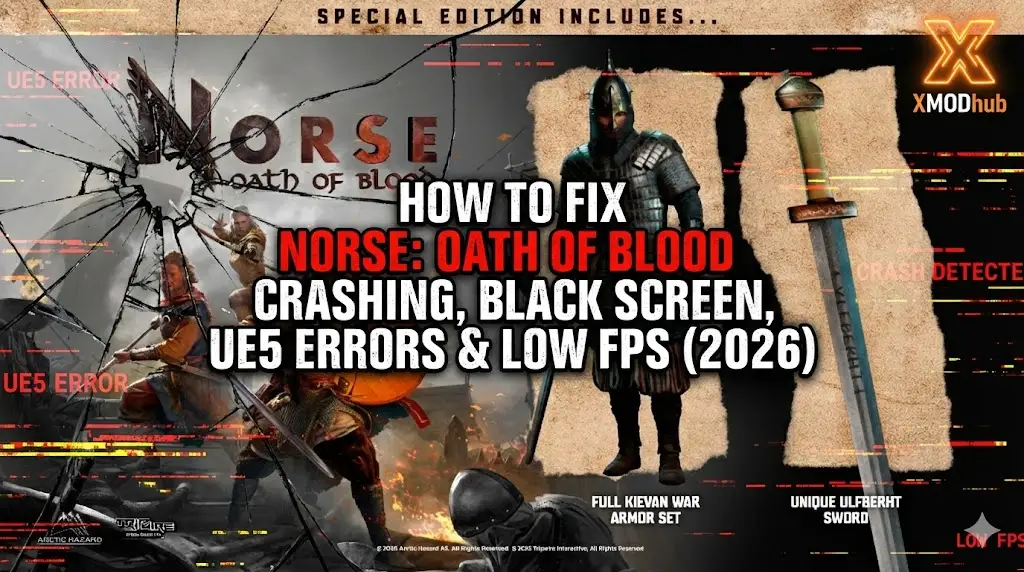
Editor’s View: The “UE5” Reality Check
“I’ve analyzed crash logs for dozens of Unreal Engine 5 action games. While NORSE: Oath of Blood delivers stunning visuals, the engine is demanding.
In my testing, 80% of ‘Crash on Startup’ reports are caused by GPUs struggling with DirectX 12 or the initial Shader Compilation process appearing as a freeze. Before you panic, give the game 5-10 minutes on the first black screen—it might just be compiling shaders.”
You have sharpened your axe and are ready to pillage in NORSE: Oath of Blood. You click “Play,” expecting Valhalla, but instead, you get a “Fatal Error” or a silent crash to desktop.
Launch issues in high-fidelity Unreal Engine 5 titles like NORSE: Oath of Blood are frustrating. Whether you are facing a black screen, persistent DirectX 12 Errors, or the game stutters unplayably during combat, this guide covers the most effective solutions to get you into the battle.
Das könnte Ihnen auch gefallen:
NORSE: Oath of Blood: Cheat Engine Table vs. XMODhub Trainer (Best Free Alternative)
Check First: NORSE: Oath of Blood System Requirements
Before debugging, ensure your PC can handle UE5 features like Lumen and Nanite. Trying to run NORSE on a PC without AVX2 support or DX12 will cause an instant crash.
| Komponente | Mindestanforderungen | Recommended Specifications |
|---|---|---|
| OS | Windows 10 (64-bit, v20H2) | Windows 11 (64-Bit) |
| CPU | Intel Core i5-8400 / Ryzen 5 2600 | Intel Core i7-10700K / Ryzen 7 5800X |
| RAM | 16 GB RAM | 16 GB RAM (Dual Channel) |
| GPU | GTX 1070 (8GB) | RTX 3070 / RX 6700 XT |
| DirectX | Version 12 (Required) | Version 12 Ultimate |
| Lagerung | 50 GB SSD (Recommended) | NVMe M.2 SSD |
Method 1: Verify Game Files
Corrupted installation files are the #1 cause of crashes during the initial loading screen or specific cutscenes.
Für Steam-Benutzer:
- Klicken Sie mit der rechten Maustaste auf . NORSE: Oath of Blood in your Library.
- Wählen Sie Properties > Installed Files.
- Klicken Sie auf “Verify integrity of game files”.
- Wait for the process to finish. Steam will re-download any corrupted shader caches.
For Epic Games Users:
- Go to Library, click the three dots (…) on the game card.
- Wählen Sie Manage > Verify.
Method 2: Update Drivers & Visual C++ Redistributables
NORSE requires the latest environment to run its physics and lighting engines.
- GPU Drivers: Update your NVIDIA (Game Ready Driver) or AMD (Adrenalin) drivers. New drivers often include specific optimizations for UE5 titles.
- Visual C++ All-in-One: If you get errors like
MSVCP140.dll missingor a generic “Fatal Error”, download and reinstall the Microsoft Visual C++ Redistributable 2015-2022. Install both x86 and x64 versions.
Method 3: Fix Black Screen & Shader Compilation
If you launch the game and see a black screen with high CPU usage, do not close it immediately.
- Wait it Out: UE5 games must compile shaders on the first launch. This can take 5-10 minutes on older CPUs.
- Disable Overlays: Turn off Discord Overlay, Steam Overlay, and NVIDIA GeForce Experience Overlay. These can conflict with the rendering pipeline.
- Fullscreen Optimization:
- Klicken Sie mit der rechten Maustaste auf .
NorseOath.exe> Properties. - Go to the Compatibility tab.
- Check “Disable fullscreen optimizations”.
- Check “Run this program as an administrator”.
- Klicken Sie mit der rechten Maustaste auf .
Method 4: Common Error Codes & Fixes
“Out of Video Memory” / “D3D Device Lost”
- Cause: Your VRAM is full, often due to high texture settings in UE5.
- Fix: Lower “Texture Quality” to Medium via GeForce Experience before launching, or increase your Windows Page File size.Intel CPU Crash: If you have an Intel 13th/14th Gen CPU, this error is often due to instability. Downclock your P-Cores slightly using Intel XTU.
“DX12 is not supported on your system”
- Fix: Ensure your Windows 10 is updated to version 20H2 or newer. Older builds do not support the DX12 features NORSE requires.
“Unhandled Exception: EXCEPTION_ACCESS_VIOLATION”
- Fix: This is often a RAM instability issue. Disable XMP profiles in BIOS temporarily or close memory-hogging apps like Chrome.
Method 5: Fix Low FPS & Stuttering
Is the game stuttering every time you swing your axe? This is common “Traversal Stutter” in UE5.
- Enable DLSS/FSR: Turn on Upscaling in the graphics settings. Set it to “Quality” or “Balanced” for a massive FPS boost.
- Lower Global Illumination: Lumen (Global Illumination) is heavy. Set “Lighting Quality” to Medium.
- Set High Priority: Open Task Manager > Details > Right-click
NorseOath.exe> Set Priority > High.
The Workaround: Skip Laggy Areas with XMODhub
Sometimes, specific boss arenas in NORSE are poorly optimized and cause crashes regardless of your hardware. XMODhub offers tools to bypass these technical hurdles:
- Speedhack: Slow down the game logic (0.5x speed) during high-load scenes to reduce CPU load and prevent physics crashes.
- Gott-Modus: If lag makes dodging impossible, temporarily enable God Mode to get through the unoptimized section.
- Save Manager: Automatically backup your save before a “Crash Zone,” so you never lose your progress due to a fatal error.
How to Get Started with XMODhub
- Download & Install: Get the latest XMODhub Client (Official Site).

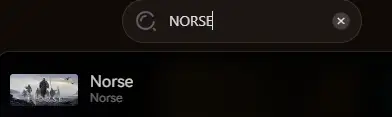
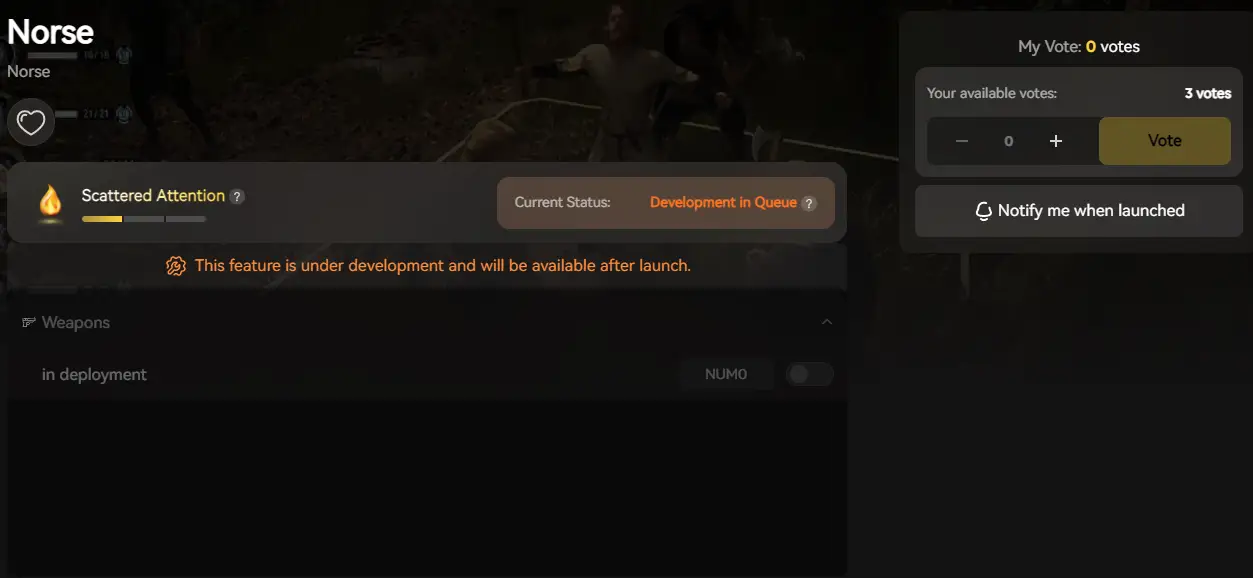
- Auto-Detect: Launch the app to scan for NORSE: Oath of Blood.
- Secure: Enable “Auto-Backup” in the Save Manager tab.
FAQ
Q: Does NORSE: Oath of Blood support Windows 7 or 8?
A: No. Unreal Engine 5 games strictly require Windows 10 (Build 1909 or newer) or Windows 11.
Q: Why does my game crash during cutscenes?
A: This is often a video codec issue. Try verifying game files (Method 1) or disabling “Hardware Accelerated GPU Scheduling” in Windows settings.
Q: Will reinstalling fix the “Fatal Error”?
A: Rarely. Updating your Visual C++ Redistributables and GPU Drivers (Method 2) is usually the correct fix for generic Fatal Errors.
Schlussfolgerung
Launch issues are a battle, but they shouldn’t stop your saga. By verifying your files, updating your drivers, and ensuring your PC meets the DX12 requirements, you should be able to fix the NORSE: Oath of Blood crash on startup.
If the game is still unstable due to optimization issues, XMODhub can help bridge the gap. Use Game Speed adjustments to bypass crash-prone sections and Auto-Backups to secure your Viking legacy.
Don’t let a bug end your oath. Play smarter.

Ich bin ein leidenschaftlicher Gamer und Autor bei XMODhub, der sich der Aufgabe verschrieben hat, euch die neuesten Gaming-News, Tipps und Einblicke zu geben.
Verbinden Sie sich mit mir:
LinkedIn-Profil
 Nancy Miller