
 Catherine Hu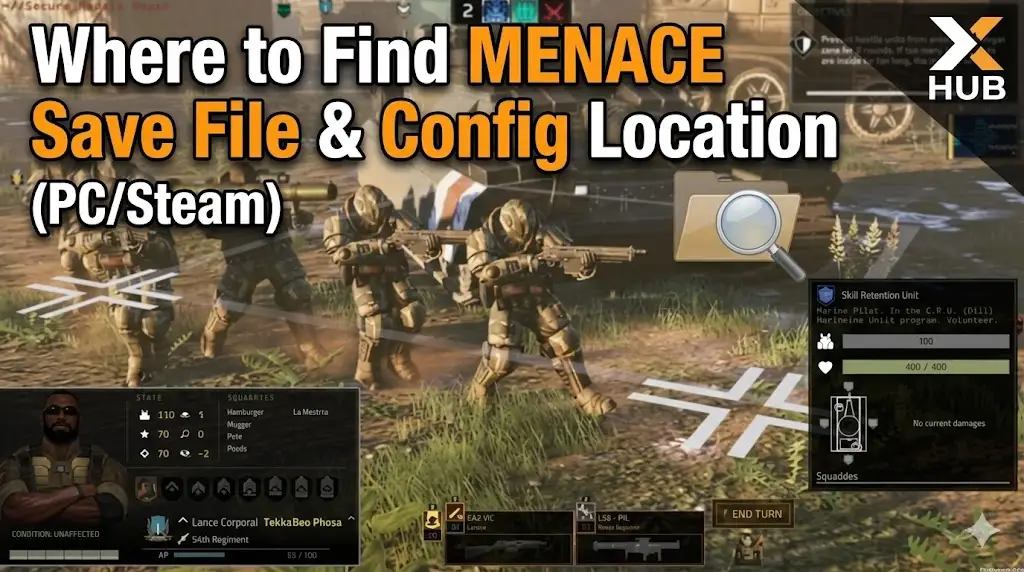
Editor’s View: The “Ironman” Risk
I specifically wrote this guide because tactical RPGs like MENACE are punishing. Even if you don’t plan on ‘cheating’, please manually copy your SaveGames folder after every major victory. Don’t lose your veteran squad to a glitch.”
There is nothing worse than sinking 20 hours into a brutal MENACE campaign, carefully leveling up your squad leaders and upgrading your mobile base, only to witness a “Corrupted Data” error after a crash.
Or perhaps you are playing on Ironman Mode, and a tactical miscalculation just wiped out your best heavy mechs. Whether you want to manually backup your “Ironman” progress, transfer your save to a Steam Deck, or tweak the config file for better performance, you first need to find where the data is hidden.
Below is the exact file path for MENACE on Windows and Steam Deck, along with a safer, automated method to manage your backups.
Das könnte Ihnen auch gefallen:
MENACE Cheat Engine Table vs. XMODhub Trainer: Best Free Alternative (2026)
Windows PC Save File Location
For the Steam and Epic Games versions of MENACE, the save files are usually located in the hidden AppData folder (specifically LocalLow for Unity-based games).
C:\Users\[YourUsername]\AppData\LocalLow\Overhype Studios\MENACE\SaveGames\How to navigate there quickly:
- Presse Windows-Taste + R on your keyboard to open the Run dialog.
- Type
%localappdata%and press Enter. - Important: You will likely land in the Local folder. Go up one level to AppData, then open the LocalLow folder.
- Navigieren Sie zu Overhype Studios > MENACE > SaveGames.
Anmerkung: Your save files will likely be named Campaign_AutoSave.sav oder Ironman_Campaign.sav. Do not delete the accompanying metadata files.
MENACE Config File Location (Graphics & Settings)
If you need to manually tweak graphics settings (like disabling Fog of War rendering, V-Sync, or changing resolution scaling) that aren’t exposed in the UI, you need the config file.
C:\Users\[YourUsername]\AppData\LocalLow\Overhype Studios\MENACE\config.cfg (or .ini)How to Edit: Right-click the config file and select Open with Notepad.
Warning: Change values carefully. Setting render_scale too high or low can cause the game to crash on startup.
Steam Deck / Linux Save Location
MENACE is a perfect fit for the Steam Deck, but finding files on Linux is tricky. The Windows file structure is emulated within the Proton compatibility layer.
/home/deck/.local/share/Steam/steamapps/compatdata/2432860/pfx/drive_c/users/steamuser/AppData/LocalLow/Overhype Studios/MENACE/Tipp: The number 2432860 is the specific Steam App ID for MENACE. If this folder is empty, verify the ID on SteamDB, as it can change post-release.
Pro Tip: How to Backup “Ironman” Saves
Playing on Ironman means the game overwrites your save file constantly. To create a “safety net” without breaking the game mode:
- Navigate to the Save File Location above.
- Copy the
Ironman.savDatei. - Paste it into a separate folder on your desktop named “Backup”.
- If your squad gets wiped, simply overwrite the file in the game folder with your backup.
The Smarter Way: One-Click Backup with XMODhub
Navigating through hidden %AppData% folders every time you complete a mission is tedious. One accidental delete, and your campaign is over. XMODhub offers a built-in Save Manager tool designed specifically for hardcore games like MENACE.
01
Auto-Backup
XMODhub automatically backs up your save file every time you exit the game or complete a mission.
02
Ironman Safety
Did your best Mech just die permanently? Roll back to a previous save version from 10 minutes ago instantly.
03
Visual Management
Organize different campaign timelines without renaming files manually.
XMODhub: More Than Just a Save Manager
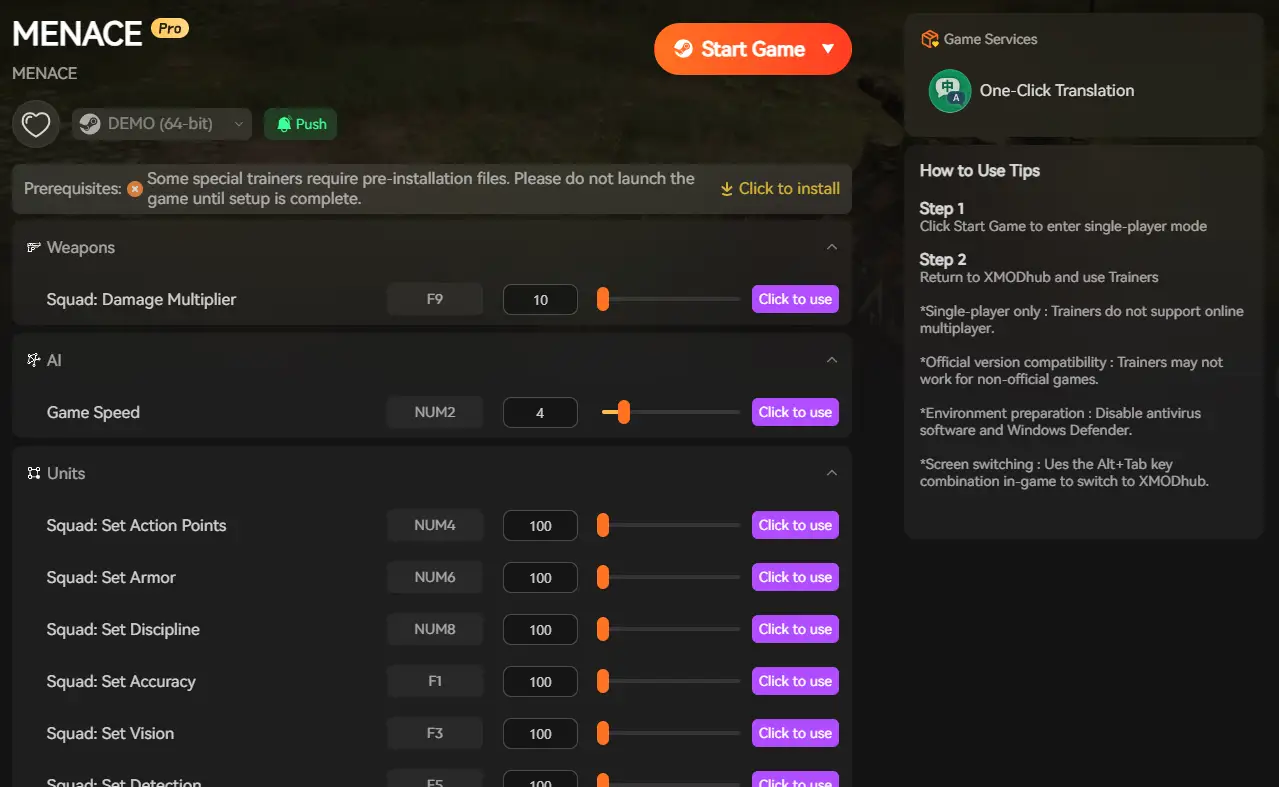
XMODhub is your ultimate all-in-one toolkit for PC tactical gaming. Whether you need powerful Trainers, real-time Translation Tools, or detailed Interactive Maps, XMODhub has everything covered.
How to Use XMODhub for MENACE:
- 1. Download and Install the XMODhub client safely.

- 2. Search for “MENACE” in the client.

- 3. Launch the game directly from the client.
FAQ
Q: Can I transfer my MENACE save to another PC?
A: Yes. Simply copy the entire contents of the SaveGames folder mentioned above to the exact same location on the new computer. Ensure both PCs are running the same version of the game.
Q: Will editing the save file get me banned?
A: No. MENACE is a single-player experience. Modifying your save data or using backups is perfectly safe and will not trigger any bans.
Q: My save file is corrupted. Can I fix it?
A: If you don’t have a backup, check the SaveGames folder for files ending in .bak or .tmp. Rename these to .sav to try and restore a previous auto-save state.
Schlussfolgerung
Locating your MENACE save file is a crucial skill, especially if you are brave enough to tackle Ironman mode. Whether you are recovering from a crash, migrating to a Steam Deck, or manually tweaking config files, knowing where your data lives is essential.
However, digging through hidden system folders carries a risk. If you prefer a safer, “set it and forget it” solution, we highly recommend the XMODhub Save Manager. It automates your backups, keeping your hard-earned progress secure so you can focus on the strategy, not the file directory.

Ich bin ein leidenschaftlicher Gamer und Autor bei XMODhub, der sich der Aufgabe verschrieben hat, euch die neuesten Gaming-News, Tipps und Einblicke zu geben.
Verbinden Sie sich mit mir:
LinkedIn-Profil
 Nancy Miller