
 Catherine Hu
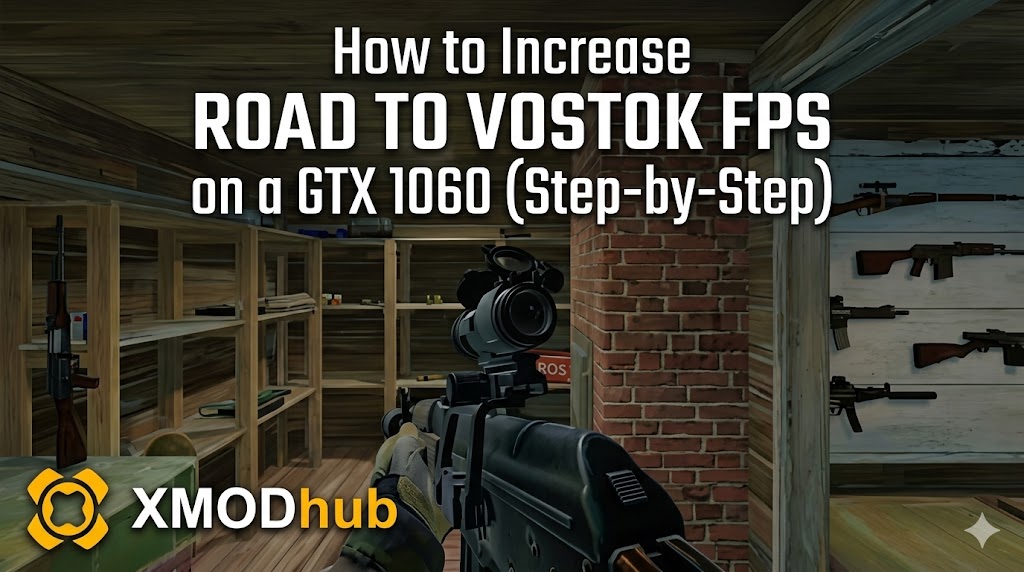 To successfully increase FPS GTX 1060 Vostok players must optimize the Godot engine by adding
 -force-d3d11 to their Steam launch options, clearing the DirectX Shader Cache, and running the game as an administrator. You must also disable Volumetric Fog and Screen Space Reflections in your configuration files.
A brutal frame-time spike turns your frantic firefight into a slideshow. By the time your aging GTX 1060 renders the next frame, you are staring at the “Killed in Action” screen. All your gear, your meticulously built rifle, and hours of your real life vanish into the void.
Because Road to Vostok utilizes highly advanced physics and lighting models on its new engine, frame drops are not just a visual annoyance—they are a lethal game mechanic. If your hardware is bottlenecking, you are fundamentally at a disadvantage before the raid even begins. In this definitive guide, we will break down the exact engine optimizations required to squeeze every frame out of your hardware without making enemies invisible.
Editor’s Note
“Optimizing a hardcore shooter on a GTX 1060 is about ruthless prioritization. You must sacrifice beautiful atmospheric fog and ultra-resolution shadows to guarantee a rock-solid 60 FPS during close-quarters combat. If your system stutters when a muzzle flash illuminates a dark room, you are already dead. Pair the hardware tweaks below with our master optimization strategy to completely eliminate input lag and VRAM bottlenecks in the Godot pipeline.”
The Godot Engine Mechanics: Why the GTX 1060 Struggles
To permanently fix your framerate issues, we must understand how the architecture of Road to Vostok operates. Following the developer’s transition to the open-source Godot engine, the game handles environmental lighting and volumetric atmospheric effects in a highly hardware-intensive manner.
The GTX 1060, while legendary, only possesses 6GB of VRAM and struggles with modern Vulkan API instructions. When you enter a dense pine forest during an in-game morning, the Godot engine attempts to dynamically generate complex shadow cascades and volumetric fog meshes simultaneously. On older Pascal-architecture cards, this massive influx of dynamic rendering completely overflows the VRAM buffer. The occlusion culling fails, leading to severe shader compilation errors and the notorious stuttering that gets you killed in firefights.
Das könnte Ihnen auch gefallen: [Can You Run Road to Vostok on a Low End PC? (Max FPS Guide)]
Step 1: Force DirectX 11 Rendering
By default, Road to Vostok attempts to utilize the newest graphics API for optimal lighting. However, the newest APIs handle VRAM allocation very aggressively, which cripples the GTX 1060.
- ✓Open your primary game launcher (such as Steam).
- ✓Right-click on Road to Vostok and select “Properties.”
- ✓In the “Launch Options” field, type exactly:
-force-d3d11 - ✓This forces the engine to use a mature, highly stable rendering pipeline that the GTX 1060 natively excels at, preventing massive rendering stutters.
Step 2: Clear the DirectX Shader Cache
A bloated or corrupted shader cache guarantees severe frame drops the moment the game tries to render new assets, such as enemy muzzle flashes or explosive fragmentation.
- ✓Press your Windows Key and type “Disk Cleanup,” then hit Enter.
- ✓Select your primary OS drive (usually C:).
- ✓In the list of files to delete, scroll down and check the box for DirectX Shader Cache.
- ✓Click “OK” and let the system clear the corrupted files. The engine will cleanly recompile the shaders specifically for your optimized DX11 setup.
Step 3: Run the Game as an Administrator
Because Road to Vostok dynamically writes map streaming data to your AppData folder as you sprint across the map, restrictive Windows security permissions can throttle the read/write speeds, causing micro-stutters. Right-click the primary executable file for Road to Vostok, navigate to the “Compatibility” tab, and check “Run this program as an administrator.”
The Visibility Problem: Spotting Enemies on Low Settings
When you drop all your in-game settings to “Low” to maximize FPS, you create a new, deadly problem: visual clarity. In Road to Vostok, identifying a camouflaged AI scavenger leaning around a tree 100 meters away is the difference between life and death. If you lower your “Texture Resolution” and “Anti-Aliasing” too much, the distant trees become a shimmering, pixelated mess. Enemies will completely blend into the background.
To maintain visual clarity on a GTX 1060, you must turn Shadows, Volumetric Fog, and Post-Processing to “Very Low,” but you must keep Texture Quality on “Medium” und Anisotropic Filtering set to 8x. This specific combination reduces the VRAM load from lighting while preserving the crisp edges needed to spot distant threats.
Compensating for Low FPS: The Ultimate Time Management Tool
Applying the engine fixes will stabilize your game, but we must face a harsh reality: a GTX 1060 is aging hardware. Even perfectly optimized, you might still suffer sudden frame drops when multiple AI enemies ambush you in the northern military sectors. When your framerate plummets, your tracking aim fails, and you lose hours of hard-earned survival loot to an unfair hardware disadvantage.
Is your frame rate still too low to compete fairly? Coupled with XMODhub’s visual features, you can see enemies clearly even on the absolute lowest potato settings. XMODhub acts as the ultimate equalizer for players on legacy hardware, allowing you to bypass the agonizing hardware handicap and get straight to the intense tactical gunplay you deserve.
How to Get Started with XMODhub:
- Download XMODhub: Visit our official platform and securely download the optimized 2026 client.

- Auto-Detect Game Path: Launch the application. XMODhub’s intelligent system will automatically locate your Road to Vostok installation folder, safely hooking into the Godot backend.
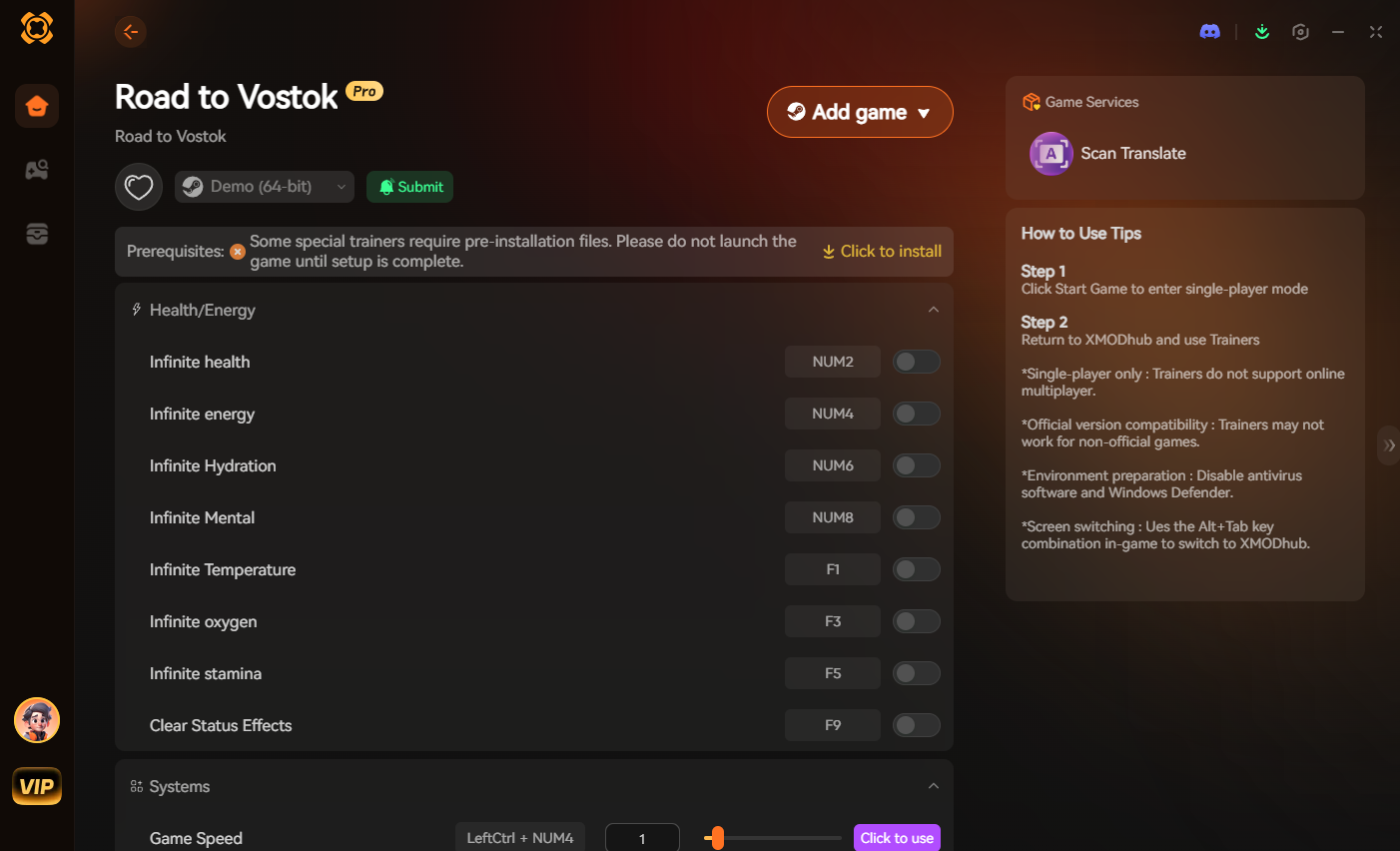
- Toggle trainers/cheats: Open the sleek in-game overlay. If you had to drop your graphics so low that you can barely see the environment, simply activate the ESP/Wallhack toggle. This highlights all enemy scavengers and high-tier loot through the low-resolution foliage. You can also utilize the Unendliche Gesundheit feature to ensure a random frame-drop stutter never results in a permadeath wipe again.
Frequently Asked Questions (FAQ)
Q.Does lowering the internal resolution scale increase FPS GTX 1060 Vostok players can achieve?
Yes, utilizing the internal resolution scaler (or FSR if available) and setting it to 80% will massively boost your framerate on a GTX 1060. However, anything below 80% will make distant enemy models overly blurry and impossible to target accurately.
Q.Why does my Road to Vostok gameplay stutter terribly when aiming down a high-power scope?
Road to Vostok uses a Picture-in-Picture (PiP) rendering method for high-magnification scopes. This forces your GTX 1060 to render the game world twice simultaneously. Forcing DX11 in your launch options heavily mitigates the VRAM spike caused by this PiP dual-rendering.
Q.Can I run Road to Vostok on an HDD, or does it require an SSD to fix the stuttering?
You absolutely must install the game on an SSD. While a GTX 1060 can handle the graphical rendering when optimized, an HDD cannot load the Godot engine’s dynamic map assets fast enough, resulting in severe freezing whenever you enter a new grid sector.
Schlussfolgerung
Surviving the desolate, hostile environments of Road to Vostok is difficult enough without fighting your own hardware. By proactively clearing your shader cache, disabling hardware-intensive volumetric effects, and forcing stable DX11 rendering, you can successfully increase FPS GTX 1060 Vostok style without making your enemies completely invisible. Do not let unoptimized lighting engines ruin your hardcore survival experience.
When the harsh reality of legacy hardware threatens to ruin your precious free time, remember that XMODhub is the ultimate time-management solution. With dedicated support for over 5000+ PC games, XMODhub ensures you can play competitively regardless of your PC specs. If you enjoy the grueling, high-stakes tactical realism of Road to Vostok, you can easily carry your XMODhub experience over to similarly punishing hardcore survival games like Flucht aus Tarkow. Secure your gear, optimize your framerate, and survive the border.

Ich bin ein leidenschaftlicher Gamer und Autor bei XMODhub, der sich der Aufgabe verschrieben hat, euch die neuesten Gaming-News, Tipps und Einblicke zu geben.
Verbinden Sie sich mit mir:
LinkedIn-Profil
 Nancy Miller