Catherine Hu
Let’s speak player to player. Getting a D&D group together is hard enough—you finally sync schedules, build your perfect 5e party, and launch Solasta 2. Then the first multiplayer combat begins… and the session breaks. The host freezes, turns stop progressing, and the game throws a Multiplayer Desync oder Connection Lost error.
And even when the connection works, the strict 5e system can be unforgiving: a Natural 1 ruins your Rogue’s Sneak Attack, your Wizard burns all Spell Slots in the first encounter, and the party ends up stuck in a constant quicksave-reload loop just to pass key dialogue checks.
In this guide, we’ll show the exact fixes to stabilize Solasta 2 multiplayer and eliminate desync errors.
Solasta II: Cheat Engine Table vs. XMODhub Trainer (Best Free Alternative)
🛠️ TL;DR: Quick Fixes for Solasta 2 Co-Op Not Working
If your party is constantly disconnecting or experiencing turn-based desyncs, the host and clients need to apply these direct fixes immediately:
➤
Cap Your Framerates (Crucial): Unity Engine turn-based games desync when frame calculations mismatch. The host and all clients must cap their FPS to 60 in the graphics settings to sync combat animations perfectly.
➤
Disable IPv6 Protocol: Windows IPv6 frequently clashes with Peer-to-Peer (P2P) gaming. Go to your Network Adapters > Properties > Uncheck “Internet Protocol Version 6 (TCP/IPv6)”.
➤
Match Steam Download Regions: Solasta 2 uses Steam’s regional matchmaking API. Ensure every player has the exact same “Download Region” selected in their Steam Settings.
➤
Use Wired Connections: Wi-Fi packet loss during a host’s dice roll calculation will instantly drop the client. Switch to an Ethernet cable.
1. Solasta 2 Port Forwarding: TCP and UDP Ports
If your friends cannot see your lobby at all, your router’s NAT type is likely set to “Strict.” Solasta 2 does not use dedicated servers; the host acts as the server. You need to open specific ports on your router to allow inbound connections.
Ports to Forward for Solasta 2:
| Protokoll | Port Range |
|---|---|
| TCP | 27015, 27036 |
| UDP | 27015, 27031-27036 |
2. How to Fix the “Version Mismatch” Error
If you are instantly kicked from a lobby with a “Version Mismatch” error, it means someone in your party has altered game files.
If anyone in your group downloaded traditional .pak mods (like custom UI tweaks or unlocked subclasses) from a community forum, the host’s game will reject them.
Solasta 2 multiplayer requires a pure 1:1 file match. Every player must delete their Mods folder. Verify Files: Right-click the game on Steam > Properties > Installed Files > Verify integrity of game files.
3. Crossplay Connectivity: Steam and Epic Games
Desyncs are incredibly common when mixing PC storefronts. If the host is on Steam and a client is on the Epic Games Store, the handshake between the two APIs can timeout during heavy dungeon loading screens.
- ✦
Link Accounts: Do not rely on the clunky in-game server browser. Ensure the Epic Games player has fully linked their Steam account within the Epic Launcher settings. - ✦
Direct Invites: The host should use the direct “Invite Friend” overlay (Shift+Tab on Steam or Shift+F3 on Epic) rather than using session passwords.
4. The Tabletop Grind: Surviving D&D 5e RNG
Once your multiplayer connection is rock solid, the real battle against the ruleset begins. The game is designed to punish mistakes, which often slows co-op sessions to a crawl.
- 🔥
Dialogue Wipes: A single failed Charisma check can trigger a massive ambush. When a Natural 1 happens, the whole group usually groans and asks the host to reload the save, wasting precious playtime. - 🔥
Resource Starvation: Managing Spell Slots across four different players is a nightmare. Casters are often forced to use weak cantrips just to save magic for the boss, making standard encounters feel like a chore. - 🔥
Stat Generation: Nobody wants to be the weak link in the party just because they rolled poorly during the 4d6 character creation phase.
5. Safe Modding for Multiplayer: Why XMODhub Works
You and your friends are playing to have fun, not to suffer statistical variance. However, downloading traditional .pak mods to fix these issues will trigger the “Version Mismatch” error and corrupt your multiplayer saves.
XMODhub operates entirely differently. It is a clean memory trainer that injects directly into your PC’s active RAM. Because it does not touch physical game files, it bypasses multiplayer file-check errors entirely.
- ✨
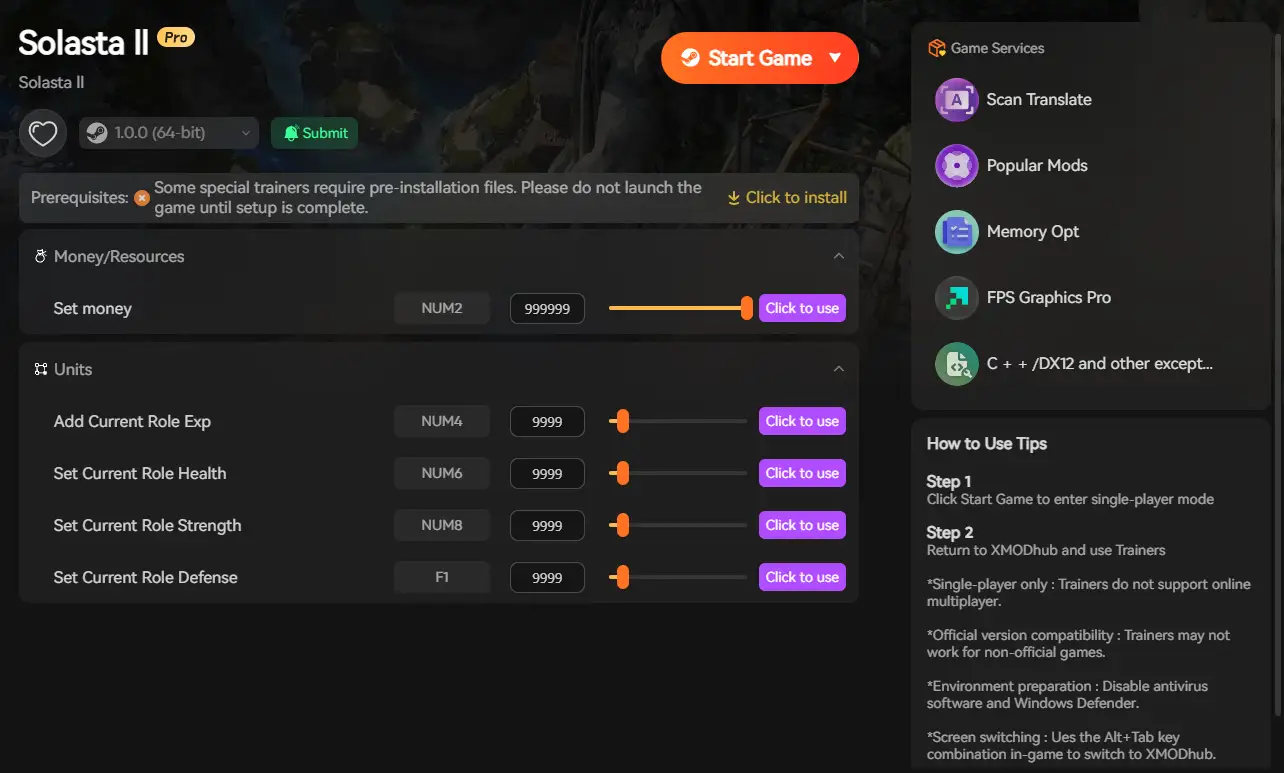
Always Roll 20: Guarantee critical success on every persuasion check and attack. No more party wipes from bad luck. - ✨
Infinite Spell Slots: Allow your casters to drop meteors in every single fight without ever taking a Long Rest. - ✨
Max Attributes: Force perfect stats during character creation, bypassing the agonizing reroll grind.
6. How to Use XMODhub for Solasta 2?
Getting XMODhub running is incredibly simple and perfectly safe for your campaign. Here is the exact step-by-step process to reclaim your D&D experience:
Herunterladen: Grab the verified, virus-free XMODhub desktop application from our official homepage and install it on your PC.

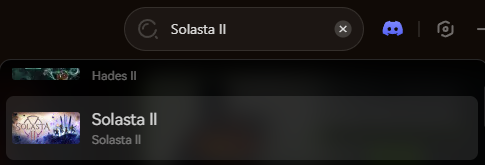
Suche: Open the XMODhub client and use the search bar to find Solasta 2. The app will automatically detect your game installation path.
Start: Click the prominent Play button within the XMODhub app. This safely links the software to the game’s memory. Once in-game, simply toggle your cheats to instantly activate your powers.
Do not let a multiplayer desync bug or the punishing D&D 5e ruleset ruin your game night. Stabilize your connection, skip the frustrating save-scumming, and become the ultimate Dungeon Master with XMODhub today.
7. Conclusion: Stabilize Your Co-Op Campaign
Multiplayer desyncs and disconnects can completely derail a campaign night. Nothing kills immersion faster than frozen turns, lost connections, or constant session restarts.
By applying the networking fixes in this guide—such as port forwarding, matching game versions, and stabilizing connections—most co-op issues can be resolved. But technical stability is only half the battle. The unforgiving randomness of D&D 5e mechanics can slow multiplayer sessions to a crawl.
With XMODhub, your group can remove the worst frustrations of the ruleset, stabilize gameplay, and keep your adventure moving forward. Skip the endless reloads, eliminate the RNG misery, and run your campaign like the ultimate Dungeon Master.
Related Posts:
➤
Solasta 2 Cheats & Trainers: Always Roll 20 & Max Stats (2026) | XMODhub
➤
Solasta 2 Ultimate Beginner’s Guide: D&D 5e Rules Explained (2026) | XMODhub
➤
Top 20 Best Solasta 2 Mods (UI, Classes & Custom Maps) | XMODhub
➤
Solasta 2 Dungeon Maker Guide: Best Custom Campaigns (2026) | XMODhub

Ich bin ein leidenschaftlicher Gamer und Autor bei XMODhub, der sich der Aufgabe verschrieben hat, euch die neuesten Gaming-News, Tipps und Einblicke zu geben.
Verbinden Sie sich mit mir:
LinkedIn-Profil
 Nancy Miller