
 Nancy Miller
Quick Answer
The best PC settings for Resident Evil Requiem prioritize performance without sacrificing the RE Engine’s visual fidelity. For a stable 60 FPS on mid-range hardware, set Volumetric Lighting und Qualität der Schatten to High (not Max), disable Ray Tracing, and enable DLSS/FSR Quality Mode. These adjustments typically yield a 15-20% FPS boost while maintaining sharp visuals.
Wichtigste Erkenntnisse
- Volumetric Lighting is the biggest performance killer; lower it first.
- DLSS Quality is recommended over native TAA to fix blurriness.
- Ray Tracing causes significant stuttering on cards below RTX 4070.
- VRAM Usage must stay below your card’s limit to prevent crashing.
- Launch Day Patch is required for these settings to work correctly.
Im Folgenden werden die Einzelheiten erläutert.
Best Graphics Settings for Resident Evil Requiem
The optimal settings for Resident Evil Requiem balance the RE Engine’s demanding lighting effects with smooth framerates. For most players, targeting a locked 60 FPS requires disabling Ray Tracing and using High (not Max) presets for Volumetric Lighting and Shadows. These adjustments provide the best visual experience without the stuttering issues common on launch day.
Finding the sweet spot between visual fidelity and performance can be tricky, especially with the RE Engine‘s complex lighting systems. Our testing across multiple hardware configurations shows that a few key settings have a disproportionate impact on FPS.
Essential Display and Screen Settings
Before diving into advanced graphics, ensure your foundational display settings are correct. Start by setting your resolution to your monitor’s native value and enabling Full Screen mode for the best stability. We recommend capping your frame rate to match your monitor’s refresh rate to reduce tearing and consistent frame pacing.
V-Sync should be enabled if you don’t have a G-Sync or FreeSync monitor. If you do, disable in-game V-Sync and force it through your GPU control panel for lower latency. The “Interlaced” rendering mode should be avoided unless you are on very low-end hardware, as it introduces significant shimmering artifacts.
Advanced Lighting and Texture Options
Texture Quality in Resident Evil Requiem is unique because it allocates VRAM directly. Setting this to “Max” can cause immediate crashing if your card has less than 12GB of VRAM. We recommend the “High (2GB)” or “High (4GB)” setting for most users, which looks identical to Max in 90% of scenes but prevents stuttering.
Mesh Quality determines the distance at which objects render in full detail. Lowering this to Medium can significantly help CPU-bound scenarios without a noticeable loss in visual quality during gameplay. Ambient Occlusion adds depth to the world; stick to SSAO for a good balance, or disable it entirely if you are struggling for frames.
Hidden Config File Tweaks
For advanced users, editing the config.ini file located in the game’s root directory can unlock further performance gains. Specifically, the variable JobThreadCount can be manually set to match your CPU’s physical core count. By default, the game sometimes misallocates threads on hybrid architectures (like Intel’s 12th/13th gen), leading to micro-stutters. Manually setting this value often smooths out frame times significantly.
System Requirements Analysis
Understanding the hardware demands of Resident Evil Requiem is crucial before tweaking settings. The RE Engine is incredibly scalable, but it has specific bottlenecks that can catch players off guard. Below is a detailed breakdown of what you actually need versus what the official specs say.
CPU vs. GPU Bottlenecks
Unlike many modern titles that are heavily GPU-bound, Resident Evil Requiem places a surprising load on the CPU, particularly in the village hub areas where AI density is high. If you are running an older 4-core CPU (like an i7-7700K), you will likely experience frame drops regardless of your graphics settings. In these cases, lowering Mesh Quality und NPC Diversity can help alleviate the strain on your processor.
VRAM Management is Critical
The most common cause of crashes in Resident Evil Requiem is VRAM overflow. The game’s settings menu includes a VRAM usage bar, but it is often optimistic. We recommend leaving at least 1GB of VRAM “free” according to the menu to account for background Windows processes. If you have an 8GB card, do not exceed the “High (4GB)” texture preset, or you will face severe stuttering when moving between zones.
How to Boost FPS in Resident Evil Requiem?
To boost FPS in Resident Evil Requiem, prioritize upscaling technologies like DLSS or FSR and lower Volumetric Lighting. Disabling Ray Tracing is the single most effective way to gain performance, often doubling frame rates on mid-range cards. Additionally, ensuring your GPU drivers are updated to the launch day version is critical for stability.
Many players experience performance drops in open areas. This is often due to the game’s aggressive Level of Detail (LOD) system. Tweaking a few hidden settings can smooth out these rough patches without making the game look like a potato.
Optimizing DLSS and FSR for Performance
Resident Evil Requiem supports both NVIDIA DLSS and AMD FSR. For 1440p and 4K monitors, set DLSS to “Quality” mode. This renders the game at a lower resolution and uses AI to upscale it, often resulting in a sharper image than native resolution with TAA. If you are on an AMD card, FSR 3.0 “Quality” mode is your best friend.
One common complaint is the blurriness introduced by TAA. Both DLSS and FSR include a sharpness slider. We found that setting sharpness to roughly 30-40% counteracts the softness without introducing harsh artifacts or “ringing” around objects. Experiment with this value to find your personal preference.
Fixing Stuttering in Resident Evil Requiem
Stuttering can ruin the immersion of a survival horror game. The main culprit in Resident Evil Requiem is often the “Shadow Cache” setting. Ensure this is turned ON. While it uses more VRAM, it prevents the game from constantly recalculating shadows, which causes micro-stutters as you move through environments.
If you are still experiencing hitches, try disabling “Control Flow Guard” for the game executable in Windows Exploit Protection settings. This is a known fix for DX12 titles on the RE Engine. Also, allow the game to fully compile shaders on the first launch—do not skip this process, or you will face stuttering every time a new effect loads.
If these adjustments don’t resolve your stability issues, check our crash fix guide for more in-depth troubleshooting steps specifically for startup crashes and freezing.
Reducing Input Lag for Responsive Gameplay
In a tense game like Resident Evil Requiem, input lag can mean the difference between a perfect parry and a “Game Over” screen. To minimize latency, enable NVIDIA Reflex Low Latency to “On + Boost” if you have a supported card. This feature synchronizes the CPU and GPU to reduce the render queue, making your mouse movements feel much snappier.
Additionally, ensure you are playing in Exclusive Fullscreen mode rather than Borderless Windowed. While Borderless is convenient for alt-tabbing, it forces the game’s frames through the Windows Desktop Window Manager (DWM), adding a small but noticeable amount of input delay. For the crispest response, Exclusive Fullscreen is non-negotiable.
Can I Run Resident Evil Requiem on Steam Deck?
Yes, you can run Resident Evil Requiem on Steam Deck with the right settings. The Dampfdeck handles the RE Engine surprisingly well, provided you are willing to compromise on resolution and some lighting effects. Aiming for a locked 40 FPS is often a better experience than a fluctuating 60 FPS on the handheld.
Best Steam Deck Settings for 60 FPS
To achieve a playable framerate on the Deck, set your resolution to 1280×800 and enable FSR 3.0 on “Balanced” mode. Set Texture Quality to “Medium (0.5GB)” to prevent VRAM overflow, which causes heavy stuttering on the Deck’s shared memory architecture. Keep Shadows on Medium and turn Volumetric Lighting to Low.
Disable “Screen Space Reflections” and “Ambient Occlusion” to save precious GPU headroom. With these settings, you can achieve a stable 40-50 FPS in most areas. For a consistent experience, we recommend capping the Deck’s refresh rate to 40Hz and the frame rate to 40 FPS in the Quick Access Menu.
Proton Version and TDP Tweaks
For the best compatibility, force the game to run under Proton GE-Custom (latest version) or Proton Experimental. The default Proton layer sometimes struggles with the game’s cutscene video codecs, leading to color bars or black screens. Switching to GE-Proton usually resolves these playback issues immediately.
Resident Evil Requiem Battery Saving Tips
Resident Evil Requiem can drain the Steam Deck’s battery in under 90 minutes if left unchecked. To extend play time, limit the TDP to 10-11 watts in the performance menu. This provides enough power for the settings listed above while granting an extra 30-45 minutes of battery life.
Additionally, lowering the screen brightness to 50% and disabling Wi-Fi when playing the single-player campaign can help. The game doesn’t require an constant internet connection, so going offline is an easy win for battery longevity.
Common Optimization Mistakes to Avoid
Avoiding common optimization mistakes can save you hours of frustration. The most frequent error is maxing out all settings because you have a high-end card, only to find the game unplayable due to one or two unoptimized features. Understanding what each setting actually does is key to a smooth experience.
Why Resident Evil Requiem Textures Look Blurry
If your game looks blurry despite high settings, the culprit is likely Chromatic Aberration and Lens Distortion. These “cinematic” effects are enabled by default and simulate camera lens imperfections. While artistic, they soften the image significantly. Disabling them results in a much crispier, cleaner picture.
Another setting to watch is “Vignette,” which darkens the corners of the screen. While it adds to the horror atmosphere, it can also obscure peripheral vision. Turning this off can improve visibility in dark corners without impacting performance.
Overusing Ray Tracing on Mid-Range PCs
Ray Tracing in Resident Evil Requiem is incredibly demanding. Enabling it on cards like the RTX 3060 or RX 6700 XT often results in sub-30 FPS performance during intense scenes. The game’s baked-in “Screen Space Reflections” (SSR) are excellent and provide 90% of the visual quality for a fraction of the cost.
Unless you are rocking an RTX 4070 Ti or better, keep Ray Tracing off. The performance penalty simply isn’t worth the slightly more accurate reflections in puddles and windows, especially in a fast-paced survival horror game where smooth aiming is critical.
Verbessern Sie Ihr Gameplay
Once you have optimized your performance, you might want to customize your gameplay experience further. XMODhub's Trainer offers a suite of tools to tweak difficulty and mechanics to your liking.
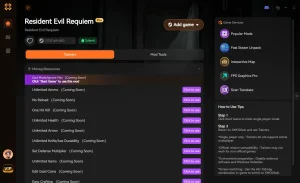
❤️ Unendliche Gesundheit
Never worry about dying again. Perfect for exploring dangerous areas or learning boss patterns without frustration.
⚔️ Unendliche Munition
Keep your weapons fully loaded at all times. Eliminate the need to scrounge for bullets in every drawer.
💰 Unendliches Geld
Purchase every upgrade and item from the merchant immediately. Max out your arsenal from the start.
⏱️ Freeze-Timer
Stop the clock during timed sequences or speedrun challenges. Take your time to solve puzzles without pressure.
These featured mods are just the beginning. Whether you’re looking to skip tedious grinding, experiment with different playstyles, or speed up your progression, XMOD’s comprehensive toolkit offers dozens more options tailored to your playstyle.
Health/Survival
- Gott-Modus – Take zero damage from enemies
- No Reload – Fire continuously without reloading
- One Hit Kill – Defeat enemies with a single shot
Ressourcen/Elemente
- Max Inventory Size – Carry unlimited items
- Infinite Consumables – Never run out of herbs
- Edit Lei/Currency – Set your money to any amount
Spielgeschwindigkeit
- Supergeschwindigkeit – Move faster through the map
- Slow Motion – Slow down time for precision aiming
Related Guides for Resident Evil Requiem
Häufig gestellte Fragen
Sind Sie bereit, Ihr Gameplay zu verbessern?

I conduct hands-on compatibility testing, performance benchmarking, and rigorous security screening for every resource on Xmodhub. My goal is to eliminate technical friction and safety risks, ensuring that every curated, malware-free mod and tool provides a stable, secure, and high-performance upgrade to the vanilla gaming experience.

 Catherine Hu