
 Catherine Hu
If you are frantically searching for the best PC settings for Shift At Midnight, you have likely already experienced the pure terror of your game stuttering right as a “customer” lunges across the checkout counter. Running a haunted gas station in the middle of nowhere is stressful enough without dealing with frame drops, screen tearing, or environments so dark that you cannot tell a human from a supernatural doppelganger. When managing the register and checking IDs in this intense co-op horror title, split-second reactions and absolute visual clarity are the difference between surviving the shift and becoming part of the local urban legend.
Editor’s Note: I spent countless nights tweaking the graphical parameters in Shift At Midnight across various hardware setups. The real challenge here is that Bun Muen’s rural ‘90s aesthetic heavily relies on atmospheric shadows and dynamic lighting. If you crank everything to low, the game looks awful and you lose the intended horror vibe. If you max everything out, the volumetric fog in the aisles will tank your framerate when the action gets chaotic. This guide strikes the perfect balance: maintaining a high, stable FPS while ensuring crucial details—like subtle facial anomalies on doppelgangers—remain perfectly visible.
TL;DR: The Short Answer
Do not have time to read through the technical deep dive? Here are the absolute best PC settings for Shift At Midnight to ensure maximum FPS and perfect visibility:
- Display Mode: Fullscreen (Crucial for minimizing input lag)
- Resolution: Your monitor’s native resolution (e.g., 1920×1080 or 2560×1440)
- V-Sync: OFF (Use external frame limiters if necessary)
- Anti-Aliasing: TAA (Low) or DLSS/FSR set to “Quality”
- Shadow Quality: Medium (Essential for horror atmosphere, but high tanks FPS)
- Volumetric Lighting/Fog: Low (The biggest FPS killer in the gas station aisles)
- Texture Quality: High (Does not affect FPS significantly if you have 6GB+ VRAM)
- Post-Processing: Low/Medium (Reduces blurriness for better doppelganger identification)
- Brightness/Gamma: Increase by 10-15% above default (Vital for visibility in dark corners)
Table of Contents
- TL;DR: The Short Answer
- Deep Dive: Optimizing Shift At Midnight Graphics Settings
- The Visibility Meta: Spotting Doppelgangers
- Network and Co-Op Settings Optimization
- Advanced Tweaks: NVIDIA Control Panel and AMD Adrenalin
- Hardware Benchmarks: Expected Performance Tiers
- Audio Settings: The Unseen Visibility Factor
- The Ultimate Shortcut: Overcoming Shift At Midnight with XMODhub
- Frequently Asked Questions
- Final Verdict: Surviving the Night Shift
Deep Dive: Optimizing Shift At Midnight Graphics Settings
Understanding why we change these settings is just as important as knowing what to change. Shift At Midnight heavily utilizes lighting and shadow mechanics to build tension. The gas station environment is claustrophobic, and the developer designed the lighting to obscure supernatural threats. Here is a granular breakdown of how to balance performance and visual fidelity. To ensure your system is fully optimized for this intense co-op horror experience, we recommend checking out our comprehensive guide Playing Shift At Midnight Solo? Ultimate Survival Tips for Single Players.
Resolution and Display Modes
Always play Shift At Midnight in true Fullscreen mode. Windowed Borderless might be convenient for tabbing out to Discord when playing co-op, but it forces Windows Desktop Window Manager to process the frames, introducing micro-stutters and input lag. When you are frantically cross-checking a customer’s ID on the computer while they stare at you, you need zero input delay. Keep the resolution native to your monitor to prevent the UI—especially the text on IDs and the computer terminal—from becoming blurry.
Upscaling Technologies: DLSS and FSR
Shift At Midnight supports modern upscaling tech, which is a lifesaver for mid-range systems. If you have an RTX card, absolutely enable DLSS and set it to “Quality.” It reconstructs the image beautifully while granting a massive 20-30% FPS boost. For AMD or older GTX users, FSR 2.0 (or newer) on “Quality” is your go-to.
Warning: Do not use “Performance” or “Ultra Performance” modes unless you are playing on a very low-end integrated GPU. The aggressive downscaling will severely blur fine details. In a game like Shift At Midnight, missing the subtle visual cues of a doppelganger because of a blurry pixel can instantly end your run.
Lighting, Shadows, and Volumetrics
This is where you make or break your framerate.
- Shadow Quality: Set this to Medium. The horror aspect of Shift At Midnight relies on shadows. Setting them to “Low” often removes dynamic shadows entirely, making the game look flat and completely ruining the atmosphere. “Medium” provides accurate character and environmental shadows without the massive GPU cost of the “High” or “Epic” settings, which calculate complex soft shadows that you will not even notice while running for your life.
- Volumetric Fog/Lighting: This is the most demanding setting in the game. The creeping fog rolling into the gas station parking lot and the hazy glow of the fluorescent lights look great, but they will destroy your framerate. Drop this to Low. It will drastically improve performance and, as a massive bonus, make it significantly easier to see into the dark aisles.
- Global Illumination: If the game offers hardware ray tracing for lighting, keep it OFF. The performance hit is never worth it in a fast-paced survival scenario. Stick to standard rasterized lighting.
Textures and Detail
- Texture Quality: Set to High or Ultra, depending entirely on your GPU’s VRAM. If you have 8GB or more, max it out. Texture quality rarely impacts FPS; it only impacts VRAM usage. High-resolution textures are critical in Shift At Midnight because you need to read IDs, inspect items, and look for physical anomalies on the “customers.”
- Level of Detail (LOD): Medium. The gas station is a relatively small, contained map. You do not need the game rendering high-poly models of trees miles away in the darkness.
Post-Processing and Camera Effects
Turn off the cinematic fluff that hinders gameplay.
- Motion Blur: OFF. Always. It smears the image when you turn quickly, making you dizzy and obscuring threats.
- Depth of Field: OFF. You want your entire field of view to be in sharp focus, not just what your character is directly looking at.
- Film Grain: OFF. It adds visual noise that makes it harder to spot distant movement in the parking lot.
The Visibility Meta: Spotting Doppelgangers
Achieving high FPS is only half the battle. In Shift At Midnight, your primary job is discerning whether the entity at the counter is human or a supernatural monster.
You need to manually adjust the Brightness/Gamma settings. By default, the game is incredibly dark to heighten the horror. I recommend bumping the gamma up by about 10-15% over the recommended baseline. You do not want to wash out the colors, but you must be able to clearly see the facial features of the customers.
When inspecting IDs and cross-checking details on the computer, the lighting in the checkout area can sometimes cast harsh shadows on the NPC models. A slightly higher brightness ensures that if a doppelganger has eyes that are just a little too far apart or an extra finger handing you cash, you will spot it immediately.
Furthermore, optimizing your monitor’s contrast settings (usually done via the monitor’s physical buttons or software like NVIDIA Control Panel) can help define the edges of objects in the dark, giving you a distinct advantage during the 13 nights of Story Mode.
Network and Co-Op Settings Optimization
Since Shift At Midnight features co-op for up to four players and includes crossplay between Xbox and PC Gamepass users, network latency can feel like graphical lag.
If you are experiencing rubber-banding while stocking shelves or interacting with the cash register, it might not be your GPU. Ensure that you are playing on a wired ethernet connection. If you are the host, make sure you have adequate upload speed, as managing the synchronization of physics objects (like store items) and customer AI across up to four clients is demanding.
In the game settings, look for an option regarding Network Update Rate or Client Send Rate (if available) and ensure it is not restricted. A smooth connection is vital because if the host lags while verifying an ID, a monster could slip right through.
Advanced Tweaks: NVIDIA Control Panel and AMD Adrenalin
For the absolute maximum performance, you need to step outside the game menu.
For NVIDIA Users:
- Open the NVIDIA Control Panel.
- Go to “Manage 3D settings” -> “Program Settings” and select Shift At Midnight.
- Set Power Management Mode to “Prefer maximum performance.”
- Set Texture filtering – Quality to “High performance.”
- Set Low Latency Mode to “On” or “Ultra” (especially if you are not using DLSS Frame Generation).
For AMD Users:
- Open AMD Adrenalin.
- Navigate to the Gaming tab and select Shift At Midnight.
- Enable Radeon Anti-Lag to ensure crisp, responsive inputs.
- Set Texture Filtering Quality to “Performance.”
- Ensure Radeon Chill is disabled, as it can cause unwanted frame rate fluctuations during quiet moments.
Hardware Benchmarks: Expected Performance Tiers
To truly maximize your Shift At Midnight FPS, you need to know what your rig is actually capable of pushing. The game’s dynamic lighting engine scales heavily based on your hardware. Below is a breakdown of the expected performance metrics across different PC tiers, assuming you are utilizing the optimized settings outlined in this guide.
| Hardware Tier | Target Resolution | Expected FPS | Recommended Upscaler Setting |
|---|---|---|---|
| Low-End (GTX 1060 / RX 580) | 1080p | 45 – 60 FPS | FSR 2.0 (Balanced) |
| Mid-Range (RTX 3060 / RX 6600) | 1080p / 1440p | 90 – 120 FPS | DLSS / FSR (Quality) |
| High-End (RTX 4070 / RX 7800 XT) | 1440p / 4K | 144+ FPS | DLSS (Quality) / Native |
| Enthusiast (RTX 4090 / RX 7900 XTX) | 4K | 165+ FPS | Native / DLAA |
Note: Frame rates can fluctuate during intense co-op sessions when multiple players are interacting with the physics objects simultaneously.
Audio Settings: The Unseen Visibility Factor
In a horror game centered around identifying doppelgangers, your ears are just as important as your eyes. Optimal audio settings directly contribute to your overall “visibility” by allowing you to preemptively locate entities before they even enter your line of sight.
- Spatial Audio / 3D Headphones: Turn this ON. Shift At Midnight relies heavily on directional audio cues. Hearing the distinct shuffle of a supernatural entity near the gas pumps outside gives you precious seconds to prepare the register and steady your nerves.
- Music Volume: Lower this to 20-30%. While the ambient soundtrack is incredibly eerie, it can mask the subtle sound of a doppelganger’s unnatural breathing or distorted vocal cues when they hand you their ID.
- SFX Volume: Max this out at 100%. You need to hear every register beep, door chime, and item drop clearly to maintain your workflow without getting distracted.
The Ultimate Shortcut: Overcoming Shift At Midnight with XMODhub
Let’s be honest. Even with a rock-solid 144 FPS and perfect visibility, Shift At Midnight is brutally difficult. Managing the store, dealing with the anxiety of the Papers, Please-style ID checks, and hunting down monsters in the dark aisles can become overwhelming—especially in Endless Mode. If you are tired of getting jump-scared because you missed one tiny detail on a doppelganger’s ID, or if you just want to experience the story without the intense stress, there is a better way.
Skip the frustration and take total control of the gas station with XMODhub.
XMODhub provides incredibly powerful, safe, and undetectable enhancements for your single-player and private co-op sessions. Why struggle to see in the dark when you can force bright illumination, instantly identify threats, or freeze customer patience?
Here is how to dominate the night shift in 3 simple steps:
- Download XMODhub: Visit the official site and install the lightweight, secure client.
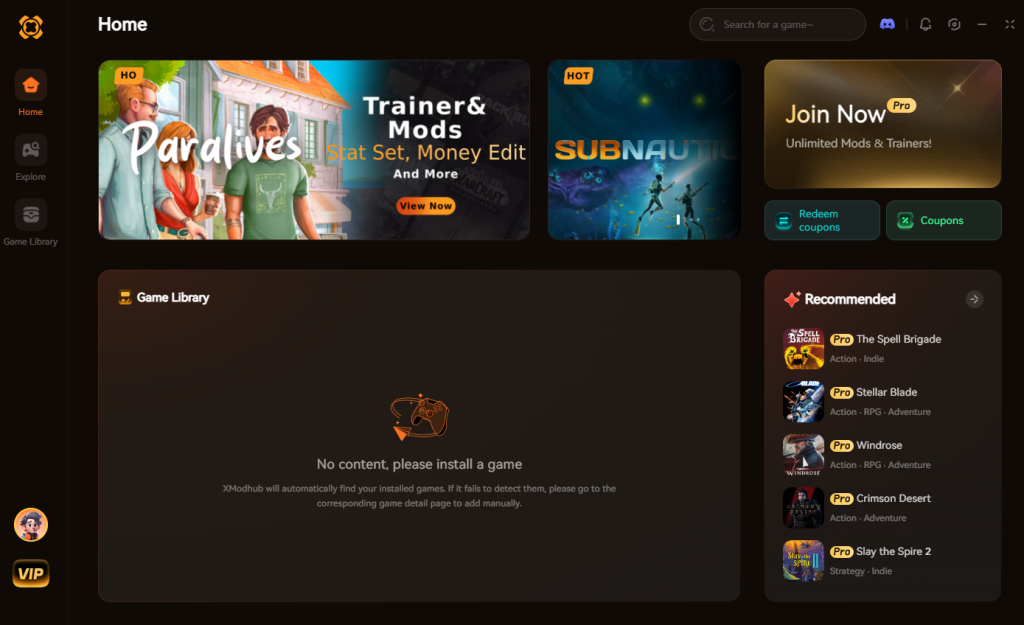
- Auto-Detect Shift At Midnight: Launch the game. XMODhub will automatically detect it and load the specific mod dashboard for the game.
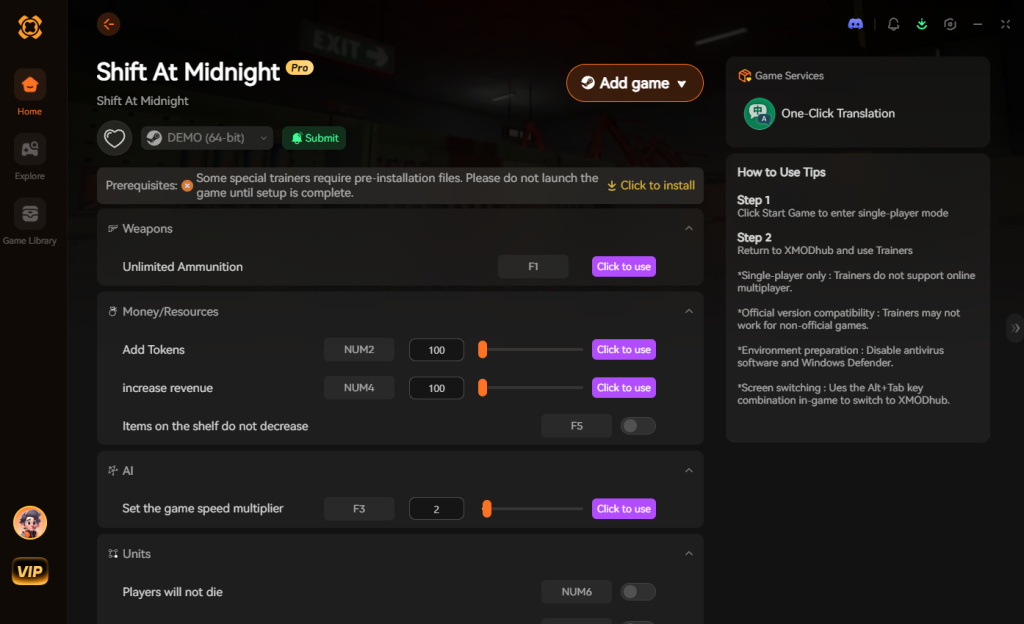
- Toggle Cheats: Use your numpad or the clean UI to activate features like “Highlight Doppelgangers,” “Infinite Customer Patience,” “Instant Restock,” or “God Mode.”
Stop letting the supernatural entities ruin your shift. Take back the gas station with XMODhub.
Download Shift At Midnight Trainer Now
Frequently Asked Questions
Why does Shift At Midnight stutter when customers enter the store?
This is typically a CPU bottleneck caused by the game loading the AI logic and physical assets of the new entity. Lowering your “Customer Density” (if available in Endless Mode) or ensuring the game is installed on a fast NVMe SSD will drastically reduce these loading stutters.
Does turning off shadows completely give an advantage?
While it might technically boost FPS, Shift At Midnight’s engine relies heavily on shadows for atmosphere. Turning them completely off (often requiring config file edits) breaks the lighting engine, making everything unnaturally bright and often causing graphical glitches that make it harder, not easier, to play. Stick to the “Medium” setting.
How do I fix the blurry text on customer IDs?
Blurry text is almost always caused by aggressive upscaling. Ensure DLSS or FSR is set to “Quality” rather than “Performance.” Additionally, make sure your game resolution matches your monitor’s native resolution, and keep your Texture Quality on High or Ultra.
Can I play Shift At Midnight at over 60 FPS?
Yes. Shift At Midnight supports uncapped framerates. Make sure you turn V-Sync OFF in the game settings. If you experience screen tearing, use your GPU control panel to set a Max Frame Rate limit slightly below your monitor’s refresh rate (e.g., 141 FPS for a 144Hz monitor) and enable G-Sync or FreeSync.
Final Verdict: Surviving the Night Shift
Finding the best PC settings for Shift At Midnight is all about the delicate balance between maintaining the terrifying atmosphere of the rural ’90s gas station and securing the visual clarity needed to survive. By lowering volumetric fog, managing your shadow quality, and slightly boosting your gamma, you ensure maximum FPS and unparalleled visibility. You will never again fail to notice the subtle, terrifying anomalies of a doppelganger just because your framerate tanked or the lighting was too muddy.
However, if you want to bypass the grueling trial-and-error of the late-night shifts entirely, XMODhub is your ultimate tool. With support for over 5,000 single-player titles—including heavy-hitting management simulators like TCG Card Shop Simulator and tense atmospheric horrors like Phasmophobia—XMODhub empowers you to play the game exactly how you want. Whether you need a slight visibility boost to spot threats or want to become an invincible gas station manager, XMODhub transforms the nightmare into your playground. Download it today and show those doppelgangers who is really in charge of the night shift.
Stop Grinding, Start Enjoying.
Bypass the tedious resource gathering and unlock your full potential instantly.

I am a passionate gamer and writer at XMODhub, dedicated to bringing you the latest gaming news, tips, and insights.
Connect with me:
LinkedIn Profile ↗
 Nancy Miller