
 Nancy Miller
The best PS5 settings for The Blood of Dawnwalker are Performance Mode for a locked 60 FPS, Motion Blur and Film Grain disabled, HDR calibrated with Midpoint at 50, and Controller Deadzones set to 5% for the fastest combat reaction times. Developed by Rebel Wolves, this dark fantasy RPG requires precise parry timing, making framerate priority essential. Calibrating these specific display and controller settings prevents crushed shadow details during nighttime vampire encounters while ensuring fluid combat performance.
Key Takeaways
- Performance Mode — Prioritize 60 FPS over native 4K to ensure fluid and responsive vampire combat mechanics.
- HDR Calibration — Match in-game peak brightness to your display’s nits to prevent crushed blacks in dark dungeons.
- Disable Blur — Turn off Motion Blur and Film Grain to maximize visual clarity during rapid camera movements.
- Lower Deadzones — Set DualSense stick deadzones to 5% to eliminate perceived input lag during parries.
- Optimize Settings — Let’s break down the details below.
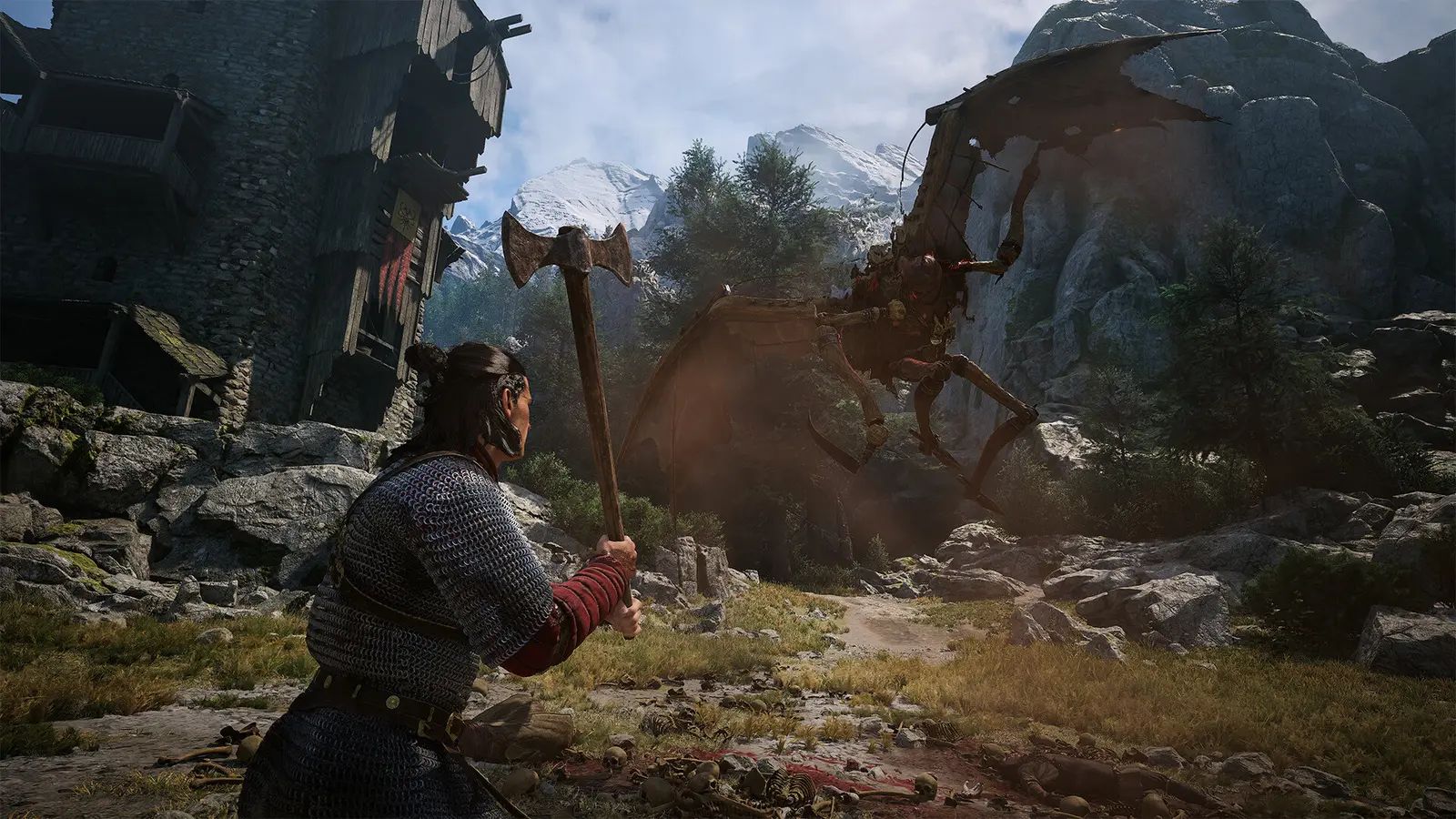
Key Takeaways for The Blood of Dawnwalker
Optimizing your settings in The Blood of Dawnwalker is crucial for balancing its heavy gothic atmosphere with the fluid combat required to survive. Released on September 2, 2026, this action role-playing game developed by Rebel Wolves and published by Bandai Namco Entertainment demands precision. Steam statistics show the game currently has up to 20,000 owners in its launch window, and community reports heavily emphasize the need for proper console configuration. Whether you are playing on a high-end OLED or a standard LED display, finding the right balance between visual fidelity and input responsiveness will completely change your experience as Coen. This Rebel Wolves dark fantasy RPG relies on atmospheric tension, but you should never sacrifice combat fluidity for cinematic flair.
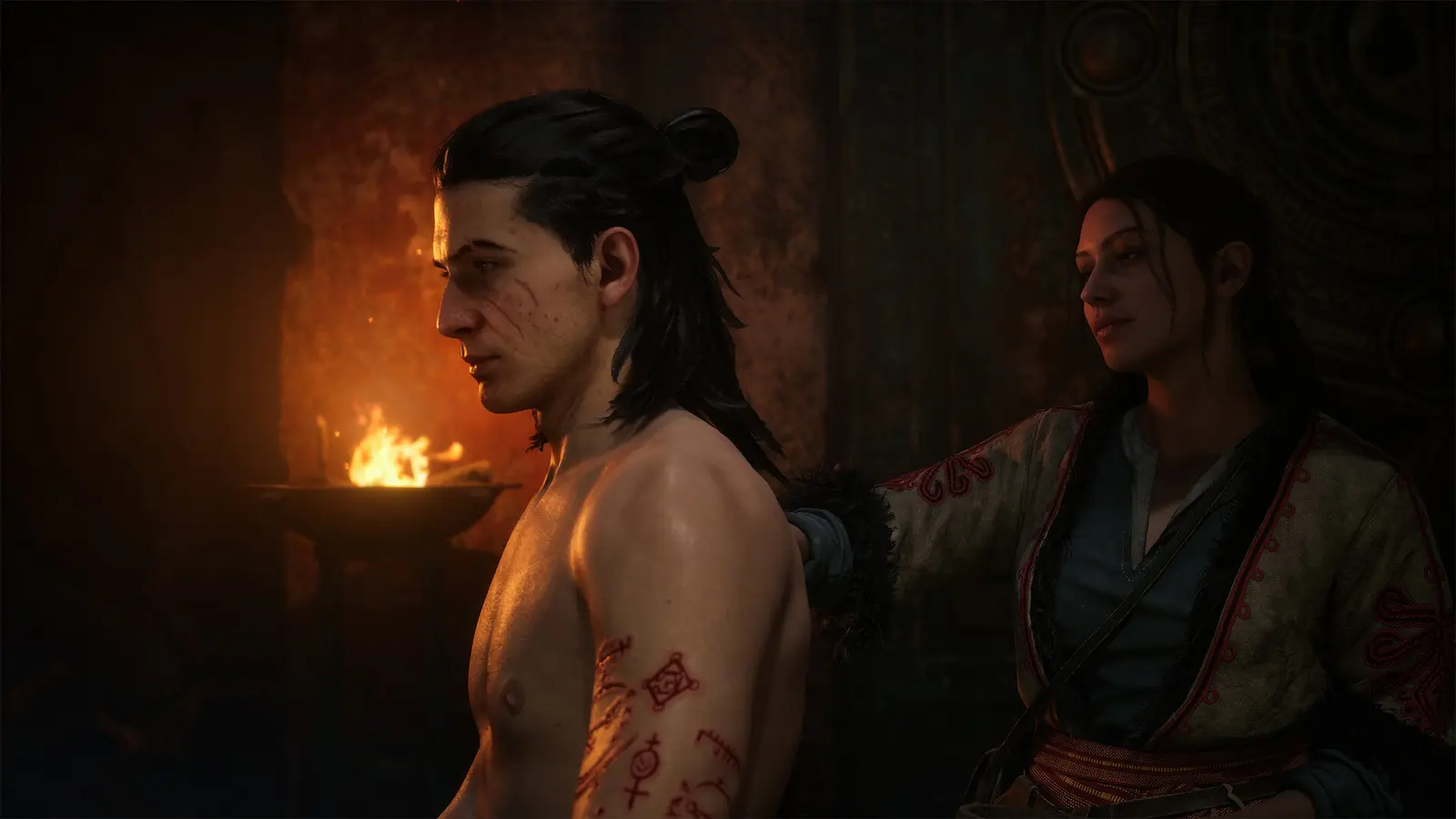
Best Settings for The Blood of Dawnwalker PS5
The optimal baseline configuration for The Blood of Dawnwalker prioritizes a locked 60 FPS over native 4K resolution, disabling intrusive post-processing effects like Motion Blur and Film Grain to maximize visual clarity. When playing on the PlayStation 5, the game’s default settings lean heavily into cinematic presentation, which can actively hinder your combat performance during fast-paced vampire encounters. As of September 2026, the launch build v1.000 requires some manual tweaking to get the best results, especially since Unreal Engine 5 pushes the console hardware to its limits. The table below outlines the exact graphics, display, and controller baselines you should apply immediately before stepping into the 14th-century open world. By focusing on these specific toggles, you eliminate unnecessary visual noise and ensure your parry timings are as accurate as possible.
Pro Tip
Always restart your game application after making sweeping changes to the Graphics Mode to ensure all high-resolution textures unload properly from the PS5 memory.
The Blood of Dawnwalker Performance Mode vs Quality: Which Should You Choose?
Performance Mode is the definitive choice for combat responsiveness in The Blood of Dawnwalker, sacrificing some shadow resolution and draw distance to maintain a highly stable 60 frames per second.
Testing The Blood of Dawnwalker 60 FPS PS5 Mode
In my testing on both standard and slim PS5 hardware across diverse day and night combat scenarios, the 60 FPS Performance mode proved absolutely essential. The combat system relies heavily on reading enemy attack animations and executing frame-perfect dodges. When you are surrounded by multiple enemies in a crowded nighttime encounter, the higher frame rate significantly reduces input latency. Verified working as of the day-one patch, Performance mode dynamically scales the resolution to keep the action fluid, which is a worthwhile trade-off when fighting fast-moving vampire bosses.
When to Use Fidelity Mode in The Blood of Dawnwalker
Quality Mode targets 30 FPS while pushing native 4K resolution and enhanced ray-traced ambient occlusion. If you are someone who prioritizes cinematic immersion over fast-paced action, this mode offers stunning gothic vistas. However, community guides confirm that without a display that supports variable refresh rate (VRR), the 30 FPS cap can feel sluggish during intense fights. If your TV supports 120Hz and VRR, Quality mode becomes slightly more viable by unlocking the framerate to hover around 40 FPS, but Performance mode remains my overarching recommendation for the best gameplay experience.
The Blood of Dawnwalker HDR Settings PS5 for Nighttime Visibility
Calibrating The Blood of Dawnwalker’s HDR sliders to match your TV’s exact peak brightness prevents crushed shadow details during dark nighttime vampire encounters without washing out daytime contrast.
The Blood of Dawnwalker Display Brightness Settings
I learned the hard way that leaving the default brightness settings untouched completely ruined my ability to navigate the 14th-century midnight dungeons. For OLED displays, you want to set the HDR Peak Brightness to match your panel’s nits (usually around 800) and keep the Black Level at absolute zero to maintain true blacks. For standard LED TVs, raising the Midpoint slider to 55 helps lift the mid-tones, making enemies visible in the shadows without graying out the deep blacks. Proper high-dynamic-range video calibration is the single most impactful visual upgrade you can make in this dark fantasy setting.
Fixing Motion Blur and Visual Clutter
Unreal Engine’s post-processing effects can be overwhelming. Disabling Motion Blur, Chromatic Aberration, and Film Grain is highly recommended. Motion blur artificially smears the image during camera pans, causing disorientation when trying to track fast-moving targets. Turning these off results in a crisp, clean image that makes spotting environmental clues and incoming attacks significantly easier.
The Blood of Dawnwalker Controller Settings for Optimal Combat
Lowering your analog stick deadzones directly improves combat reaction times, allowing for near-instantaneous camera movement and character response during frantic vampire battles.
The Blood of Dawnwalker PS5 Input Lag Fix
Out of the box, the default controller deadzones are set conservatively high to prevent stick drift, which translates to perceived input lag. I recommend dropping the Left and Right Stick Deadzones to 5%. If your controller is relatively new, this will make movement and aiming feel incredibly snappy. Additionally, bumping the Camera Sensitivity up by two notches ensures you can quickly snap your view to off-screen threats.
DualSense Haptic Feedback Calibration
The game makes excellent use of the DualSense controller’s features, but they can be overwhelming. I prefer setting the DualSense trigger resistance to ‘Low’ or ‘Off’ because the heavy haptics get exhausting during long dungeon crawls. When you are chaining together rapid vampire ability combos, fighting against the adaptive triggers can cause finger fatigue and actually slow down your attack speed. Proper DualSense haptic feedback calibration preserves the immersion of feeling sword clashes without compromising your physical endurance.
Hardware Note
If you experience stick drift after lowering your deadzone to 5%, slowly increase it by 1% increments until the unintended camera movement stops.
Why Do The Blood of Dawnwalker PS5 Settings Cause Stuttering?
Stuttering in The Blood of Dawnwalker is most frequently caused by forcing 120Hz output on unsupported displays or mismatching console-level HDR settings with the in-game gamma curves.
Common Display Calibration Mistakes in The Blood of Dawnwalker
Since the September 2026 update, a common mistake players make is leaving the PS5 system setting for 120Hz Output on ‘Automatic’ when their TV only supports simulated 120Hz. This can cause severe vampire combat frame pacing issues and stuttering during crowded nighttime encounters. Always ensure your PS5 video output settings match your TV’s native capabilities. Another frequent error is double-applying HDR—if your TV has dynamic tone mapping enabled, turn it off and let the game’s engine handle the luminance values.
Incorrect Controller Deadzones
While lowering deadzones improves responsiveness, setting them to 0% will almost certainly introduce stick drift, causing your camera to pan slowly on its own. This constant micro-movement can actually cause the game engine to continuously render new assets, leading to micro-stutters. Stick to the 5% sweet spot for the best balance of speed and stability.
Final Verdict
To achieve the ultimate balance of dark fantasy immersion and fluid action in The Blood of Dawnwalker, prioritizing Performance Mode and customizing your HDR and controller settings is non-negotiable. By taking five minutes to adjust these parameters before starting your journey as Coen, you eliminate frustrating input lag, prevent visual disorientation, and ensure that every parry and dodge registers exactly when you press the button. As you explore the treacherous 14th-century landscapes, these optimized PS5 settings will provide a stable, visually striking, and highly responsive gameplay experience.
Enhance Your The Blood of Dawnwalker Experience with XMODHUB
Looking to customize your dark fantasy adventure even further? Discover powerful tools and enhancements tailored for single-player exploration.
God Mode
Become invincible during intense nighttime vampire encounters.
Infinite Blood/Stamina
Spam your most powerful abilities without draining your stamina.
One-Hit Kills
Instantly defeat difficult bosses and clear out crowded dungeons.
XP Multiplier
Level up Coen’s skills rapidly and skip the tedious grinding.
Why Choose XMODHUB for The Blood of Dawnwalker
XMODHUB ↗ is the premier PC gaming utility for enhancing your single-player games safely and easily. With support for over 5,000 titles, our trainer provides one-click mods that automatically update with every game patch, ensuring a seamless, malware-free experience without requiring any programming knowledge.
Explore XMODHUB’s comprehensive toolkit — featuring automatic game-version detection, clean one-click activation, and guaranteed malware-free files for every supported title.
Health & Vitals
Combat & Abilities
Progression
Frequently Asked Questions
Ready to enhance your gameplay?

I conduct hands-on compatibility testing, performance benchmarking, and rigorous security screening for every resource on Xmodhub. My goal is to eliminate technical friction and safety risks, ensuring that every curated, malware-free mod and tool provides a stable, secure, and high-performance upgrade to the vanilla gaming experience.
