
 Catherine Hu
You have just installed the most unhinged fishing game of the year, ready to crash your boat onto a weird island and unleash an assault rifle on some unsuspecting shrimp. You boot up How to Fish, the developer logos flash, the cinematic intro of your boat crashing plays out perfectly, and then—nothing. Just an endless, frustrating black void. You can hear the distant sounds of seagulls or the chaotic fish casino music, but your screen remains completely dark. This black screen after the intro is one of the most common launch issues plaguing PC players trying to dive into the chaotic world created by Dazed Games.
Editor’s Note: When I first booted up How to Fish to test out the 360 no-scope sniper mechanics on the boss fish, I ran straight into this exact black screen bug. After hours of digging through Steam community forums and testing various configurations on both an NVIDIA and AMD rig, I discovered that the issue is almost entirely tied to how the game’s engine transitions from the pre-rendered intro video to the real-time 3D main menu. By forcing the game to skip the intro cinematic file, I was able to bypass the black screen entirely and get straight to punching fish.
TL;DR: The Short Answer
If you want to fix the How to Fish black screen after the intro immediately, follow these core troubleshooting steps:
- Rename the Intro File: Navigate to your Steam
common\How to Fishfolder, locate the intro movie file (usually in aMoviesorContentfolder), and rename it tointro.bakto force the game to skip it. - Update GPU Drivers: Ensure your NVIDIA or AMD graphics drivers are completely up to date, as outdated drivers fail to render the transition from the cutscene to the 3D menu.
- Force Windowed Mode: Press
Alt + Enterwhen the black screen appears to force How to Fish into windowed mode, which often refreshes the display output. - Run as Administrator: Right-click the How to Fish executable file and select “Run as Administrator” to ensure the game has the necessary permissions to load local save data.
- Verify Game Files: Use the Steam client to “Verify integrity of game files” to replace any corrupted intro video files.
Table of Contents
- TL;DR: The Short Answer
- Why Does the How to Fish Black Screen Occur?
- Method 1: The Intro Video Bypass (Most Effective)
- Method 2: Graphics Drivers and Windows Media Foundation
- Method 3: Verifying Steam Files and Admin Privileges
- Edge Cases and Technical Warnings
- Resolving Network Issues After the Fix
- Advanced Fix: Modifying Steam Launch Options
- Hardware Compatibility and Crash Log Analysis
- The Ultimate Shortcut: Dominate How to Fish with XMODhub
- Frequently Asked Questions
- Final Verdict: Master the Chaos of How to Fish
Why Does the How to Fish Black Screen Occur?
To understand how to fix the problem, you need to understand why How to Fish is locking up your PC. When you launch How to Fish, the game engine executes a sequence of events: it loads the core engine, plays the pre-rendered video files (the Dazed Games logo and the boat crash intro), and then attempts to load the interactive 3D main menu where you can access your online co-op lobbies or single-player saves.
The black screen occurs during the exact moment of the “handoff” between the video player and the 3D renderer. Indie games often rely on standard Windows video codecs to play .mp4 or .webm files. If your system is missing the correct Windows Media Foundation (WMF) codecs, or if your graphics card (even if it meets the minimum GeForce GTX 1050 or AMD RX 460 requirements) experiences a micro-timeout during this transition, the video player fails to close. The game engine thinks the intro is still playing, while the video player has actually finished. This results in a persistent black screen where the game is technically running in the background (which is why you can hear the chaotic menu music), but the visual output is dead.
Method 1: The Intro Video Bypass (Most Effective)
Since the black screen is directly caused by the pre-rendered intro cinematic failing to close properly, the most logical and highly effective fix is to prevent How to Fish from playing the intro video in the first place. When the game cannot find the video file, it skips the playback sequence entirely and immediately loads the 3D main menu.
Here is the step-by-step guide to bypassing the intro:
- Open your Steam client and navigate to your Library.
- Right-click on How to Fish in your game list.
- Select Manage, then click on Browse local files. This will open the Windows File Explorer directly to the game’s installation directory.
- Look for a folder named
Content,Movies, orVideo(the exact folder structure may vary slightly depending on recent patches by Dazed Games). - Inside this folder, locate the video file responsible for the intro. It is typically named something obvious like
Startup.mp4,Intro.webm, orSplash.mp4. - Right-click this file and select Rename.
- Change the file extension or the name entirely (for example, rename
Intro.mp4toIntro.bakorIntro_old.mp4). - Close the File Explorer and launch How to Fish via Steam.
By doing this, the game will attempt to call the intro file, realize it is “missing,” log a harmless background error, and immediately push you into the main menu where you can start upgrading your fishing shotgun.
Method 2: Graphics Drivers and Windows Media Foundation
If renaming the intro file does not work, the issue lies deeper within your system’s rendering capabilities. How to Fish features a unique art style with cartoon violence that requires specific shader compilations when loading the main menu.
Updating GPU Drivers:
Outdated graphics drivers are notorious for failing to handle modern engine handoffs. If you are running the minimum required hardware, such as an Intel Core i5-5257U or an AMD Ryzen 3 1200, your system is already working hard to process the game. Navigate to the official NVIDIA, AMD, or Intel websites and download the absolute latest drivers for your specific graphics card. During installation, choose the “Clean Install” option to wipe any corrupted shader caches that might be causing How to Fish to hang.
Windows Media Foundation (WMF):
If you are using a special “N” edition of Windows 10 or Windows 11 (which are sold primarily in Europe and lack built-in media players), your PC literally does not have the software required to play the How to Fish intro video. You must download the “Media Feature Pack” from the official Microsoft website. Once installed and your PC is restarted, How to Fish will finally be able to process the video codecs and move past the black screen.
Method 3: Verifying Steam Files and Admin Privileges
Sometimes, the simplest explanation is the correct one. During the download process, the 1 GB of required storage space for How to Fish might have been written to your drive incorrectly, resulting in a corrupted intro file that crashes the executable.
- Go to your Steam Library, right-click How to Fish, and select Properties.
- Navigate to the Installed Files tab.
- Click the Verify integrity of game files button. Steam will scan your local files against the official Dazed Games servers and re-download anything that is broken.
Additionally, How to Fish needs to create save files and read configuration data in your Windows AppData folder. If the game lacks the permissions to do this, it will hang on a black screen. Navigate back to the local files (as described in Method 1), right-click the main How to Fish.exe application file, select Properties, go to the Compatibility tab, and check the box that says Run this program as an administrator.
Edge Cases and Technical Warnings
While the methods above will fix the How to Fish black screen for 99% of players, there are a few edge cases to be aware of.
The Dual-Monitor Resolution Bug: If you are running a multi-monitor setup, How to Fish might be trying to output a resolution that your primary monitor does not support, resulting in a black screen. When the game launches and goes black, press Alt + Enter on your keyboard. This forces the game engine to switch from Exclusive Fullscreen to Windowed Mode. Once you can see the game, navigate to the settings menu and manually set the correct resolution and display monitor.
Warning Regarding Third-Party Overlays: The Steam Overlay, Discord Overlay, and RivaTuner Statistics Server (RTSS) hook directly into the game’s rendering pipeline. In chaotic indie games like How to Fish, these hooks can conflict with the intro video player. Try disabling all overlays before launching the game to see if the black screen persists.
Resolving Network Issues After the Fix
Once you have successfully bypassed the black screen, you will finally be able to access the main menu and invite your friends to start pulling off ridiculous trick shots and earning those multipliers. However, because How to Fish relies heavily on peer-to-peer connections for its online co-op, you might encounter lobby errors or infinite loading screens when trying to join a friend’s island.
If you or your friends keep getting disconnected right as you are about to defeat a boss fish or gamble your hard-earned cash at the fish casino, do not panic. You can easily resolve these network drops by following our comprehensive guide to Fix How to Fish Multiplayer & Co-op Connection Issues. Getting your network ports configured correctly is just as important as fixing your display issues.
Advanced Fix: Modifying Steam Launch Options
If you have tried renaming the intro file and updating your drivers but the game still refuses to render the 3D Main Menu, the issue is likely tied to a DirectX compatibility error. How to Fish attempts to utilize modern rendering APIs by default, which can cause older GPUs or unoptimized Windows environments to freeze on a black screen.
You can force the game to use a more stable rendering path by modifying the Steam Launch Options:
- Open Steam, right-click How to Fish, and select Properties.
- In the General tab, scroll down to the Launch Options text box.
- Type
-dx11to force the game to run in DirectX 11 mode, which is significantly more stable for indie titles. - Alternatively, if the resolution is bugged, you can type
-windowed -w 1920 -h 1080to force a standard 1080p windowed mode upon startup.
Hardware Compatibility and Crash Log Analysis
For players who want to accurately diagnose their specific startup issue, analyzing the exact symptoms of your black screen crash is crucial. Below is a diagnostic table compiling the most common rendering failures in How to Fish, helping you pinpoint the exact solution without wasting time.
| Crash Symptom / Error Behavior | Root Cause | Recommended Fix |
|---|---|---|
| Black Screen + Audio Playing | WMF Codec Failure during handoff | Rename Intro.mp4 or Install Windows Media Feature Pack |
| Black Screen + Hard Crash to Desktop | Corrupted GPU Shader Cache | Perform a Clean Install of NVIDIA/AMD Drivers |
| Infinite Loading Icon on Black Screen | Network or Admin Privilege Block | Run as Administrator & Check Windows Defender Firewall |
| Stuttering Black Screen Transition | DirectX 12 API Incompatibility | Add -dx11 to Steam Launch Options |
| Monitor Displays “No Signal” | Out-of-Range Refresh Rate / Resolution | Press Alt + Enter to force windowed mode |
The Ultimate Shortcut: Dominate How to Fish with XMODhub
Let’s be brutally honest: troubleshooting PC gaming issues is exhausting. You bought How to Fish to unload an entire clip into a shrimp and enact revenge on thieving seagulls, not to spend hours renaming .mp4 files and updating Windows codecs. Furthermore, once you actually get into the game, the grind to earn money, buy heavier weapons, and defeat the insanely difficult boss fish on the later islands can be overwhelming.
If you want to skip the tedious grind and maximize the unhinged chaos of How to Fish immediately, you need XMODhub.
XMODhub is the ultimate PC game modification platform that injects safe, undetectable (for single-player and private co-op) cheats directly into your game. Why punch fish into submission when you can start the game with infinite cash and instantly buy the sniper rifle and dynamite?
With XMODhub for How to Fish, you can activate:
- Infinite Cash & Casino Tokens: Never worry about gambling away your dignity; buy every weapon upgrade instantly.
- God Mode: Become completely invulnerable to boss fish attacks.
- Max Trick Shot Multiplier: Every single catch registers as a 360 no-scope, giving you maximum rewards without the effort.
How to use XMODhub in 3 simple steps:
- Download XMODhub: Install the lightweight, secure client from the official website.

- Auto-Detect How to Fish: Launch the app, and XMODhub will automatically locate your Steam installation of How to Fish.
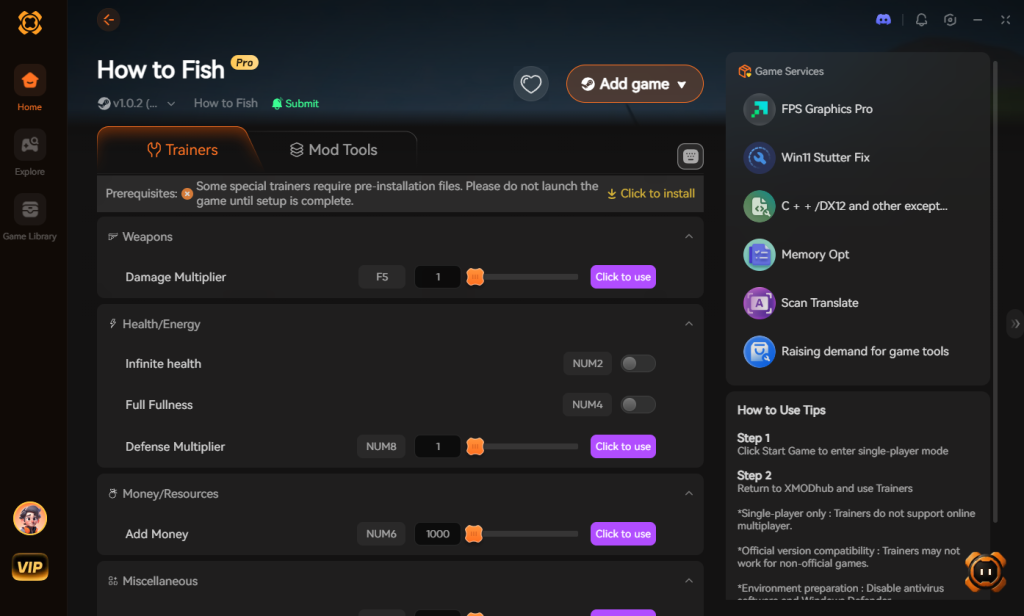
- Toggle Cheats: Use the sleek overlay or hotkeys to enable infinite ammo and god mode on the fly.
Stop grinding and start dominating the weird islands.
Download How to Fish Trainer Now
Frequently Asked Questions
Does skipping the intro video affect Steam Achievements in How to Fish?
No, bypassing or renaming the intro video file has absolutely zero impact on your ability to unlock the 28 Steam Achievements included in How to Fish. Achievements are tied to in-game triggers (like killing a boss or hitting a trick shot), not the startup cinematic.
Why do I hear the fish casino music but see a black screen?
This confirms that the core game engine has successfully loaded the main menu, but the video renderer has crashed or failed to transition from the intro video. Pressing Alt + Enter to force windowed mode or updating your GPU drivers will usually restore the visual output.
Will reinstalling How to Fish delete my weapon upgrades?
No. Your progress, including your unlocked handguns, shotguns, and laser sights, is saved locally in your Windows AppData folder and backed up via Steam Cloud. Uninstalling and reinstalling the base game files to fix the black screen will not wipe your save data.
Can my PC run How to Fish if I am getting this black screen?
The black screen is usually a software conflict, not a hardware limitation. As long as your PC meets the minimum requirements (Windows 10+, Intel Core i5-5257U / AMD Ryzen 3 1200, 8 GB RAM, and a GeForce GTX 1050 / AMD RX 460), your system is more than capable of running How to Fish once the software glitch is bypassed.
Final Verdict: Master the Chaos of How to Fish
Encountering a black screen after the intro is incredibly frustrating, especially for a game as highly anticipated and utterly chaotic as How to Fish. By understanding the underlying conflict between the pre-rendered video files and your system’s graphics drivers, you can easily bypass the issue. Whether you choose to manually rename the cinematic file in your Steam directory, update your Windows Media Foundation codecs, or force the game into windowed mode, you now have the technical knowledge to get past the startup crash and back to the action.
Once you are finally on the island, remember that you don’t have to suffer through the brutal early-game grind of punching fish with your bare hands. XMODhub is your ultimate companion for completely breaking the game in the most fun way possible. With support for over 5,000+ single-player and co-op PC titles, XMODhub’s massive ecosystem has you covered. If you love the unhinged, weapon-based co-op chaos of How to Fish, you can also use XMODhub to dominate similar crazy titles like Helldivers and Palworld. Download XMODhub today, grab your dynamite, and go show those seagulls who truly owns the island.
Stop Grinding, Start Enjoying.
Bypass the tedious resource gathering and unlock your full potential instantly.

I am a passionate gamer and writer at XMODhub, dedicated to bringing you the latest gaming news, tips, and insights.
Connect with me:
LinkedIn Profile ↗
 Nancy Miller