
 Catherine Hu
There is nothing quite as soul-crushing as spending ten hours surviving weird islands, upgrading from your bare fists to a fully kitted sniper rifle, only to log in the next day and find your progress completely wiped. You’ve spent hours hitting 360 no-scopes on seagulls, gambling away your hard-earned fish cash in the fish casino, and unloading entire clips into boss fish, but a random crash or a Steam Cloud sync error can delete all of that chaotic glory in an instant. If you are frantically searching for the How to Fish save file location to back up your data or restore a corrupted world state, you are in the right place.
Editor’s Note: I learned this the hard way during a drunken weekend co-op session. My squad and I had just unlocked the shotgun and dynamite. The game crashed right as we defeated a boss fish to unlock a new island. Steam Cloud overwrote my local save with an empty file. Since that disaster, I manually back up my How to Fish save file location every single time I close the game. Don’t let your bloody shrimp money go to waste—secure your files.
TL;DR: The Short Answer
If you just want to get in, grab your files, and get back to blowing up marine life, here is the exact default directory for the How to Fish save file location on Windows PC (Steam):
- Default PC Save Path:
C:\Users\[YOUR USERNAME]\AppData\LocalLow\Dazed Games\How to Fish\Saves - Quick Access Shortcut: Press
Win + R, type%appdata%, press Enter, navigate up one folder toAppData, then go toLocalLow\Dazed Games\How to Fish\Saves.
Note: Replace [YOUR USERNAME] with your actual Windows profile name. If you cannot see the AppData folder, you need to enable “Hidden Items” in your Windows File Explorer view settings.
Table of Contents
- TL;DR: The Short Answer
- Step-by-Step: Finding the How to Fish Save File Location
- The Anatomy of Your Save Folder
- Why Your Save Files Are Corrupting (Under the Hood)
- Steam Cloud Sync: Friend or Foe?
- How to Manually Back Up and Restore Your Save
- Skip the Grind: Reclaim Your Lost Progress with XMODhub
- Playing on the Go: Steam Deck Save File Location
- Troubleshooting Common Save Data Errors
- Frequently Asked Questions
- Final Verdict: Protect Your Arsenal
Step-by-Step: Finding the How to Fish Save File Location
Navigating Windows directories can be annoying, especially when operating systems love to hide the most crucial gaming folders from average users. Here is the foolproof, step-by-step method to locate your How to Fish save file location without blindly clicking through your C: drive.
Step 1: Unhide Your Windows Folders
By default, Windows hides the AppData folder to prevent users from accidentally deleting critical software files. To see it:
- Open File Explorer (Windows Key + E).
- Click on the View tab at the top of the window (For Windows 11, click the “View” drop-down menu).
- Check the box that says Hidden items (Windows 11: Show > Hidden items).
Step 2: Use the Run Command
The fastest way to jump directly into the hidden architecture of your PC is the Run dialog.
- Press the Windows Key + R simultaneously.
- In the text box, type
%appdata%and hit Enter. - This will open the
Roamingfolder. How to Fish, developed by Dazed Games, utilizes theLocalLowdirectory instead. - Look at your address bar at the top, click on AppData to go back one level.
- Open the LocalLow folder.
Step 3: Locate the Dazed Games Directory
Inside LocalLow, scroll down until you find the folder named Dazed Games. Open it, and inside you will see the How to Fish folder. Your actual progression data, weapon customizability unlocks, and fish casino tokens are stored inside the Saves subfolder.
The Anatomy of Your Save Folder
When you finally open the How to Fish save file location, you won’t just see one magic file. The game separates your data to handle the complex mechanics of its co-op action and weapon tracking. Here is what you are looking at:
- PlayerState.sav: This is the holy grail. This file tracks your personal inventory. Whether you are currently wielding your bare fists, a sharpened melee weapon, a handgun, or a sniper rifle with a laser sight, this file remembers it. It also tracks your wallet (your fish-selling profits) and your gambling tokens.
- WorldState.sav: This tracks which weird islands you have unlocked, which boss fish you have defeated, and the general state of your crashed boat. If you are the host of an online co-op session, this file is critical.
- Config.ini: This handles your settings, including keybinds, graphics, and audio. If your game is crashing on startup, deleting or modifying this specific file can sometimes force the game to reset its display settings. Speaking of startup crashes, if you are stuck before the main menu even loads, you should immediately check out our guide on the How to Avoid & Stop Seagulls in How to Fish: The Ultimate Anti-Theft Guide to resolve the issue without messing with your save data.
Why Your Save Files Are Corrupting (Under the Hood)
You might be wondering why a game about catching fish requires such intense file management. The reality is that How to Fish is completely unhinged, and its backend is constantly calculating a massive amount of variables.
Every time you launch a fish into the air and attempt a quick scope or a 360 no-scope, the game engine has to calculate the physics, apply the trick shot multiplier to the fish’s sell price, and update your inventory in real-time. If you are playing online co-op and your buddy unloads an entire clip into a shrimp while you are getting robbed by pesky seagulls, the game is syncing all of this cartoon violence across multiple clients.
If your internet drops, or if you Alt+F4 out of rage after losing your dignity in the fish casino, the game might fail to write these complex variables to your PlayerState.sav file properly. The result? A corrupted file that reads as 0 KB, forcing you to start over with nothing but your fists.
Steam Cloud Sync: Friend or Foe?
Steam Cloud is supposed to be a massive convenience, seamlessly transferring your How to Fish save file location from your desktop PC to your Steam Deck. However, for indie games with rapid autosave intervals, Steam Cloud can sometimes be your worst enemy.
The Desync Issue
If you play offline or if Steam’s servers hiccup while you are closing the game, Steam might upload an older, outdated version of your save to the cloud. The next time you boot up, Steam asks if you want to use the Local Save or the Cloud Save. If you blindly click “Cloud,” you might overwrite your 20-hour save file with a 2-hour save file.
How to Force a Local Overwrite
If you know your local How to Fish save file location contains the correct data, but Steam keeps trying to download an old cloud save:
- Right-click How to Fish in your Steam Library.
- Select Properties.
- Under the General tab, toggle off Keep games saves in the Steam Cloud for How to Fish.
- Boot the game. It will now be forced to read your local
LocalLowdirectory. Once you verify your assault rifles and upgraded ammunition are intact, you can turn Steam Cloud back on to upload the correct file.
How to Manually Back Up and Restore Your Save
Relying on auto-saves in a game where you use dynamite to fish is a rookie mistake. You need to take matters into your own hands.
To Back Up:
Navigate to the How to Fish save file location (AppData\LocalLow\Dazed Games\How to Fish\Saves). Right-click the Saves folder, select Copy, and paste it somewhere safe, like your Desktop or a dedicated external drive. Rename the copied folder to something like HowToFish_Backup_Date so you know exactly when it was made.
To Restore:
If disaster strikes and your game wipes your progress, simply go to your backup folder, copy the files inside, and paste them back into the official AppData\LocalLow\Dazed Games\How to Fish\Saves directory, overwriting the corrupted files. Boot the game, and you will be right back on the island, fully armed.
Skip the Grind: Reclaim Your Lost Progress with XMODhub
Let’s be brutally honest. If your save file corrupted and you just lost 30 hours of grinding for upgraded ammunition, laser sights, and boss island unlocks, the thought of starting over with your bare fists to punch fish into submission is agonizing. You don’t have to suffer through the early game grind again. If you want to instantly reclaim your lost power, or if you just want to experience the absolute peak of this game’s unhinged chaos, you need XMODhub.
XMODhub is the ultimate PC modification engine, and it fully supports How to Fish. Instead of grinding for cash to buy heavier weapons, you can inject infinite money, force maximum trick-shot multipliers on every kill, and give yourself unlimited fish casino tokens.
How to dominate How to Fish in 3 minimal steps:
- Download XMODhub: Install the lightweight client from the official website.

- Auto-Detect How to Fish: Launch the app. XMODhub will automatically scan your Steam library and hook into the How to Fish executable.
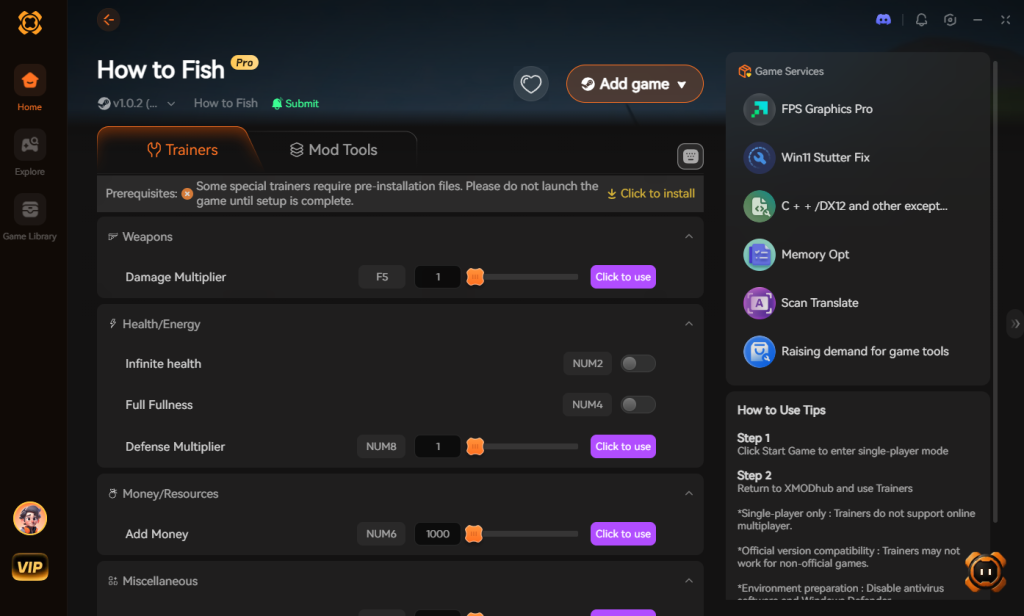
- Toggle Cheats: Use the in-game overlay to activate “Infinite Ammo,” “One-Hit Kill Boss Fish,” or “Max Money Multiplier.”
Why spend hours trying to trick-shot a seagull when you can just turn on auto-aim and instantly enact revenge on the entire species? XMODhub gives you your time back.
Download How to Fish Trainer Now
Playing on the Go: Steam Deck Save File Location
If you are taking your aquatic chaos on the road, you might be wondering where the How to Fish save file location is hidden on Linux-based hardware. Because the game relies on Proton Compatibility to run on the Steam Deck, the directory structure is completely different from a standard Windows PC.
To find your data in Desktop Mode, open the Dolphin file manager and navigate to this specific path:
- Steam Deck Path:
~/.local/share/Steam/steamapps/compatdata/[APP_ID]/pfx/drive_c/users/steamuser/AppData/LocalLow/Dazed Games/How to Fish/Saves
Note: You will need to know the specific Steam App ID for How to Fish to find the correct folder. If you are having trouble with Cloud Sync moving between your PC and Deck, manually copying your PlayerState.sav using a USB-C drive directly into this folder will force the game to recognize your unlocked assault rifles and dynamite.
Troubleshooting Common Save Data Errors
Sometimes, just knowing the How to Fish save file location isn’t enough to save your run. If your game is failing to load your progress, cross-reference your issue with our diagnostic table below to get back to the fish casino as quickly as possible.
| Symptom / Error Code | Root Cause | Recommended Fix |
|---|---|---|
| 0 KB PlayerState.sav | Game crashed during an autosave while calculating trick shot multipliers or physics. | Delete the 0 KB file and paste the most recent backup into your Saves folder. |
| Missing Boss Island | The WorldState.sav file desynced during a multiplayer co-op session. | Have the host navigate to their How to Fish save file location and send you their WorldState.sav to overwrite yours. |
| “Save Data Corrupted” Prompt | Conflict between Steam Cloud and local files, or a badly modified Config.ini. | Disable Steam Cloud, delete Config.ini, and launch the game to force a fresh settings generation. |
| No Saves Folder Exists | Antivirus or OneDrive is blocking the game from writing to the AppData directory. | Whitelist the game executable in Windows Defender and disable OneDrive syncing for the LocalLow folder. |
Frequently Asked Questions
Does How to Fish support cross-platform save transfers?
Currently, How to Fish is only available on PC (Steam). Therefore, the How to Fish save file location is strictly tied to your Windows directory. There is no official way to transfer saves to consoles, as the game has not been released on those platforms yet.
Can I share my How to Fish save file with a co-op partner?
Yes. Because the game uses local .sav files, you can navigate to the How to Fish save file location, copy your WorldState.sav, and send it to a friend via Discord or email. If they place it in their own save directory, they will inherit your island progression and boss unlocks. However, they should not overwrite their PlayerState.sav, or they will overwrite their personal weapon inventory with yours.
Why is my How to Fish save folder completely empty?
If you navigate to AppData\LocalLow\Dazed Games\How to Fish\Saves and find it empty, there are two likely culprits. First, your antivirus (like Windows Defender or Bitdefender) might be blocking the game from writing files to your AppData folder. You need to whitelist the game’s executable. Second, if you use OneDrive, it might be aggressively redirecting your AppData or Documents folders to the cloud, causing the game to save in a hidden OneDrive subfolder instead.
Will modifying my save file disable the 28 Steam Achievements?
Manually backing up and restoring your files from the How to Fish save file location will not disable achievements. However, if you use hex editors to artificially alter your stats, the game’s anti-cheat might flag the file and disable achievement tracking for that specific run. Using an external memory injector like XMODhub bypasses this entirely, allowing you to unlock achievements while using modifiers.
Final Verdict: Protect Your Arsenal
Finding the How to Fish save file location is a mandatory skill for anyone serious about conquering this ridiculously chaotic game. By navigating to C:\Users\[YOUR USERNAME]\AppData\LocalLow\Dazed Games\How to Fish\Saves, you take full control over your progression. You secure your laser-sighted shotguns, you protect your fish casino winnings, and you ensure that no random crash or Steam Cloud failure can rob you of your hard-earned boss kills. Back up your files regularly, and never let a technical glitch ruin your co-op session.
And remember, if the worst happens—or if you simply want to push the game’s cartoon violence to its absolute limit—XMODhub is your ultimate shortcut. Supporting over 5,000+ single-player and co-op PC titles, XMODhub is the premier tool for taking back control of your gaming time. Whether you are dominating the weird islands in How to Fish, managing your chaotic base in Palworld, or exploring the depths in Dave the Diver, XMODhub ensures you play the game exactly how you want to play it. Stop grinding, start having fun, and happy fishing.
Stop Grinding, Start Enjoying.
Bypass the tedious resource gathering and unlock your full potential instantly.

I am a passionate gamer and writer at XMODhub, dedicated to bringing you the latest gaming news, tips, and insights.
Connect with me:
LinkedIn Profile ↗
 Nancy Miller