
 Catherine Hu
You finally convinced your friends to jump into How to Fish, you have your sniper rifle perfectly lined up to 360 no-scope a flying salmon, and suddenly—boom—”Connection to Host Lost.” There is absolutely nothing more infuriating than getting disconnected right before you cash in a massive trick-shot multiplier or while you are in the middle of a chaotic boss fish fight on a brand-new island. When your co-op session turns into a frustrating series of network timeouts, the unhinged fun of unloading an entire clip into a shrimp comes to a grinding halt.
As someone who has spent way too many hours sharpening melee weapons and upgrading assault rifles just to enact revenge on pesky seagulls with my squad, dealing with these co-op disconnects was driving me insane. After testing various network configurations, firewall rules, and Steam client tweaks, I found the exact sequence of steps to stabilize the multiplayer lobbies. If you want to get back to gambling your fish currency in peace, the solutions below are exactly what you need.
TL;DR: The Short Answer
If you are in a rush to get back to the fish casino, here is the immediate checklist to fix How to Fish multiplayer & co-op connection issues:
- Restart Everything: Reboot your router, PC, and Steam/Epic client to clear temporary network cache.
- Verify Game Files: Right-click How to Fish in your library -> Properties -> Installed Files -> Verify integrity of game files.
- Allow Through Firewall: Add
HowToFish.exeas an exception in your Windows Defender Firewall for both Private and Public networks. - Flush DNS Cache: Open Command Prompt as Administrator, type
ipconfig /flushdns, and press Enter. - Disable Active VPNs: Turn off any VPN software, as they often route your connection through servers that block peer-to-peer (P2P) matchmaking.
- Check Host NAT Type: Ensure the player hosting the lobby has an “Open” NAT type to allow incoming connections from other players.
Table of Contents
- TL;DR: The Short Answer
- Understanding the Root Cause of Co-op Disconnects
- Step 1: Network Reset and DNS Flushing
- Step 2: Configuring Windows Defender Firewall
- Step 3: NAT Types and Port Forwarding
- Step 4: Steam Matchmaking and Background Software
- The Ultimate Shortcut: Dominate with XMODhub
- Common How to Fish Network Error Codes & Solutions
- Advanced Fix: Optimizing Router QoS for Co-op Stability
- Frequently Asked Questions
- Final Verdict: Reclaiming the Chaos
Understanding the Root Cause of Co-op Disconnects
Before diving into the technical fixes, it is crucial to understand why How to Fish struggles with multiplayer connections in the first place. How to Fish relies heavily on peer-to-peer (P2P) networking. This means that instead of connecting to a massive, centralized dedicated server hosted by the developers, one player in your group acts as the “host” server, and everyone else connects directly to their PC.
Because the game involves intense action elements—calculating bullet trajectories, tracking trick-shot multipliers in real-time, managing the AI of a boss fish, and syncing the physics of launched fish across multiple clients—the host’s network must be incredibly stable. If the host experiences even a minor packet loss spike, or if a player’s firewall aggressively blocks incoming UDP packets, the synchronization fails. This results in players rubber-banding across the island, fish corpses disappearing before you can sell them, or outright lobby disconnections.
Step 1: Network Reset and DNS Flushing
The most common culprit for sudden disconnects in How to Fish is corrupted local network routing data. Your PC stores IP addresses and DNS records to speed up connections, but if these become outdated, your system will struggle to find your friend’s lobby.
How to execute a full network flush:
- Click your Windows Start menu, type
cmd, right-click on Command Prompt, and select Run as administrator. - Type
ipconfig /flushdnsand press Enter. You should see a message confirming the DNS Resolver Cache was successfully flushed. - Next, type
ipconfig /releaseand press Enter. Your internet will briefly drop. - Type
ipconfig /renewand press Enter to establish a fresh connection to your router. - Finally, type
netsh winsock resetand press Enter. - Restart your computer.
Edge Case Warning: If you are playing on a college campus or a strict corporate network, your network administrator might be actively blocking P2P gaming ports. In these specific edge cases, a gaming-optimized VPN might actually be required to bypass the restrictions, despite VPNs usually being something you want to turn off.
Step 2: Configuring Windows Defender Firewall
Because How to Fish is an indie title with a completely unhinged premise, Windows Defender and third-party antivirus software often do not recognize its executable file. When you launch a co-op session, Windows might silently block the game from receiving incoming connections from your friends.
Step-by-step Firewall Configuration:
- Press the Windows Key, type Windows Defender Firewall, and open it.
- On the left-hand sidebar, click Allow an app or feature through Windows Defender Firewall.
- Click the Change settings button (you need administrator privileges for this).
- Scroll down the list and look for How to Fish.
- If it is not there, click Allow another app…, browse to your Steam installation folder (usually
C:\Program Files (x86)\Steam\steamapps\common\How to Fish), and select the game’s.exefile. - Ensure that both the Private and Public checkboxes are ticked next to How to Fish.
- Click OK and restart the game.
Step 3: NAT Types and Port Forwarding
If you have tried the steps above and still cannot join your friends, the issue likely lies with the host’s NAT (Network Address Translation) type. For a P2P game like How to Fish, the host must have an Open NAT (Type 1) or at least a Moderate NAT (Type 2). If the host has a Strict NAT (Type 3), their router will refuse incoming connection requests, making it impossible for anyone to join their island.
To fix a Strict NAT, the host needs to enable UPnP (Universal Plug and Play) or manually forward ports in their router settings.
- Log into your router’s admin panel (usually by typing
192.168.1.1or10.0.0.1into your web browser). - Locate the UPnP setting and toggle it to Enabled.
- If UPnP does not work, find the Port Forwarding section and forward the standard Steam P2P ports: UDP 3478, 4379, and 4380.
Why this matters: When you are fighting a massive boss fish and trying to coordinate heavy weapons fire, the game needs an uninterrupted flow of UDP packets. A Strict NAT chokes this data flow entirely.
Step 4: Steam Matchmaking and Background Software
Sometimes, the connection issue has nothing to do with your internet and everything to do with software conflicts or corrupted game files. If your game files are missing essential multiplayer networking scripts, Steam will fail to bridge the connection.
Always verify your game files through Steam. Furthermore, if your game isn’t just disconnecting but completely shutting down or locking up your PC, you might be dealing with a hardware or software conflict rather than a network issue. In that case, check out our comprehensive guide to Fix How to Fish Crashing on Startup & Freezing: The Ultimate Troubleshooting Guide to ensure your system isn’t the actual bottleneck.
Additionally, disable any bandwidth-heavy background applications. If you are downloading massive files, streaming 4K video on a second monitor, or running cloud backup software (like OneDrive or Google Drive) while playing, your bandwidth is being cannibalized. How to Fish requires a stable broadband connection; high ping variation will cause the host server to kick you to preserve the physics synchronization of the game.
The Ultimate Shortcut: Dominate with XMODhub
Let’s be brutally honest: troubleshooting network errors, digging through router settings, and fighting with Windows Firewall is exhausting. Sometimes, the co-op servers are just having a bad day, or your friends aren’t online, and you just want to experience the absolute chaos of How to Fish without the grind.
If you want to skip the tedious weapon progression, instantly unlock the sniper rifle, or rack up millions of fish currency without worrying about seagull thieves or network drops, XMODhub is your ultimate solution. Why struggle to survive on a dangerous new island when you can become the apex predator of the ocean?
With XMODhub’s dedicated How to Fish mods, you can activate:
- Infinite Ammo & No Reload: Unload endless clips into boss fish without ever stopping.
- Max Trick-Shot Multiplier: Every standard catch registers as a 360 no-scope, flooding your inventory with cash.
- God Mode: Never take damage from hostile creatures or boss mechanics.
- Instant Fish Catch: Bypass the reeling mini-game entirely.
How to start dominating in 3 easy steps:
- Download XMODhub: Install the secure, lightweight client directly from the official website.

- Auto-Detect How to Fish: Launch the app, and XMODhub will automatically locate your How to Fish installation (works with Steam and Epic).
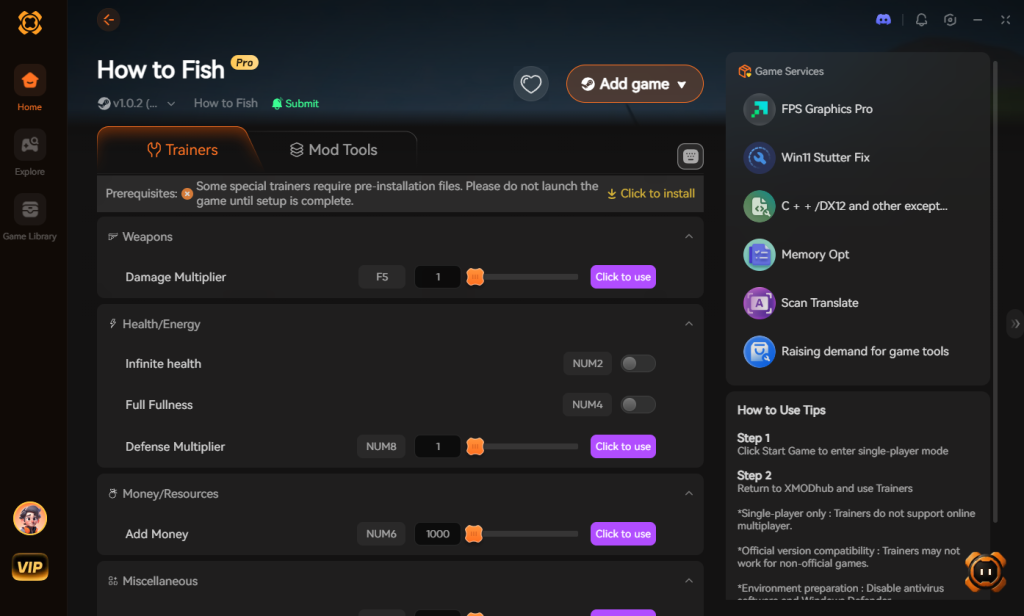
- Toggle Cheats: Click “Launch with Mods,” use the in-game overlay to toggle your desired cheats, and start decimating the local fish population.
Common How to Fish Network Error Codes & Solutions
When the game boots you back to the main menu, it often throws a specific alphanumeric error code. Identifying this code is the fastest way to pinpoint whether the issue is on your end, the host’s end, or Steam’s network. Below is a quick reference table for the most frequently encountered multiplayer errors in How to Fish:
| Error Code | Meaning | Primary Fix |
|---|---|---|
| Error 0x8004 | Host connection timed out | Flush DNS and check host NAT type |
| Error P2P-77 | Strict NAT blocking UDP packets | Enable UPnP or port forward UDP 3478-4380 |
| Sync-Mismatch | Client/Host game version differs | Verify integrity of game files on Steam/Epic |
| Lobby-Null | Steam API failed to initialize | Restart Steam client as Administrator |
Advanced Fix: Optimizing Router QoS for Co-op Stability
If you are consistently experiencing lag spikes right as a boss fish spawns, your router might be prioritizing background traffic (like a roommate streaming Netflix) over your game’s data packets. Quality of Service (QoS) is a router feature that allows you to prioritize gaming traffic.
How to enable QoS for How to Fish:
- Log into your router’s admin dashboard via your browser.
- Navigate to the Advanced or Network Settings tab and find QoS Setup.
- Enable QoS and look for an option to prioritize by MAC Address or Application.
- Enter your PC’s MAC address and set its priority to High or Maximum.
- Save the settings and reboot your router. By prioritizing your PC, your router ensures that the fast-paced physics calculations required for your trick-shot multipliers are never delayed by other devices on your local network.
Frequently Asked Questions
Why can’t my friends see my How to Fish lobby?
If your lobby is invisible, ensure your Steam profile privacy settings for “Game Details” are set to Public or Friends Only. Additionally, check that you are appearing as “Online” on Steam, not “Invisible,” as the game relies on Steam’s friend list API for lobby discovery.
Does How to Fish support cross-platform multiplayer?
Currently, How to Fish multiplayer is restricted to the PC ecosystem. Ensure all players are running the exact same version/update of the game, as version mismatches will prevent connections.
Do I lose my fish and weapons if I disconnect from a co-op session?
Generally, client players keep their personal character progression (like money and unlocked weapons), but any fish currently in your inventory that haven’t been sold at the shop may be lost if the host disconnects abruptly.
Can a slow internet connection cause multiplayer lag in How to Fish?
Absolutely. The minimum requirements state you need a Broadband Internet connection. Because you are calculating fast-paced action elements like bullet physics and trick shots, a ping higher than 100ms will result in noticeable input delay and rubber-banding.
Final Verdict: Reclaiming the Chaos
Fixing How to Fish multiplayer and co-op connection issues usually boils down to ensuring your local network is properly communicating with your friend’s host PC. By flushing your DNS, configuring Windows Defender Firewall to allow the game’s executable, and ensuring the host has an Open NAT type, you can eliminate 99% of the disconnects. Once the network is stable, you can get back to the true core of the game: punching fish into submission, upgrading to heavy firearms, and surviving the weird, dangerous islands.
However, if you are tired of relying on network stability to have fun, or if you simply want to experience the game’s unhinged mechanics at maximum overdrive, XMODhub is the definitive way to play. Supporting over 5,000+ single-player and co-op PC titles, XMODhub transforms how you experience games. Whether you are manipulating the RNG in the fish casino in How to Fish, surviving the oceanic horrors in DREDGE, or managing your sushi empire in Dave the Diver, XMODhub gives you the power to play by your own rules. Download it today and take total control of your gaming library.
Stop Grinding, Start Enjoying.
Bypass the tedious resource gathering and unlock your full potential instantly.

I am a passionate gamer and writer at XMODhub, dedicated to bringing you the latest gaming news, tips, and insights.
Connect with me:
LinkedIn Profile ↗
 Nancy Miller