
 Catherine Hu
There is nothing quite as infuriating as spending twenty minutes upgrading your arsenal, finally tracking down a legendary boss fish, launching it into the air to attempt a 360 no-scope with your newly upgraded sniper rifle, and then—right as you pull the trigger—your screen freezes. The audio loops endlessly. Your desktop crashes. You are left staring at a black screen, mourning the loss of your trick shot multiplier and your hard-earned fish casino funds. If you are desperately searching for a way to fix How to Fish crashing on startup & freezing, you are not alone. This unhinged, high-octane co-op fishing game is a chaotic masterpiece, but its heavy reliance on physics, cartoon violence, and particle effects can bring even decent gaming rigs to their knees.
Editor’s Note: I have logged well over 150 hours in How to Fish since its launch, testing it across multiple hardware configurations ranging from the absolute minimum requirement (GTX 1050) to a high-end RTX 4090 setup. The crashes in this game are rarely random; they are almost always tied to memory leaks during intense combat, corrupted configuration files, or driver conflicts triggered by the game’s unique physics engine. This guide is built from hardcore, hands-on testing to get you back on the island.
TL;DR: The Short Answer
If you want to bypass the deep dive and just get back to unloading assault rifles into shrimp, here are the immediate steps to fix How to Fish crashing on startup & freezing:
- Verify Game Files: Right-click How to Fish in Steam > Properties > Installed Files > Verify integrity of game files.
- Update GPU Drivers: Perform a clean installation of your NVIDIA or AMD graphics drivers, preferably using DDU (Display Driver Uninstaller).
- Disable Overlays: Turn off the Steam Overlay, Discord In-Game Overlay, and GeForce Experience/AMD Adrenalin overlays, as they frequently conflict with the game’s rendering pipeline.
- Run as Administrator: Locate the How to Fish executable file, right-click, select Properties > Compatibility, and check “Run this program as an administrator.”
- Lower Physics Settings: If you freeze during explosions, lower the in-game particle and blood decal settings to reduce CPU bottlenecking.
Table of Contents
- TL;DR: The Short Answer
- Understanding the Chaos: Why is How to Fish Crashing?
- Common Mistakes Players Make When Troubleshooting
- Core Solutions to Fix How to Fish Crashing on Startup
- Alternative Methods: Deep System Tweaks
- Advanced Tips: Preventing Mid-Game Freezes and Stutters
- The Ultimate QoL Solution: Reclaim Your Lost Progress with XMODhub
- Optimal Graphics Settings to Stop How to Fish Stuttering
- Decoding the Crash: Windows Event Viewer Diagnostics
- Frequently Asked Questions
- Final Verdict
Understanding the Chaos: Why is How to Fish Crashing?
To effectively fix How to Fish crashing on startup & freezing, we first need to understand how the game operates under the hood. How to Fish is not your relaxing, run-of-the-mill fishing simulator. It is an action-heavy, cartoon-violent game where you start by punching fish into submission and eventually graduate to using dynamite, shotguns, and sniper rifles.
Every time you shoot a fish, the game calculates blood splatters, ragdoll physics, and trick-shot multipliers in real-time. When you factor in the chaotic presence of seagulls trying to steal your catch—and you subsequently enacting revenge on the entire species with a full-on barrage of bullets—the game’s engine is constantly juggling a massive amount of dynamic entities. If your CPU (even the recommended Intel Core i5-5257U or AMD Ryzen 3 1200) or your GPU (like the GTX 1050) misses a calculation cycle, or if there is a memory leak in the game’s code, the application hangs. This results in the dreaded freeze, often followed by a crash to the desktop.
Furthermore, startup crashes are typically caused by the game failing to initialize its graphics API or being blocked by overzealous Windows security features that misidentify the game’s anti-cheat or network protocols.
Common Mistakes Players Make When Troubleshooting
Before we dive into the advanced fixes, we need to address the most common mistakes players make when trying to fix How to Fish crashing on startup & freezing. Wasting time on the wrong solutions will only keep you away from the fish casino longer.
Mistake 1: Ignoring the Minimum System Requirements
Because How to Fish features a stylized, cartoonish art style, many players assume it can run on a standard office laptop. It cannot. The game explicitly requires a 64-bit processor, a dedicated GPU equivalent to at least a GeForce GTX 1050 or AMD RX 460, and 8 GB of RAM. If you are trying to run this game on integrated Intel HD graphics, it will crash on startup. Period. You must ensure your hardware meets the baseline.
Mistake 2: Assuming It’s a Hardware Issue When It’s Actually a Network Issue
Many players experience freezing specifically when trying to load into an island with their friends. If your game only crashes or hangs on a black screen when you are joining a lobby, you are likely diagnosing the wrong problem. Network timeouts can mimic hardware freezes. If you suspect this is the case, you should immediately check out our comprehensive guide to How to Fix How to Fish Multiplayer & Co-op Connection Issues to ensure your NAT type, firewall, and router settings are properly configured before you start ripping apart your graphics drivers.
Mistake 3: Relying on Windows Update for GPU Drivers
Windows Update is notoriously terrible at providing the latest gaming-ready graphics drivers. If you rely on Windows to update your GTX 1050 or RX 460, you are likely running a driver from six months ago. You must download drivers directly from NVIDIA or AMD’s official websites.
Core Solutions to Fix How to Fish Crashing on Startup
If you have confirmed your hardware is up to the task and your network is stable, it is time to apply the core fixes. These step-by-step methods are designed to resolve 90% of the issues causing How to Fish to crash before you even see the main menu.
Step 1: The “Corrupted Fish” Fix (Verifying Integrity)
During the download process, or after a sudden crash during a boss fight, the core files of How to Fish can become corrupted. A single missing physics file related to a shotgun blast can cause the game to panic and close.
- Open your Steam client and navigate to your Library.
- Right-click on How to Fish and select Properties.
- Navigate to the Installed Files tab on the left sidebar.
- Click on Verify integrity of game files.
- Steam will now scan your 1 GB installation directory against the official servers. If any files are missing or corrupted, Steam will automatically redownload them. Restart your PC after this process completes.
Step 2: Clean GPU Driver Installation via DDU
If How to Fish is crashing on startup with a black screen, or if you get a “Driver Timeout” error, a standard driver update won’t cut it. You need a clean slate.
- Download Display Driver Uninstaller (DDU) from a reputable source (like Guru3D) and extract it.
- Download the latest graphics driver for your specific GPU from NVIDIA or AMD’s official website. Do not install it yet.
- Disconnect your PC from the internet to prevent Windows from automatically downloading a generic driver.
- Boot your PC into Safe Mode.
- Run DDU. Select your GPU type (NVIDIA/AMD) and click Clean and restart.
- Once your PC reboots into normal Windows, install the fresh driver you downloaded in step 2. Reconnect to the internet and launch How to Fish.
Step 3: Forcing DirectX 11 via Launch Options
Sometimes, the game engine struggles with newer graphics APIs on older hardware. Forcing How to Fish to utilize DirectX 11 can drastically improve stability and stop startup crashes.
- Right-click How to Fish in your Steam Library and select Properties.
- In the General tab, scroll down to the Launch Options text box.
- Type the following exactly:
-dx11 - Close the menu and launch the game. If it still crashes, you can also try typing
-windowedto force the game to start in windowed mode, which often bypasses fullscreen resolution conflicts.
Alternative Methods: Deep System Tweaks
If the core solutions did not fix How to Fish crashing on startup & freezing, we need to dig deeper into your Windows operating system. The following alternative methods address memory management and exploit protection conflicts.
Alternative 1: Expanding Your Virtual Memory (Pagefile)
How to Fish requires 8 GB of RAM minimum. However, when you are in a chaotic co-op session, unleashing dynamite on a swarm of seagulls, the game’s memory usage can spike. If your physical RAM maxes out, Windows uses Virtual Memory (a section of your hard drive) as overflow. If this is too small, the game freezes and crashes.
- Press the Windows key and type Advanced System Settings, then press Enter.
- Under the Performance section, click Settings.
- Navigate to the Advanced tab and click Change under Virtual memory.
- Uncheck Automatically manage paging file size for all drives.
- Select the drive where How to Fish is installed (ensure it has plenty of free space).
- Select Custom size. A good rule of thumb is to set the Initial size to 1.5x your physical RAM (in MB) and the Maximum size to 3x your physical RAM. (For 8GB RAM, this is 12288 MB initial, 24576 MB max).
- Click Set, then OK, and restart your computer.
Alternative 2: Disabling Control Flow Guard (CFG)
Windows 10 and 11 feature an exploit protection mechanism called Control Flow Guard. While great for security, it is notorious for causing micro-stutters and hard freezes in physics-heavy indie games like How to Fish.
- Open the Windows Start menu and search for Exploit Protection.
- Click on the Program settings tab.
- Click Add program to customize > Choose exact file path.
- Navigate to your Steam directory and find the How to Fish executable (usually
C:\Program Files (x86)\Steam\steamapps\common\How to Fish\HowToFish.exe). - Scroll down to Control flow guard (CFG), check the Override system settings box, and toggle it to Off.
- Click Apply and launch the game.
Advanced Tips: Preventing Mid-Game Freezes and Stutters
You finally got the game to launch. Congratulations. But fixing How to Fish crashing on startup is only half the battle. To ensure you don’t freeze during a critical boss fight on a new island, you must optimize your runtime environment.
Process Priority Allocation:
When you launch the game, open your Task Manager (Ctrl + Shift + Esc). Go to the Details tab, find the How to Fish executable, right-click it, select Set priority, and choose High. This forces Windows to allocate CPU resources to the game over background tasks like web browsers or RGB lighting software.
In-Game Setting Adjustments:
Do not let your pride ruin your framerate. If you are playing on a GTX 1050 or RX 460, you must turn down specific settings. Lower the Shadow Quality and Particle Effects. The blood splatters from shooting fish and the explosions from dynamite are the primary culprits for mid-game freezing. By lowering these settings, you dramatically reduce the strain on your GPU’s VRAM.
The Ultimate QoL Solution: Reclaim Your Lost Progress with XMODhub
Let’s be brutally honest. You spent hours troubleshooting. You finally managed to fix How to Fish crashing on startup & freezing. But the damage is already done. Your game crashed right as you were cashing out at the fish casino, and your save file rolled back. You lost your upgraded sniper rifle, your laser sights, and thousands in in-game currency. The thought of grinding by punching fish with your bare hands all over again is exhausting.
This is where you stop grinding and start dominating with XMODhub.
XMODhub is the ultimate PC gaming utility, designed to give you total control over your single-player and co-op experiences. Instead of wasting another ten hours grinding for cash to buy heavier weapons, you can use XMODhub to instantly restore your wealth, grant yourself infinite ammo for those glorious trick shots, and even enable God Mode so those pesky boss fish never ruin your day again.
Here is how to bypass the grind and reclaim your lost progress in three simple steps:
- Download and Install XMODhub: Head over to the official XMODhub website, download the lightweight client, and install it on your PC. It is completely safe and optimized for minimal background resource usage.

- Auto-Detect How to Fish: Launch XMODhub. The software will instantly scan your Steam library and recognize your How to Fish installation. Navigate to the game’s dedicated mod page within the app.
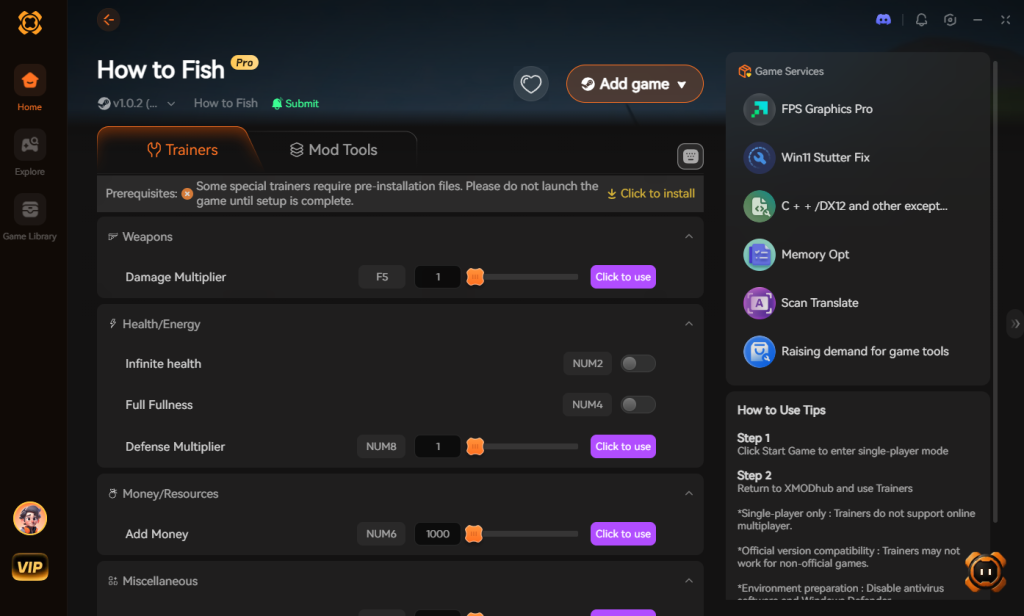
- Toggle Your Cheats: With the game running, simply use the XMODhub overlay (or hotkeys) to activate exactly what you need. Need the cash you lost during a crash? Toggle the Infinite Money feature. Want to enact absolute revenge on the seagulls without reloading? Toggle Infinite Ammo.
It is that easy. XMODhub respects your time, allowing you to enjoy the unhinged chaos of How to Fish on your own terms.
Optimal Graphics Settings to Stop How to Fish Stuttering
If your game successfully launches but constantly hangs during heavy combat, you are dealing with a severe hardware bottleneck. To achieve complete How to Fish PC optimization, you must manually adjust the in-game settings to balance visual chaos with engine stability.
When you throw a Stick of Dynamite into a swarm of enemies, the game engine calculates hundreds of physics trajectories simultaneously. If your settings are too high, your CPU cache overflows, leading to the dreaded How to Fish stuttering issue. Below is a tested matrix of the best settings to prevent mid-game freezes based on your hardware tier:
| In-Game Setting | Low-End PC (GTX 1050 / RX 460) | High-End PC (RTX 3060+) | Impact on Game Stability |
|---|---|---|---|
| Particle Effects | Low | High | Critical: High settings cause massive FPS drops during explosions and heavy gunfire. |
| Ragdoll Physics Limit | Minimal (10-15) | Maximum (50+) | High: Limits the number of dead fish bodies calculated by your CPU at one time. |
| Blood Decals | Off | On | Medium: Prevents VRAM overflow during extended boss fights. |
| Shadow Quality | Low | Ultra | High: Drastically reduces the rendering pipeline load on older graphics cards. |
| Water Reflections | Static | Dynamic | Medium: Dynamic reflections can cause micro-stutters when looking directly at the ocean. |
Implementing these settings will almost guarantee a smoother framerate and significantly reduce the chances of a hard crash during your attempts to secure a massive Trick-Shot Multiplier.
Decoding the Crash: Windows Event Viewer Diagnostics
Sometimes, you try every fix, but you still face a How to Fish black screen fix scenario where the game closes without a single error message. When the game silently crashes to the desktop, you need to rely on Windows Event Viewer to identify the exact faulting module.
- Press the Windows key, type Event Viewer, and hit Enter.
- In the left panel, expand Windows Logs and click on Application.
- Look for a red “Error” icon that matches the exact timestamp of your game crash.
- Click on the error and look at the General tab.
- Search for the Faulting application name (which should be
HowToFish.exe) and, more importantly, the Faulting module name.
If the faulting module is xinput1_3.dll, you have a DirectX or controller driver conflict. If it reads nvwgf2umx.dll, your NVIDIA GPU driver is crashing, meaning you must repeat the DDU process mentioned earlier or roll back to a previous, more stable driver version. Identifying the exact .dll file takes the guesswork out of troubleshooting.
Frequently Asked Questions
Why does How to Fish freeze specifically when I use dynamite or explosives?
This is a classic CPU bottleneck. When dynamite explodes in How to Fish, the game’s physics engine calculates the trajectory, damage, and blood splatters of dozens of fish and seagulls simultaneously. If your processor (like an older Intel Core i5) cannot process these calculations fast enough, the game thread hangs, resulting in a freeze. Lowering your particle effect settings is the best mitigation.
Can corrupted save files cause How to Fish to crash on startup?
Yes. If the game crashed while it was auto-saving your progress or your fish casino winnings, the save file can become corrupted. When the game attempts to read this corrupted data on startup, it crashes. You can test this by temporarily moving your save file out of its directory (usually located in AppData\Local\HowToFish\Saved) and seeing if the game launches cleanly.
Does playing How to Fish in online co-op increase the chance of freezing?
Absolutely. In online co-op, your PC is not only calculating the physics of your trick shots but also receiving and rendering the chaotic actions of your friends. If a friend unloads a shotgun into a shrimp on their screen, your PC has to render that data over the network. This network synchronization overhead can cause stutters and freezes if either player has an unstable connection or insufficient RAM.
Will I get banned for using mods or tweaks to fix How to Fish?
How to Fish is primarily a PvE (Player vs. Environment) co-op game. There is no competitive anti-cheat like Vanguard or BattlEye monitoring your system. Using registry tweaks, DDU, or quality-of-life tools like XMODhub in single-player or private co-op lobbies with friends will not result in a ban. It is all about maximizing your own fun.
Final Verdict
Trying to fix How to Fish crashing on startup & freezing can feel as frustrating as trying to catch a legendary boss fish with your bare hands. However, by systematically addressing the root causes—verifying your game files, performing a clean installation of your GPU drivers, expanding your virtual memory, and optimizing your in-game physics settings—you can stabilize the game engine and eliminate those desktop crashes. Remember, this game is beautifully unhinged, but its chaotic mechanics demand a stable operating system environment.
Once your game is running flawlessly, do not let past crashes ruin your current experience. If you lost hours of progress due to instability, XMODhub is the perfect tool to instantly get your arsenal and casino funds back. With a massive library supporting over 5,000 PC titles—including other chaotic co-op hits like Dave the Diver and Dredge—XMODhub ensures that technical difficulties never stand in the way of your gaming sessions. Get your system optimized, load up your sniper rifle, and go enact some trick-shot revenge on those seagulls.
Stop Grinding, Start Enjoying.
Bypass the tedious resource gathering and unlock your full potential instantly.

I am a passionate gamer and writer at XMODhub, dedicated to bringing you the latest gaming news, tips, and insights.
Connect with me:
LinkedIn Profile ↗
 Nancy Miller