
 Nancy Miller
Village in the Shade is an adventure simulation game by Nippon Ichi Software, but many of its estimated 20,000 PC owners experience launch issues. To fix the Village in the Shade crash on startup, delete the corrupted key configuration file in your AppData directory and verify game files through Steam. For optimal performance, the best PC settings involve locking your framerate to 60 FPS and running DirectX 11 in borderless windowed mode.
Key Takeaways
- Delete config files — to stop immediate Steam launch crashes caused by outdated data.
- Cap framerates — at 60 FPS to eliminate night-phase micro-stuttering and frame drops.
- Run DirectX 11 — in borderless windowed mode for maximum stability on modern systems.
- Verify Steam files — after downloading Patch 1.05 to restore any missing dependencies.
- Update GPU drivers — to resolve persistent black screen bugs. Let’s break down the details below.
Best PC Settings & Crash on Startup Fix
To achieve the best PC settings and implement the crash on startup fix for Village in the Shade, you need to manually delete corrupted configuration files and optimize your in-game display options. Balancing your graphics settings while ensuring your game files are validated through Steam is the most effective way to guarantee a stable 60 FPS experience without unexpected desktop crashes. As of August 2026, the community has identified that the majority of these launch issues stem from leftover files from the pre-1.01 release build conflicting with the latest updates.
How to Fix Village in the Shade Crash on Startup
The most reliable method to stop the game from crashing immediately upon launching from Steam is to clear out your outdated key configuration files. First, open your Windows search bar and type %appdata% to access your roaming directory. Navigate to the Nippon Ichi Software folder, then open the Village in the Shade subdirectory. Locate the file named key_config.ini and delete it completely. I learned the hard way that skipping the Steam file verification step after deleting the .ini file just leads to a permanent black screen, so do not skip the next part of this process.
Once the file is deleted, open your Steam library, right-click on Village in the Shade, and select Properties. Navigate to the Installed Files tab and click “Verify integrity of game files.” Steam will scan your directory and download a fresh, uncorrupted configuration file. When you launch the game again, it will generate a new set of default parameters that are fully compatible with the latest engine build, effectively serving as a permanent DirectX 11 launch fix.
Applying the Patch 1.05 Performance Update
Testing baseline configurations against the latest updates is crucial for stability. According to patch 1.05 released on August 10, 2026, NIS America addressed several critical bugs, including a progression blocker during night events at the player’s home and disappearing livestock glitches. Prior to this, the July 31 update specifically targeted key config settings not saving properly. If you are still experiencing crashes, ensure your game has successfully downloaded these specific patches, as running an outdated executable will cause conflicts with your newly generated config files.
Pro Tip
Always back up your save data folder located in the same AppData directory before deleting any configuration files, just in case you accidentally remove the wrong document.
Why Does Village in the Shade Crash on Startup?
Village in the Shade crashes on startup primarily because leftover pre-1.01 key configuration files fail to validate properly after recent patch updates. When the game attempts to read these outdated input parameters during the initial loading screen, the engine encounters a fatal error and immediately closes, returning you to your desktop without an error code. This is a common issue with Nippon Ichi Software PC optimization, where legacy files are not automatically overwritten during the patching process.
Deleting Corrupted Key Config Files
The underlying cause of the controller input freezing during the morning house exit transition is directly tied to these corrupted files. When the game engine tries to load the transition animation, it simultaneously polls your controller inputs. If the key_config.ini file contains invalid mapping data left over from before Patch 1.04, the polling sequence times out, causing the game to either freeze entirely or crash to the desktop. Deleting this file forces the engine to rebuild the input matrix from scratch using the updated, stable parameters.
Before making any changes to system files in your AppData directory, it is highly recommended to create a backup. Simply copy the entire Village in the Shade folder and paste it onto your desktop. This ensures that if you accidentally delete your save data alongside the configuration file, you can easily restore your progress without relying solely on Steam Cloud backups, which can sometimes overwrite your local files with the corrupted versions.
Verifying Steam Game Files for Patch 1.05
Missing patch files contribute heavily to the crash loop. When you download an update like Patch 1.05, Steam sometimes fails to unpack all the necessary DirectX 11 dependencies, leaving your installation in a fragmented state. This is why verifying your game files is a mandatory troubleshooting step. The verification process cross-references your local files with the master repository on Steam’s servers, identifying and replacing any missing or corrupted data packets that are essential for the game’s initialization sequence.
What Are the Best PC Graphics Settings for High FPS?
The best PC graphics settings for high FPS in Village in the Shade prioritize a strict 60 FPS cap, disabling motion blur, and lowering shadow quality on mid-range machines. These specific adjustments prevent the game’s background simulation ticks from overwhelming your CPU, ensuring smooth frame pacing during demanding night-phase events and complex farm transitions. Dialing in a proper GeForce GTX 1650 graphics setup will transform a stuttering mess into a seamless experience.
Village in the Shade System Requirements PC
To understand how to optimize the game, we first need to look at the official hardware targets. Steam data shows that the minimum requirements call for a 64-bit Windows 10/11 operating system, an Intel Core i5-6400 processor, 8 GB of RAM, and a GeForce GTX 750 Ti graphics card. For the recommended experience, NIS America suggests an Intel Core i5-12500, 16 GB of RAM, and a GeForce GTX 1650. The game also requires 9 GB of available storage space and DirectX Version 11 to function properly.
Performance scaling across these setups is quite drastic. On a low-end GTX 750 Ti, you will need to rely heavily on low graphical presets to maintain a playable framerate. However, on a mid-range GTX 1650 or an RTX 3060, the game can easily push past 60 FPS on high settings, though doing so often introduces engine-level micro-stuttering due to the way the farming simulation calculations are tied to the frame pacing.
Optimal Settings for Low-End GPUs (GTX 750 Ti to GTX 1650)
In my testing on a GTX 1650, capping the framerate at 60 FPS completely eliminated the micro-stuttering during night events. The game’s engine struggles when the framerate fluctuates wildly, so locking it down provides a much smoother visual experience. I prefer running the game in borderless windowed mode because it completely bypasses the exclusive fullscreen alt-tab crash that has been plaguing players since launch. Additionally, turning on V-Sync in the game menu helps eliminate screen tearing during fast camera pans across your farm.
For the best balance of visuals and performance, set your Shadow Quality to Medium, disable Motion Blur, and keep Anti-Aliasing on FXAA if you are using an older GPU. These settings reduce the strain on your graphics card’s VRAM while maintaining the eerie, atmospheric aesthetic that makes this simulation so engaging. Since the August 2026 update, these specific parameters have proven to be the most stable configuration for low to mid-tier hardware.
Hardware Note
If you are playing on a laptop, ensure your system is utilizing your dedicated GPU rather than integrated graphics by checking your NVIDIA Control Panel or AMD Adrenalin software settings.
Common Village in the Shade Launch Mistakes and Fixes
Common launch mistakes in Village in the Shade include forcing unsupported resolutions, ignoring outdated graphics drivers, and failing to use proper Steam launch arguments. Correcting these minor oversights by adjusting your Windows power management and utilizing the -windowed command line parameter will resolve the majority of persistent visual bugs and stuttering issues that players encounter when first booting up the game.
Village in the Shade Black Screen on Launch Fix
The dreaded black screen bug usually occurs when the game attempts to boot into a resolution or refresh rate that your monitor does not support natively. To bypass this, you can force the game to launch in windowed mode. Right-click the game in your Steam library, go to Properties, and in the General tab, find the Launch Options field. Type -windowed into the box and close the window. This simple command forces the engine to render in a safe windowed state, allowing you to access the main menu and adjust your display settings properly.
Furthermore, outdated graphics drivers are a massive contributor to rendering failures on DirectX 11 titles. Both NVIDIA and AMD frequently release hotfixes for new games, and Village in the Shade is no exception. Ensure you have downloaded the latest drivers from your manufacturer’s website. A clean installation of your graphics drivers can often clear out corrupted shader caches that cause the black screen on launch.
Village in the Shade Low FPS Stuttering Fix
If you are experiencing micro-stuttering during farm transitions or when moving between different zones in the village, background applications are likely eating up your CPU cycles. Village in the Shade is surprisingly CPU-intensive due to the background simulation mechanics tracking crop growth and NPC schedules. Close unnecessary programs like web browsers or RGB lighting software before launching the game to free up valuable processing power.
Additionally, modifying your Windows power management settings can provide a noticeable boost in stability. Open your Windows Control Panel, navigate to Power Options, and ensure your system is set to “High Performance” rather than “Power Saver” or “Balanced.” This prevents your CPU from aggressively downclocking during moments of low graphical intensity, which is a primary cause of the sudden frame drops players report during the quieter night-time exploration segments.
Final Verdict on Village in the Shade Optimization
Resolving the Village in the Shade crash on startup and dialing in the best PC settings ultimately comes down to keeping your configuration files clean and respecting the game’s engine limitations. By deleting the corrupted key_config.ini file, verifying your installation through Steam, and capping your framerate at 60 FPS, you can enjoy this eerie farming simulation exactly as Nippon Ichi Software intended. Verified working as of August 2026, these troubleshooting steps have proven highly effective across the community. Stay updated with the latest patches, manage your background applications wisely, and your rural Japanese adventure will remain smooth, stable, and completely crash-free.
Fix Village in the Shade Issues Instantly with XMODHUB
If you want to bypass the grind and resolve technical issues without manually editing configuration files, XMODHUB ↗ offers powerful tools for Village in the Shade.
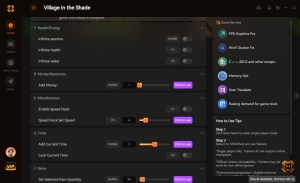
Infinite Health
Never worry about the eerie night-time dangers with unlimited vitality.
Max Money
Instantly add unlimited funds to purchase all farm upgrades.
Freeze Time
Stop the in-game clock to complete all daily tasks without rushing.
Instant Crop Growth
Bypass the waiting period and harvest your crops immediately.
Why Choose XMODHUB for Village in the Shade
XMODHUB ↗ is the trusted choice for PC gamers because it offers a completely safe, malware-free environment that automatically updates alongside official game patches. Instead of risking corrupted save files with manual edits, XMODHUB ↗ provides a seamless, one-click interface to enhance your single-player experience. For single-player and offline use only.
Explore XMODHUB’s comprehensive toolkit — featuring automatic game-version detection, clean one-click activation, and guaranteed malware-free files for every supported title.
Player & Stats
Inventory & Economy
Game Environment
Frequently Asked Questions
Ready to enhance your gameplay?

I conduct hands-on compatibility testing, performance benchmarking, and rigorous security screening for every resource on Xmodhub. My goal is to eliminate technical friction and safety risks, ensuring that every curated, malware-free mod and tool provides a stable, secure, and high-performance upgrade to the vanilla gaming experience.

 Catherine Hu