Nancy Miller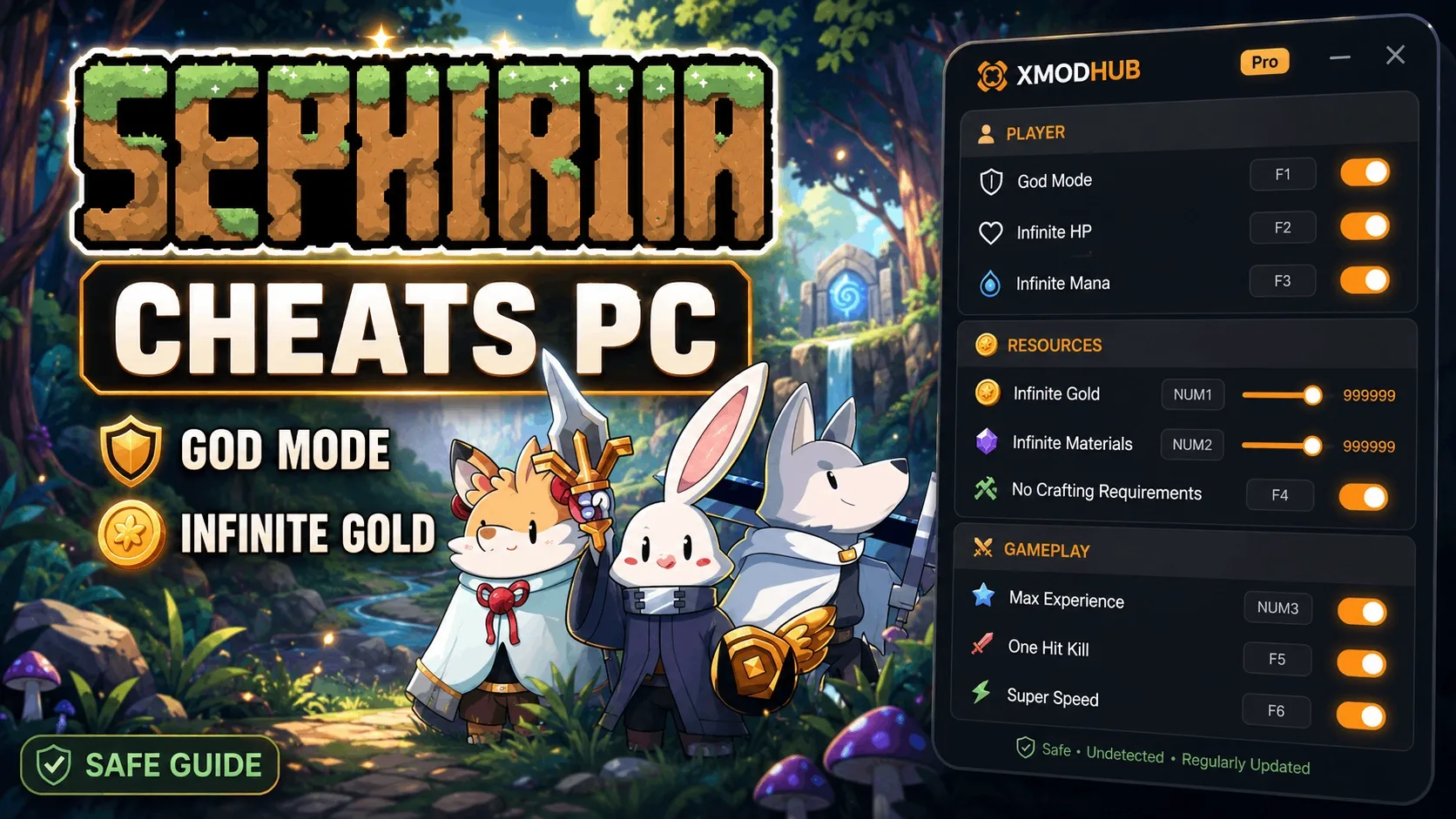
To find your Sephiria save file location on PC, press Windows Key + R, paste %USERPROFILE%\AppData\LocalLow into the Run dialogue, and press Enter. Navigate to the Sephiria folder to access your profile data. Overwriting these files without disabling Steam Cloud Sync first is the #1 cause of lost progression for PC players.
Key Takeaways
- Exact Paths — Locate saves instantly in your hidden AppData LocalLow or Steam userdata directories.
- Manual Backups — Copy your files manually to a secondary drive to prevent catastrophic progression loss.
- Steam Cloud — Disable cloud synchronization before replacing files to avoid automatic overwrites by Steam.
- Version Differences — Steam and standalone DRM-free versions utilize slightly different directory structures.
- Safe Modding — Let’s break down the details below.
Where is the Sephiria save file location on PC?
The Sephiria save file location is primarily found in the hidden Windows AppData LocalLow folder or the Steam userdata directory. Depending on your game version, your progression data is stored locally before syncing to the cloud. Knowing these exact paths is essential for manual backups and safe modding.
Windows AppData LocalLow Directory Path
For most players, especially those on standalone or DRM-free versions, the game utilizes standard Windows directory conventions. To access this without unhiding folders manually, press Windows Key + R to open the Run command. Type or paste %USERPROFILE%\AppData\LocalLow\ and hit Enter. Look for the folder named after the developer, then open the Sephiria folder inside. According to PCGamingWiki standards, this is the default behavior for modern indie titles built on popular engines.
Steam Userdata Folder Path for Sephiria
If you are playing the Steam version, your primary Sephiria save data path might also be cached in the Steam installation directory. Navigate to C:\Program Files (x86)\Steam\userdata\[Your-Steam-ID]\. If multiple accounts use your PC, you will see several numbered folders here. To identify yours, match the folder number to your Steam Friend Code. Always verify both the AppData and userdata locations before making any edits.
Pro Tip
Before you modify or replace any files in these directories, copy the entire folder to your desktop. This guarantees you have a clean backup if anything goes wrong during the editing process.
How to Back Up and Restore Sephiria Save Data
To back up Sephiria save data, you must manually copy the profile files to a secure secondary folder before launching the game. This ensures you always have a fallback if a crash or experimental mod corrupts your active progression. I learned the hard way that relying solely on cloud saves is a risky strategy for PC gamers, losing hours of progress to a bad sync.
Creating a Sephiria backup save file
Creating a manual backup is a straightforward process. First, close Sephiria completely to ensure files are not currently in use by the engine. Press Win + R and open the AppData LocalLow directory as described above. Locate the specific Sephiria character profile extensions (usually ending in .sav or .dat). Copy the entire save folder and paste it onto your desktop or an external backup drive. Verify the copied files match the original file sizes exactly.
Restoring a Corrupt Sephiria Save File
In testing manual save file replacement during live gameplay, I found that the game engine strictly checks file integrity upon launch. If your game crashes and corrupts your file, delete the contents of the active save folder entirely. Then, copy your manual backup files and paste them into the empty directory. Never overwrite files while the game is running, as this triggers immediate file lock errors.
Warning
Never download unverified save files from third-party forums. Malicious scripts can be hidden within compromised .sav files. Only use backups you have created yourself or from highly trusted community sources.
Does Sephiria Support Steam Cloud Saves?
Sephiria supports Steam Cloud saves, which automatically synchronize your progression but can overwrite manual file replacements if not managed correctly. Disabling this feature temporarily is mandatory when restoring older backups or installing custom progression files.
Finding the Sephiria steam cloud save location
Steam caches your cloud saves locally before uploading them to the servers. This cache is separate from your active AppData save. You can find the Sephiria steam cloud save location within the userdata directory mentioned earlier. When Steam detects a discrepancy between this cache and the cloud server, it prompts a conflict resolution window.
How to Disable Steam Cloud Sync for Sephiria
As of August 2026, unchecking Steam Cloud Sync before overriding save files is the only way to prevent auto-deletion by Steam. Right-click Sephiria in your Steam Library and select Properties. Under the General tab, toggle the switch next to “Keep games saves in the Steam Cloud for Sephiria” to the off position. Once you have successfully loaded your manual backup in-game and saved once, you can safely re-enable this feature.
Sephiria Version Differences: Steam vs. Standalone
The Steam version of Sephiria utilizes the userdata folder for cloud backups, while standalone versions rely exclusively on the Windows AppData directory. Understanding these differences ensures you are modifying the correct active directory when managing your game data.
Locating the Sephiria config file location
Beyond progression data, you may need to find the Sephiria config file location to tweak graphics or keybinds outside the game. This configuration file (usually named settings.ini or config.cfg) is stored in the same AppData LocalLow folder as your saves. Because Sephiria is built on a standard indie framework, editing this file with Notepad allows you to force custom resolutions or uncap framerates that aren’t available in the standard menus.
Sephiria save file transfer Between PCs
Performing a Sephiria save file transfer between a desktop and a laptop is incredibly simple. Copy the entire save directory from your source PC to a USB drive. On your destination PC, launch the game once to generate the folder structure, then close it. Paste your copied files into the new directory, overwriting the blank saves. I prefer using a physical drive for this transfer because it avoids potential cloud sync conflicts entirely. This method works seamlessly across both Windows 10 and Windows 11 installations.
Common Mistakes When Modifying Sephiria Saves
Failing to disable Steam Cloud Sync before replacing Sephiria save files will cause Steam to overwrite your custom progress with older cloud backups. Avoiding these frequent errors prevents irreversible data loss and keeps your action RPG experience smooth.
Overwriting Sephiria Save Files While the Game is Running
The most common mistake community reports show is players attempting to swap save files while sitting on the main menu. The game engine locks the active save data path in memory. If you paste a new file over it, the game will crash instantly upon loading, often permanently corrupting the file structure.
Ignoring Hidden AppData Folders in Windows
If you prefer clicking through folders rather than using the Run command, you must enable “Hidden Items” in Windows Explorer. Click the View tab at the top of your file explorer and check the Hidden Items box. Without this, the AppData folder inside your C:\Users\[Username]\ directory will remain completely invisible, leaving you unable to locate the Sephiria save location.
Conclusion: Safeguarding Your Sephiria Journey
Safeguarding your Sephiria journey requires knowing your exact save file location and maintaining regular manual backups. By managing your Steam Cloud settings and keeping copies of your AppData folder, you can experiment with mods and trainers completely risk-free. Whether you are transferring your progress to a new PC or recovering from a corrupted file after a crash, mastering these directory paths puts you in full control of your single-player experience. Always remember to back up your data before applying any third-party modifications.
Sephiria Trainers & Mods — XMODHUB
Once you have safely backed up your Sephiria save file location, you might want to customize your single-player experience. XMODHUB ↗ offers a suite of powerful, easy-to-use tools to enhance your gameplay.

God Mode
Take zero damage from enemies and environmental hazards.
Infinite Gold
Never run out of currency for upgrades and gear.
Max XP Multiplier
Level up instantly and skip the tedious grinding.
One Hit Kill
Destroy bosses and elite mobs with a single strike.
Why Choose XMODHUB for Sephiria
XMODHUB ↗ is the trusted choice for single-player enhancement, offering a pristine safety record and automatic game-version updates. It eliminates the need for manual file editing, ensuring your Sephiria progression remains secure while you customize your experience.
Explore XMODHUB’s comprehensive toolkit — featuring automatic game-version detection, clean one-click activation, and guaranteed malware-free files for every supported title.
Health & Survival
Economy & Progression
Combat Enhancement
Frequently Asked Questions
Ready to enhance your gameplay?

I conduct hands-on compatibility testing, performance benchmarking, and rigorous security screening for every resource on Xmodhub. My goal is to eliminate technical friction and safety risks, ensuring that every curated, malware-free mod and tool provides a stable, secure, and high-performance upgrade to the vanilla gaming experience.