Nancy Miller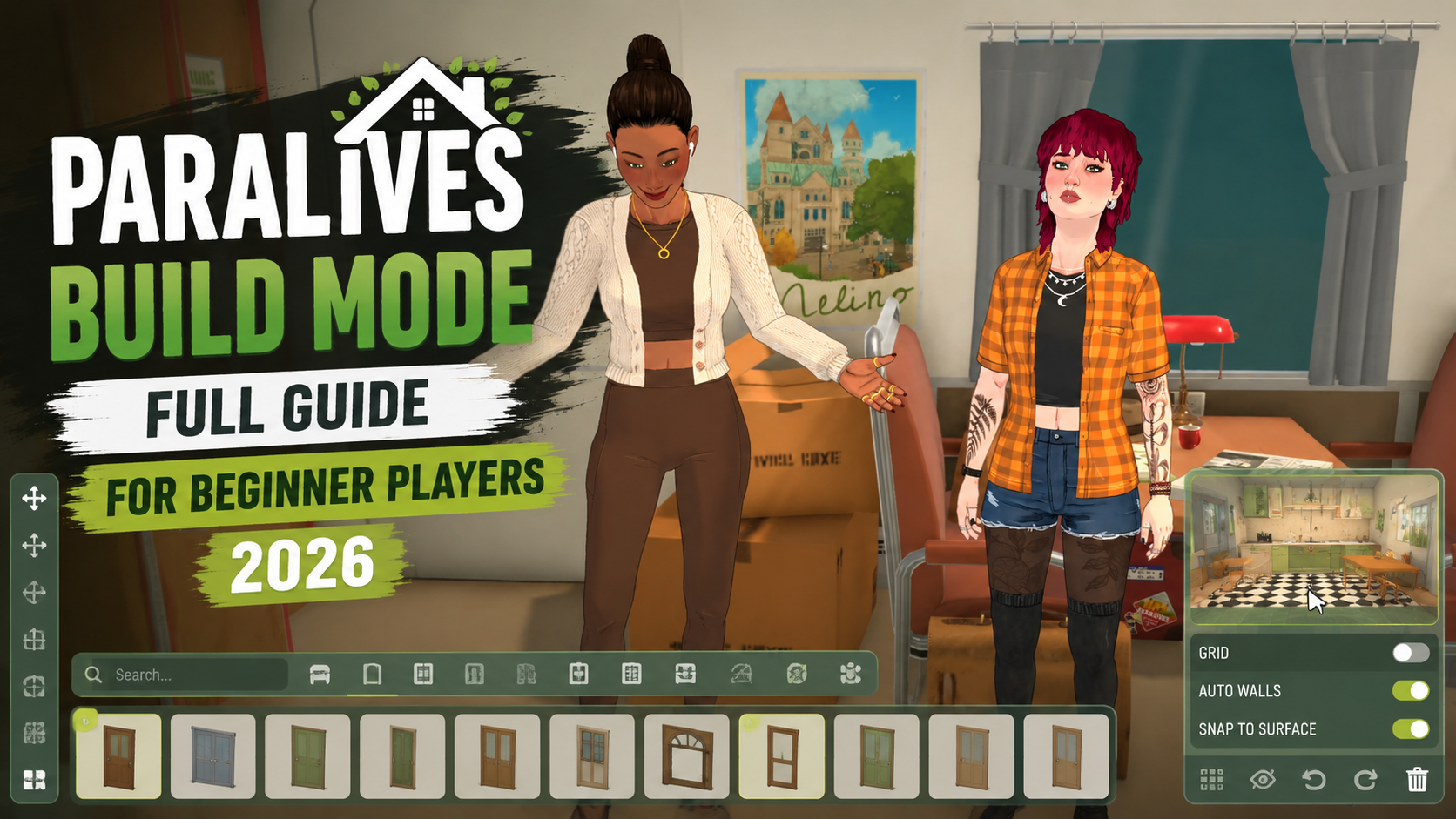
Paralives Build Mode: A Full Guide for Beginner Players starts with understanding its revolutionary grid-less, vector-based system. Unlike traditional life simulators, Paralives allows you to pull, stretch, and curve walls to any angle. Developed by Alex Massé, the 2026 Early Access build introduces procedural furniture tools, enabling you to manually adjust dimensions. With up to 20,000 players testing these tools, mastering the custom color wheel is the key to creating your first custom Parafolk home.
Key Takeaways
- Vector-Based Building — Paralives replaces traditional grids with a flexible vector-based construction system for ultimate freedom.
- Procedural Furniture — Resize beds, windows, and tables to exact custom dimensions using intuitive drag nodes.
- Custom Color Wheel — Achieve precise texture and material matching without relying on limited preset swatches.
- Smooth Transition — Start with pre-built room templates to easily adjust from rigid tile-based games.
- Safe Modding — Integrate sandbox mods safely to enhance your creative freedom. Let’s break down the details below.
Getting Started with Paralives Build Mode: A Full Guide for Beginner Players
Getting Started with Paralives Build Mode: A Full Guide for Beginner Players starts by embracing unprecedented creative freedom. Unlike traditional simulators that lock you to a rigid grid, Paralives uses vector-based tools that require a shift in how you approach life sim construction. In testing the 2026 Early Access build, I found that mastering these flexible mechanics is essential for creating unique Parafolk homes without frustration.
Understanding Paralives Building Controls
To master paralives building controls, you need to familiarize yourself with the specific mouse and keyboard inputs introduced in the latest updates by developer Alex Massé. The UI is designed to be minimalistic, allowing you to access the build catalog via the bottom toolbar. Pressing the middle mouse button allows you to rotate the camera smoothly, while holding shift while placing walls lets you draw continuous rooms without breaking the vector chain. According to official developer roadmaps, these controls are optimized to make grid-less construction feel as intuitive as possible.
Is There a Grid in Paralives Build Mode?
Gridless building in Paralives is a vector-based construction system. It allows players to place walls, objects, and terrain features at any angle or length without snapping to a rigid tile system. This provides total architectural freedom for custom home designs. When drawing walls, you can hold the curve modifier key to dynamically adjust the wall radius, creating perfectly smooth circular towers or curved porches that would be impossible in older simulation titles.
Pro Tip
If you ever feel lost without a grid, you can toggle the ‘guideline overlay’ in the settings menu, which provides soft snapping points without restricting your angles.
How to Resize Furniture in Paralives
How to resize furniture in Paralives is one of the most common questions from new players. The procedural furniture system allows you to manually adjust the dimensions of almost any object, from beds to windows, fitting them perfectly into your custom architectural spaces. According to developer showcases, this eliminates the need for scaling cheats found in older games.
Paralives Resize Furniture Mechanics Explained
To utilize the paralives resize furniture feature, first select a procedural object from the build catalog and place it in your room. Click the object to reveal the vector manipulation nodes. From there, simply click and drag the height, width, or depth nodes to resize the item. Once you are satisfied with the proportions, release the mouse to lock the procedural mesh in place. This is incredibly useful for making custom-sized kitchen counters or massive bay windows.
Using the Paralives Custom Color Wheel
The paralives custom color wheel is a game-changer for interior design. When I played the early access build, I noticed that managing the color wheel is crucial to avoid muddy-looking textures. You can input specific hex codes to match your furniture perfectly. I highly recommend saving your favorite hex codes in the in-game palette manager so you can easily apply matching materials across different resized objects, ensuring your wood grains and fabric dyes remain consistent throughout the house.
Texture Stretching
Be careful when stretching procedural furniture to extreme lengths; while the mesh adapts, certain complex fabric textures may begin to look warped if stretched past 300% of their original size.
How Does Paralives Build Mode Compare to The Sims 4?
When asking how does Paralives build mode compare to The Sims 4, the biggest difference lies in the foundational mechanics. While The Sims 4 relies on a rigid tile-based grid, Paralives utilizes a flexible vector system. This fundamentally changes how you design homes, offering free-form placement without relying on alt-key workarounds.
Paralives Build Mode vs Sims 4: Key Differences
The paralives build mode vs sims 4 debate often centers on creative restriction. In Paralives, you aren’t fighting the grid to place a sofa diagonally or center a window on a two-tile wall. The procedural tools mean you don’t have to download hundreds of custom content items just to get a slightly wider bed. Steam community hubs frequently highlight this as the primary reason players are transitioning to this new indie life simulator.
Transitioning from Tile-Based Systems to Paralives
Transitioning requires breaking the “box” mindset. In traditional games, you build square rooms and decorate within those confines. In Paralives, you should think like an architect. Use the vector tools to draw angled hallways, curved sunrooms, and asymmetrical layouts. You no longer need to hold the alt key for off-grid placement because the entire game is inherently off-grid. Embrace the freedom to place a chair at a 37-degree angle if it fits the flow of the room.
Paralives House Design Tips for Beginners
Paralives house design tips for beginners revolve around starting simple. Before attempting complex, fully custom grid-less layouts, I highly recommend starting with simple layouts and pre-built templates. This helps beginners master the vector tools and procedural resizing mechanics in a controlled environment before expanding into massive architectural projects.
Starting with Paralives Pre-Built Templates
If you are feeling overwhelmed, use the developer-provided room templates. These pre-built rooms are excellent learning tools. By placing a template and then deconstructing it, you can see exactly how the vector wall connections function and how the roof automatically generates over non-square rooms. It is a fantastic way to reverse-engineer the building mechanics before starting a custom build from scratch.
Applying Real-World Architecture to Parafolk Homes
Because Paralives mimics real-world physics and spatial dimensions more closely than older simulation games, you can apply actual architectural concepts to your Parafolk homes. Use the grid-less system to create realistic bay windows, curved porches, and split-level lofts. When resizing procedural furniture, keep scale in mind—just because you can make a television the size of a wall doesn’t mean it will look good in a cozy living room.
Common Mistakes When Building in Paralives
Common mistakes when building in Paralives often involve texture scaling and vector wall snapping errors. Avoiding these early hurdles—like over-saturating the custom color wheel or misaligning curved walls—will drastically improve your building experience. Community reports on Steam show that resetting anchor points is the fastest way to fix these early access bugs.
Fixing Muddy Textures in Paralives
A frequent issue beginners face is creating muddy or overly bright textures. This happens when you push the custom color wheel to absolute maximum saturation while applying a matte finish. To fix muddy textures in Paralives, balance your lighting and material finishes. If you want a bright red sofa, add a slight gloss finish to the fabric material to catch the dynamic lighting, which gives the texture depth and prevents it from looking flat.
Troubleshooting Vector Wall Snapping
Sometimes, curved walls won’t close properly to form a recognized room, preventing you from adding a roof. When troubleshooting vector wall snapping, zoom in closely on the connection nodes. If the nodes are red instead of green, the walls are clipping. Simply click the anchor point, drag it slightly away, and let it snap back into place automatically. This forces the game’s engine to recalculate the room boundaries.
Room Recognition
The game must recognize a space as a ‘closed room’ before it will allow you to generate automatic flooring and roofing. Always ensure your wall nodes connect seamlessly.
Final Verdict on Paralives Building
Mastering the construction tools in this highly anticipated life simulation game takes a bit of patience, but the payoff is immense. By understanding the vector-based wall system, utilizing procedural object resizing, and leveraging the custom color wheel, you can build homes with unparalleled detail and realism. As of May 2026, the Early Access tools provide a massive leap forward compared to traditional grid-based builders. Take your time, start with pre-built templates, and don’t be afraid to experiment with curved walls and custom textures to bring your ultimate Parafolk dream house to life.
Enhance Your Paralives Experience with XMODHUB
Looking to unlock ultimate creative freedom without worrying about in-game currency or progression? Discover the best tools at XMODHUB ↗.
Infinite Parafolk Funds
Instantly add unlimited currency to your household for unrestricted building.
Instant Build Mode
Skip all construction wait times and place objects instantly.
Unlock All Furniture
Access all procedural furniture and decorations without progression limits.
Disable Object Collision
Place objects anywhere, ignoring standard clipping and collision rules.
Why Choose XMODHUB for Paralives
XMODHUB ↗ provides a reliable and malware-free way to enhance your creative sandbox in Paralives. With automatic updates that sync with the latest 2026 Early Access patches, you can safely bypass grinding and focus entirely on designing the perfect home for your Parafolks.
Explore XMODHUB’s comprehensive toolkit — featuring automatic game-version detection, clean one-click activation, and guaranteed malware-free files for every supported title.
Economy & Progression
Building Utilities
Frequently Asked Questions
Ready to enhance your gameplay?

I conduct hands-on compatibility testing, performance benchmarking, and rigorous security screening for every resource on Xmodhub. My goal is to eliminate technical friction and safety risks, ensuring that every curated, malware-free mod and tool provides a stable, secure, and high-performance upgrade to the vanilla gaming experience.


 Catherine Hu