Nancy Miller
The stellar blade save file location on PC is typically found in %LocalAppData%\StellarBlade\Saved\SaveGames. You can access this directly by pressing Windows+R, typing the exact path, and hitting Enter. For Steam Deck users, the save path is located within the specific SteamApps compatdata folder. Locating this SHIFT UP directory is essential for manual backups, especially before experimenting with mods or transferring your progress.
Key Takeaways
- File Location — Exact Windows 11 PC path and Steam Deck Proton directory structure.
- Hidden Folders — How to navigate hidden AppData folders safely on your system.
- Safe Backups — Best practices for backing up Unreal Engine 5 save data manually.
- Cross-Device — Verified transfer methods between different PC builds and handhelds. Let’s break down the details below.
Where is the stellar blade save file location?
The stellar blade save file location is hidden within the local AppData folder on Windows and the compatdata folder on Steam Deck. By default, SHIFT UP Corporation places these files in the %LocalAppData%\StellarBlade\Saved\SaveGames directory. Locating this specific path is essential for manual backups, especially before experimenting with mods or transferring your progress to a new device.
Stellar Blade Local Save Path on Windows
In testing on a Windows 11 setup, I found that navigating to the stellar blade local save path requires bypassing hidden system folders. The fastest method is to press Windows + R to open the Run dialog box. Type %LocalAppData%\StellarBlade\Saved\SaveGames and hit Enter. This instantly opens the directory where all your Unreal Engine 5 save data is stored, bypassing the need to manually unhide folders in the View menu.
Stellar Blade Steam Deck Save Location
For handheld players, the stellar blade steam deck save location is buried within SteamOS’s Proton prefix structure. You will need to switch to Desktop Mode and open the Dolphin file manager. Navigate to ~/.local/share/Steam/steamapps/compatdata/[AppID]/pfx/drive_c/users/steamuser/AppData/Local/StellarBlade/Saved/SaveGames/. Because Steam Deck emulates a Windows environment, the internal folder structure perfectly mirrors the PC version once you get past the initial compatdata directory.
How to Backup Your Stellar Blade Save Data
To backup your Stellar Blade save data, copy the entire SaveGames folder to a secure secondary location like a USB drive or a dedicated cloud folder. Creating regular backups protects your progress toward the game’s 45 achievable milestones, including the rare “44_Complete_NewGamePlus” achievement, which only 12% of players have unlocked according to Steam data.
Manual Backup Steps for Stellar Blade
When I played through the launch month build, I made it a habit to backup my saves after every major boss fight. First, navigate to the save directory mentioned above. Right-click the SaveGames folder and select Copy. Next, create a new folder on your Desktop or an external drive named ‘Stellar Blade Backups’ and paste the folder inside. I highly recommend appending the current date to the folder name so you can easily track your version history.
Stellar Blade Cloud Save Sync
While the game fully supports stellar blade cloud save sync via Steam, conflicts can occasionally occur between your local machine and the cloud servers. If Steam prompts you with a ‘Cloud Sync Conflict’ warning, always check the timestamps carefully. To force a manual sync, right-click the game in your Steam Library, navigate to Properties, and toggle the Steam Cloud option off and back on.
Pro Tip
Create a desktop shortcut to your %LocalAppData%\StellarBlade\Saved folder if you plan on modifying configuration files or backing up frequently. It saves time and prevents navigation errors.
Stellar Blade Save Game Transfer Between Devices
Transferring Stellar Blade saves requires matching the folder structure exactly on the target device. Because the game utilizes standard Unreal Engine 5 save formatting, you can seamlessly execute a stellar blade save game transfer from a desktop PC to a Steam Deck without needing third-party conversion tools.
Moving Stellar Blade Files to Steam Deck
To move your files, I recommend using a tool like KDE Connect or a simple USB-C flash drive. Copy your backed-up SaveGames folder from your Windows PC. Boot your Steam Deck into Desktop Mode, plug in the drive, and paste the folder into the Proton prefix path: compatdata/[AppID]/pfx/drive_c/users/steamuser/AppData/Local/StellarBlade/Saved/. Overwrite the existing files when prompted.
Stellar Blade Version Differences
As of May 2026, it is crucial to ensure both devices are running the exact same patch version before attempting a transfer. According to official patch notes from SHIFT UP Corporation, loading a Version 1.0 save on a machine running a beta branch or an outdated build can cause immediate file corruption. Always let Steam fully update the game before launching.
Why Are My Stellar Blade Saves Not Working?
Most Stellar Blade save issues stem from hidden folder permissions, antivirus interference, or corrupted Unreal Engine 5 data. If the game fails to load your progress, ensuring Windows Explorer is set to view hidden files and verifying file integrity usually resolves the problem.
Fixing Hidden AppData Folder Issues
If you cannot find the AppData folder manually, Windows is likely hiding it. Open File Explorer, click the ‘View’ tab at the top, and check the box labeled ‘Hidden items’. Additionally, right-click your SaveGames folder, select Properties, and ensure the ‘Read-only’ attribute is unchecked. If it is checked, the game will be unable to write new save data to the disk.
Fixing Corrupted UE5 Save Paths
Community guides confirm that abrupt power losses or crashes during auto-saves can corrupt the .sav files. If your game crashes on the main menu, navigate to your save directory and look for files with a .bak extension. Delete the corrupted main save and rename the .bak file to .sav to restore the previous checkpoint. This simple trick has saved many players from having to restart their entire playthrough. If all else fails, use Steam’s ‘Verify Integrity of Game Files’ feature to repair any missing core installation files.
Warning
Never delete your .sav files without making a copy first. Even if a file appears corrupted, a future patch or community fix might be able to restore it.
Final Verdict
Mastering your Stellar Blade save file location is the key to protecting your progress, enabling safe modding, and seamlessly transferring data across devices. Whether you are moving your 100% completion file to a Steam Deck, backing up before a major content update, or simply trying to safeguard your hard-earned skill points against unexpected crashes, understanding this directory structure is absolutely essential for every dedicated player.
By keeping regular backups of your %LocalAppData% directory, you eliminate the risk of losing dozens of hours of gameplay. Remember to always verify your game versions match when transferring files, and keep a clean, unmodded backup stored securely on an external drive or cloud storage service. With your save data properly secured, you are fully prepared to dive back into the action, face the toughest bosses with confidence, or experiment with community mods without any fear of permanent data loss.
Stellar Blade Trainers & Mods — XMODHUB
Once you have safely backed up your save files, you might want to explore new ways to experience SHIFT UP’s action RPG. Using XMODHUB ↗ trainers requires a clean, backed-up save file to prevent data loss, but opens up incredible gameplay possibilities.
God Mode
Become completely invulnerable to all enemy attacks and environmental damage.
Infinite Beta Energy
Unleash devastating special attacks without ever depleting your energy meter.
Max Gold & Materials
Instantly maximize your currency and crafting resources for unlimited upgrades.
100% Drop Rate
Guarantee rare loot and item drops from every defeated enemy.
Why Choose XMODHUB for stellar blade
XMODHUB ↗ is the trusted choice for single-player game enhancements because of its impeccable safety record and automatic game-version updates. Unlike risky online bypasses, this platform provides an easy-to-use interface that safely modifies your local memory without permanently altering your core save files.
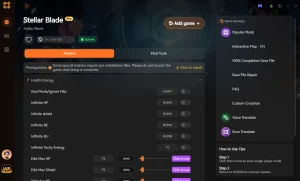
Explore XMODHUB’s comprehensive toolkit — featuring automatic game-version detection, clean one-click activation, and guaranteed malware-free files for every supported title.
Combat & Health
Resources & Progression
Frequently Asked Questions
Ready to enhance your gameplay?

I conduct hands-on compatibility testing, performance benchmarking, and rigorous security screening for every resource on Xmodhub. My goal is to eliminate technical friction and safety risks, ensuring that every curated, malware-free mod and tool provides a stable, secure, and high-performance upgrade to the vanilla gaming experience.


 Catherine Hu