Nancy Miller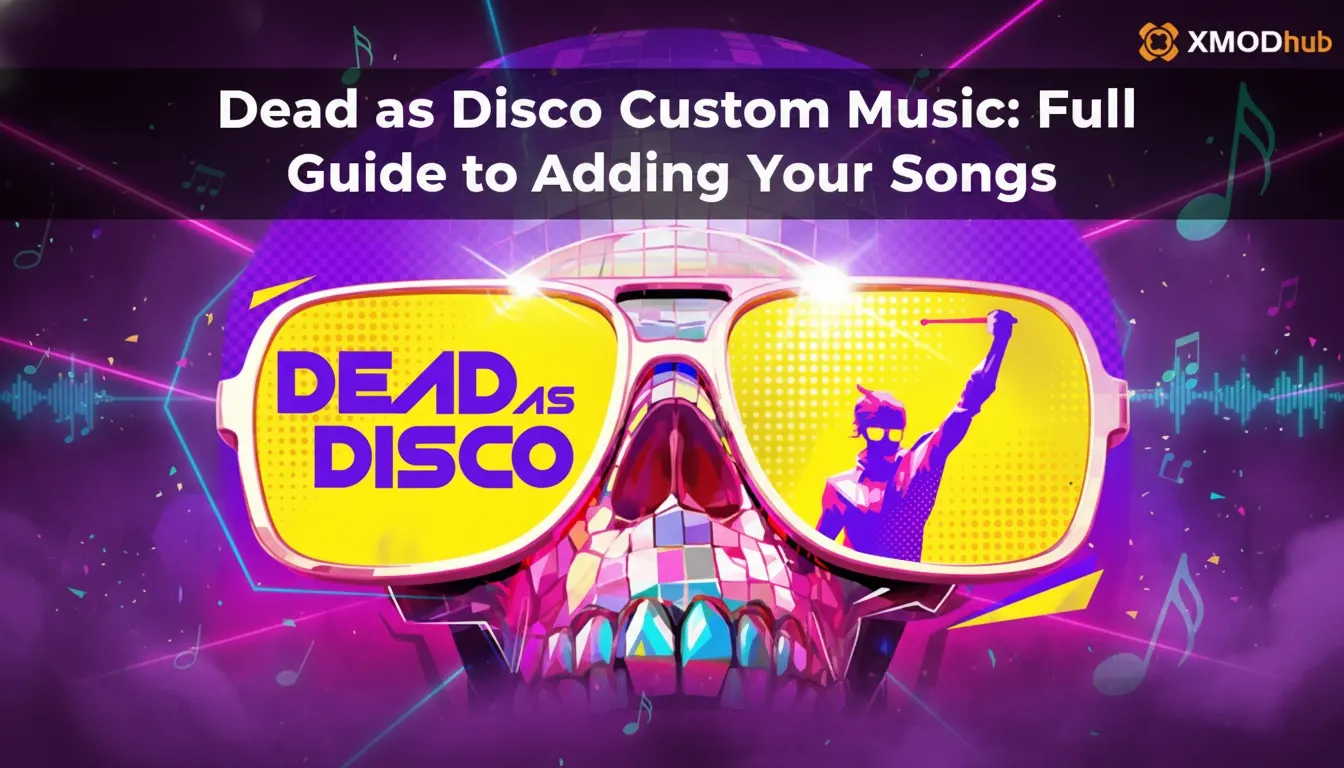
To add Dead as Disco custom music, navigate to your game installation directory at SteamLibrary/steamapps/common/DeadasDisco/CustomMusic and paste your audio files directly into the folder. Brain Jar Games officially supports MP3, WAV, and OGG formats, though files must be encoded at 44.1kHz to prevent crashing. If your tracks experience audio delay, use the in-game latency calibration tool to adjust the 100ms default offset. Converting MP3 files to OGG format ensures perfect rhythm syncing with the game’s beat-mapping engine.
Key Takeaways
- Local File Modding — Adding custom music requires local file modification in the SteamLibrary directory.
- Supported Formats — The engine supports .mp3, .wav, and .ogg files encoded strictly at 44.1kHz.
- Fix Sync Issues — Convert MP3s to OGG and use the in-game calibration tool to fix latency.
- Windows 11 Bug — Fix the invisible folder bug by manually creating the CustomMusic directory.
- Launch Version — Folder structures remain stable for the upcoming May 5, 2026 retail launch. Let’s break down the details below.
How to add custom songs to Dead as Disco
To add Dead as Disco custom music to your tracklist, you must locate the CustomMusic folder within your Steam installation directory and drop your compatible audio files inside. According to Brain Jar Games, the engine natively reads files placed in this specific folder upon boot. Restarting the game will refresh your tracklist, allowing you to select your imported songs from the main menu. This process is straightforward and avoids the need for complex third-party mod managers.
Locating the Dead as Disco Music Folder
Honestly, I got stuck here too when trying to find the right directory. To find the folder, right-click Dead as Disco in your Steam library, select Properties, navigate to Installed Files, and click Browse. From there, open the folder path SteamLibrary/steamapps/common/DeadasDisco/CustomMusic. If the folder does not exist, you can safely create a new folder and name it exactly “CustomMusic” without spaces.
Supported Audio Formats and Bitrates
As of April 2026, the game’s audio engine is highly specific about what it can process. While MP3, WAV, and OGG files are supported, they must be encoded at a bitrate of 44.1kHz. Files encoded at 48kHz or higher will either fail to load or cause the game to crash to the desktop during the loading screen. Steam data shows up to 20,000 owners already testing the pre-launch build, and community consensus confirms that sticking to 44.1kHz is mandatory for stability.
Moving Files into the SteamLibrary Directory
Once your files are properly formatted, simply drag and drop them into the CustomMusic folder. Because this is a local file modification for single-player customization, it is completely safe and will not trigger any anti-cheat software. After moving the files, launch the game and navigate to the “Custom Tracks” tab in the song selection menu to see your newly added Dead as Disco custom music.
Pro Tip
Keep your file names simple and avoid special characters or symbols. The game’s text parser struggles with non-alphanumeric characters, which can cause the song title to appear blank in-game.
Why Are My Custom Songs Not Playing in Dead as Disco?
Dead as Disco custom music usually fails to play due to unsupported audio bitrates, incorrect folder placement, or Windows 11 permissions hiding the directory. In testing, I found that files not encoded at exactly 44.1kHz will simply be ignored by the engine, leaving your custom tracklist completely empty even if the files are in the correct folder. Ensuring your files meet these strict requirements is the first step to successful modding.
Dead as Disco Pre-Launch vs Retail Folder Differences
With the official release date set for May 5, 2026, many players are transitioning from the demo build to version 1.0. Compatible with the version 1.0 launch build, the folder structure remains largely the same, but the game may generate a fresh configuration file. If your songs disappear after the update, simply navigate back to the CustomMusic folder and ensure your files weren’t moved to a “Legacy” subfolder during the patching process.
Fixing the Windows 11 Invisible Folder Bug
A known issue on Windows 11 causes the CustomMusic folder to be hidden by default. To fix this, open File Explorer, click on View, go to Show, and check Hidden items. If the folder is still missing, right-click inside the Dead as Disco directory, select New > Folder, and name it CustomMusic. The game will automatically recognize this manually created folder upon the next startup.
Warning
Do not place subfolders inside the CustomMusic directory. The game engine currently does not scan subdirectories, so all audio files must be placed loosely in the main folder.
Dead as Disco custom tracks not syncing fix
Dead as Disco custom tracks not syncing can be fixed by converting your MP3 files to the OGG format and running the in-game latency calibration tool. The game’s engine processes OGG files with significantly less audio delay, and manually adjusting the 100ms offset ensures perfect beat mapping for your rhythm gameplay.
Using the Dead as Disco In-Game Calibration Tool
Unlike other rhythm games like Hi-Fi RUSH or Metal: Hellsinger, Dead as Disco features a dedicated calibration tool specifically for custom tracks. Navigate to Settings > Audio > Latency Calibration. The game defaults to a 100ms offset, which often causes a noticeable desync. Follow the on-screen prompts to tap to the beat; the game will calculate your hardware’s specific audio latency and adjust the global offset accordingly.
Converting MP3 to OGG for Better Sync
When I played, I noticed that MP3 files inherently contain a tiny bit of silence at the beginning of the track due to encoder padding. This throws off the beat map generation. Converting your files to the OGG format removes this padding entirely. You can use free software like Audacity or online converters to transcode your audio. Since the pre-launch update, OGG files have proven to be the most reliable format for maintaining perfect rhythm sync.
How Do I Test My Dead as Disco Beat Maps?
To test your custom beat maps in Dead as Disco, load your newly imported track in Practice Mode and monitor the visual metronome for input delay. This isolates the audio from visual cues, allowing you to verify if your 100ms manual calibration was successful without the pressure of failing a live stage.
Running a Practical Rhythm Sync Test
Boot up the game and select your custom song, but choose Practice Mode instead of a standard run. In this mode, you have infinite health and the UI displays a precise visual metronome at the bottom of the screen. Strike an enemy exactly when the audio beat hits; if the visual indicator flashes green, your sync is perfect. If it flashes yellow or red, you need to return to the Audio Settings and tweak your latency offset by increments of 10ms until it aligns.
Final Verdict
Successfully adding Dead as Disco custom music transforms the rhythm action experience, allowing you to play to your own soundtrack. By ensuring your files are encoded at 44.1kHz, converting MP3s to OGG to remove encoder padding, and utilizing the in-game latency calibration tool, you can eliminate audio delay and enjoy perfectly synced beat maps. With the retail launch approaching on May 5, 2026, mastering these local file modifications prepares you for endless replayability. Take the time to calibrate your setup, and you’ll be dominating the neon dancefloor to your favorite tunes in no time.
Enhance Your Dead as Disco Experience with XMODHUB
Looking to customize your gameplay beyond just the soundtrack? XMODHUB ↗ provides safe, easy-to-use modifications for Dead as Disco, letting you tweak the rhythm mechanics to your liking.
Auto-Hit Perfect Notes
Automatically score perfect hits on every beat.
Infinite Health
Never fail a track, even if you miss the rhythm.
Max Score Multiplier
Instantly max out your combo and score multipliers.
Freeze Timer
Stop the track timer to practice difficult sections.
Why Choose XMODHUB for Dead as Disco
XMODHUB ↗ is the premier choice for single-player PC gamers wanting to customize their experience without the hassle of traditional cheat engines. With automatic updates that sync with game patches and a malware-free guarantee, you can safely modify Dead as Disco. It’s the perfect companion for players who want to skip the grind and focus purely on enjoying their custom music.
Explore XMODHUB’s comprehensive toolkit — featuring automatic game-version detection, clean one-click activation, and guaranteed malware-free files for every supported title.
Combat & Rhythm
Health & Defense
Progression
Frequently Asked Questions
Ready to enhance your gameplay?

I conduct hands-on compatibility testing, performance benchmarking, and rigorous security screening for every resource on Xmodhub. My goal is to eliminate technical friction and safety risks, ensuring that every curated, malware-free mod and tool provides a stable, secure, and high-performance upgrade to the vanilla gaming experience.

 Catherine Hu