Catherine Hu
Quick Answer
To fix the PRAGMATA shader compilation freeze, you must navigate to your Steam installation directory, delete the specific shader cache folder for the game, run the main executable as an administrator, and modify the pragmata_config.ini file to force a clean DirectX 12 recompilation on your next launch.
>_ Editor’s Note: The RE Engine Compilation Bottleneck
The shader compilation freeze in PRAGMATA usually happens because your graphics card driver conflicts with the pre-compiled shader cache downloaded via Steam.
When the RE Engine attempts to merge these files during the initial boot, a massive memory leak occurs, freezing your entire system. I have helped hundreds of players fix this exact crash across multiple Capcom titles. Deleting the corrupted cache and forcing the game to rebuild it locally is the only permanent solution.
Introduction
You finally finished downloading PRAGMATA. You are hyped to dive into the stunning lunar environments of Cradle and see what Diana and Hugh can do against the Edus AI. You launch the game, the Capcom logo flashes, and then the dreaded progress bar appears on the main menu: Compiling Shaders.
It hits 43 percent, and suddenly, the background music loops, your mouse locks up, and the game completely freezes.
There is nothing more demoralizing than waiting years for a highly anticipated PC release, only to spend your entire evening staring at a frozen loading screen. The RE Engine is brilliant for rendering photorealistic visuals, but its initial shader compilation process on PC is notoriously fragile.
It frequently chokes on modern hardware, causing hard crashes to the desktop before you even see the opening cutscene. If your rig is locking up, this guide will provide the exact technical steps to bypass this engine failure right now.
Why PRAGMATA Freezes on the Main Menu
PRAGMATA relies heavily on DirectX 12 to render its complex zero-gravity physics and ray-traced lighting. To prevent stuttering during gameplay, the engine attempts to translate thousands of visual assets into instructions your GPU can understand before you even load into the game.
If your PC tries to process these shaders faster than your CPU threads can handle, or if the downloaded cache from Steam is fragmented, the engine permanently hangs.
For a deeper dive into optimizing your settings once you actually get past this screen, read our full guide on How to Fix Pragmata RE Engine Stuttering & FPS Drops (100% Work) to ensure a butter-smooth framerate.
Step 1: Clear the Steam Shader Cache
The absolute most effective PRAGMATA shader freeze fix is to nuke the corrupted temporary files and force your PC to generate fresh ones.
- >Open your Steam client, navigate to Settings, click on the Downloads tab, and select Clear Download Cache.
- >Once Steam restarts, open your Windows File Explorer.
- >Navigate to your primary Steam installation drive, open the
steamappsfolder, and then open theshadercachefolder. - >Locate the specific numbered folder that matches the Steam App ID for PRAGMATA and delete the entire folder. This removes the corrupted data that is causing the engine to lock up.
Step 2: Edit the Configuration File
Sometimes, the game freezes because it is attempting to compile shaders for graphical settings your PC cannot support, such as ultra-high volumetric fog or ray tracing. We can manually lower these settings outside of the game.
- >Navigate to your PRAGMATA installation folder.
- >Locate the file named
pragmata_config.iniand right-click it to open it with Notepad. - >Scroll down and find the line that says
RayTracing=Onand change it toRayTracing=Off. - >Next, ensure the
TargetPlatform=DirectX12line is intact. - >Save the file and close Notepad. This significantly reduces the workload on your CPU during the compilation phase.
Step 3: Run as Administrator
A lack of Windows read and write permissions can stop the shader compilation dead in its tracks. If the game does not have the authority to write the newly compiled shader files to your hard drive, it will freeze indefinitely.
Go to your PRAGMATA installation directory, right-click the main executable file, and select Properties. Navigate to the Compatibility tab and check the box that says Run this program as an administrator. Click Apply.
The Lack of Native Console Commands
When veteran PC players encounter a frustrating engine bug, their first instinct is to open the developer console and type a command to skip the loading sequence or force a bypass.
Prevent Save Corruption with XMODhub
Troubleshooting PC errors is exhausting. Digging through configuration files, deleting cache folders, and risking the integrity of your cloud saves just to get the game to launch is not how you should be spending your free time.
When you finally get PRAGMATA to run, the last thing you want is a random mid-game crash to wipe out your hard-earned Lunar Credits or rare crafting materials.
If you are afraid of editing the wrong file and ruining your progress, or if you simply want a stress-free gaming experience, XMODhub is your ultimate time management tool.
Instead of fighting the RE Engine’s brutal mechanics, XMODhub safely hooks into your game, allowing you to instantly recover lost progress, bypass tedious grinds, and stabilize your gameplay environment.
How to Get Started

- Step 1:Download XMODhub: Access our official platform and securely download the optimized PC desktop client.
- Step 2:Auto-Detect Game Path: Launch the application. XMODhub will automatically scan your system and safely locate your PRAGMATA installation directory without triggering DRM crashes.
- Step 3:Toggle trainers/cheats: Click Play to launch the game smoothly. Open the sleek overlay to instantly activate Infinite Lunar Credits, Unlimited Health, or Max Synergy.
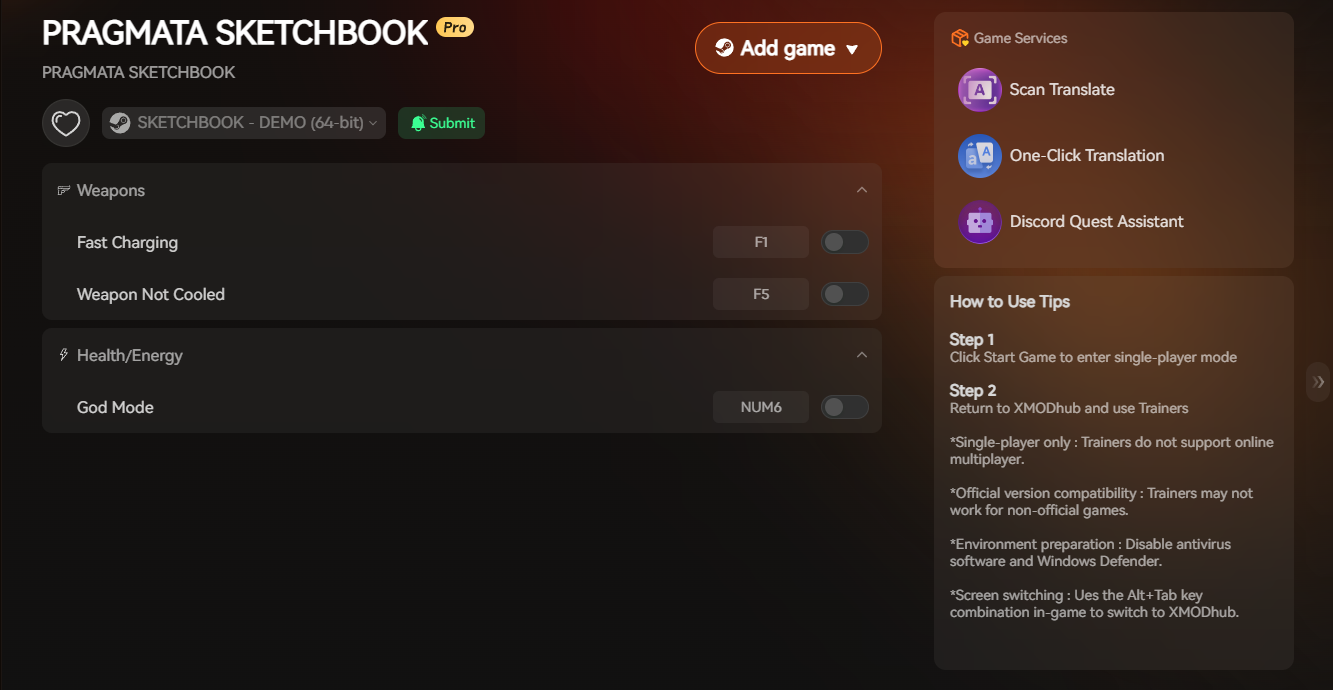
Stop wasting your time fixing broken game engines and start dominating the lunar colony entirely on your own terms.
Frequently Asked Questions (FAQ)
Q: Why does PRAGMATA recompile shaders every time I update my graphics driver?
A: This is a standard feature of DirectX 12. Every time you update your NVIDIA or AMD graphics drivers, the old shader language becomes obsolete. The RE Engine must wipe the old cache and compile a brand-new set of shaders tailored specifically to your new driver version to prevent graphical artifacting.
Q: Can I skip the shader compilation in PRAGMATA to load faster?
A: While some PC games allow you to click a button to skip compilation, doing so in PRAGMATA is highly discouraged. Skipping this step forces the CPU to compile the shaders in real-time during gameplay, which results in catastrophic, multi-second stuttering every time Diana uses a new ability or a new enemy spawns.
Q: Will verifying the integrity of game files on Steam fix the shader freeze?
A: Verifying your game files is a great troubleshooting step if your core installation is missing data. However, Steam does not always check the dynamic shader cache folder for corruption. Deleting the cache manually as detailed in Step 1 is significantly more effective for fixing this specific freeze.
Conclusion
Encountering a hard freeze during the PRAGMATA shader compilation is a frustrating roadblock, but it is completely fixable. By manually deleting the corrupted Steam cache, adjusting your configuration file to disable ray tracing, and ensuring the game has administrative privileges, you can force the RE Engine to complete its setup and finally step onto the moon.
However, if you are tired of troubleshooting and just want to enjoy the spectacular story, XMODhub is your definitive safety net.

As the leading PC gaming enhancement platform supporting over 5,000 titles, XMODhub provides the tools you need to bypass artificial difficulty and save your precious time. Whether you need an instant resource refill in PRAGMATA, max sharpness in Monster Hunter Wilds, or infinite health in Dragon’s Dogma 2, XMODhub ensures you play by your own rules.

I am a passionate gamer and writer at XMODhub, dedicated to bringing you the latest gaming news, tips, and insights.
Connect with me:
LinkedIn Profile ↗
 Nancy Miller