
 Catherine Hu
Quick Answer
To fix PRAGMATA stuttering, you must clear your DirectX shader cache, force the RE Engine to recompile its shaders from the main menu, and disable Windows Control Flow Guard (CFG) specifically for the game’s executable file. Additionally, disabling Ray Tracing and lowering Volumetric Fog prevents massive frame drops during combat.
>_ Editor’s Note: The RE Engine Shader Curse
“Anyone who played recent Capcom PC ports knows the dreaded shader compilation stutter. PRAGMATA pushes the RE Engine harder than ever before with complex zero-gravity physics and Diana’s dense volumetric particle effects. The stuttering happens because your CPU is desperately trying to translate brand-new visual assets on the fly while simultaneously running the combat logic.
I have tested these fixes extensively on both NVIDIA and AMD systems. While tweaking your cache helps, addressing the Windows Control Flow Guard is the true secret to unlocking a perfectly smooth framerate on the lunar surface.”
You are deep into Chapter 4 of PRAGMATA, exploring the eerie, zero-gravity remnants of the lunar commercial hub. You hear the mechanical whir of a heavily armored Lunar Centurion approaching. You ready Hugh’s kinetic shotgun, wait for the perfect parry window, and command Diana to deploy her holographic stasis field. But the exact microsecond her blue digital particles render on screen, the game completely freezes for two seconds. By the time the frame rate recovers, you are dead on the ground, having missed your counter-attack due to a massive stutter.
There is nothing more rage-inducing in a hardcore action game than dying to poor optimization rather than your own lack of skill. Capcom’s RE Engine is a visual masterpiece, delivering photorealistic textures and breathtaking lighting across the moon’s surface. However, it is also notoriously fragile on PC, heavily prone to shader compilation hitches, memory leaks, and traversal stutter. If your high-end gaming rig is choking during basic combat encounters in PRAGMATA, you are not alone, and your hardware is likely not the issue. This guide will walk you through the most advanced, community-tested solutions to completely eradicate the stuttering so you can finally enjoy the game as intended.
01. Why PRAGMATA Stutters Even on High-End PCs
Before you start tearing your PC apart or buying a new graphics card, it is crucial to understand why PRAGMATA behaves this way. The RE Engine streams data aggressively. When you sprint from an enclosed underground laboratory out into the massive, open expanse of the lunar craters, the engine dumps old textures and loads gigabytes of new environmental data into your GPU’s VRAM. If your VRAM fills up, the engine spills data over to your slower system RAM, causing a massive latency spike known as traversal stutter.
Read our full guide on Best PRAGMATA PC Settings 2026: Ultimate FPS Optimization Guide to see exactly which graphical sliders you should lower to prevent VRAM overflow without sacrificing visual quality.
Furthermore, PRAGMATA utilizes real-time shader compilation. Every time a completely new visual effect occurs, like a specific explosion or a new enemy spawn, your CPU must pause the game state for a fraction of a second to render it. We can minimize this by forcing the engine to compile everything before you even load your save file.
02. Step 1: Force Rebuild the Steam Shader Cache
Corrupted pre-compiled shaders are the leading cause of micro-stuttering during combat in PRAGMATA. Forcing Steam and your graphics driver to build a fresh cache is the very first troubleshooting step you must take.
- 1.Close PRAGMATA entirely.
- 2.Open your Windows Disk Cleanup utility. Select your primary drive (C:), check the box for DirectX Shader Cache, and click OK to delete the old files.
- 3.Open your Steam client. Navigate to Settings, then Downloads, and click Clear Download Cache.
- 4.Navigate to your Steam installation directory on your hard drive. Open the steamapps folder, then the shadercache folder. Locate the specific folder matching the App ID for PRAGMATA and delete it.
- 5.Launch PRAGMATA and do not skip the initial “Compiling Shaders” loading bar on the main menu. Let it reach 100% before clicking Continue.
03. Step 2: Disable Windows Control Flow Guard (CFG)
This is a hardcore, lesser-known PC optimization trick that works miracles for DirectX 12 games running on the RE Engine. Windows Control Flow Guard is a security feature that causes immense overhead and stuttering in heavily CPU-bound titles like PRAGMATA.
- 1.Press the Windows key and type Exploit Protection, then hit Enter.
- 2.Click on the Program settings tab at the top.
- 3.Click Add program to customize, then choose Choose exact file path.
- 4.Navigate to your PRAGMATA installation folder and select the main executable file.
- 5.Scroll down to Control flow guard (CFG). Check the Override system settings box and toggle the switch to Off.
- 6.Click Apply and restart your computer. You will immediately notice a significant reduction in traversal hitches.
04. Step 3: Edit the PRAGMATA Config File
If you are still experiencing FPS drops during intense firefights alongside Diana, you need to manually lower a specific setting that the in-game menu does not handle gracefully.
Navigate to your PRAGMATA installation directory and locate the file named pragmata_config.ini. Right-click this file and open it with Notepad.
Scroll through the text until you find the line labeled VolumetricFogQuality. Change its value to Low. Next, locate TargetPlatform and ensure it is set to DirectX12. Save the document and close Notepad. Volumetric fog rendering in the RE Engine consumes a massive amount of processing power, and lowering it in the raw configuration file stabilizes your frame times significantly when particle effects flood the screen.
05. The Lack of Console Commands in PRAGMATA
When dealing with poorly optimized PC ports, veteran players usually rely on native developer console commands to cap frame rates, adjust memory pools, or forcefully disable stutter-heavy effects. Unfortunately, you cannot do that here. Capcom has entirely locked down the RE Engine architecture for the retail release of PRAGMATA. There is no native command console available, and pressing the tilde key will do absolutely nothing.
You cannot simply type a command to flush your video memory or uncap your framerate limit. Attempting to force a debug menu open by injecting random scripts from outdated forums will trigger a fatal crash and could permanently corrupt your 60-hour save file. You are largely at the mercy of the engine’s background logic.
06. The Ultimate Workaround: XMODhub Framerate Stabilizer
We know how exhausting PC gaming can be when you spend more time fixing your game than actually playing it. Modifying registry keys, digging through hidden configuration files, and risking corrupted save data just to achieve a stable 60 FPS is an absolute nightmare. When you finally reach the climactic boss fight in Sector 9, the last thing you want is for a massive frame drop to ruin the emotional impact of the story.
If you are tired of battling the RE Engine’s poor optimization and lack of native commands, XMODhub is your ultimate PC gaming salvation. Instead of treating your computer like a science experiment, the XMODhub PC Client seamlessly bypasses the engine’s limitations.
How to Fix Your Game Instantly:
- Step 1:Download XMODhub: Navigate to our official website and securely download the lightweight desktop client.

- Step 2:Auto-Detect Game Path: Launch the application. XMODhub will automatically scan your system and locate your PRAGMATA installation directory.
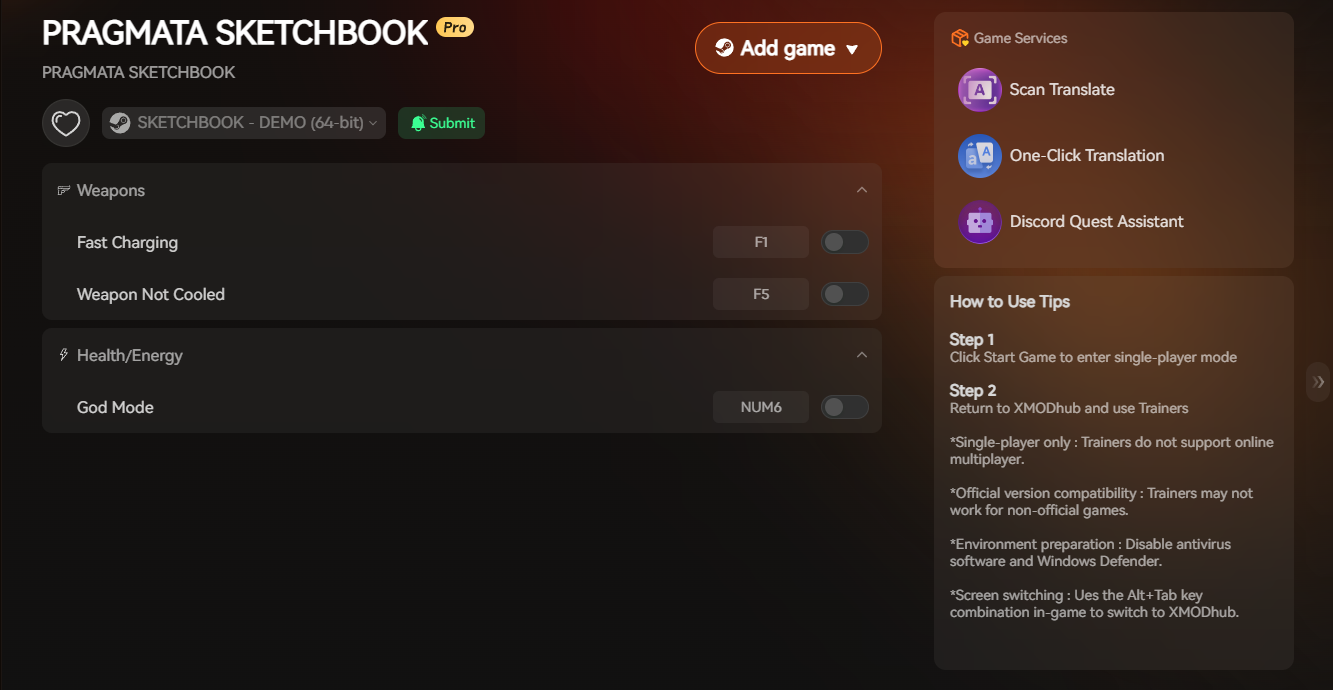
- Step 3:Toggle Features: Click Play to launch. Open the sleek overlay to activate the One-Click Framerate Stabilizer, or toggle infinite health and perfect dodge extenders.
Frequently Asked Questions (FAQ)
Q: Why does PRAGMATA stutter exclusively when Diana uses her holographic shields?
A: Diana’s holographic abilities utilize dense volumetric particle effects and dynamic lighting that immediately flood your graphics card’s rendering pipeline. If your GPU does not have enough bandwidth, the sudden spike causes a localized stutter. Lowering the Volumetric Quality in your configuration file drastically reduces the processing weight of her shield effects.
Q: Does installing PRAGMATA on a hard drive (HDD) cause traversal stutter?
A: Yes, absolutely. PRAGMATA requires a solid-state drive (SSD) to function correctly. The RE Engine is designed to rapidly stream high-resolution textures in and out of memory as you move across the moon. A traditional mechanical hard drive is simply too slow to feed the engine the required data, resulting in massive, multi-second freezes.
Q: Will verifying my Steam files fix the PRAGMATA FPS drops?
A: Verifying your game files via Steam can occasionally fix FPS drops if the cause is a corrupted installation file or a broken shader cache. However, if the stuttering is caused by Windows Control Flow Guard conflicts or simple hardware limitations, verifying your files will not solve the underlying performance issue.
Conclusion
Experiencing stuttering and FPS drops in PRAGMATA can ruin an otherwise breathtaking next-generation gaming experience. By taking the time to rebuild your shader cache, disabling the Windows Control Flow Guard to free up your CPU, and manually adjusting the demanding configuration files, you can force the RE Engine to run as smoothly as possible.
However, if you are exhausted from technical troubleshooting and just want to enjoy the story, XMODhub is the definitive answer. With native support for over 5,000 titles, we provide the tools to customize your experience. Whether you need stabilization in PRAGMATA, or want to conquer RE Engine masterpieces likeDevil May Cry 5, and Monster Hunter Wilds, XMODhub gives you the power back.

I am a passionate gamer and writer at XMODhub, dedicated to bringing you the latest gaming news, tips, and insights.
Connect with me:
LinkedIn Profile ↗

Thanks for breaking down the shader compilation issue so clearly—especially the part about disabling Windows CFG for the game executable. I’ve been dealing with that stutter since day one, and it’s great to know it’s not just my system. The tip about recompiling shaders from the main menu is a game-changer, and I’ll definitely try that next time I hit the lunar hub. Your explanation of how the RE Engine handles zero-gravity physics and volumetric effects really helps put the performance issues into perspective.