Nancy Miller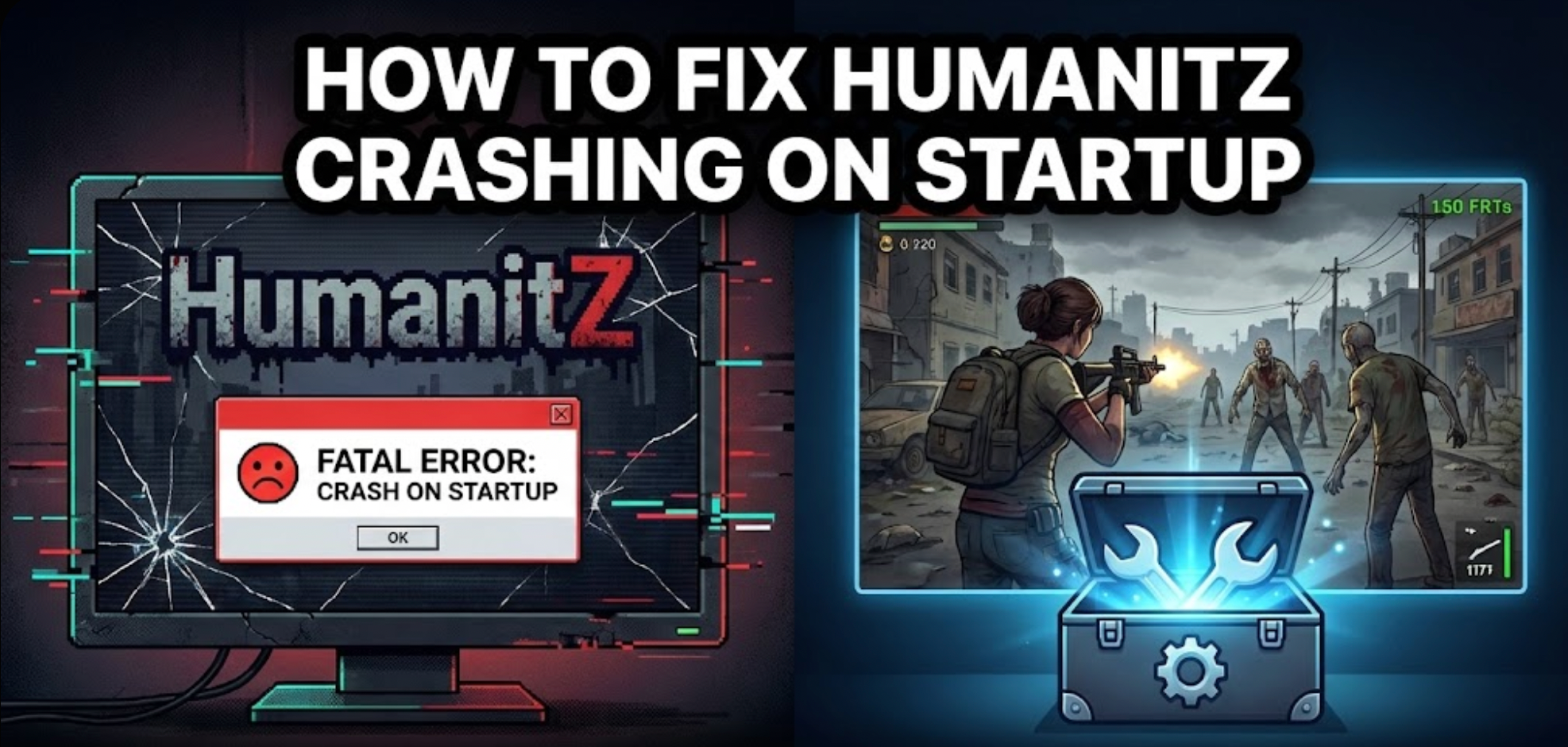
You have waited months for HumanitZ to finally drop into Early Access. You pre-loaded the files, cleared your schedule for a weekend of top-down zombie survival, click “Play,” and… nothing. A spinning cursor, a black screen, and then back to the desktop. Or worse, the dreaded “Unreal Engine Crash Reporter” pops up.
Launch issues in Early Access titles are frustrating, but they are rarely unfixable. Whether you are facing a black screen after the intro logo, random crashes to desktop (CTD) while driving, missing C++ DLL files, or unplayable frame rates, this guide covers the most effective, community-tested solutions to get you into the apocalypse.
You may also like: HumanitZ Cheat Engine Table vs. XMODhub Trainer: Best Free Alternative (2026)
Editor’s View: The “Early Access” Curse
“I remember trying to launch open-world survival games like Project Zomboid or 7 Days to Die in their early alpha days. It was often a nightmare of errors and black screens. I almost refunded them multiple times.”
“Before you give up on HumanitZ, realize that as an Early Access title running on the complex Unreal Engine, 90% of these startup crashes are caused by three simple things: corrupted downloads from frequent small patches, outdated C++ runtime libraries, or aggressive overlay conflicts. I’ve tested the methods below on my own rig, and Method 2 (C++ updates) was the one that finally stopped the ‘Fatal Error’ crashes for me.”
— Catherine Hu, Lead Editor at XMODhub
Check First: HumanitZ System Requirements (Official)
Before debugging, ensure your PC can actually run the game. Running an open-world Unreal Engine game on below-minimum specs is the most common cause of “silent crashes”.
| Component | Minimum Requirements | Recommended Specs |
|---|---|---|
| OS | Windows 10 (64-bit) | Windows 10 / 11 (64-bit) |
| CPU | Intel Core i5-4460 / AMD FX-6300 | Intel Core i7-8700K / Ryzen 5 3600X |
| RAM | 8 GB RAM | 16 GB RAM |
| GPU | NVIDIA GTX 960 (4GB) / AMD R9 280 | RTX 2060 SUPER / RX 5700 XT |
| Storage | 20 GB available (SSD recommended) | 20 GB available (NVMe SSD) |
Method 1: Verify Game Files (Steam)
Since HumanitZ receives frequent updates in Early Access, files often get corrupted during the download process, leading to immediate crashes.
- Right-click HumanitZ in your Steam Library.
- Select Properties > Installed Files.
- Click “Verify integrity of game files”.
- Wait for the process to finish. Steam will automatically find and re-download any broken or missing files.
Method 2: Update Drivers & C++ Redistributables
HumanitZ runs on the Unreal Engine, which is extremely sensitive to outdated software environments. This is the most likely fix for generic “Fatal Error” pop-ups.
- GPU Drivers: Update your NVIDIA (via GeForce Experience) or AMD (via Adrenalin) drivers to the absolute latest “Game Ready” version.
- Visual C++ All-in-One (Crucial): If you get errors like
MSVCP140.dllmissing, download the “All-in-One” pack for Visual Studio 2015-2022 from Microsoft’s official site. Install both the x86 and x64 versions.
Method 3: Fix Black Screen & Overlay Issues
If you hear menu audio but see a black screen, or the game closes instantly after the developer logo, it’s likely a conflict with background apps.
• Disable Overlays: Temporarily turn off Steam Overlay, Discord Overlay, and NVIDIA ShadowPlay/Overlay.
• Fullscreen Optimization: Navigate to the game installation folder. Right-click HumanitZ.exe > Properties > Compatibility tab > Check “Disable fullscreen optimizations”. Apply and retry.
Method 4: Common Error Codes (Fatal Error / Save Crash / DX12)
-dx11 or -d3d11 to force a more stable rendering mode.Method 5: Fix Low FPS & Stuttering in HumanitZ
• Install on SSD (Mandatory): Running HumanitZ on an old HDD will cause massive stuttering.
• Lower Shadows/Foliage: These settings consume the most GPU power. Set to Medium or Low for an FPS boost.
• Enable Upscaling: Turn on DLSS (NVIDIA) or FSR (AMD) to “Quality” or “Balanced” mode.
The Workaround: Skip Laggy Areas with XMODhub
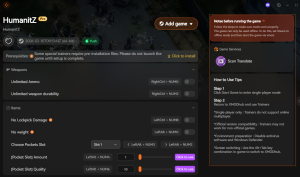
• Game Speed Control (Speedhack): Slow down to 0.8x during high-load driving to give your CPU breathing room and prevent spike crashes.
• Save Manager: XMODhub can help manage backups before entering dangerous areas, protecting hours of survival progress from save corruption.
FAQ
Q: Does HumanitZ support Windows 7 or 8?
A: Officially, no. The minimum requirement is Windows 10 (64-bit).
Q: Will reinstalling the game fix the crash?
A: Reinstalling is a last resort. Always try “Verifying Integrity” (Method 1) first.
Q: Are developers fixing these crashes?
A: Yes, HumanitZ is in active Early Access development with frequent patches.

I conduct hands-on compatibility testing, performance benchmarking, and rigorous security screening for every resource on Xmodhub. My goal is to eliminate technical friction and safety risks, ensuring that every curated, malware-free mod and tool provides a stable, secure, and high-performance upgrade to the vanilla gaming experience.


 Catherine Hu