Catherine Hu
Editor’s View: The “UE5” Reality Check
“I remember trying to launch Styx: Blades of Greed on release morning. It crashed three times before the main menu even appeared. I almost refunded it.
Before you give up, realize that 90% of these crashes are caused by the game’s engine (Unreal Engine 5) conflicting with outdated drivers or missing C++ libraries. I’ve tested the methods below on my own rig (RTX 4070 / Win 11), and Method 2 (updating C++) was the one that finally solved the startup crash for me.”
You have plotted the perfect heist, pre-loaded the files, and are ready to sneak into the Elven Citadel. You click “Play,” and… nothing. Or worse, a cryptic “LowLevelFatalError” pops up just as the intro cutscene starts.
Launch day issues in Unreal Engine 5 games like Styx: Blades of Greed are frustrating, but they are rarely unfixable. Whether you are facing a black screen, random crashes to desktop (CTD), or unplayable frame rates due to shader compilation, this guide covers the most effective solutions to get you back into the shadows.
You may also like:
Styx: Blades of Greed Cheat Engine Table vs. XMODhub Trainer: Best Free Alternative (2026)
Check First: Styx: Blades of Greed System Requirements
Before debugging, ensure your PC can actually run the game. Trying to run a UE5 title like Styx on an HDD or with insufficient VRAM is the most common cause of “silent crashes”.
| Component | Minimum Requirements | Recommended Specifications |
|---|---|---|
| OS | Windows 10 (64-bit) v22H2 | Windows 11 (64-bit) |
| CPU | Intel Core i5-8400 / Ryzen 5 2600 | Intel Core i7-10700K / Ryzen 7 5800X |
| RAM | 12 GB RAM | 16 GB RAM (Dual Channel) |
| GPU | GTX 1070 (8GB) / RX 5600 XT | RTX 3070 / RX 6700 XT |
| Storage | 40 GB SSD (Required) | NVMe M.2 SSD |
Method 1: Verify Game Files
Corrupted download chunks are the #1 cause of Styx: Blades of Greed crashing on startup.
For Steam Users:
- Right-click Styx: Blades of Greed in your Library.
- Select Properties > Installed Files.
- Click “Verify integrity of game files”.
- Wait for the process to finish (it usually re-downloads 1-2 corrupted files).
For Epic Games Users:
- Go to Library, click the three dots (…) on the game card.
- Select Manage > Verify.
Method 2: Update Drivers & C++ Redistributables
Styx runs on Unreal Engine 5, which strictly requires updated software environments. If you get errors about missing .dll files, this is the fix.
- GPU Drivers: Update your NVIDIA (Game Ready Driver) or AMD (Adrenalin) drivers to the latest version. Note: Clean install using DDU is recommended if you have persistent crashes.
- Visual C++ All-in-One: If you get errors like
MSVCP140.dll missingorVCRUNTIME140.dll not found, you need to reinstall the Microsoft Visual C++ Redistributables 2015-2022 (install both x86 and x64 versions). - DirectX: Ensure DirectX 12 is fully updated via Windows Update.
Method 3: Fix Black Screen & Overlay Issues
If you hear the goblin sneaking sound effects but see a black screen, it is likely a conflict with background apps.
Disable Overlays:
Turn off Steam Overlay, Discord Overlay, and especially NVIDIA ShadowPlay. Styx’s engine often dislikes being “hooked” by recording software on startup.
Fullscreen Optimization:
- Right-click
StyxBoG.exefile > Properties. - Go to the Compatibility tab.
- Check “Disable fullscreen optimizations”.
- Check “Run this program as an administrator”.
Method 4: Common Error Codes & Fixes
Here are solutions for the most common error messages players are reporting:
“LowLevelFatalError [File:Unknown]”
- Cause: Usually a GPU timeout or DX12 instability.
- Fix: Cap your FPS to 60 in the NVIDIA Control Panel before launching the game to reduce GPU load.
“DX12 is not supported on your system”
- Fix: Right-click the game in Steam > Properties > Launch Options. Type
-d3d11or-dx11to force the game to run in DirectX 11 mode (this may disable some lighting features like Lumen but is much more stable).
Error 0xc0000005 (Access Violation)
- Fix: Usually caused by strict antivirus. Whitelist the Styx installation folder in Windows Defender or Bitdefender.
Method 5: Fix Low FPS & Shader Stuttering
Is Styx running like a slideshow?
- Wait for Shaders: On the first launch, let the game sit at the menu for 5-10 minutes. UE5 needs to pre-compile shaders to avoid stuttering during gameplay.
- Lower Global Illumination: Set “Lumen” or “Global Illumination” to Medium. This is the biggest performance killer in UE5.
- Enable DLSS/FSR: Turn on Upscaling to “Quality” or “Balanced” in the graphics settings.
The Workaround: Prevent Data Loss with XMODhub
Sometimes, Styx: Blades of Greed crashes not because of your PC, but because of unoptimized code in specific cutscenes. XMODhub offers unique tools to help bypass these technical hurdles:
- Save Manager: Automatically backup your save before entering a “danger zone” or starting a difficult heist, so you never lose your “Ghost” run progress due to a random crash.
- Speedhack: Use the trainer to speed up (2x) to skip boring, unoptimized cutscenes that might be causing GPU spikes.
How to Get Started with XMODhub
- Download & Install: Get the latest version of the XMODhub Client (Official Site).

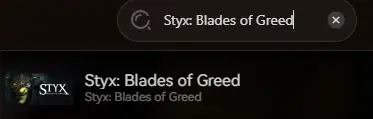
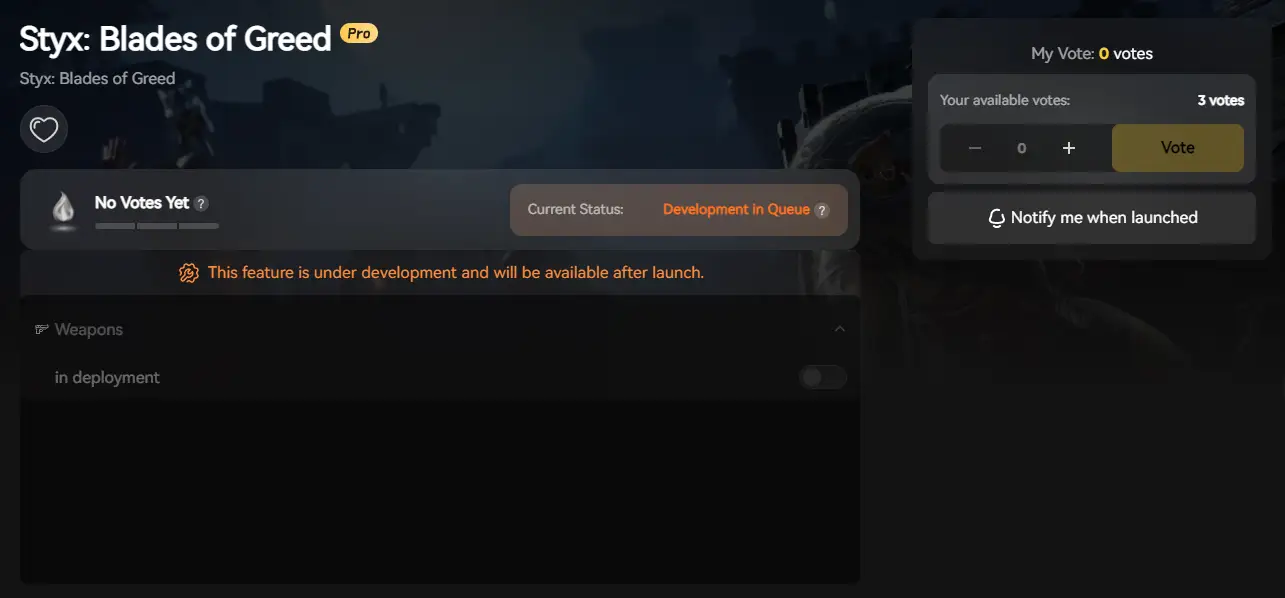
- Auto-Detect: Launch the app. It will automatically scan your PC and locate Styx: Blades of Greed.
- Secure: Enable “Auto-Backup” in the Save Manager tab.
FAQ
Q: Does Styx: Blades of Greed support Windows 10?
Yes, but ensure you are on version 22H2 or newer. Older builds may cause compatibility errors with UE5’s Nanite system.
Q: Will reinstalling fix the crash?
Reinstalling should be your last resort. Try “Verifying Integrity” (Method 1) first, as it does the same thing but much faster.
Q: Why does the game crash when I alt-tab?
This is a known issue with “Exclusive Fullscreen” in UE5. Switch to “Borderless Window” mode in the video settings to fix it.
Conclusion
Launch issues are painful, but they are temporary. By verifying your files, updating your C++ libraries, and forcing DX11 if necessary, you should be able to fix the Styx: Blades of Greed crash on startup.
If the game is still suffering from poor optimization or Early Access bugs, XMODhub can help bridge the gap. Use Auto-Backups to secure your progress until the official patch arrives.
Don’t let bugs stop the heist. Play smarter.

I am a passionate gamer and writer at XMODhub, dedicated to bringing you the latest gaming news, tips, and insights.
Connect with me:
LinkedIn Profile ↗


 Nancy Miller